Identifying Out-of-Compliance Conditions
Axon Performance provides supervisors with tools to quickly identify when officers or squads are out of compliance with agency policies. Indicators on the Squad Dashboard and Officer Page highlight non-compliant metrics, allowing supervisors to monitor performance and take corrective actions if necessary. When reviewing out-of-compliance information, keep the following in mind:
- Time zone adjustments: Compliance metrics are displayed according to your time zone, as set in your Axon Evidence profile, to ensure accurate tracking.
- Export compliance data: For reporting purposes, you can export the compliance data shown on the dashboard. See Exporting Performance Information for more details.
Watch this video to learn how to access and understand the weekly compliance report.
Identify out-of-compliance conditions on the squad dashboard
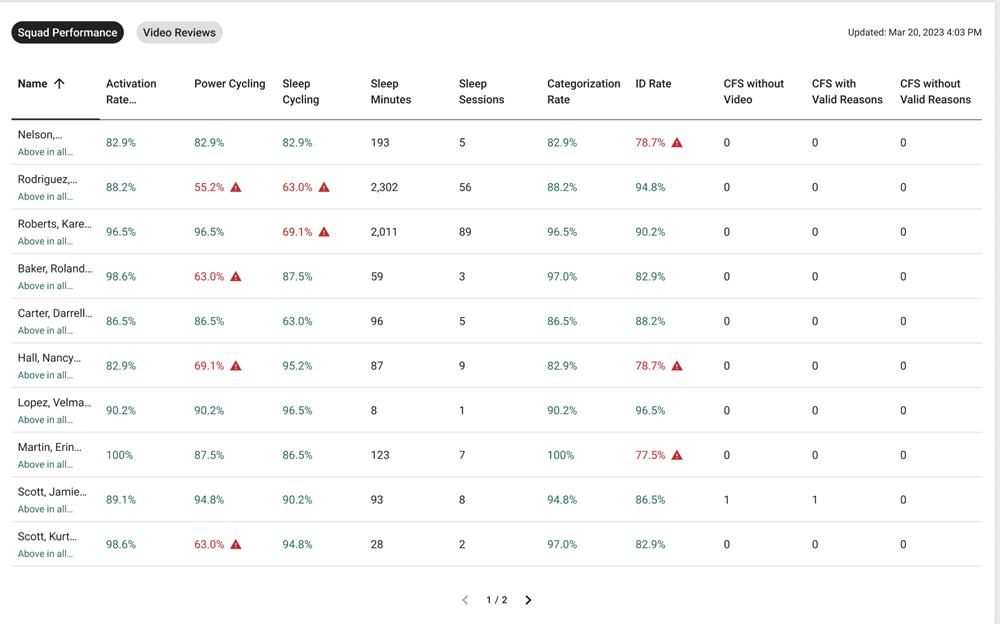
The Squad Performance section indicates out-of-compliance metrics for each officer. For any officer who is not meeting policy standards, the non-compliant metrics appear in red text for easy identification.
Watch this video to learn how to identify out of compliance conditions.
- Locate non-compliant officers: In the Squad Performance section of the Squad Dashboard, look for red text indicating non-compliant metrics for individual officers. This provides a quick summary of how many metrics are out of compliance.
- View officer-specific details: Select the officer’s name to open their Officer Page. Here, the Officer Metrics section provides a breakdown of each metric, highlighting those that do not meet agency standards.
- Review compliance details:
In the Officer Metrics section, examine each metric to determine which policy requirements have not been met.
Taking corrective action
If an officer is identified as out of compliance, supervisors have several options for addressing the issue:
- Create a new policy review: On the Officer Page, select New Policy Review to document a review specifically addressing the out-of-compliance condition. This can help assess if the officer’s actions align with agency expectations and provide a record of corrective steps.
- Enable remote CAD activation:
To proactively prevent future non-compliance, consider enabling the Remote CAD Activation feature. This feature delivers automatic notifications to BWCs, triggering recording when an officer is assigned to a call requiring BWC activation or enters a predefined geographical radius around a call-for-service.
- For more information on setting up Remote CAD Activation, reach out to your Axon account manager.


