Clips in Review Mode
The Evidence Clips feature in Axon Evidence Local allows users to create and manage clips—continuous segments derived from longer audio or video evidence files. These clips can also be extracted as standalone evidence, supporting workflows such as sharing, internal review, or public records requests.
Permissions
The following permissions are required to use clips:
- Create and edit clips and markers
- Delete clips and markers
Create a clip
- Sign in to your Axon Evidence Local account.
- Search for the evidence you want to mark.
For help searching, see Search for Evidence – Evidence Local. - Select the evidence to open it in Review Mode.
- Use the media player controls to locate the point in the video where you want to add a clip.
- Select the Clips & Markers tab.
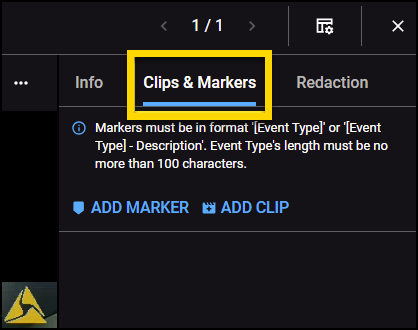
- Select Add Clip. The current position in the playback is automatically entered in the timestamp box.
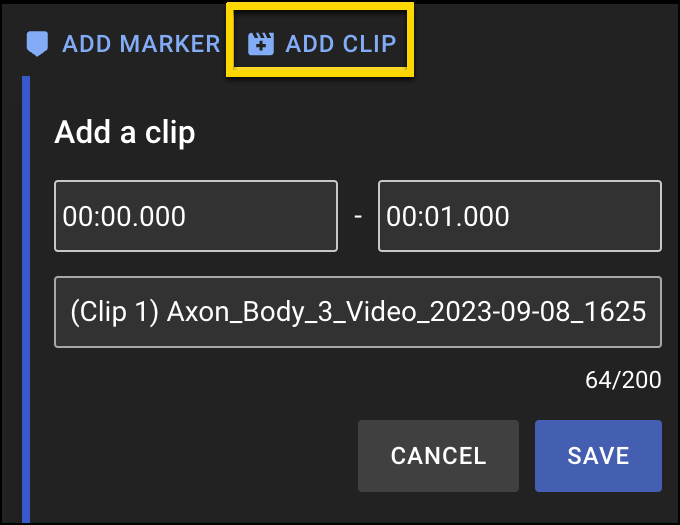
- Enter a description or edit the default text:
(Clip 1) - [File name or metadata details] - Select Save. The clip is added to the file and appears in the clips list.
Edit a clip
- Open the video file in Review Mode.
- Select the Clips & Markers tab.
- Locate the clipr you want to edit from the list.
- Select More actions (...) on the marker tile.
- Select Edit.
- Edit the description.
- Select Save.
Extract a clip
Clips can be extracted to create a new standalone piece of evidence.
- Open the video file in Review Mode.
- Select the Clips & Markers tab.
- Locate the clip you want to extract from the list.
- Select More actions (...) on the clip tile.
- Select Extract. The extraction starts. A new Extractions dropdown appears on the clip tile.
- Select Extractions to view the extraction progress.
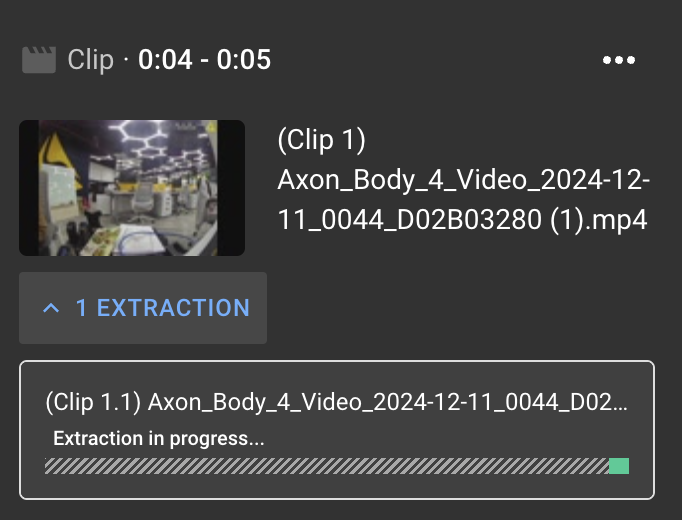
After the extraction is complete, it will appear in the list under the Extractions dropdown. Select Download to save the extracted clip as a separate file.
Delete a clip
- Open the video file in Review Mode.
- Select the Clips & Markers tab.
- Locate the clip you want to delete from the list.
- Select More actions (...) on the clip tile.
- Select Delete.
- On the confirmation message, select Delete to confirm.
Download a clip
A clip can be downloaded after the extraction is complete.
- Open the video file in Review Mode.
- Select Download. On the dialog box, enter the required details and provide a password to protect the file, then proceed with the extraction process.
- Go to the to the evidence search page, select the Exported Evidence tab, and download the file you created.


