ALPR Sharing
ALPR Sharing lets your agency (as a donor) give a specific partner agency (a recipient) search access into your own ALPR data - without copying anything anywhere. Sharing is always donor-initiated: your agency invites a partner to receive access, and there is no way for another agency to request or pull your data. It's also mutual: even after you send an invite, the recipient must separately review and accept before any data flows. Nothing is shared by default, and either side can revoke a relationship at any time.
In practice, this means your data never leaves your tenant. A partner agency's authorized users query directly into your existing ALPR data, still governed by your own retention policy - nothing is replicated or centralized anywhere else.
Setting up sharing
Sharing is configured per-agency in Fusus, under LPR > Sharing Management.
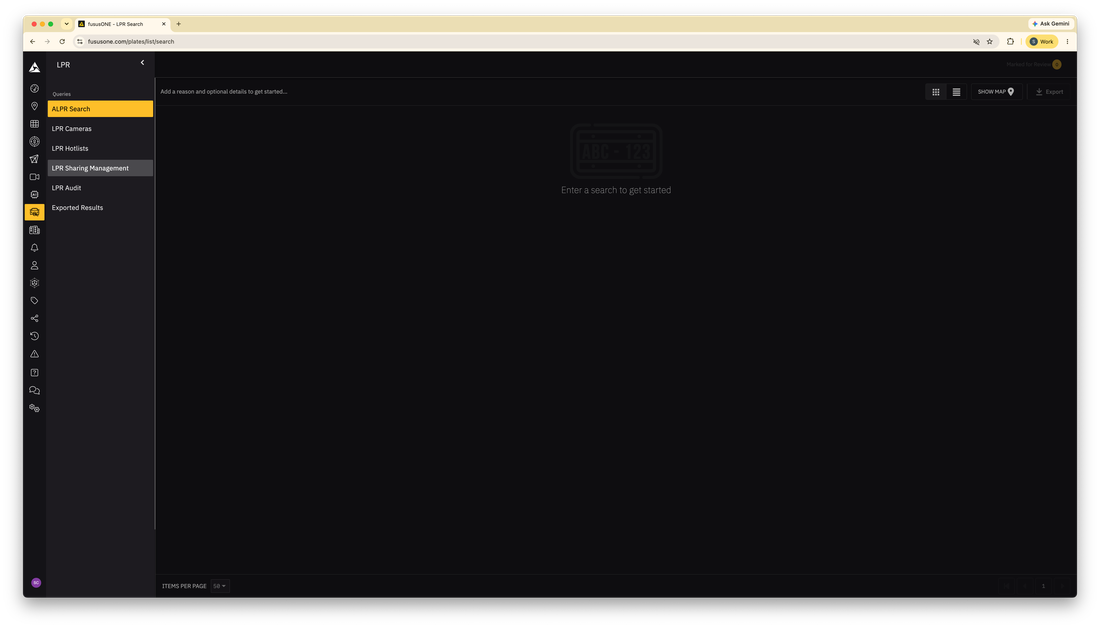
LPR left-navigation menu with Sharing Management highlighted.
1. Discoverability
Before any agency can invite you (or you can invite them), your agency must be discoverable. On the Discover Sharing Partners page, choose which states your agency is discoverable in - if no states are selected, your agency isn't discoverable anywhere. Turning discoverability off never breaks a sharing relationship that's already in place.
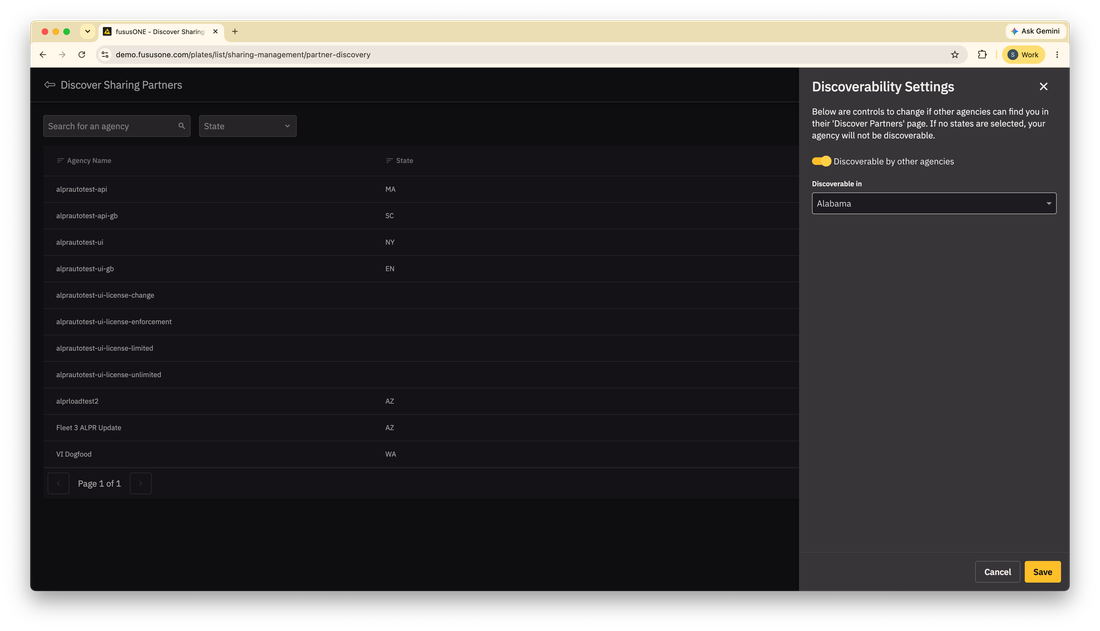
Global Sharing settings
Select Global Sharing settings in LPR Sharing Management to set the defaults for invites your agency sends. Settings are split into two tabs, Within my state and Out-of-state, so you can apply different defaults to each.
On each tab:
-
Allow sharing my data inside my state (or out of state) controls whether you can discover and invite agencies in that region at all.
-
Limit to Alert Only: the receiving agency sees only reads that match its own hotlists.
-
Require Full/Partial Plate Entry: the receiving agency can’t leave the plate field blank when searching.
-
Require Case Number: the receiving agency can’t leave the case number field blank when searching.
-
Limit by Device: only the devices you select are shared. These are defaults only. You can override them for each partner when you send an invite.
Warning: Turning off an Allow sharing toggle immediately revokes all active partnerships in that region and cancels pending invites. Changes on both tabs are saved together, so review both before selecting Save. You’ll be asked to confirm how many partnerships will be revoked. Every settings change and every revoke is recorded in the ALPR Data Sharing report.
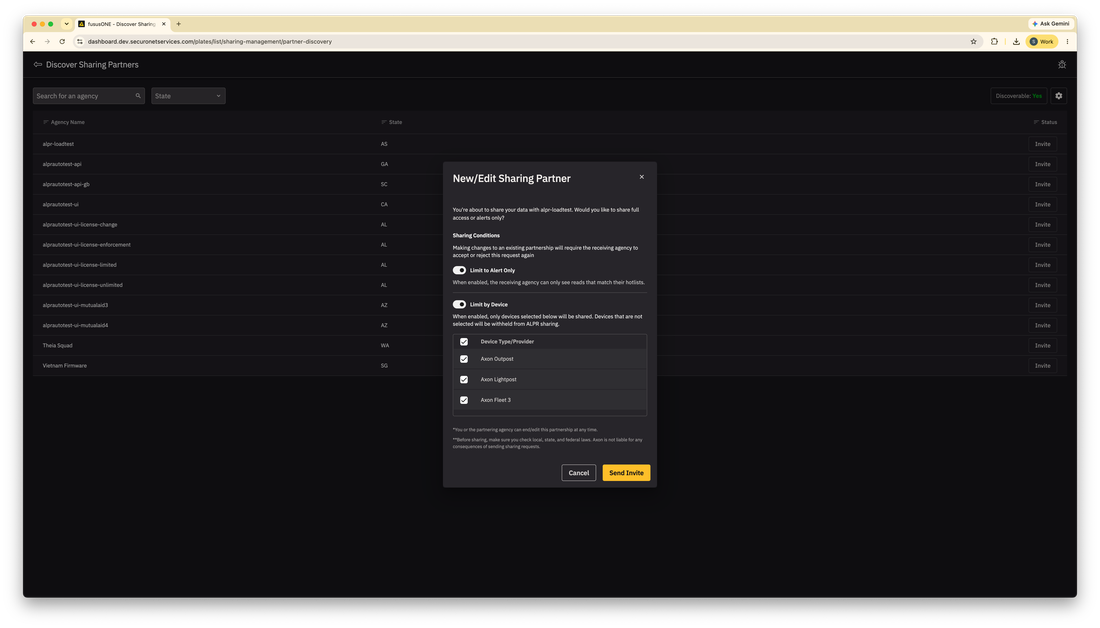
2. Sending a sharing invite
Search for a partner agency by name, or filter by state, then send an invite. These independent toggles control what's shared:
- Limit to Alert Only (on by default) - share only reads that match something on the recipient's own hotlist. Axon's platform brokers the match, so you never see what's on the recipient's hotlist.
- Limit by Device (off by default) - share only reads captured by selected Axon device types (Fleet 3, Outpost, Lightpost). When turned on, all device types are included until you uncheck specific ones.
- Require Full/Partial Plate Entry - partners must enter a full or partial plate in their search to see your data.
- Require Case Number - partners must enter a case number (at least 3 characters) in their search to see your data.
- If you've set defaults in Global Sharing Settings, new invites start with those values but can be overridden per invite if desired.
Leaving both off shares your full ALPR dataset with that partner, still subject to mandatory offense-category enforcement (see below).
3. Responding to an invite (recipient side)
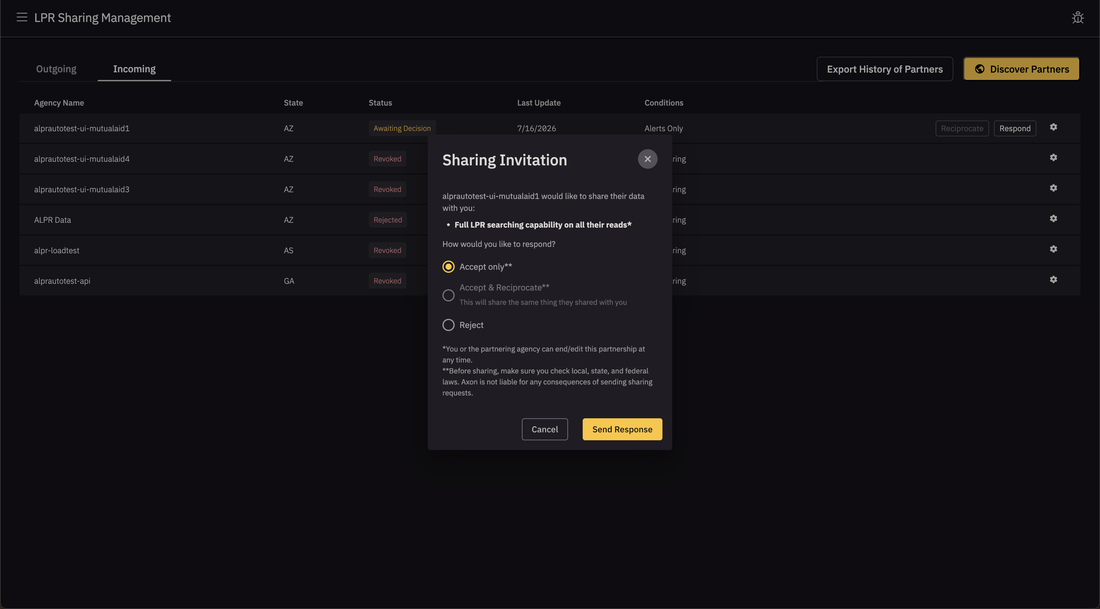
When your agency receives an invite, nothing is shared until you respond. Choose Accept only or Reject.
Note: the response modal also shows an "Accept & Reciprocate" option and a "Reciprocate" button elsewhere in Sharing Management - both are disabled placeholders for a future one-step reciprocal-sharing capability and aren't usable yet.
4. Managing existing relationships
The Outgoing and Incoming tabs list every sharing relationship by partner agency, state, status (Active, Awaiting Decision, Revoked), and a condition summary. Click into an active relationship to see exactly which conditions apply. Revoked relationships and canceled invites show their status but not their conditions.
To revoke a relationship: open it from the Outgoing or Incoming tab, select Revoke, and confirm. Either side can revoke an active relationship at any time; revoking takes effect immediately and is logged in ALPR Data Sharing as a Share Revoked (or Revoked by Partner) event. A revoked relationship stays visible in the tab - it isn't deleted, just marked Revoked. To see what conditions applied before it was revoked, check the ALPR Data Sharing report.
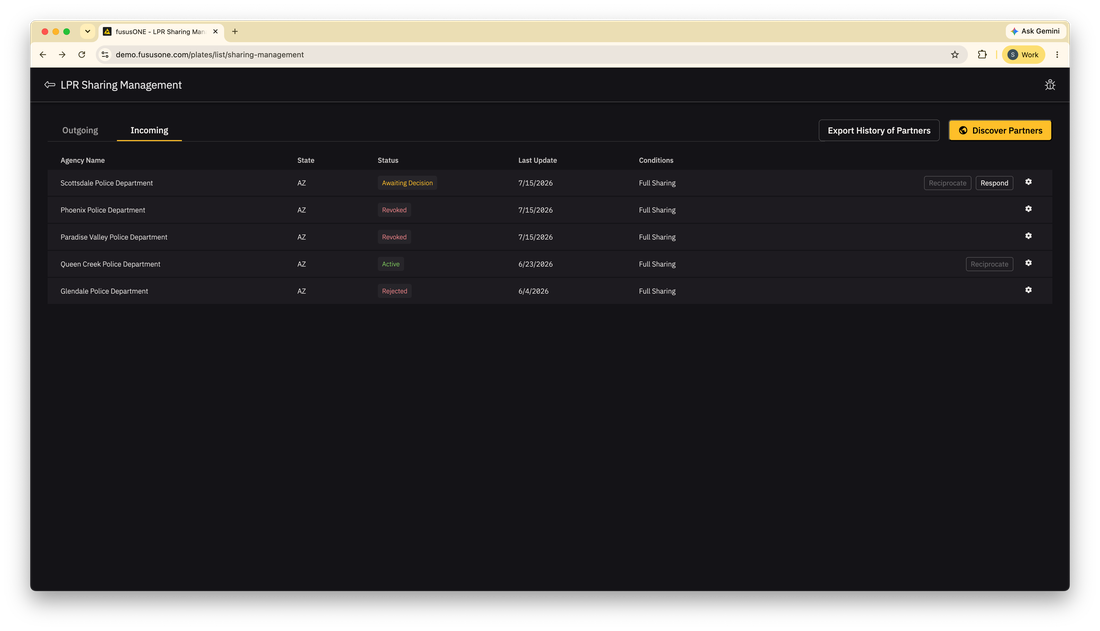
Incoming tab, showing relationship statuses for each partner agency.
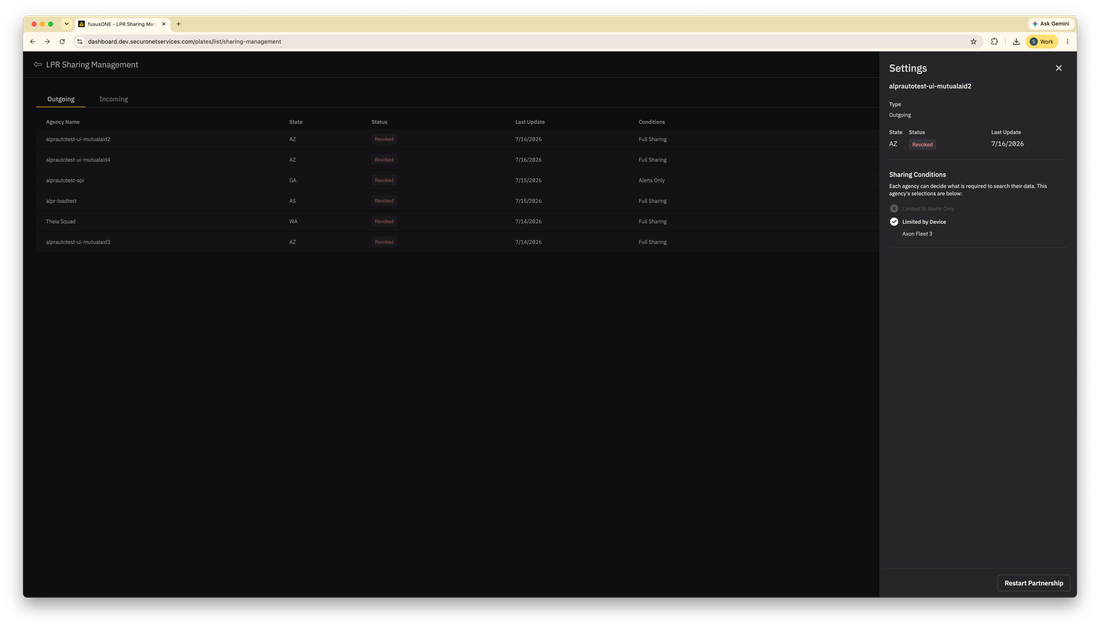
Relationship detail panel, showing the exact conditions that apply to an active relationship.
5. Notifications
Every sharing state change (invite sent, invite accepted, relationship revoked) sends an email to your agency's ALPR admins.
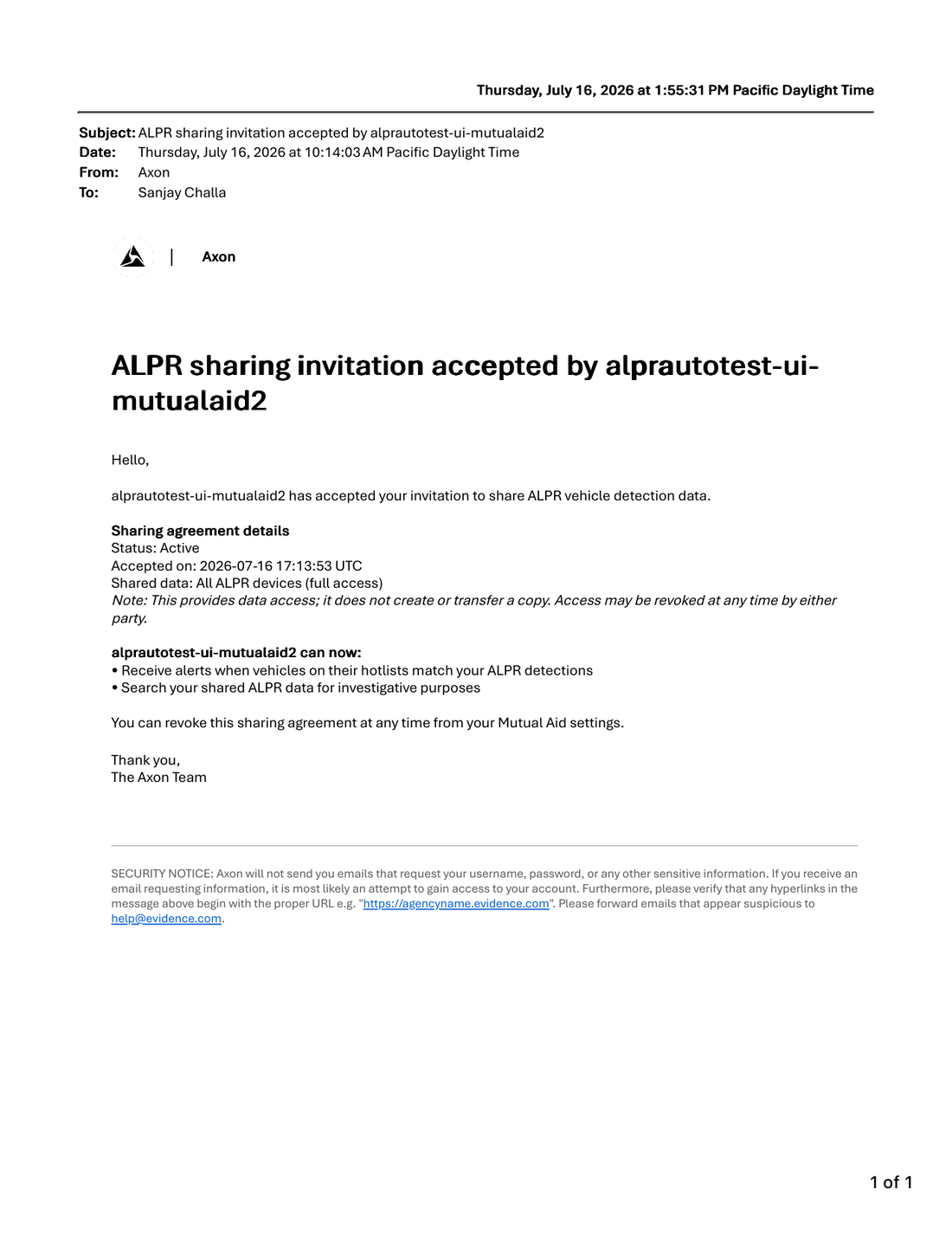
Searching shared data
Once a sharing relationship is active, on the ALPR Search page, turn on Include Shared Data to pull partner agencies' shared data into your results. This only works if your declared Offense Category matches one the donor agency has permitted - otherwise that donor's data is silently excluded. Results from shared data are marked with a small triangle share icon so you can tell them apart from your own agency's reads. Some partners require a plate or a case number before their data is included. If your search doesn't meet a partner's requirement, that partner's results aren't included.
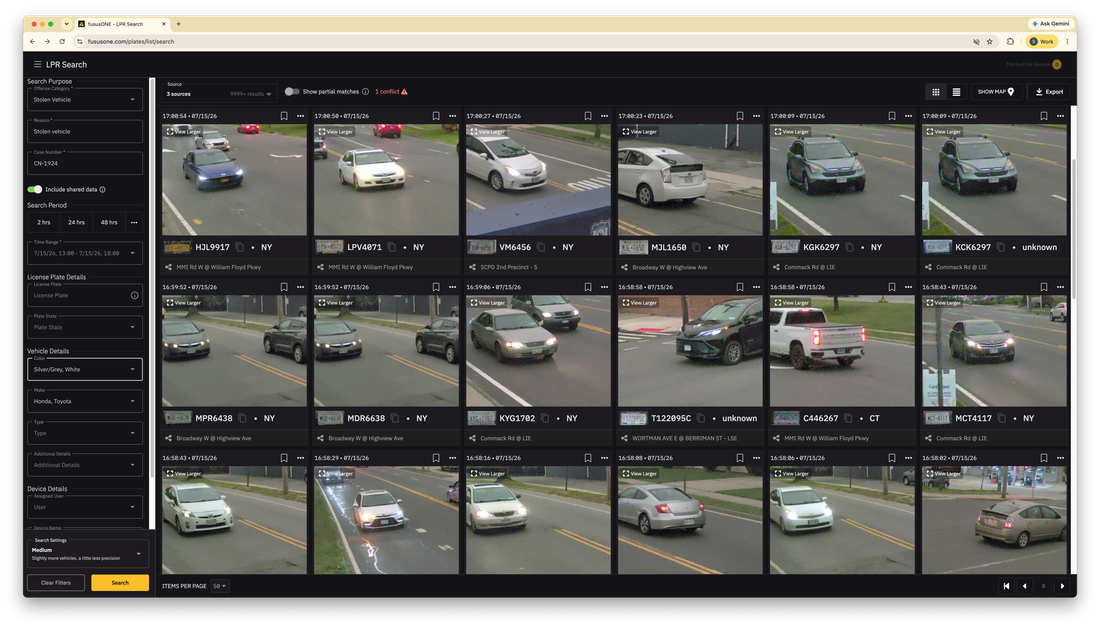
Full search behavior and field details live on ALPR Search.
Permission
To search shared data, or to receive alerts on shared data, a user needs the View Shared Data permission. By default, only ALPR admins have it. To grant it, go to Admin > Roles & Permissions in Axon Evidence, scroll to the ALPR section, and set View Shared Data to Allowed for the role.
Receiving alerts on shared data
If a partner agency shares ALPR data with you (Alert Only or Full Sharing), you can get a real-time hit alert when one of that partner's cameras reads a plate on one of your hotlists. Your hotlist is never shared with the partner. Alerts on shared data are turned on per hotlist and are off by default; see ALPR Hotlist Management for setup. Only users with the View Shared Data permission receive them, they're delivered as Fusus alerts only (no email, webhook or in-vehicle), and every interaction is logged in your audit trail and the partner agency's. Available in US1.
Mandatory offense-category enforcement
Every cross-agency search must declare an offense category. If a donor agency hasn't permitted that category, its data is automatically excluded from the results - the recipient never sees that it was withheld.
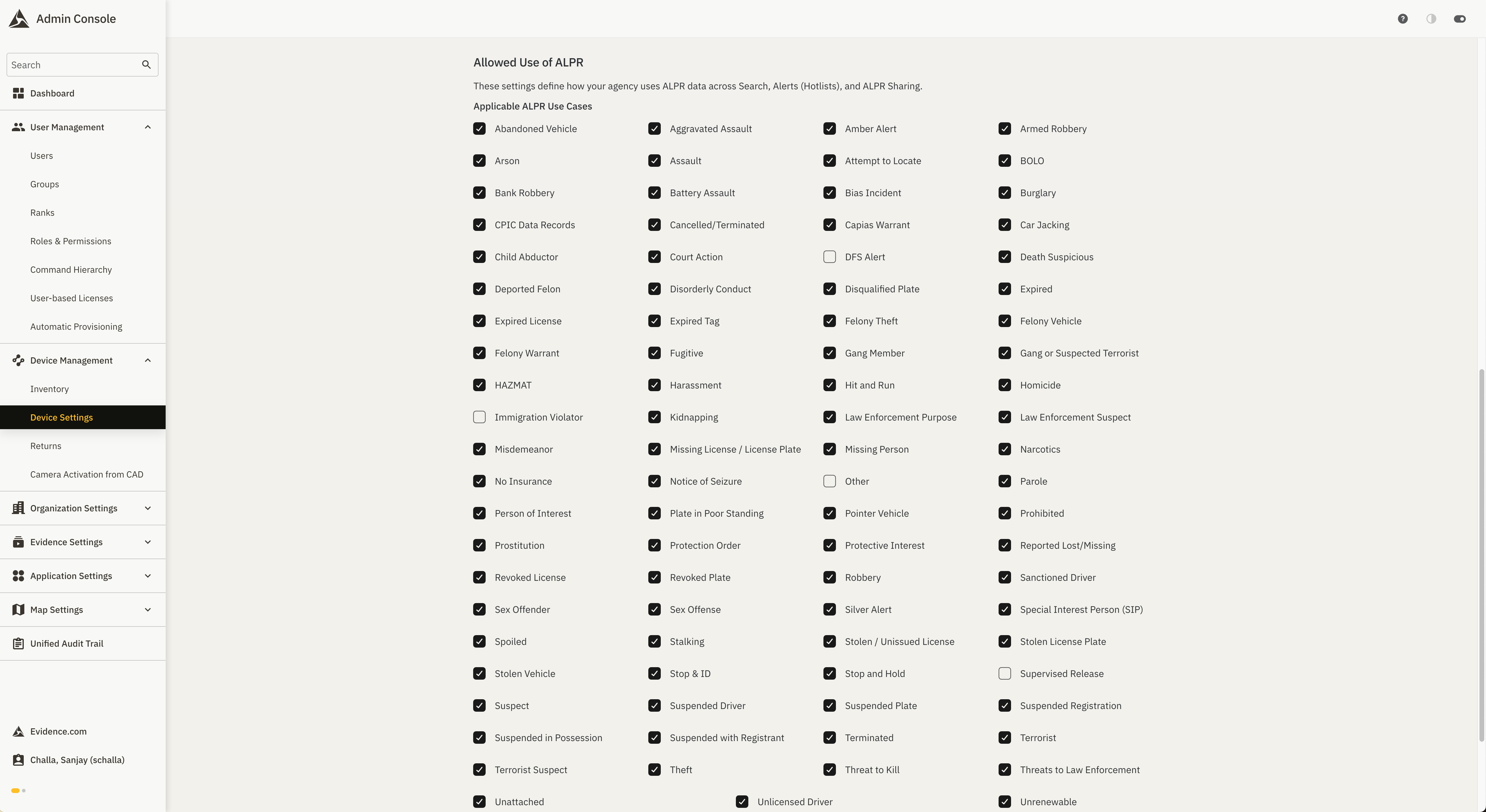
Agencies configure which offense categories are allowed for ALPR use - across Search, Alerts (Hotlists), and ALPR Sharing - in Axon Evidence, under Device Management > Device Settings > Allowed Use of ALPR.
Auditing sharing activity
Both agencies can review sharing-related activity via LPR > LPR Audit (requires the ALPR Administration permission). Three reports are relevant to sharing:
| Report | What it shows |
|---|---|
| Internal ALPR Activity | Your own users' searches, including which ones pulled in shared data (an "Includes Shared Data" flag, and which donor(s) were involved) |
| Network ALPR Activity | How partner agencies used data you've shared with them - who searched, their declared reason/case number/offense category, how many results came back and when a partner user opened a hit alert generated from your data |
| ALPR Data Sharing | The full history of a sharing relationship - invite sent, accepted, revoked, and who took each action |
Known limitation: ALPR Data Sharing's Device Scope and Data Conditions columns currently always read "All Devices" and "Full Sharing" regardless of what you actually configured on the invite (Limit to Alert Only, Limit by Device) - the report doesn't yet carry real per-relationship condition detail. Don't rely on that report to confirm what conditions are active on a relationship; use the relationship detail panel in Sharing Management (step 4 above) instead.
Known limitations
- When a partner requires a plate, searches with a blank plate field or only an asterisk don't return that partner's data.
- When a partner requires a case number, the case number must be at least 3 characters. Your agency's own case-number format rule doesn't apply to it.
- You can't yet manage multiple sharing invites at once (bulk accept/reject).
- There's no admin-facing way to see which offense categories a partner donor agency has permitted - if shared data seems to be missing, this is a common, currently un-diagnosable cause. Check the ALPR Search results page's Source filter for a "Shared" count to at least confirm whether any shared data came back at all.
- ALPR Sharing is not yet available to agencies in the CA1 region.
Frequently asked questions
Does ALPR Sharing copy my agency's data to the recipient?
No. The recipient's authorized users search directly into your existing data, which stays in your tenant under your own retention policy. Nothing is copied or centralized.
Can another agency request my data if I haven't shared with them?
No - there is no request mechanism. Sharing is donor-initiated only: an invite can only be sent by the agency that owns the data.
Can I search only specific shared cameras or devices?
There's no device-picker for a search today. In practice, ALPR searches are usually scoped by geographic area, which naturally limits which donor devices could match.
Can my agency show the public who has access to our shared ALPR data?
Yes - the Transparency Portal includes a sharing-disclosure view alongside existing retention-policy and usage disclosures.


