Body camera wifi networks
Use the Body Camera Wi-Fi Network page to pre-configure WPA2 Personal, and Enterprise Wi-Fi networks. In addition to managing agency-wide and user-assigned networks, administrators can also enable users to add and manage their own personal networks. Learn more about using personal networks at user guide for personal network management.
The Automatic Wi-Fi Upload feature enables cameras to automatically upload evidence over Wi-Fi when in proximity to a pre-configured network. The Automatic Wi-Fi Upload feature is available for all Axon Body 3 (AB3), Axon Body 4 (AB4), and Axon Body Workforce (ABW) customers, and is not dependent on any unique licenses.
Axon Evidence administrators can enable the Automatic Wi-Fi Upload feature and workflow by setting up authorized Wi-Fi access points and then enabling the AB3 and AB4 Automatic Wi-Fi Upload setting.
All agency AB3 and AB4 cameras need to be connected to Evidence.com to download any additions, modifications, or deletions to the network list on the Body Camera Wi-Fi Networks page.
Watch this video for additional information about configuring these settings.
Overview of body camera network management
The Body Camera Wi-Fi Networks page features two distinct tabs for managing both agency-wide and user-assigned networks. This section describes how to manage Wi-Fi settings across your organization.
Access the Body Camera Wi-Fi Networks page
- Sign into Axon Evidence.
- Select Admin, then under Devices and Applications select Body Camera Wi-Fi Networks to open the Body Camera Wi-Fi Networks page.
Find your way around
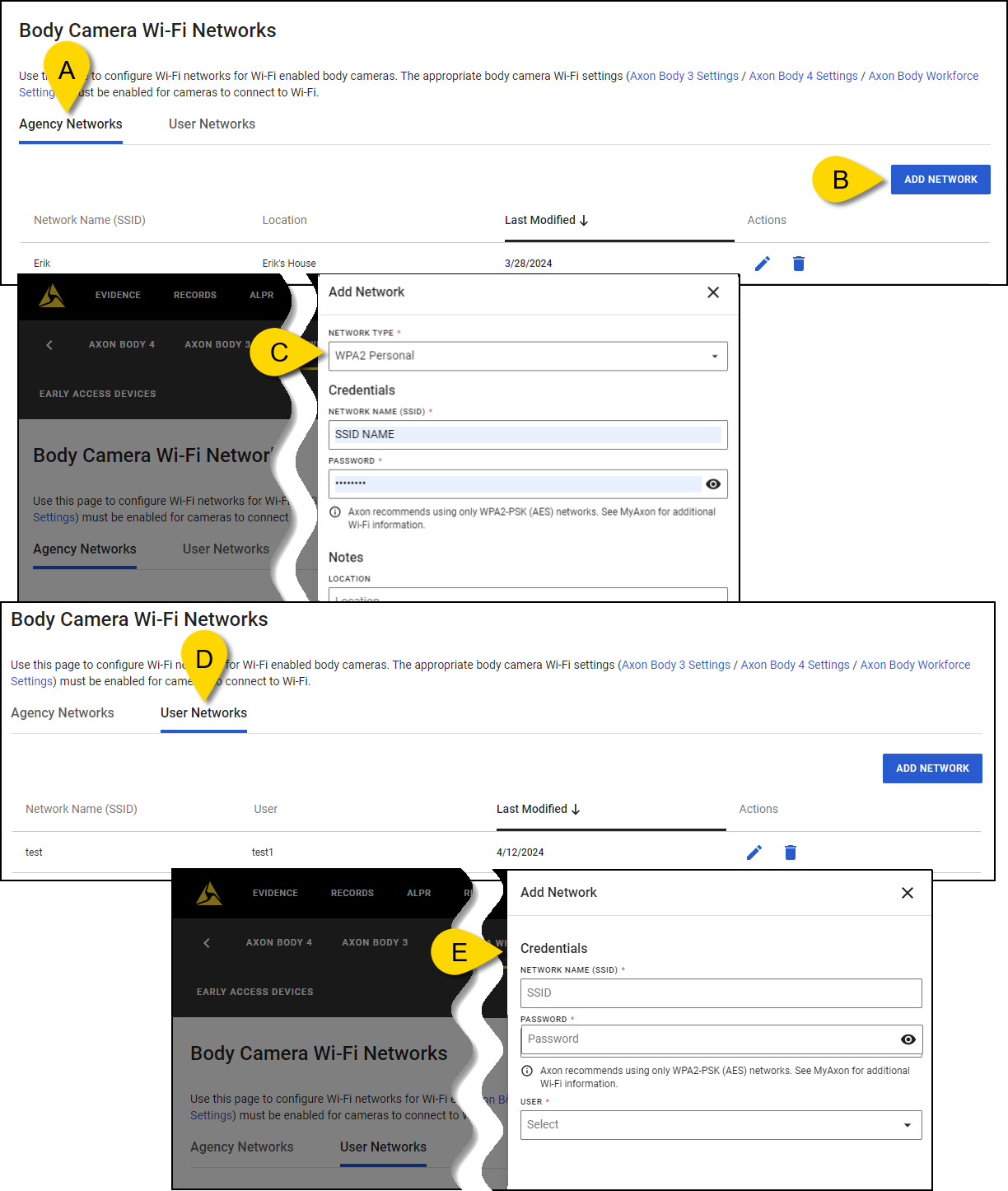
- Agency Networks tab – Administrators can view and manage all networks within the organization that all body cameras can access.
- Add Network – Add new networks under both the Agency Networks and User Networks tab.
- Add Network pane for agency networks – Agency administrators can add BWC networks to Axon Evidence.
- User Networks tab – Administrators can view and manage networks assigned to individual users within the organization and allow users to add their personal networks.
- Add Network pane for user networks – Similar to the Add Network pane for agency networks, this includes an additional User field to assign networks to specific users.
Add a body camera Wi-Fi network
- Sign into Axon Evidence.
- Select Admin, then under Devices and Applications select Body Camera Wi-Fi Networks to open the Body Camera Wi-Fi Networks page.
- Select the Agency Networks or User Networks tab as appropriate.
- Select Add Network to open the Add Network pane.
- Enter the network details:
- For Agency Networks – For configuration instructions, refer to the Body Camera Wi-Fi Quick Start Guide.
- For User Networks – Enter the Network Name (SSID), Password for the network, and select a User to assign the network. Networks added by administrators will appear in the 'My Networks' tab within the users 'My Accounts' section. Similarly, any networks added by users will be visible to administrators on this page.
- Select Save. Add more networks as needed. Once all the network information is saved, you can go back and modify existing networks or delete existing networks.
Edit a body camera Wi-Fi network
- On the menu bar, select Admin, then Body Camera Wi-Fi Networks.
- Select the Agency Networks or User Networks tab as appropriate.
- Find the network you want to edit and select Edit Network (pencil).
- Edit the Network Name (SSID), Password, Location, or User information as needed. The available fields will vary depending on whether you are editing under the Agency Networks or User Networks tab. Passwords are not displayed during entry, if you need to edit a password you must re-enter it entirely.
- Select Save.
Delete a body camera Wi-Fi network
- On the menu bar, select Admin, then Body Camera Wi-Fi Networks.
- Select the Agency Networks or User Networks tab as appropriate.
- Find the network and select Delete Network
- In the confirmation window, select Delete (trash can) to confirm.
Enable user permissions for wifi networks
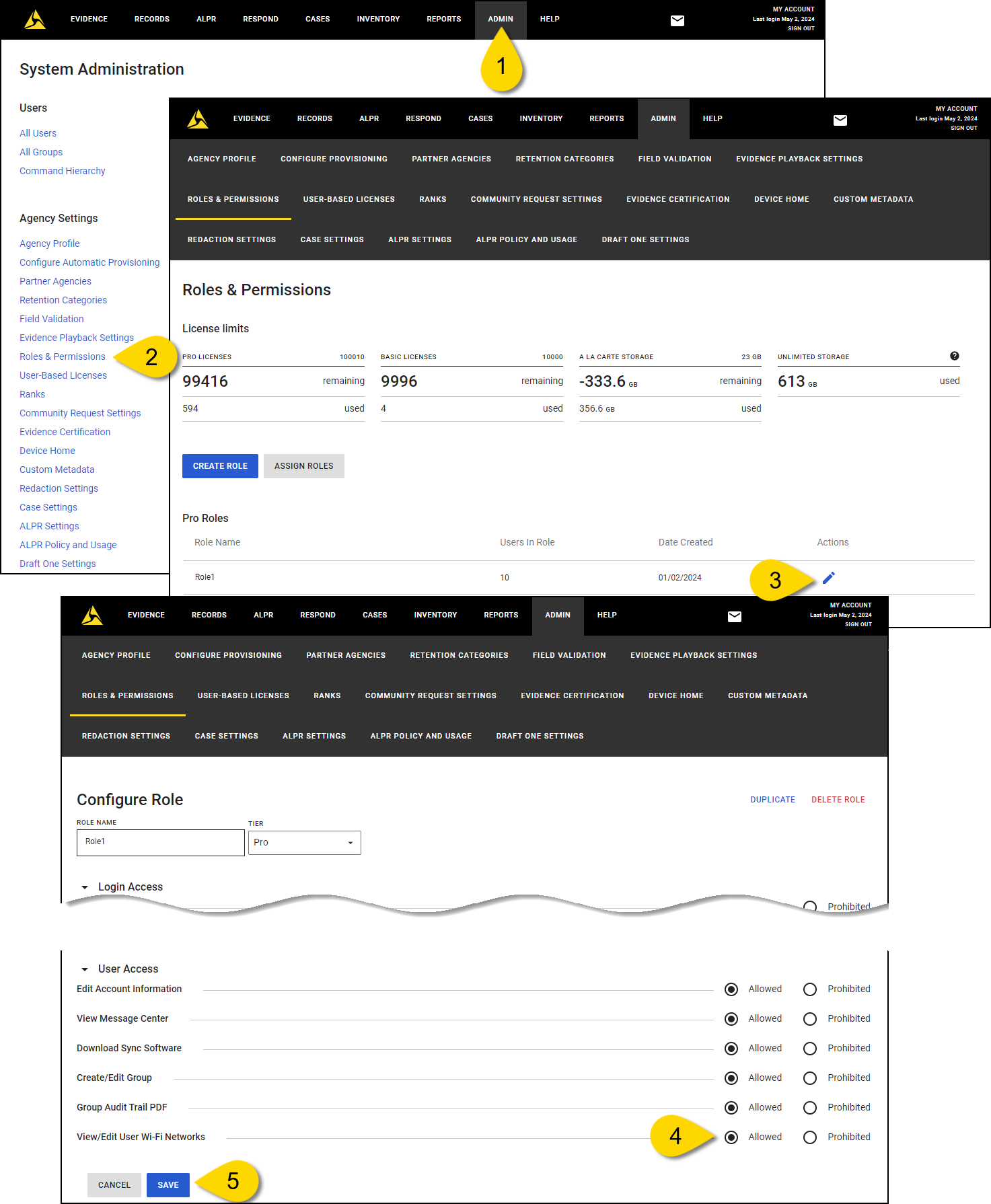
Permissions control whether a user can add and manage their own personal body camera Wi-Fi networks. By default, the View/Edit User Wi-Fi Networks permission is not enabled. Once enabled, users can access and manage their personal networks through the My Networks tab on their My Account page.
- Sign in to your Axon Evidence account, and then select Admin from the top menu.
- Under Agency Settings, select Roles & Permissions.
- Select Edit role (pencil button), next to the role that needs to be able to manage their personal Wi-Fi networks.
- Under User Access, locate the View/Edit User Wi-Fi Networks permission. To enable it, select the Allowed radio button next to this permission.
- Select Save.