Manage TASER permissions
TASER device management in Axon Evidence is controlled through specific permissions that can be assigned to different roles. These permissions allow organizations to tailor access based on the responsibilities of different teams.
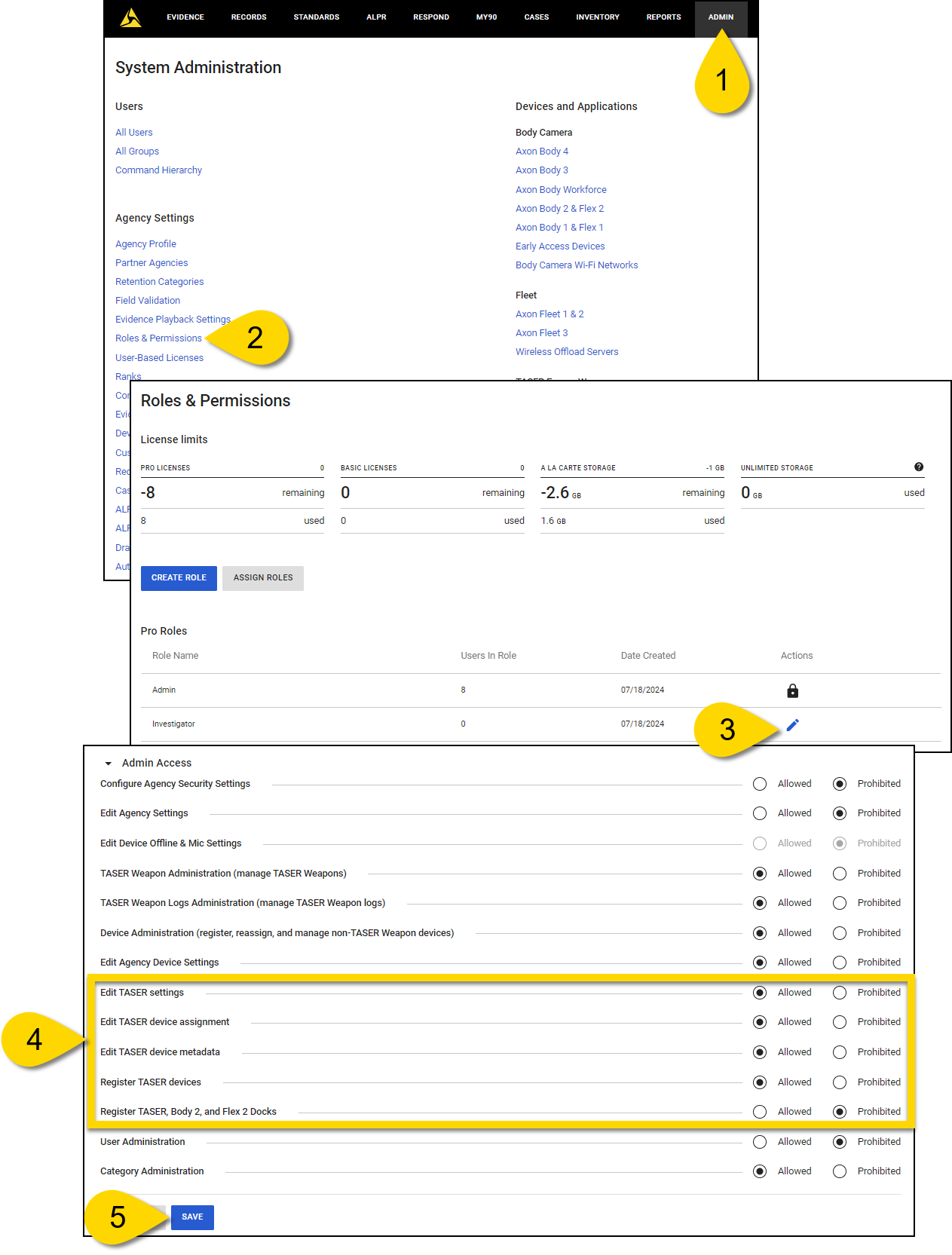
- Sign into your Axon Evidence account, and then select Admin from the top menu.
- Under Agency Settings, select Roles & Permissions.
- Select Edit role (pencil button), next to the role you want to update.
- Under Admin Access, locate the following permissions, and select the Allowed radio button next to each permission you want to enable:
- Edit TASER settings: Grants the ability to modify settings for all TASER devices within the organization.
- Edit TASER device assignment: Allows reassignment of TASER devices, including handles, batteries, cartridges, and magazines.
- Edit TASER device metadata: Enables changes to device metadata, such as status, name, and home location for handles, batteries, cartridges, magazines, and Docks.
- Register TASER devices: Allows registration of TASER devices, including handles, batteries, cartridges, and magazines.
- Register TASER, Body 2, and Flex 2 Docks: Permits registration of Docks used with TASER devices, Body 2 cameras, and Flex 2 cameras.
- Under Search & Reporting Access, locate the following permission, and select the Allowed radio button to enable it:
- TASER Program Dashboard: Grants access to the TASER Program Dashboard.
- Select Save.