Vehicle assignment for administrators
Evidence based vehicle assignment for Fleet 3 facilitates the efficient and secure allocation and management of vehicles directly to officers from their Axon Evidence account. It simplifies the vehicle assignment process, enabling both officers and administrators to assign or unassign vehicles, offering operational flexibility whether or not a mobile data terminal (MDT) is used.
To use evidence based vehicle assignment, you must enable the Fleet 3 feature - Allows the assignment of vehicles.
Vehicle assignment permissions
- From your Axon Evidence account, select Admin, and then under Agency Settings, select Roles & Permissions.
- Locate the role that needs access to evidence based vehicle assignment, and then select Edit role (pencil button).
- Under Vehicle Assignment, next to Fleet 3 Remote User Vehicle Assignment, choose one of the following permissions:
- Any User - This option is recommended for administrator use only. A user with this permission can assign or unassign themselves, or any officer in the agency to a vehicle.
- Only Their Own - A user with this permission can assign or unassign only themselves from a vehicle. They will not be able to assign themselves to a vehicle that already has two officers assigned.
- Prohibited - A user with this option will not be able to assign or unassign any user to a vehicle, including themselves.
Repeat these steps for each role that requires access.
Assign officers
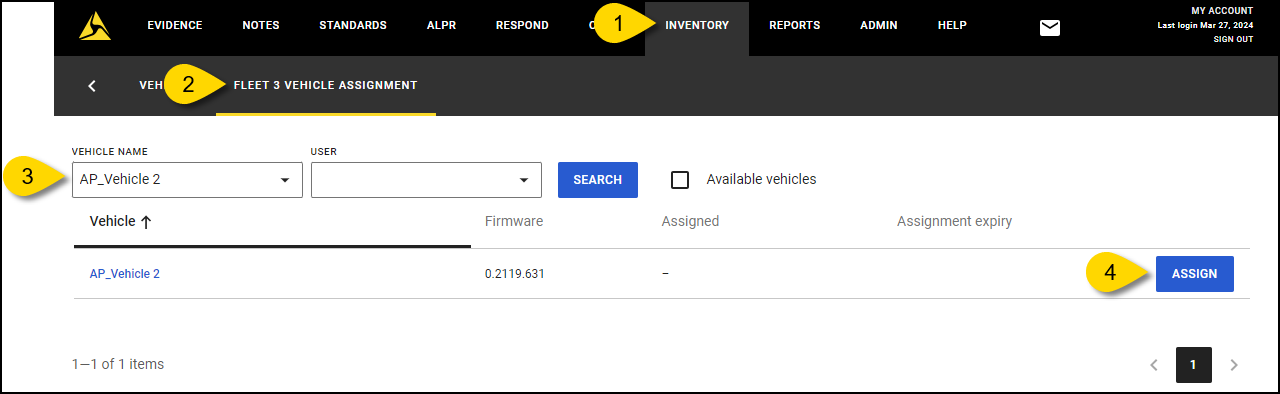
- From your Axon Evidence account, select Inventory, and then from the Device Inventory page, select Vehicles.
- Select Fleet 3 Vehicle Assignment.
- Select a Vehicle Name from the dropdown list. Only active Fleet 3 vehicle with hubs assigned to them will appear. If you don't see an expected vehicle, make sure you have created the vehicle and assigned it to a Fleet 3 hub.
- Select Assign. Only Fleet 3 vehicles that don't currently have two officers assigned will be shown in the list.
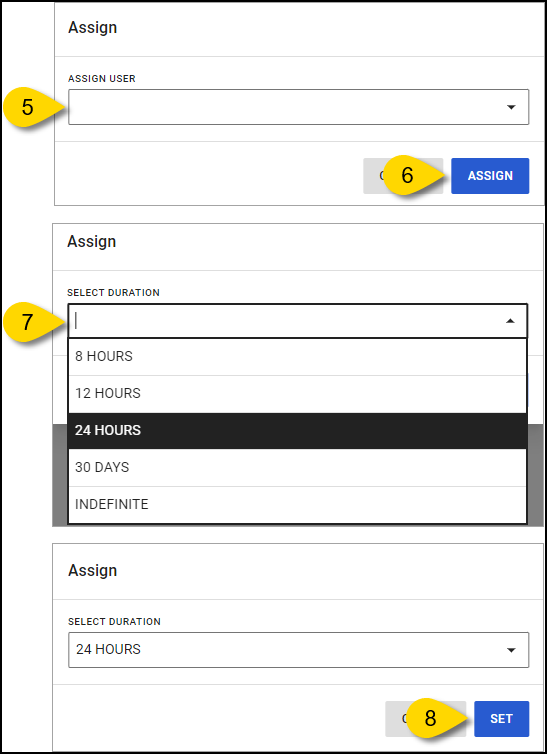
- On the Assign window, select a user from the Assign User dropdown list.
- Select Assign.
- From the Select Duration dropdown list; choose from 8 hours, 12 hours, 24 hours, 30 days or indefinite. Assignment durations are set to Indefinite by default.
- Select Set. The user will be assigned to the vehicle.
To assign a second officer to the same vehicle
- Locate the row containing the name of the vehicle you wish to assign a second officer to, and then select Menu (...)
- Select Assign.
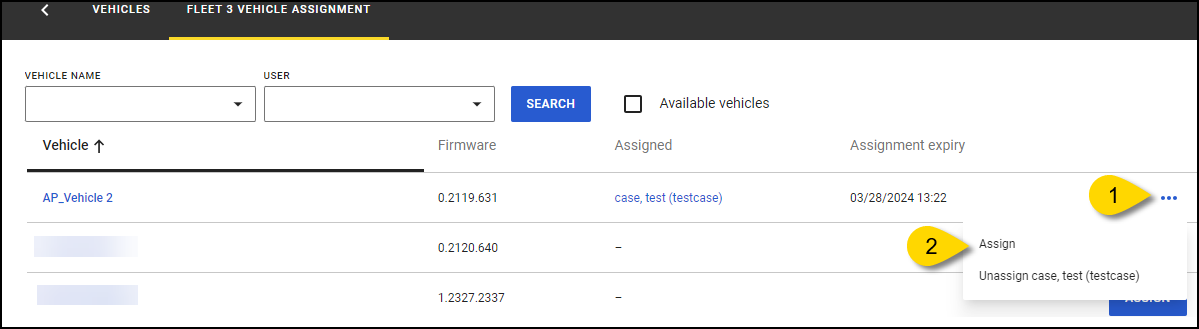
- In the Assign window, choose another user from the Assign User dropdown list, and then select Assign.
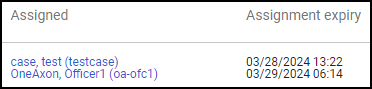
- From the Select Duration dropdown list, choose a duration, and then select Set. Both officer names will be shown as assigned, along with the assignment expiry date and time.
More information and tips about vehicle assignments
- Multiple assignments – The first officer assigned is considered the primary and their name is displayed first in the Assigned column.
- Assignment precedence – Any assignments made in Evidence.com, or the Dashboard will supersede earlier assignments. For example, if User1 logs into Vehicle1 from the Dashboard, and later User2 is assigned to Vehicle1 through Evidence.com, User1 will be automatically logged out.
- Assignment duration – Set the length of each assignment according to shift lengths or specific operational periods.
Unassign Officers
- From your Axon Evidence account, select Inventory, and then from the Device Inventory page, select Vehicles.
- Select Fleet 3 Vehicle Assignment.
- Select a Vehicle Name from the dropdown list.
- Locate the vehicle row containing the name of the office you wish to unassign, select Menu (...), and then select Unassign.
- On the Unassign window, select Unassign to confirm.
More information about unassigning vehicles
- Multiple assignments – The first officer assigned is considered the primary and their name is displayed first in the Assigned column. If the primary officer is unassigned, the secondary officer will become the primary officer.
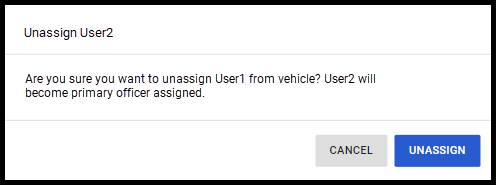
If both the primary and secondary officers are removed, there will be no officers assigned to the vehicle.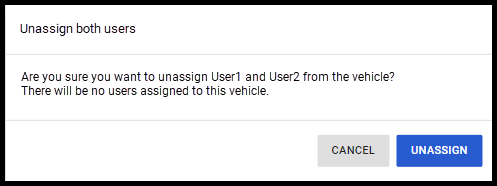
Understand officer interactions
Officers can manage their own vehicle assignments directly from the Dashboard. Their assignment is reflected in both the Dashboard, and on Evidence.com. For more information about what an officer will see when assigning or unassigning a vehicle to themselves, see Axon Evidence Based Vehicle Assignment Guide for Users.
Frequently Asked Questions (FAQ)
What happens when multiple officers are assigned to the same vehicle?
A. The first officer assigned is considered the primary and their name is displayed first in the Assigned column.
Q. How do you know when a vehicle assignment is expiring?
A. An Expiring soon message will be displayed on the Fleet 3 Vehicle Assignment page when an assignment expiration is within 1 hour.
Q. Can an officer be assigned to more than one vehicle at the same time?
A. No, signing in to the Dashboard or being assigned to a vehicle will sign the officer out, or unassign the them from all other vehicles.


