Custom metadata
Custom metadata allows your organization to configure additional metadata fields associated with evidence. This feature enables you to capture all the required information in a customized way.
Axon Evidence supports three types of custom metadata fields:
-
Freeform: A freeform text entry field.
-
Validated: A text entry field that conforms to a specific Regular Expression (Regex) definition. This field type can include a description to help users enter information correctly.
-
Drop-down List: A selection field where users choose from a predefined list.
Create a custom metadata field
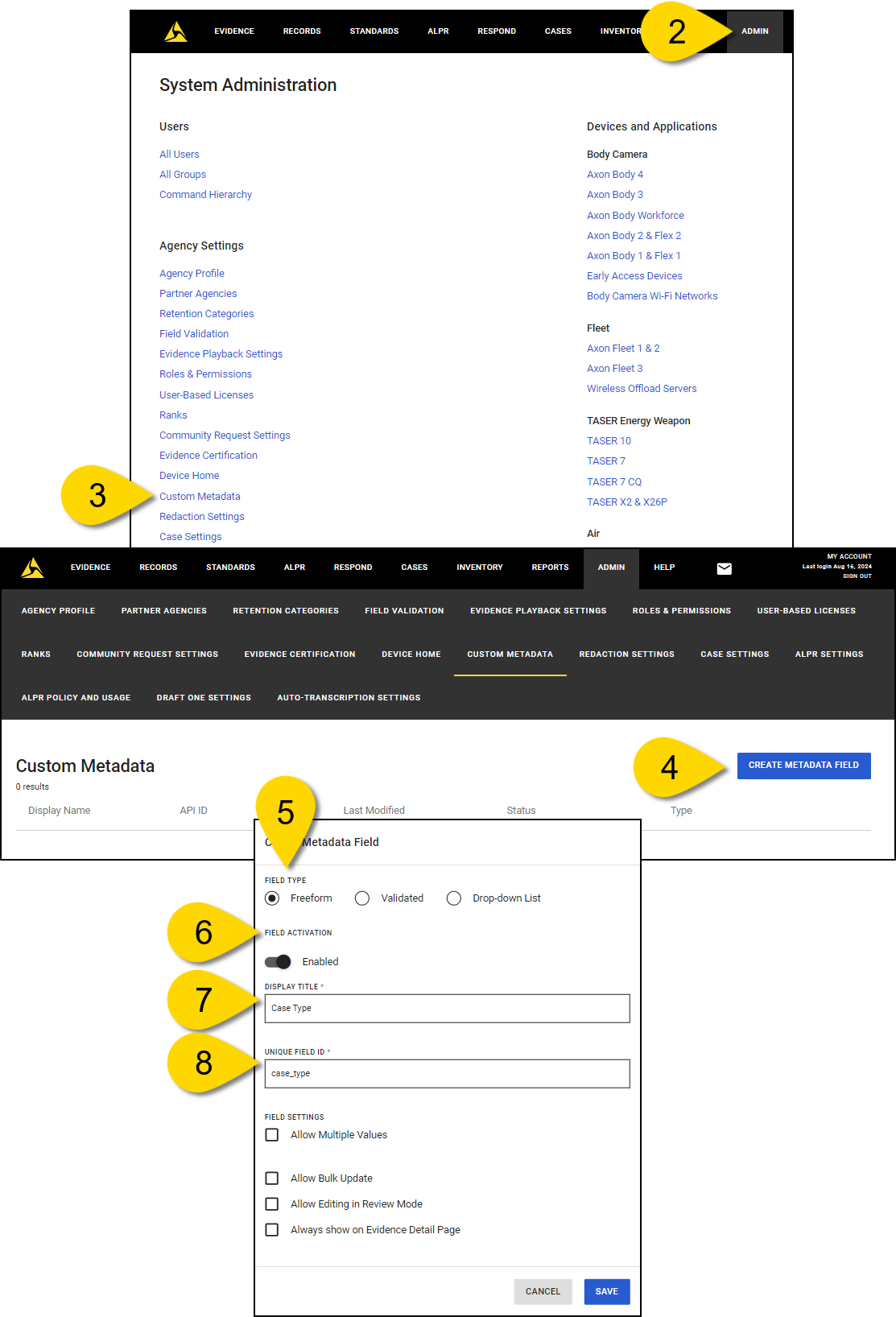
- Sign in to your Axon Evidence account.
- Select Admin from the top menu.
- Under Agency Settings, select Custom Metadata. The Custom Metadata page lists all metadata fields for your organization.
- Select Create Metadata Field.
- Select the type of field you want to create: Freeform, Validated, or Drop-down List.
- By default, Field Activation is Enabled. If you don't want users to access the field you're creating, turn off Field Activation.
- In the Display Title box, enter a meaningful name for the custom metadata field. This name is what users will see when entering data for this field on the evidence detail page.
- The Unique Field ID is automatically populated as you enter the Display Title. You can modify this value if needed. The field name must be unique. Valid values are case-sensitive alphanumeric characters and underscores. This ID is used internally by the system, including for API references.
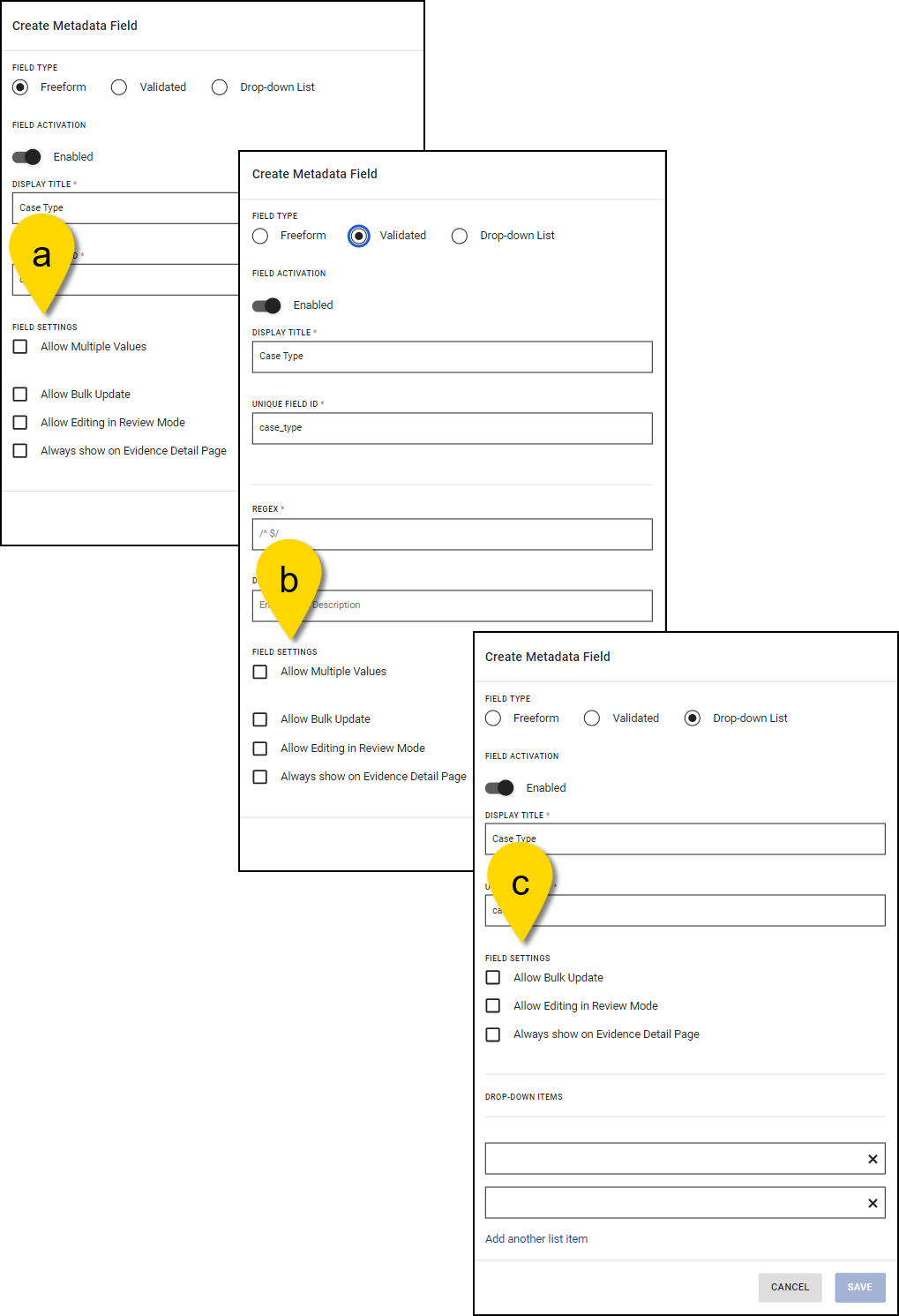
- Depending on the type of field you want to create, follow the steps in the corresponding section below to configure the Filed Settings:
- Freeform
- Allow Multiple Values: Check this box if the field should support multiple entries.
- Allow Bulk Updates: Check this box if the field should be editable during bulk updates.
- Allow Editing in Review Mode: Check this box if the field should be editable in Review Mode.
- Always Show on Evidence Detail Page: Check this box if the field (and its Display Title) should always be visible on the evidence detail page.
- Validate
- In the Regex box, enter the regular expression you want to use for field validation.
- In the Description box, enter the text that you want to appear as hint text in the field.
- Allow Multiple Values: Check this box if the field should support multiple entries.
- Allow Bulk Updates: Check this box if the field should be editable during bulk updates.
- Allow Editing in Review Mode: Check this box if the field should be editable in Review Mode.
- Always Show on Evidence Detail Page: Check this box if the field (and its Display Title) should always be visible on the evidence detail page.
- Drop-down List
- Allow Bulk Updates: Check this box if the field should be editable during bulk updates.
- Allow Editing in Review Mode: Check this box if the field should be editable in Review Mode.
- Always Show on Evidence Detail Page: Check this box if the field (and its Display Title) should always be visible on the evidence detail page.
- Under Drop-Down Items, enter the text for the first and second items. Select Add another list item to continue adding more options as needed.
- Freeform
- Select Save.
- In the confirmation window, select Close. Your new field appears on the Custom Metadata page.
Edit a custom metadata field
- Select Admin from the top menu.
- Under Agency Settings, select Custom Metadata. The Custom Metadata page lists all metadata fields for your organization, regardless of whether the fields are enabled or disabled.
- In the list, find the metadata field you want to edit, and then select Edit custom metadata field (pencil) at the end of that row.
- In the Edit metadata field dialog box, you can:
- Enable or disable the filed by turning Enabled on or off.
- Rename the field by updating the Display Title.
- For Validated fields, update the Regex validation and Description text.
- For drop-down lists, hide or add selection options. (You can't delete an option, only hide it).
- Select Save to apply the changes.
Find your way around the Custom Medatadata page
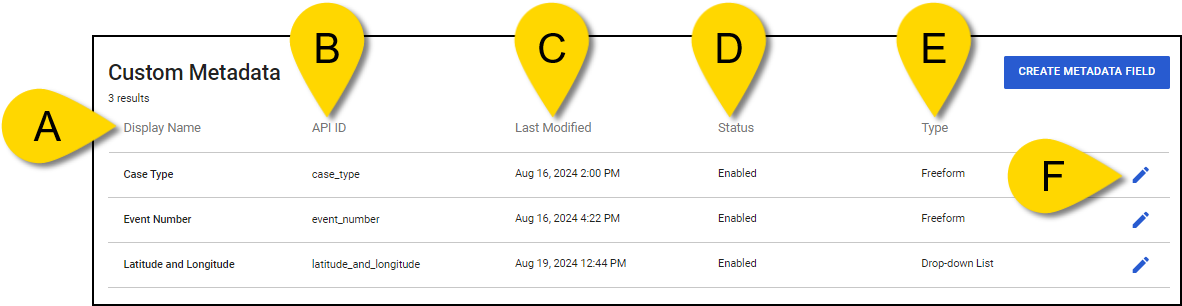
The Custom Metadata page lists all managed metadata fields configured by your organization.
-
Display Name: Corresponds to the Display Title configured when the custom metadata field is created. This is the name users will see when entering data for this field on the evidence detail page.
-
API ID: Corresponds to the Unique Field ID configured when the custom metadata field is created. This is the identifier that the Axon Evidence partner API uses to refer to the managed metadata field.
-
Last Modified: Displays the date of the most recent change to the custom metadata field.
-
Status: Indicates whether the field is enabled or disabled. An enabled field can be added to the evidence detail page and may be used as a filter on the evidence search page. If a custom metadata field is disabled, it will only appear on the evidence detail page if it was previously assigned a value; otherwise it won't be visible. A disabled field is never available as a filter on the evidence search page.
-
Type: Indicates the type of custom metadata field – whether it's a freeform text field, a validated field with specific input requirements, or a drop-down list with predefined options.
-
Edit custom metadata field: Allows you to modify the selected custom metadata field.


