Multi-Factor Authentication (MFA) Admin Guide
Overview
Axon requires multi-factor authentication (MFA) organization-wide for sign-ins and critical actions. Select up to four authentication options for your organization: email, mobile authentication apps, text message, and phone call.
Individual users can then select which of the options to set up and select between them at each sign-in. Then, when they sign in to the Axon system with their username and password, they will get an MFA challenge.
This article describes admin settings for MFA. For details about the individual user experience, see Multi-Factor Authentication (MFA) sign-in.
For authentication using Single Sign On (SSO), this article doesn't apply. MFA settings are through your SSO provider. These settings are still applied when using the SSO bypass option.
MFA settings for your organization
Follow these steps to set up MFA for your organization.
- Select Admin from the top menu. Under Security & Integrations, choose Security.
- Select Configure under Sign-in Policy.
- MFA will be enabled by default. To disable MFA, contact your Axon representative.
- Select the MFA methods to allow. Axon recommends selecting all available methods: Body camera if your agency uses Axon Body 4, Body 3, or Body Workforce cameras; Authenticator app, Text message, Automated call, and Email.
- Choose whether you want users to always receive an MFA challenge or only when they meet one of these conditions:
- User doesn't have a valid session.
- Sign-in is considered high-risk due to location or other factors.
- User hasn't signed in with that browser or device for over 30 days.
- Choose whether you wish to notify users of MFA changes.
- Select Save.
Manually reset a user's MFA
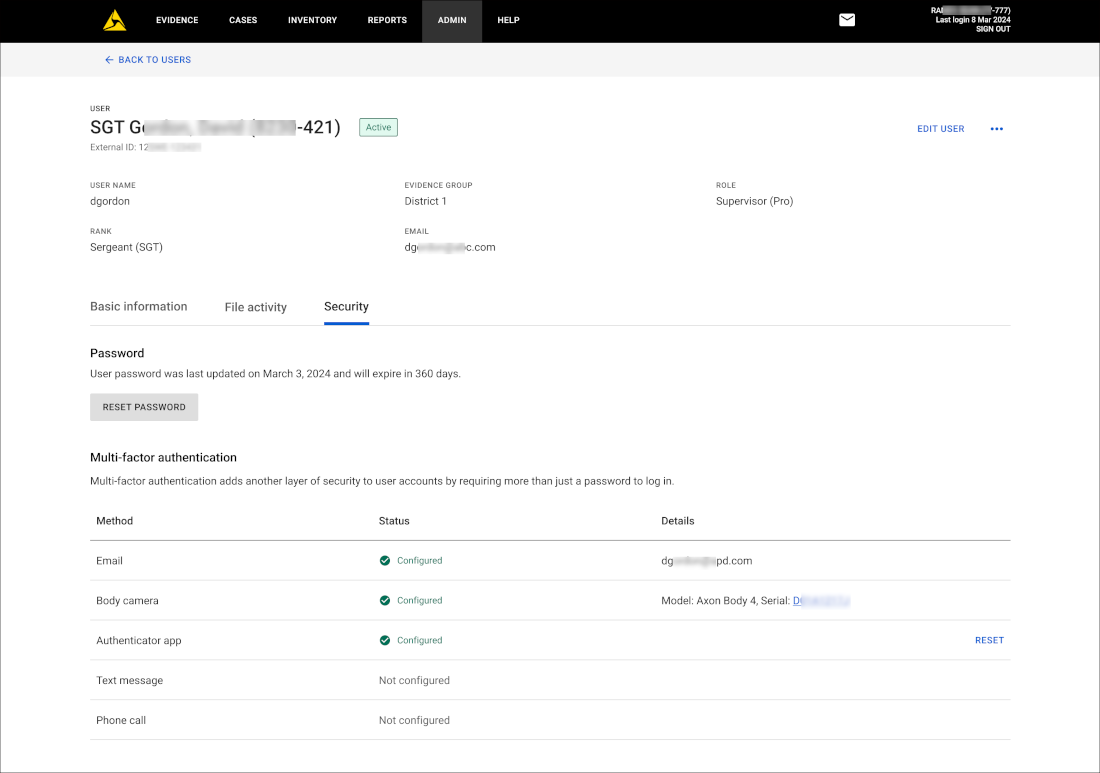
Administrators can manually reset a user's MFA information:
- Select Admin from the top menu.
- Under Users, select All Users.
- Locate and select the user to reset.
- Select the Security tab.
- Under Multi-Factor Authentication (MFA), select Reset next to either Phone call SMS message, or Authenticator app.