Groups overview
The groups feature enhances the access control workflow by allowing collective access management for multiple members at once. This efficiently reduces the need to individually adjust access lists when group members change, as modifications to the group will also update access for all members.
Groups also provide additional oversight of evidence visibility. For example, you can grant unit leaders the ability to only view the evidence of their team members.
The groups feature integrates seamlessly with roles and permissions. Unit leaders no longer need to have broad permission to view all evidence organization-wide. It's advisable to remove this permission from leaders when you implement the groups feature.
Watch this video to learn how to manage groups.
Watch this video to learn how to manage groups.
Groups and membership
Each group you create has a unique name, its own members, and specific access settings. Group members may be individual users, other groups, or a combination of both. This allows for flexible and dynamic access configurations. There are no pre-set default groups.
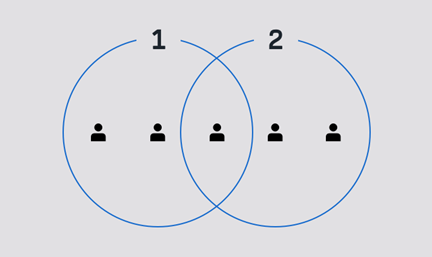
The following figure shows two groups, each with three members. The user in the middle is a member of both groups.
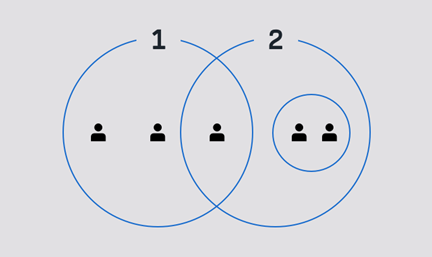
The following figure shows two groups, each with three members. Group 2 includes another group, and one member who is also a member of group 1.
Users with a Lite license can only be added to groups that have the "No access" setting (see Managing group access, below).
Managing group access
Group access settings allow for inclusion in evidence access lists, both within your organization, and at partner organizations. The three Manage Access Settings for a group are:
- No access: The group can't be added to any access lists. This is the only setting that allows Lite users to be added to the group.
- Inside my agency access: The group can be added to evidence access lists inside your organization, but partner organizations won't see the group in their access lists.
- Partner agency access: The group can be added to access lists inside your organization, and at partner organizations.
When a partner organization grants access to evidence, they can add any groups that have partner organization access. All members and monitors of the group receive a message notifying them that they have been granted access to the evidence.
For more information, see Administering Partner Agencies.
A group that is monitoring a group that receives a shared case from a partner organization, can view the evidence of the shared case.
Monitoring evidence with groups
Use the groups feature to control whose evidence a user can view. Each group can be set up to allow certain users or other groups to view the evidence owned by group members.
To take advantage of this capability, your group organization strategy should include:
- Groups of users whose evidence needs to be monitored, such as unit members.
- Groups of users who need to monitor evidence, such as unit leaders.
In the following figure, groups 3, 4, and 5 have access to evidence owned by users in their respective groups. Group 1 has access to evidence from groups 3, and 4, but not from group 5.
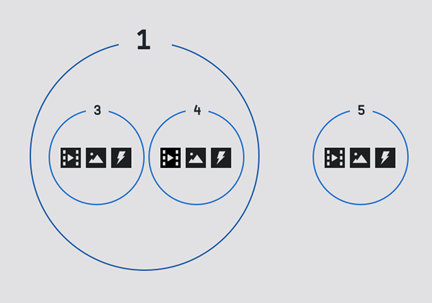
In the preceding example, users who don't monitor group 5 evidence, but do have User Search permission, can see group 5 evidence listed in evidence search results, but can't view the evidence without first requesting access.
When users need to monitor evidence, and also have their evidence monitored, they should be added to both the monitoring groups, and the groups being monitored. For example, in the preceding figure, users who are members of groups 1 and 3 can:
- Monitor the evidence of users in groups 3 and 4.
- Have their evidence monitored by other users in group 1.
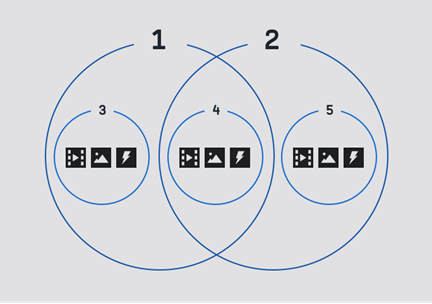
More than one group can monitor the evidence of another group. In the following figure, groups 1 and 2 have permission to monitor the evidence of group 4.