User audit trails
A user audit trail shows many of the activities taken by the user in addition to changes to the user account. User audit trails are available in two formats:
- PDF: Well-suited for use in court
- CSV (comma-separated values) format: Supported by spreadsheet applications such as Microsoft Excel and helpful for simplifying reporting and integration with other systems
To view a user's audit trail, take these steps:
- On the menu bar, select Admin.
- In the Users section, select All Users.
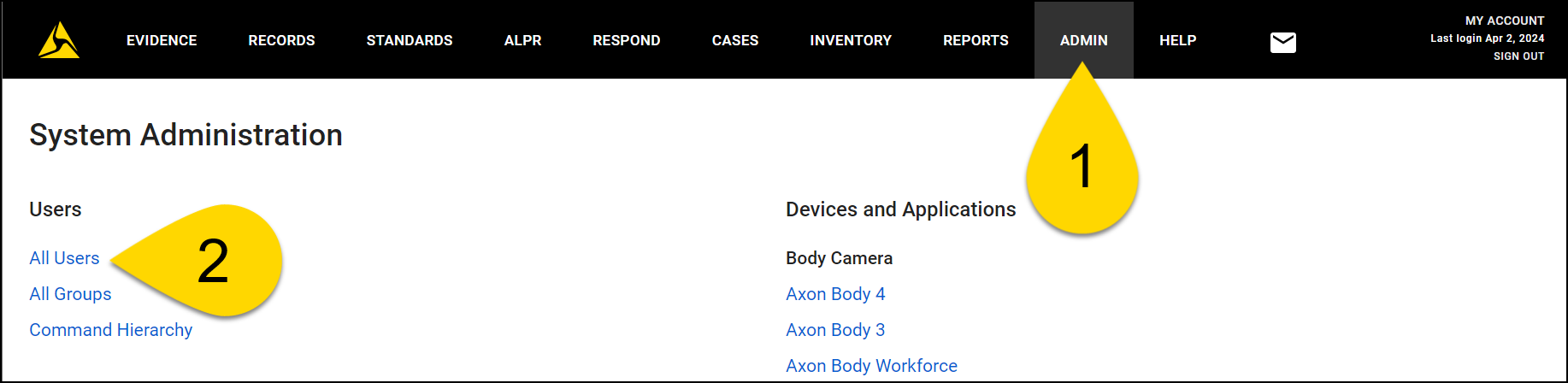
- Use the filters to search for the user whose audit trail you want to view.
- Select a user's name in the list of search results to view the User detail page.
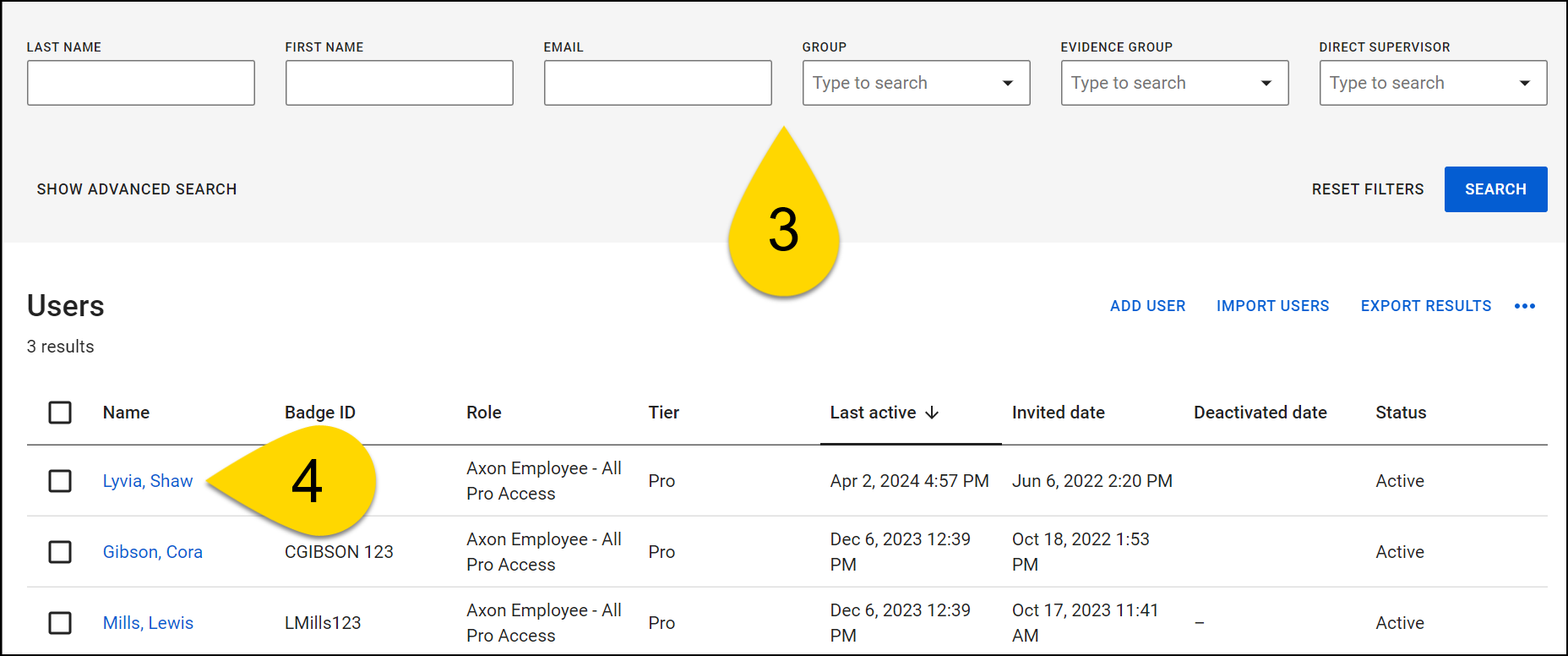
- Select More Actions [...] > View audit trail.
- Select an Audit Period.
- Choose Run Audit. The Status changes to Running. When the audit trail report is ready, the Status will change to Download.
- Select Download. Axon Evidence opens or downloads a PDF for the evidence audit trail. The exact behavior depends on the browser you use and its download settings for PDF files.
Evidence Actions
Evidence-related user actions that appear in user audit trails include the following:
- View evidence
- Watch video evidence
- Initiate evidence deletion
- Restore deleted evidence
- Upload evidence
- Add or edit evidence title
- Add or edit evidence ID
- Add or edit categories assigned to evidence
- Add or edit evidence location
- Edit evidence recorded date and time
- Flag or un-flag evidence
- Share evidence internally (with users in your Evidence.com agency)
- Share evidence externally (with users outside your Evidence.com agency)
- Add or edit evidence tags
- Add or edit evidence description
- Add, edit, or remove evidence notes
- Reassign evidence
- Add evidence to a case
- Add a marker
- Download a marker
- Add a video clip
- Add video redaction
Transcript Actions
Transcript-related actions that appear in user audit trails include the following:
- Request and create an Auto-Transcript
- Access and download a transcript
- Edit and delete a transcript
- Verify and unverify a transcript
- Perform keyword search across evidence
For more information about Auto-Transcripts and transcript keyword search, see:
Case Actions
Case-related user actions that appear in user audit trails include the following:
- Create case
- Viewed case
- Add evidence to a case
- Remove evidence from a case
- Share case by download link
- Share case with partner agency
- Share case with user in your agency (add member to case)
- Download case
- Add or remove folder
- Add or edit categories assigned to case
- Edit case title
- Add or edit case description
- Add, edit, or delete case notes
- Add or remove case tags


