AI Auto-Tagging
AI Auto-Tagging suggests metadata for video evidence, making it easier for users to categorize evidence. It uses two sources to suggest metadata:
- Multicam signals: When multiple Axon Body cameras record evidence near each other, AI Auto-Tagging suggests metadata that has already been applied to other video evidence recorded at that location and time.
- Video transcipts: AI Auto-Tagging suggests metadata based on the transcript of the video evidence.
Metadata is only be suggested for video evidence that:
- Has been uploaded to Axon Evidence
- Has not been tagged already, and doesn't have an ID or category
You can review the suggested metadata and decide if it applies to the evidence.
Watch this video to learn more about AI Auto-Tagging.
Prerequisites
- Your organization must have categories set up before using AI Auto-Tagging.
- Access to AI Auto-Tagging depends on your organization's plan:
- Suggested metadata based on the video transcript requires your organization to have the Auto-Transcribe license. Without this license, no transcript is generated for AI Auto-Tagging to review for suggestions. Organizations without the Auto-Transcribe license can still use the multicam portion of the feature.
- AI Auto-Tagging is included with the AI Era plan and is also available as an add-on, depending on your subscription.
Use AI Auto-Tagging
- Select Evidence.
- Search for and select a piece of evidence from the list.
- In the Overview tab of the evidence details page, do one of the following:
- Select Review next to Suggested multi-camera metadata.
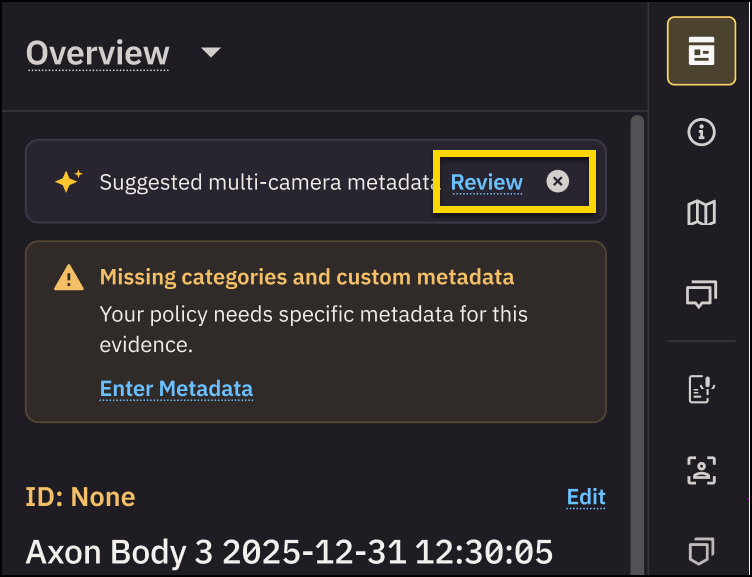
- Select Edit next to ID.
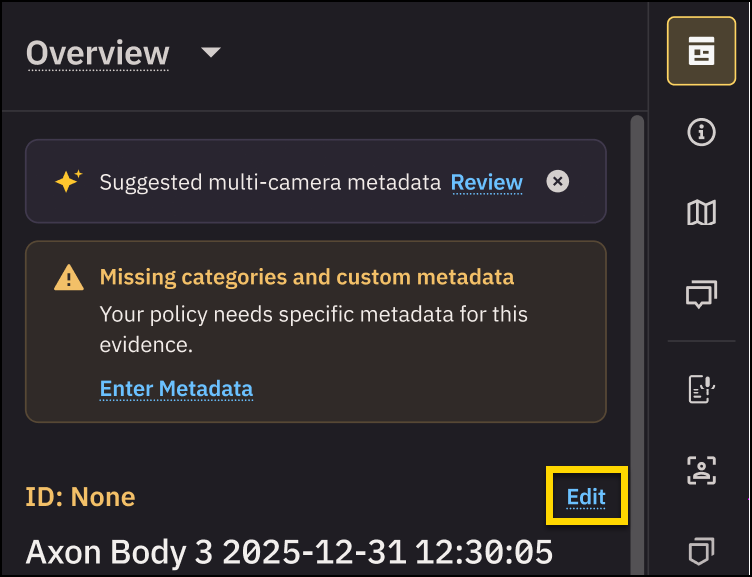 Either of these options opens the Details tab.
- Select Review next to Suggested multi-camera metadata.
- In the Details tab, review suggested metadata shown under each metadata section.
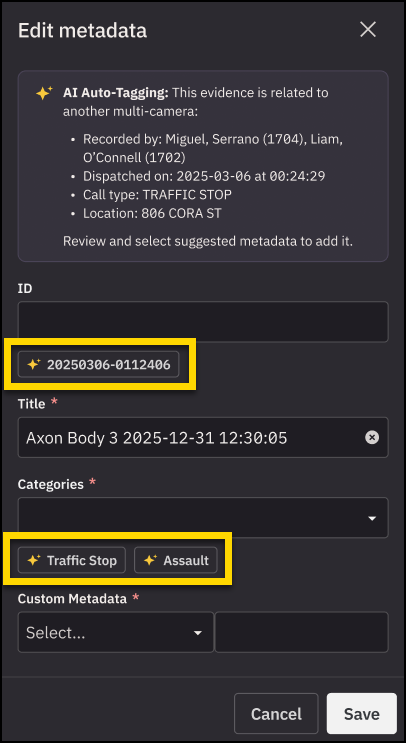
- Select individual suggestions to add them, or select Add all to apply all suggested metadata at once.
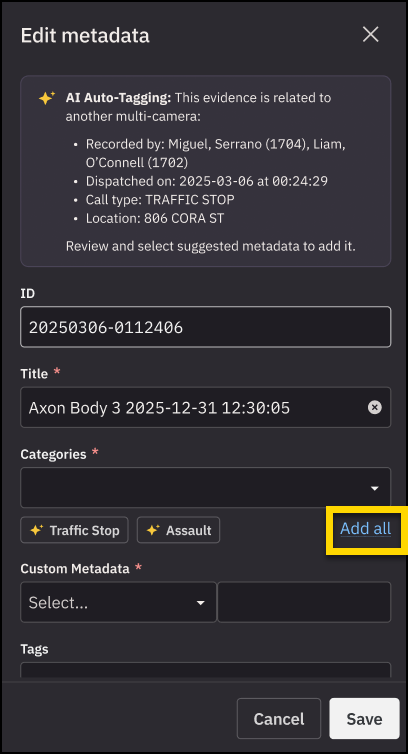
- Select Save to apply changes, or select Cancel to discard them.


