Flight controls
The flight control panel shows the camera view from the UAV, provides system information, and the UAV flight controls. The flight controls at the bottom of the screen can vary depending on the system.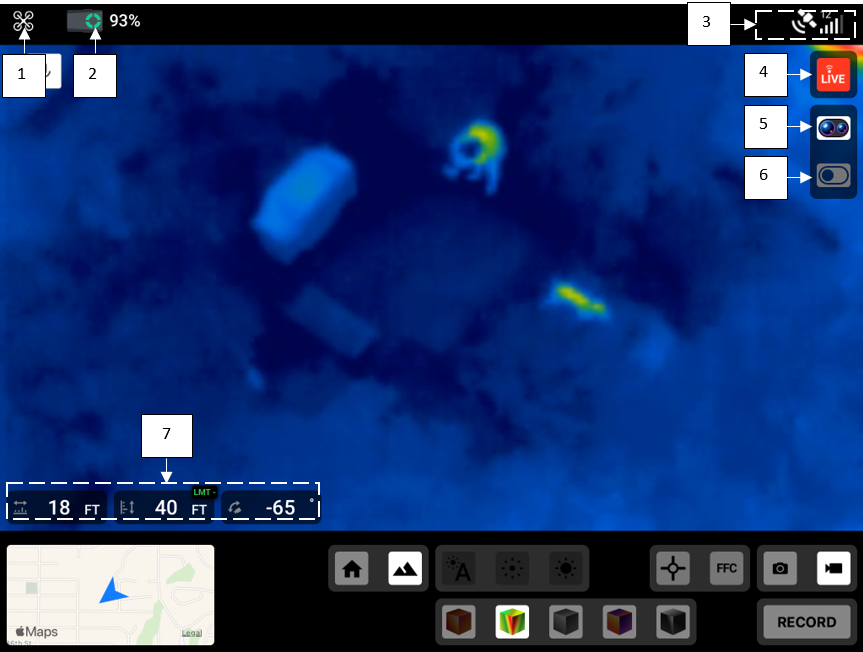
- Settings menu
- UAV Battery capacity indicator
- LTE and Wi-Fi connection strength
- Live button
Activates livestreaming in Axon Respond+
- Thermal camera selection for dual devices (Mavic or Zenmuse XT2)
- Visual camera selection for dual devices (Mavic 2 Enterprise Dual or Zenmuse XT2)
- Flight telemetry data
UAV’s distance from home base, height, and camera angle.
Mavic 2 Enterprise Zoom Control Panel
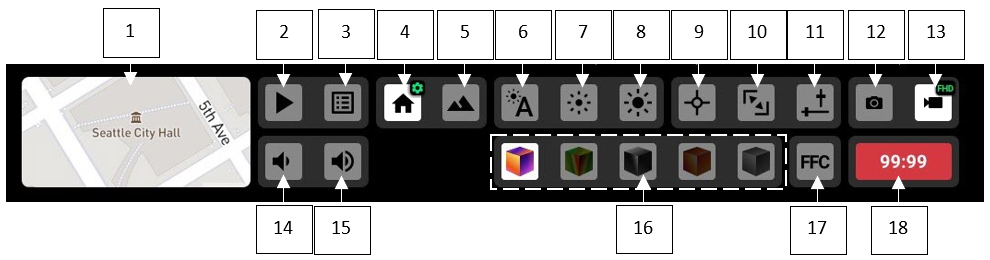
- Map
- Indoor flying mode
- Default flying mode
- Automatic camera brightness
- Decrease camera brightness
- Increase camera brightness
- Tap to adjust camera brightness
- Tap to adjust focus
- Automatic Exposure Lock
- Photo mode
- Video mode
- Reset zoom
- Zoom control
- Start capture/record
Map Panel

- Camera feed
- Center drone on map
- Center home point on map
- Map default view
- Map hybrid view
Mavic 2 Enterprise Dual Control Panel
The Mavic 2 Enterprise Dual UAV has two devices installed on separate gimbals. The control panel will change based on which camera is selected as the primary input. When features are not supported by the hardware, the controls are shown as disabled.
Optical Camera
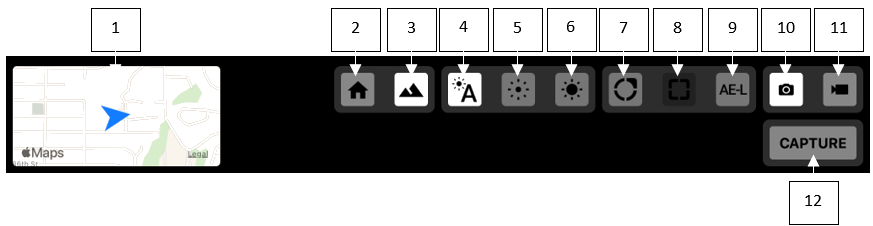
- Map
- Indoor flying mode
- Default flying mode
- Automatic camera brightness
- Decrease camera brightness
- Increase camera brightness
- Tap to adjust camera brightness
- Tap to focus (Disabled)
- Automatic Exposure Lock
- Photo mode
- Video mode
- Start capture/record
Thermal Camera
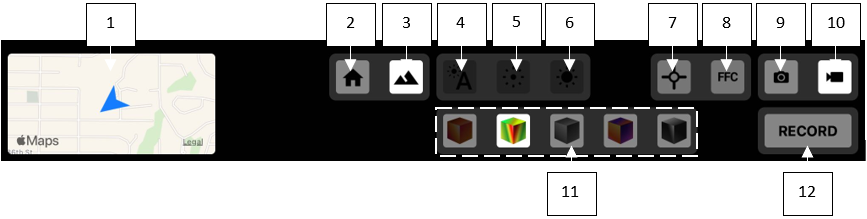
- Map
- Indoor flying mode
- Default flying mode
- Automatic camera brightness (Disabled)
- Decrease camera brightness (Disabled)
- Increase camera brightness (Disabled)
- Spot temperature reading
- FFC calibration
- Photo mode
- Video mode
- Thermal color palatte
- Start capture/record
Map Panel

- Camera feed
- Center drone on map
- Center home point on map
- Map default view
- Map hybrid view
Matrice with Z30 and XT2 Control Panel
The Matrice UAV can have two devices installed on separate gimbals. The control panel will change based on which camera is selected as the primary input. When features are not supported by the hardware, the controls are shown as disabled.
Additional functionality for X5S, M200, and more will be added with future releases.
Z30 Camera
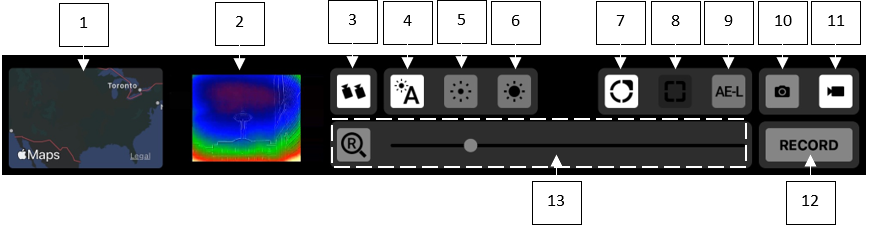
- Map
- Secondary camera feed (when more than one camera feed is available)
- Gimbals Sync
- Automatic camera brightness
- Decrease camera brightness
- Increase camera brightness
- Tap to adjust camera brightness
- Tap to focus (disabled)
- Automatic Exposure Lock
- Photo mode
- Video mode
- Start capture/record
- Camera zoom
Map Panel

- Camera feed
- Center drone on map
- Center home point on map
- Map default view
- Map hybrid view
XT2 Optical Camera
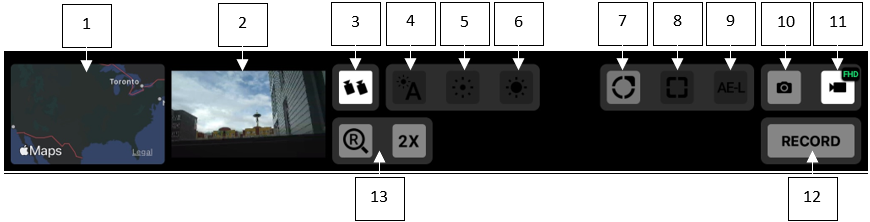
- Map
- Secondary camera feed (when more than one camera feed is available)
- Gimbals Sync
- Automatic camera brightness (disabled)
- Decrease camera brightness (disabled)
- Increase camera brightness(disabled)
- Tap to adjust camera brightness
- Tap to focus (disabled)
- Automatic Exposure Lock (disabled)
- Photo mode
- Video mode
- Start capture/record
- Digital zoom (1X, 2X, 4X, and 8X)
XT2 Thermal Camera
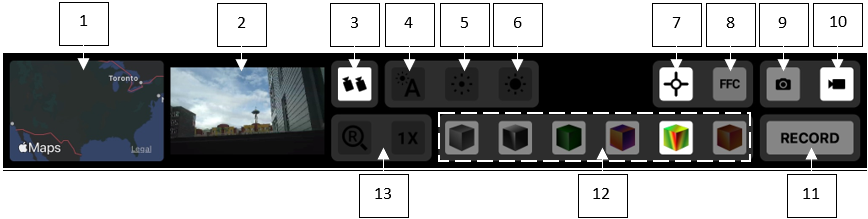
- Map
- Secondary camera feed (when more than one camera feed is available)
- Gimbals Sync
- Automatic camera brightness (disabled)
- Decrease camera brightness (disabled)
- Increase camera brightness(disabled)
- Spot temperature reading
- FFC calibration
- Photo mode
- Video mode
- Start capture/record
- Thermal color palettes
- Digital zoom (disabled)
Map Panel

- Camera feed
- Center drone on map
- Center home point on map
- Map default view
- Map hybrid view
Livestreaming Information
See the Axon Respond product guide for more information on livestreaming.


