Manage pilot licenses on Axon Evidence
Manage and self-administer assignment of your agency’s Axon Air Pilot licenses to individuals with user-based licensing. The intuitive dashboard provides complete visibility of important license usage information.
An Axon Air Pilot license gives individual users:
- Unlimited third-party storage for all aviation media uploaded to Axon Evidence
- Ability to upload and process 2D/3D model files to Axon Evidence; an Axon Air Pilot license is not required to view 2D/3D models once uploaded
- The ability to automatically record and upload drone livestream media to Axon Evidence (coming in 2024)
Configuring, assigning, and reallocating licenses requires admin privileges. However, any Axon Evidence user can view their assigned licenses on their User Detail page.
Dashboard
- In Axon Evidence, select Admin, then under Agency Settings select User-Based Licenses.
- Select Axon Air Pilot to view the dashboard:
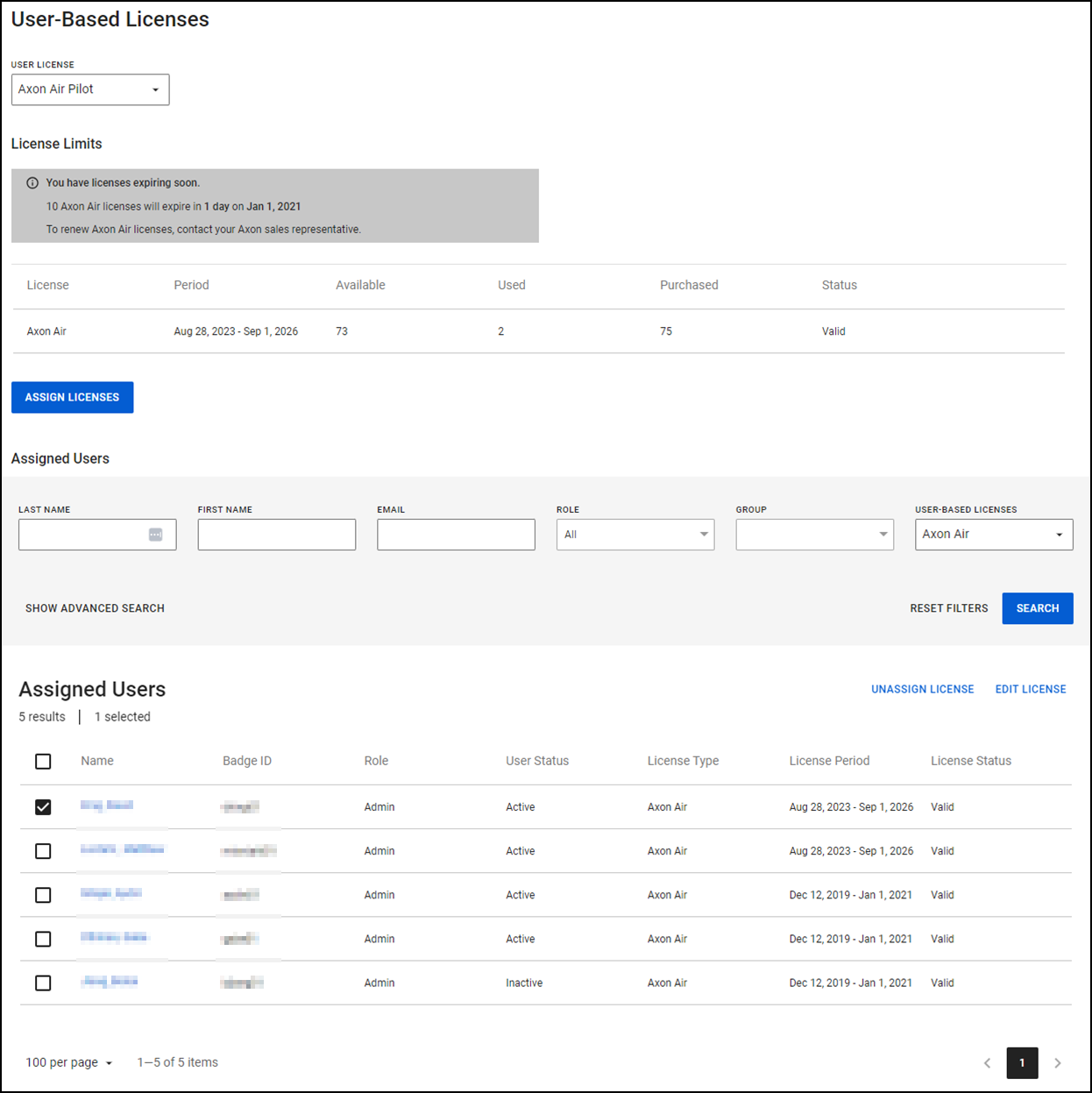
- In the dashboard, you can:
- Use the User License dropdown to change between Axon Air Pilot and Respond licenses (if available for your agency).
- View the License Limits section for notification of expired or soon-expiring licenses, as well as a snapshot of licenses purchased, used, and available to assign.
- Select Assign Licenses to assign user-based licenses (see next section).
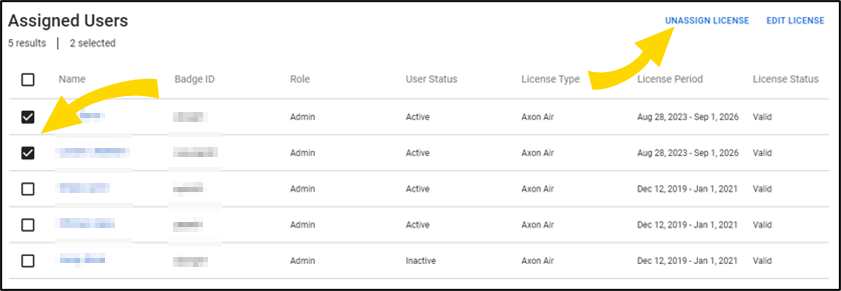
- The Assigned Users section provides a filterable list of all users in your agency with an assigned license.
- Select the check box to the left of the assigned user’s name to enable the Unassign License and Edit License options (described below).
Assign license to an unassigned user
- Check the License Limits section to ensure you have licenses available.
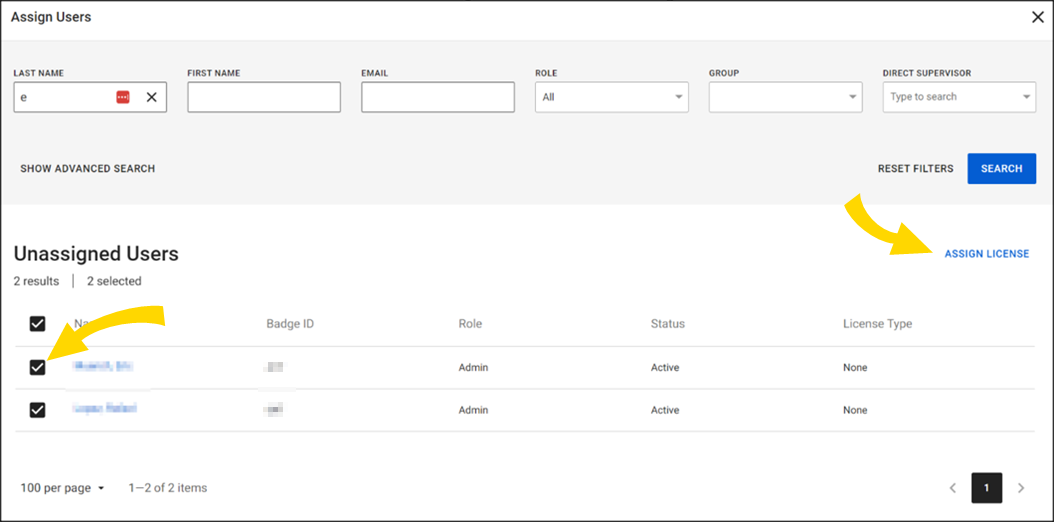
- On the dashboard, select Assign Licenses to see unassigned users.
- Select the box for each user and then Assign License at the top right. To narrow the list of users, filter the list using the fields at the top.
- Select the license to assign the user(s) to.
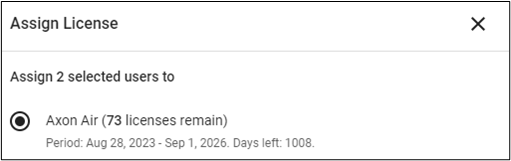
- Select Save.
Edit license for an assigned user
- In the Assigned Users section of the dashboard, check the box for the user(s) to edit, then select Edit License.
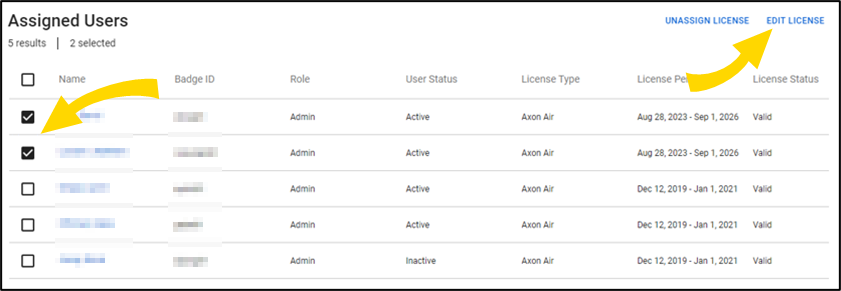
- Select the different license to assign.
- Select Save.
Assign a license from the user detail page
- Select the Admin tab, then All Users.
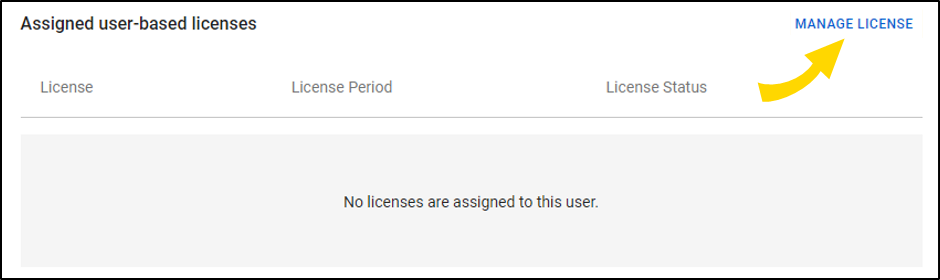
- In the Assigned user-based licenses section, select Manage License.
- Select the license to assign.
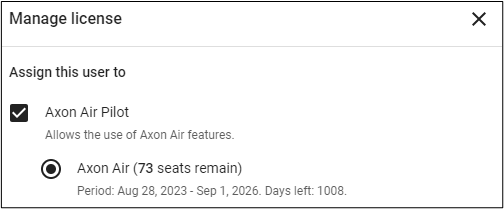
- Select Save.
Unassign license from a user
- In the Assigned Users section of the dashboard, check the box for the user(s) to unassign, then Unassign License.
- Select Confirm.


