Review files and add metadata
You can edit the metadata for a single file or for multiple files at the same time. If you choose to edit multiple files, the entered metadata is applied to all selected files.
- Select the file(s) you want to add metadata to and review.
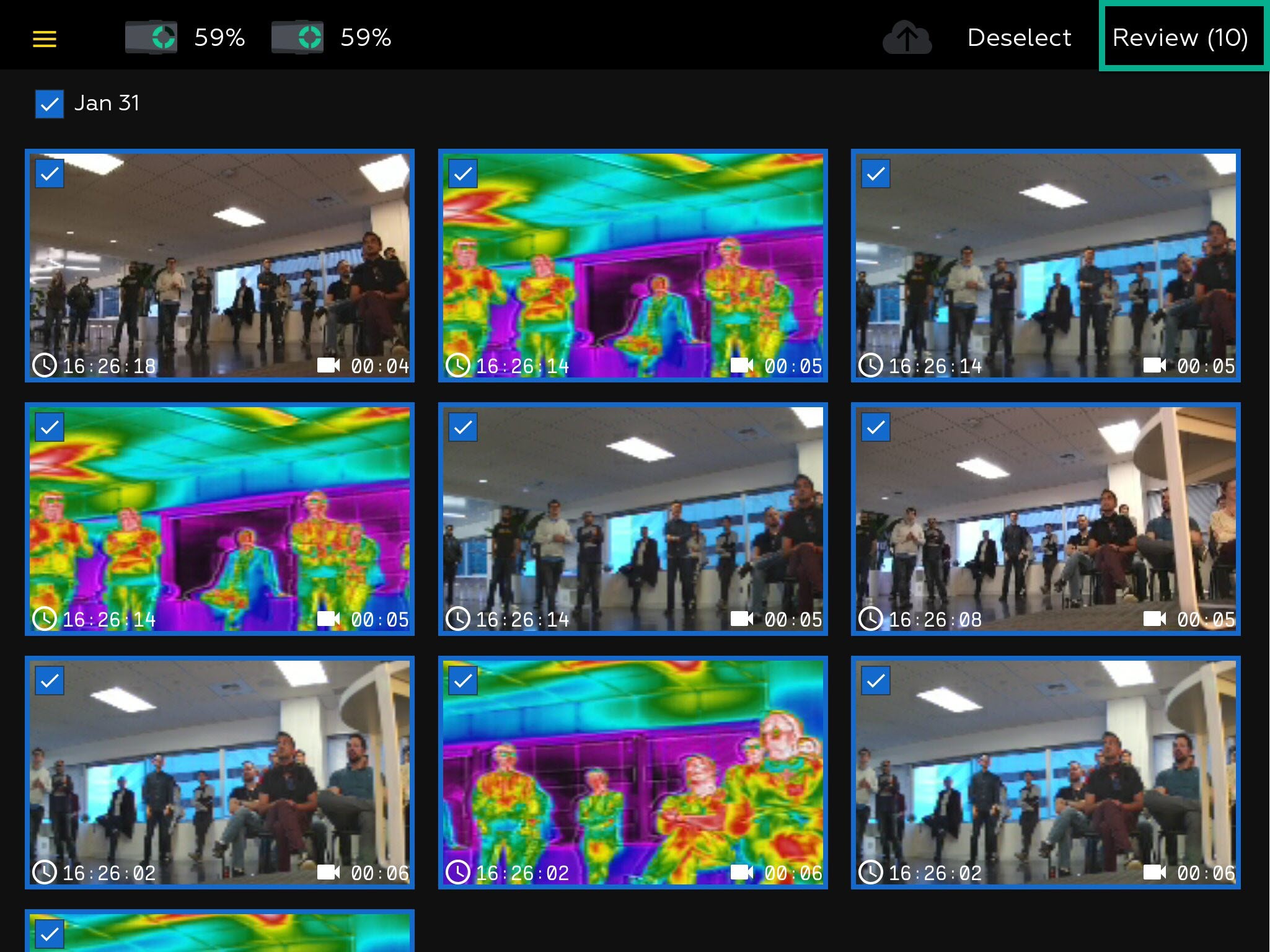
- Tap Review, in the upper-right of the app.
- The selected files are shown with the metadata editing tools. Swipe right or left to scroll through files.
- You can tap Cancel to return to the app main screen.
- To review a video, tap on the video:
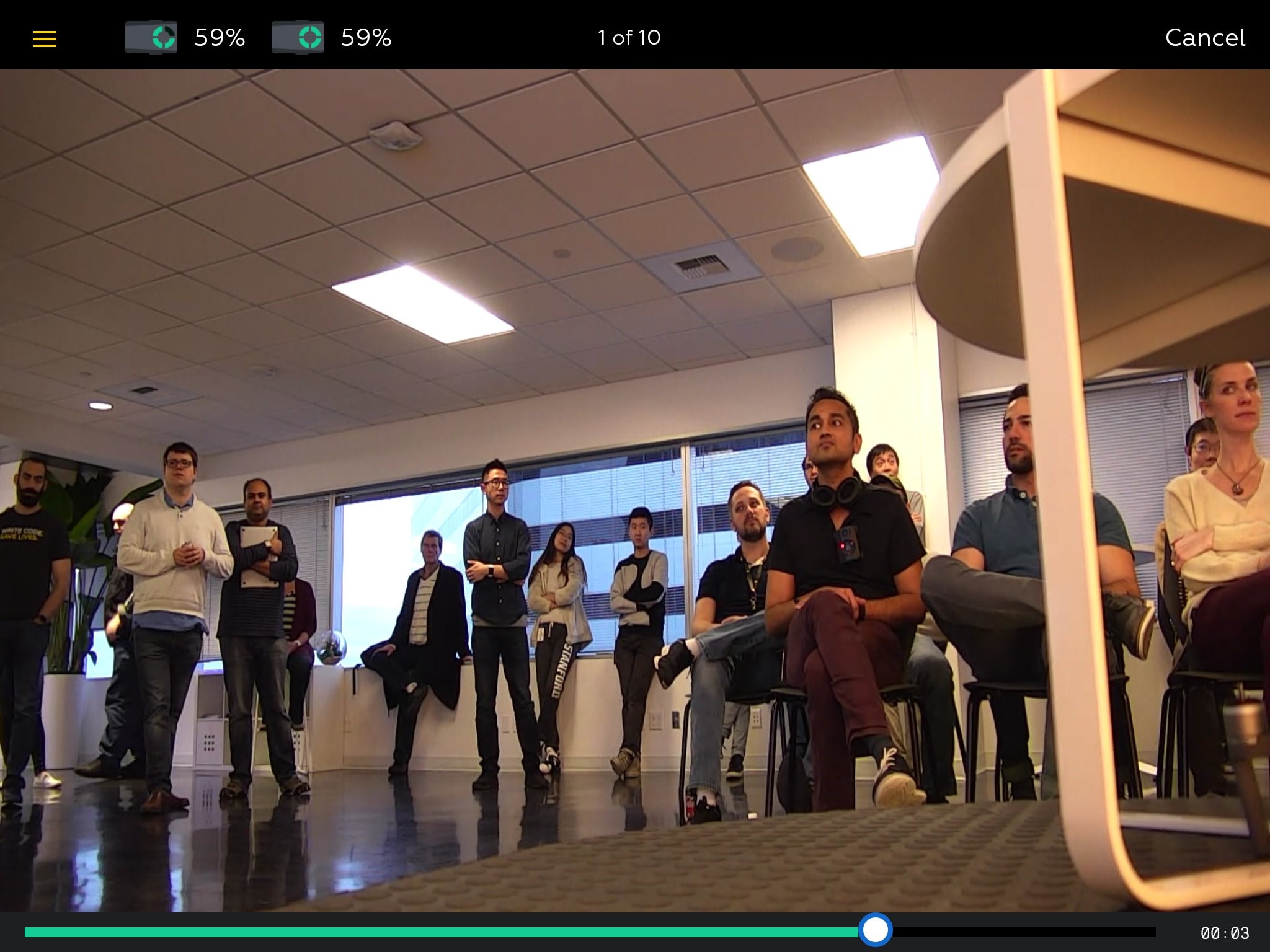
- Tap on the video to play or pause. While paused, if multiple files were selected, you can use the left arrow (<) and right arrow (>) to go to the previous and next file.
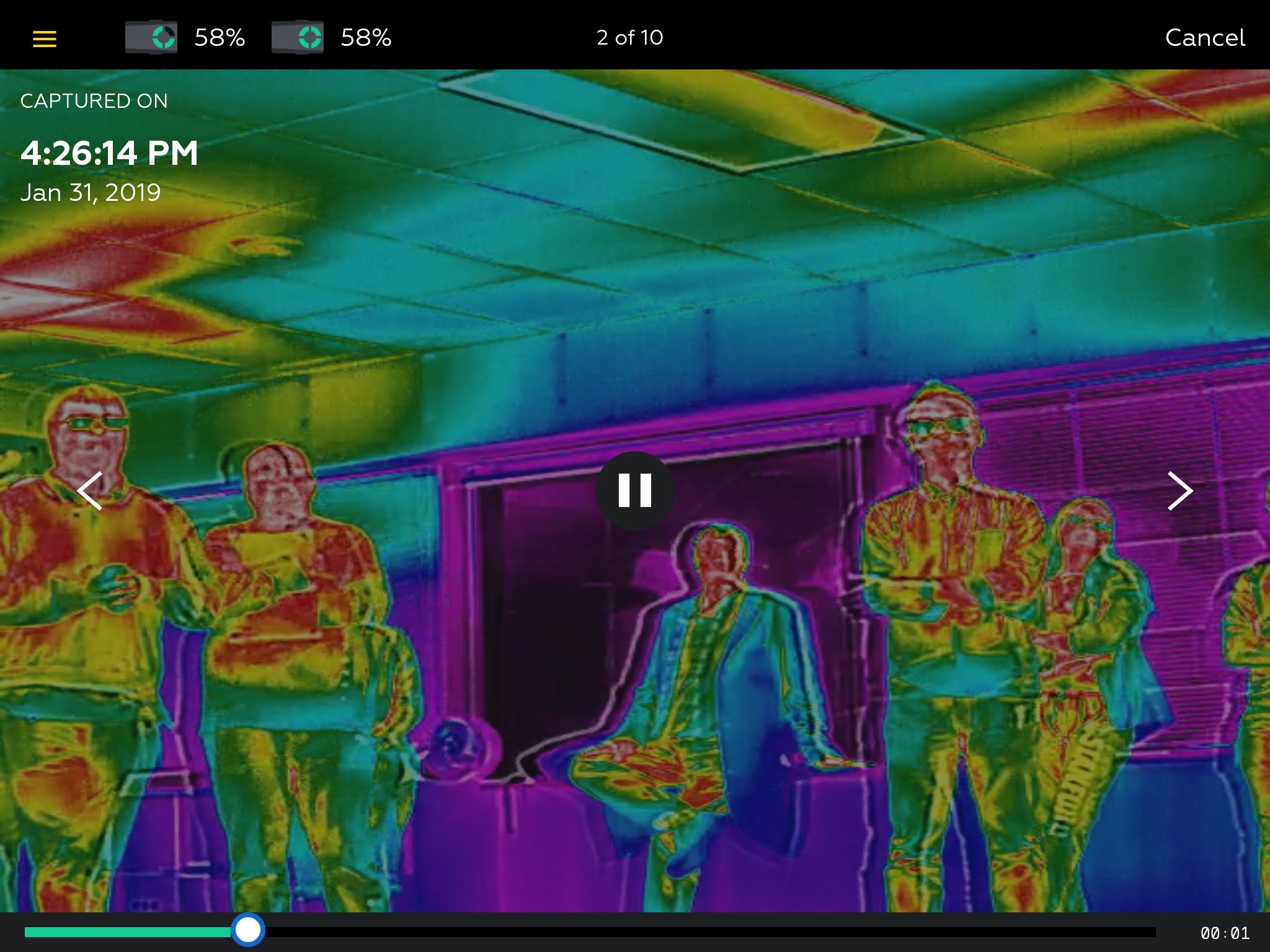
- Tap on the scrub bar at bottom of the video to jump to that point in the video.
- Tap Cancel, in the upper-right of the app, to close the video.
- Tap on the video to play or pause. While paused, if multiple files were selected, you can use the left arrow (<) and right arrow (>) to go to the previous and next file.
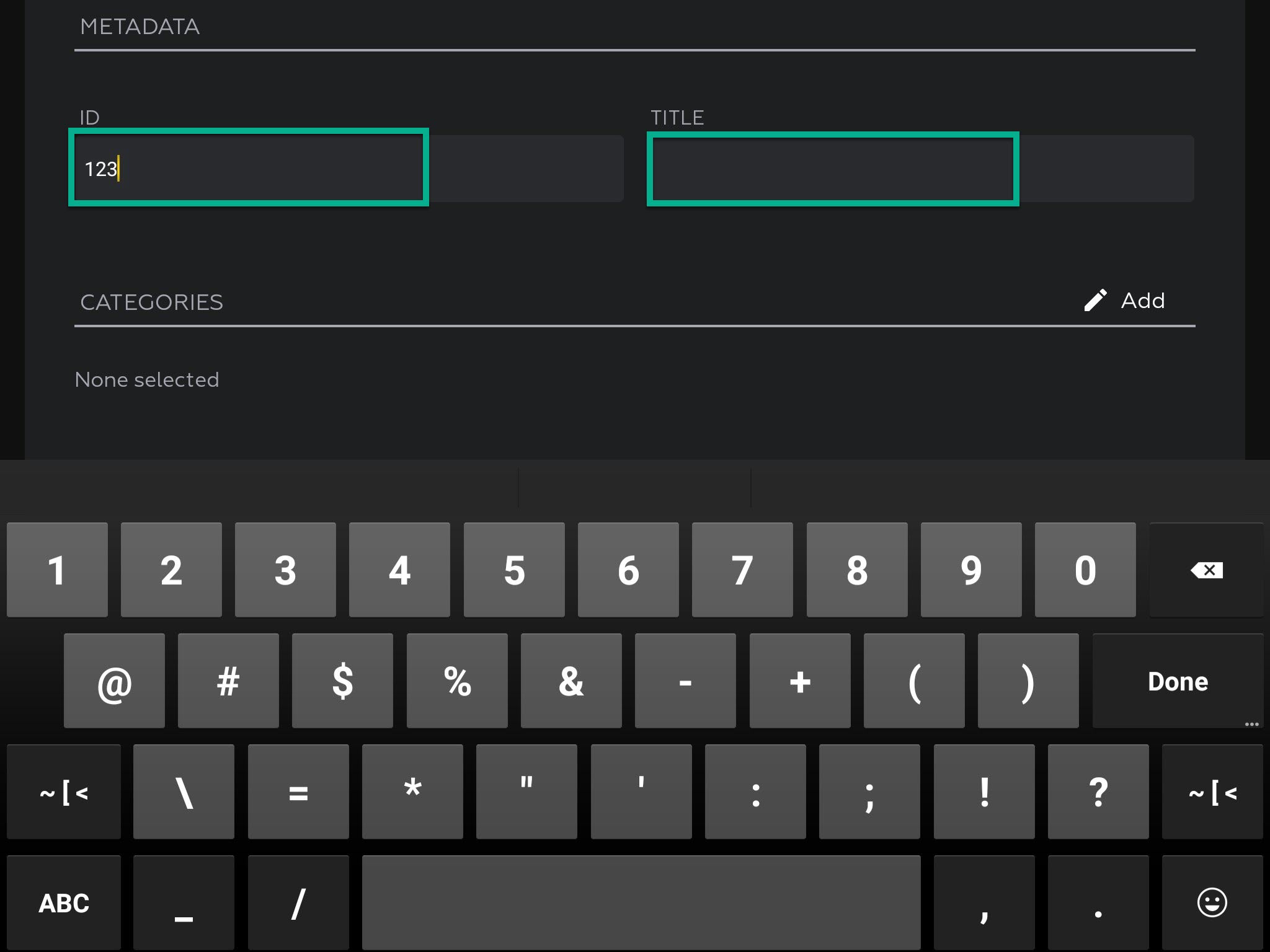
- To add or edit the ID or Title information:
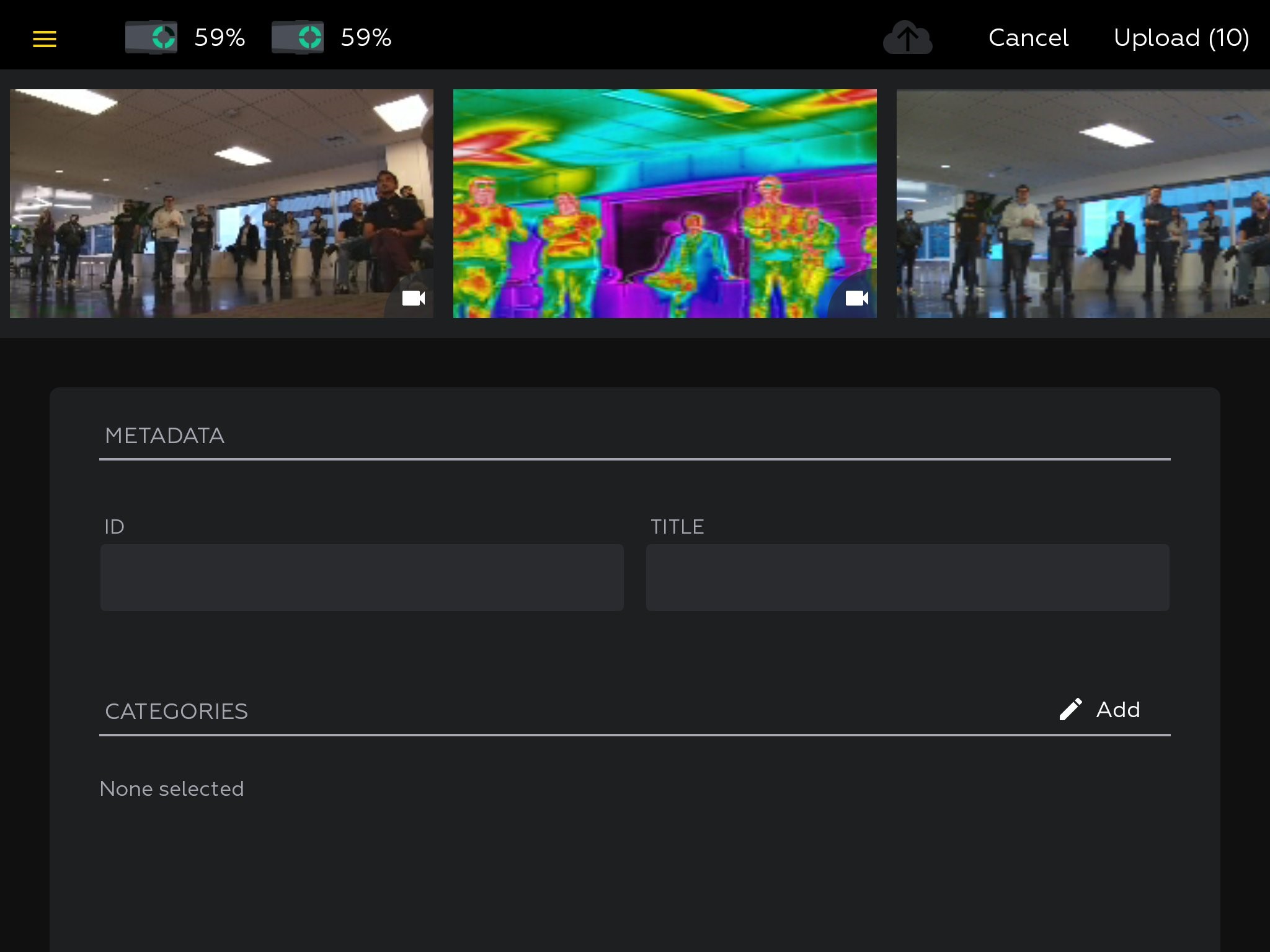
- Tap in the ID or Title field and type the appropriate information.
- If your agency has set up Axon Evidence to require a particular format for the ID field, the Axon Air app will enforce the format requirements.
- To add or edit category information:
- Tap Add on the category line.
- Tap a category to select or deselect the category. Add all the categories that apply.
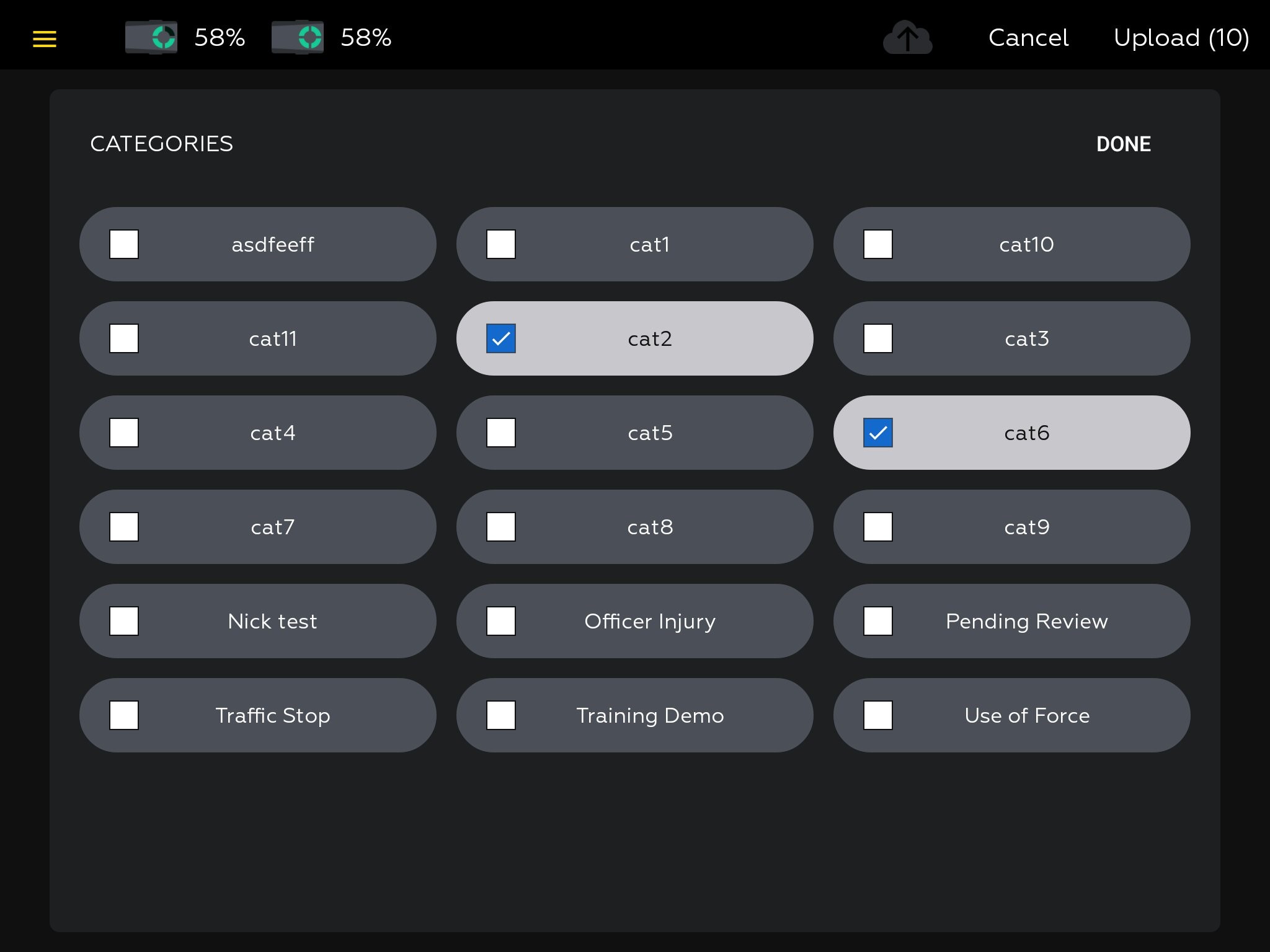
- When all the categories are selected, tap Done.
- Review the metadata information.
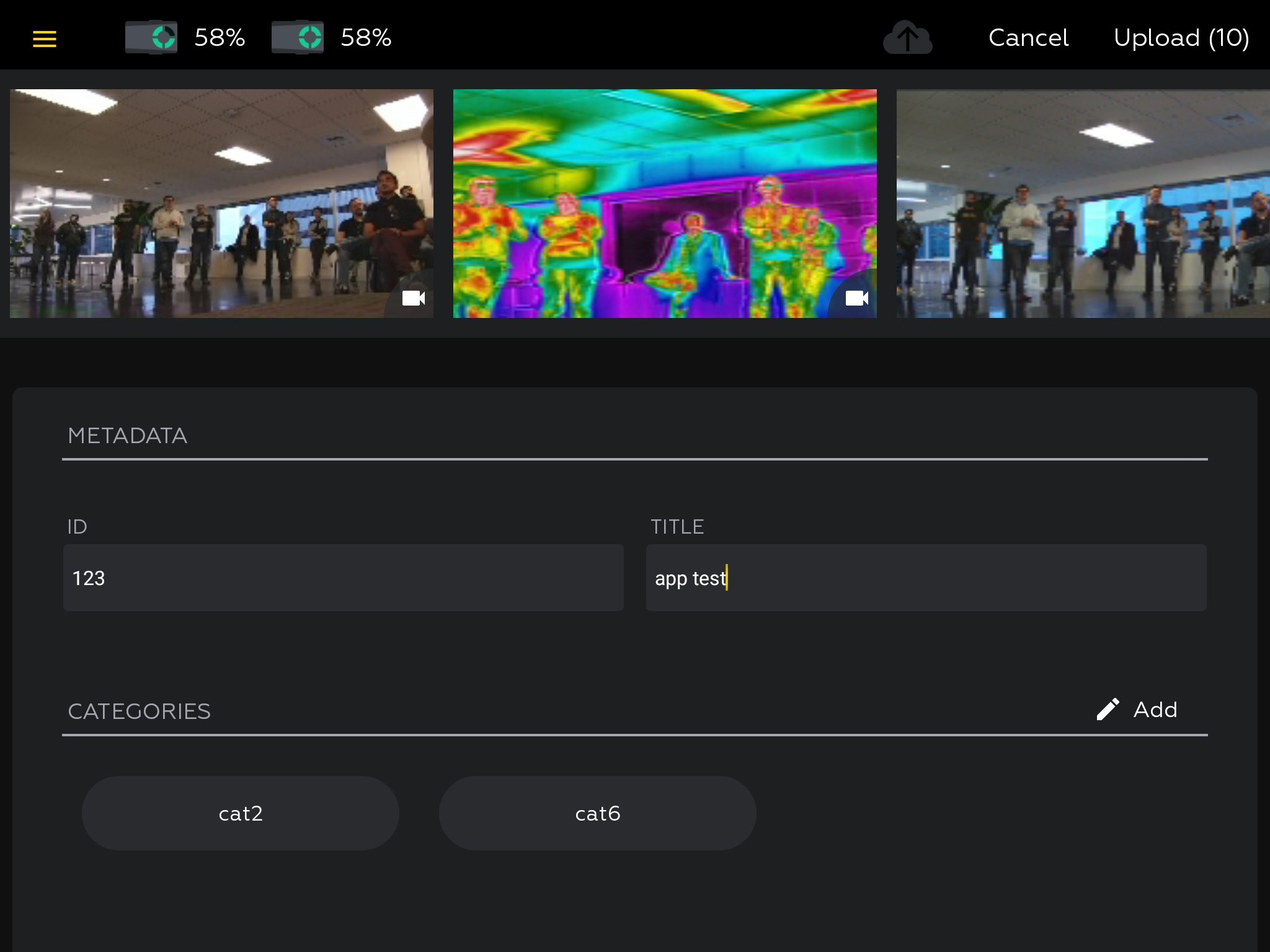
If the information is correct, the files are ready to be uploaded. Otherwise, correct the information as described above.


