Evidence in the Axon app
Using the Axon app, you can view and manage evidence details, and add missing Evidence IDs and categories.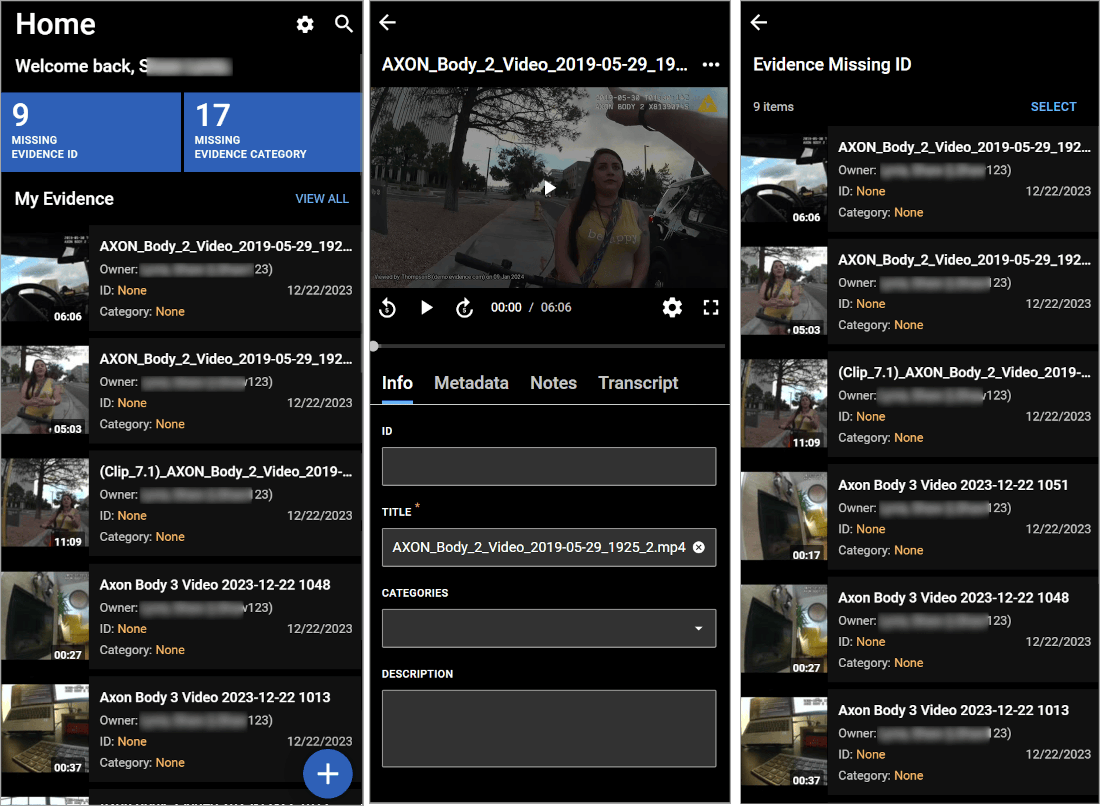
See this video for a quick explanation of this feature.
View and manage evidence details
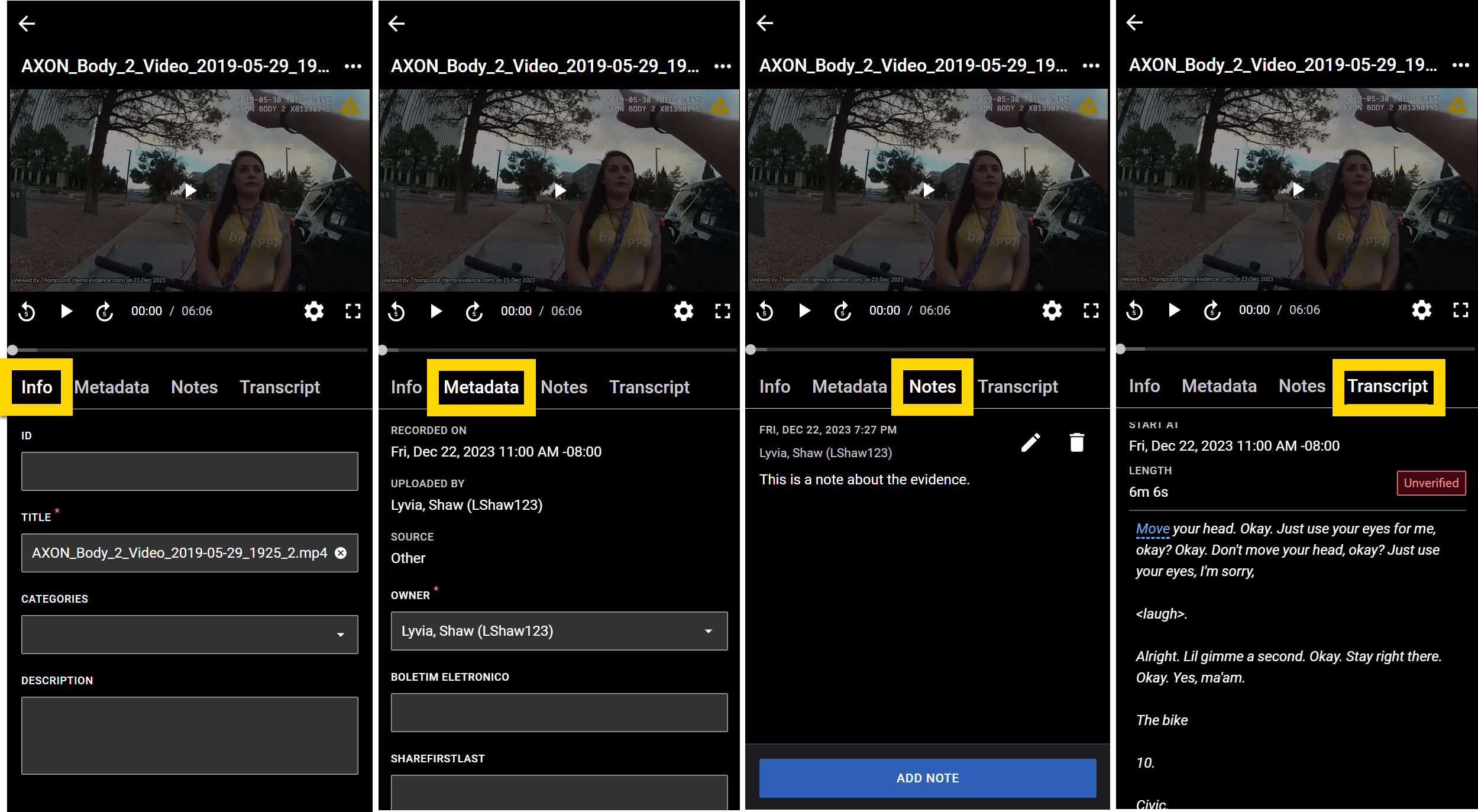
Selecting a piece of evidence on the Axon app opens the evidence details screen. From this screen, you can view the evidence, as well as interact with the evidence details using the four tabs:
- Info: Update the ID, Category, Title, and Description.
- Metadata: Update all other evidence metadata fields.
- Notes: Select Add Note to add an evidence note. Use the pencil and trash can icons to edit or delete notes.
- Transcript: View the evidence transcript. The transcript can only be viewed from this tab, not edited. To edit the transcript, open the evidence in a web browser.
- If a transcript is not available for that evidence item, this tab will not appear.
Add missing evidence ID and category
Selecting either Missing Evidence ID or Missing Evidence Category from the Home screen on the Axon app brings you to the Evidence Missing ID or Evidence Missing Category screen where you can quickly take action on the evidence. Select the back arrow to return to the Home screen.
Tap a single evidence item to open the evidence details screen where you can add an Evidence ID or Category from the Info tab.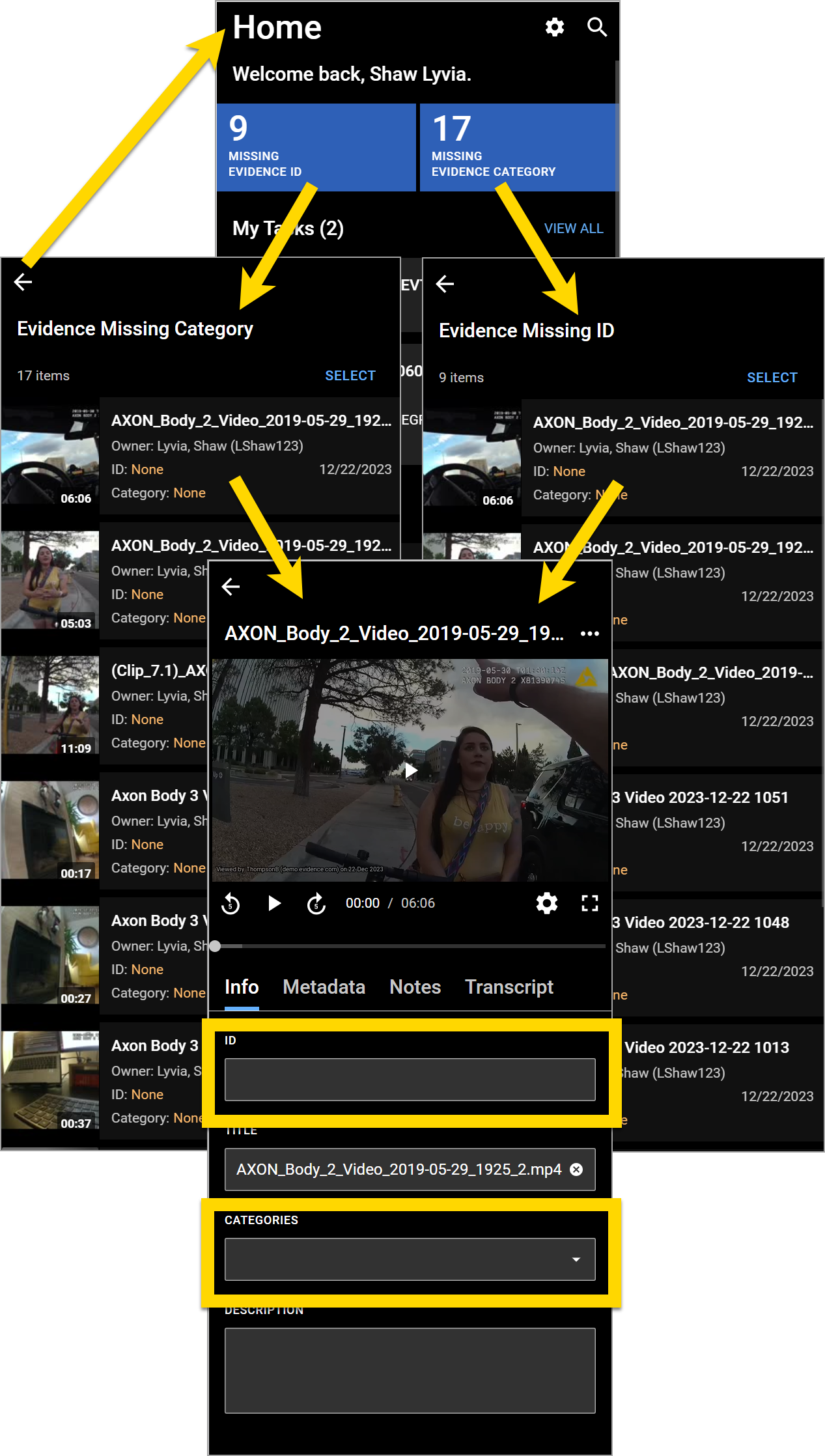
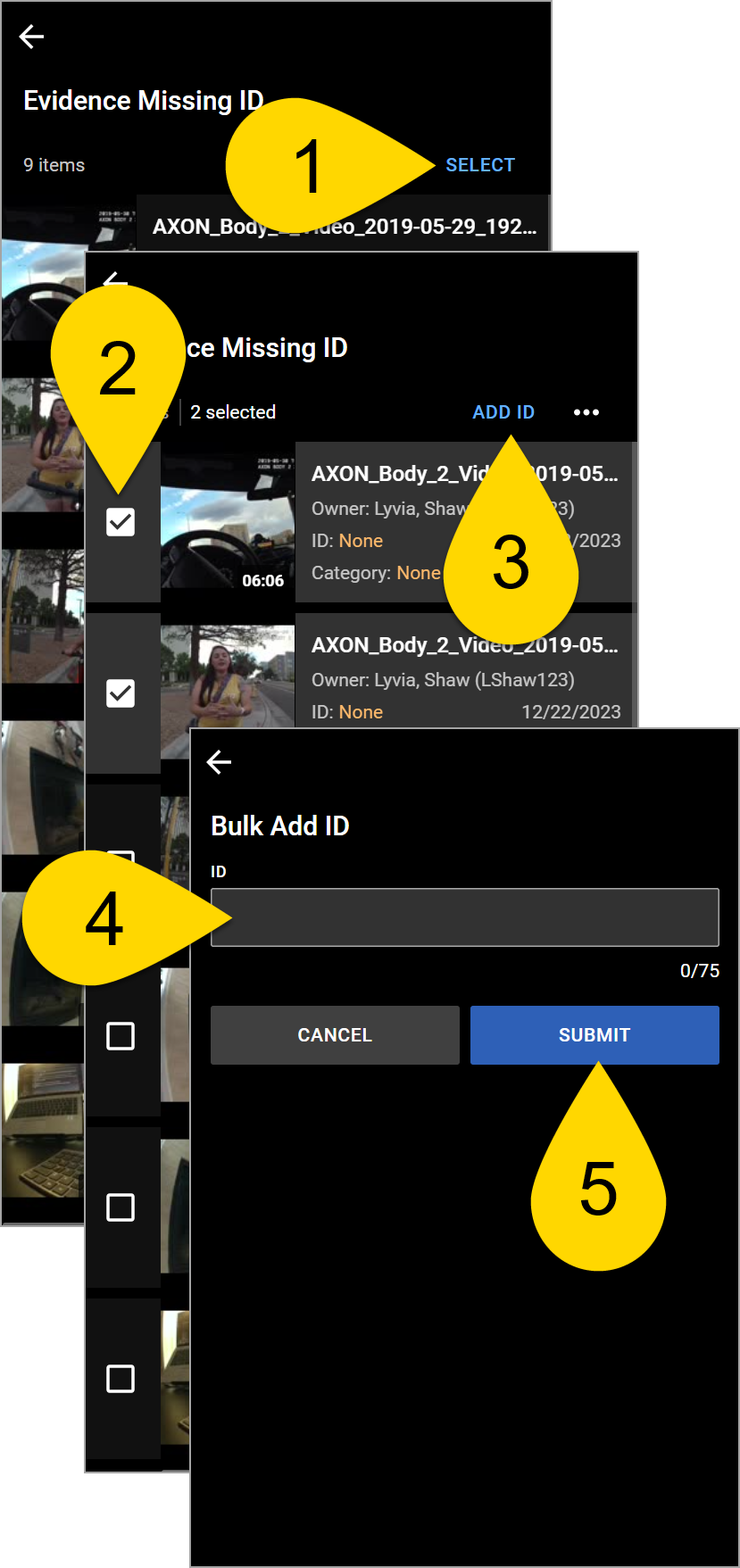
To add the same Evidence ID and/or Categories to multiple items:
- Tap Select.
- Check the boxes beside the pieces of evidence you want to update.
- Tap Add ID/Category.
- Enter the ID or Category.
- Tap Submit.
Once an ID or Category has been added to a piece of evidence, that evidence no longer contributes to the number count on the app's Home screen.