Set up the Axon app
Start by downloading the Axon app from the app store for your device:
- How to download apps from the Apple App Store (third-party site)
- How to download apps from the Google Play Store (third-party site)
As of Android 15, the Private Space feature allows users to create a separate, secure area on their device for sensitive apps and data. However, Private Space is not supported by Axon applications, including Axon Capture, Axon View, and the Axon app. While Axon apps can function within Private Space, all background activities—such as recording, GPS, uploads, and data access—stop when Private Space is locked, which can disrupt critical operations. For the best experience, disable Private Space when using Axon applications. Learn more about Private Space on Google’s support page.
Sign in to your organization
To sign in to the Axon app, follow the steps below for your device – either iOS or Android.
Every 7 days, you will be logged out of the app and must enter your username and password to log back in. During the 7-day period when you are logged in, you must use your device's security features to open the app.
Watch this video to learn how to sign in with the Axon App on mobile devices.
iOS sign in
If you experience sign-in issues, you may need to disable Private Relay on your iOS device. For more information, see iCloud Private Relay & Privacy.
Sign in and begin using the Axon app on your iOS device:
- Open the Axon app.
- Enter your passcode or continue with Face ID/Touch ID. If you have not yet set a passcode, see Set up the Axon app.
- Enter your organization's URL and then select Continue.
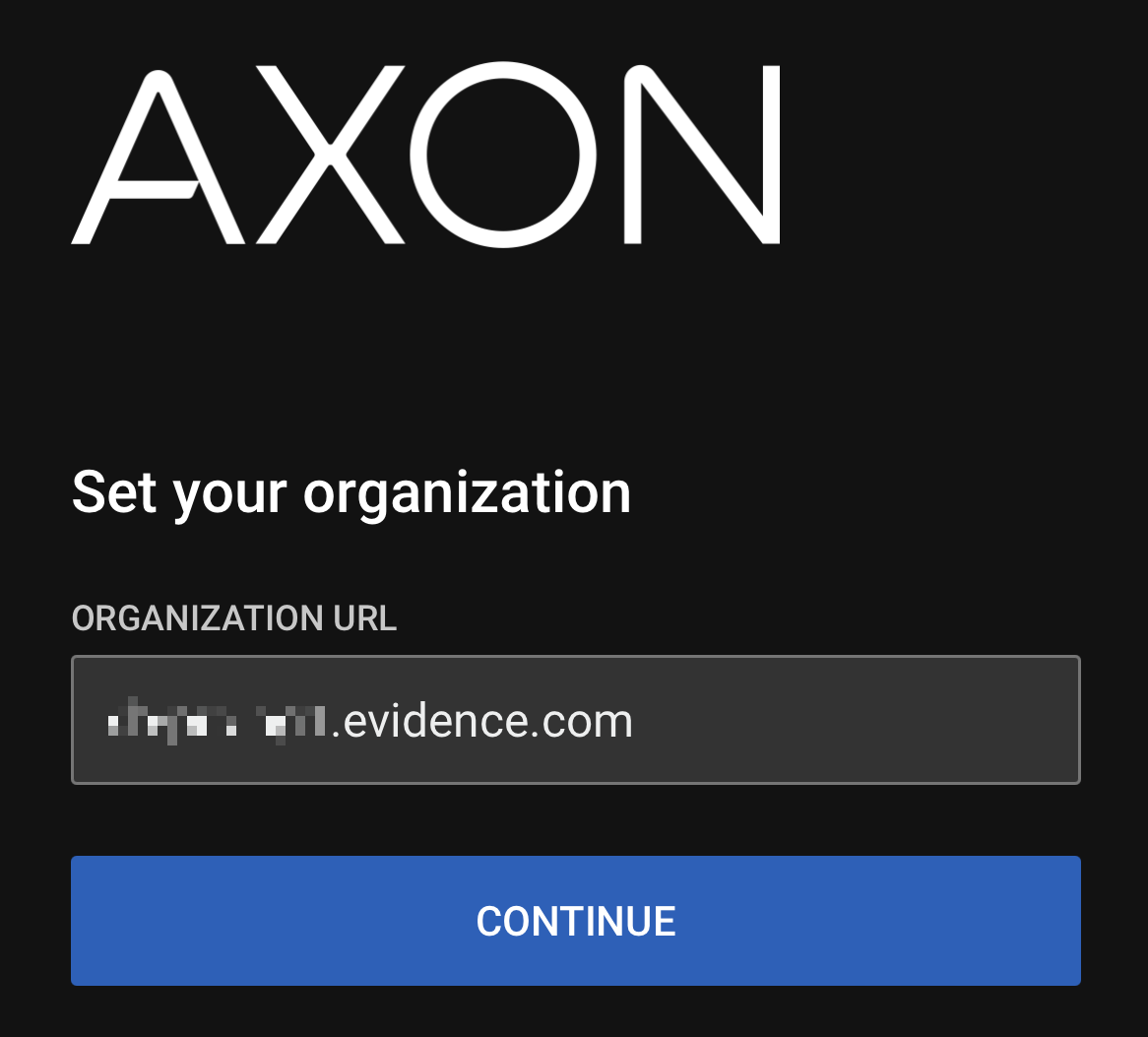
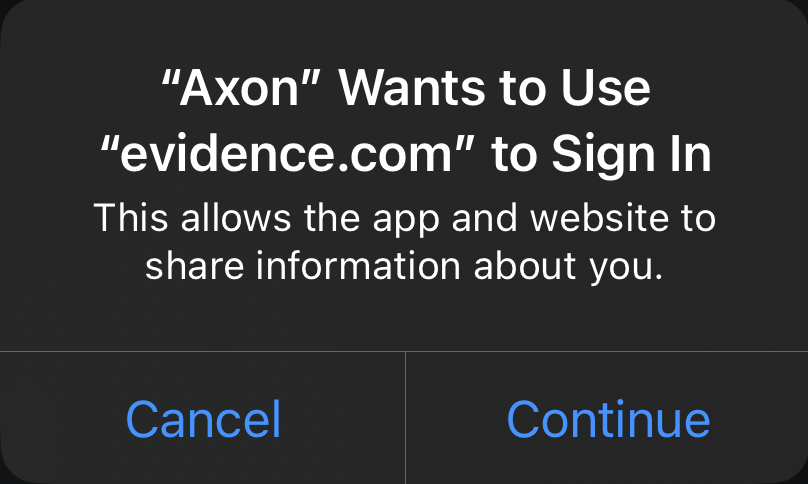
- Select Continue on the window to confirm use of the app on your iOS device.
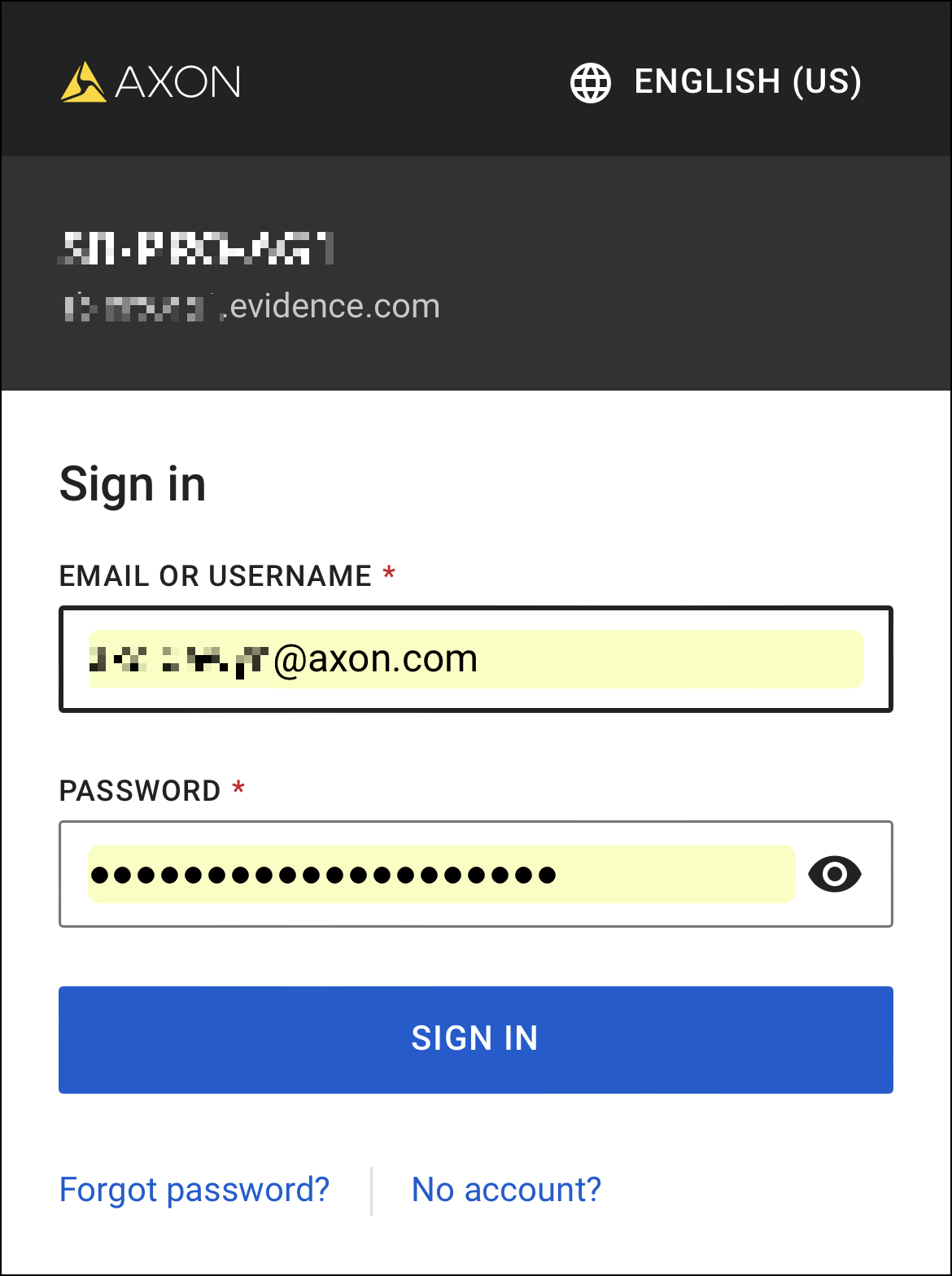
- Enter your organization email/username and password and then select Sign In.
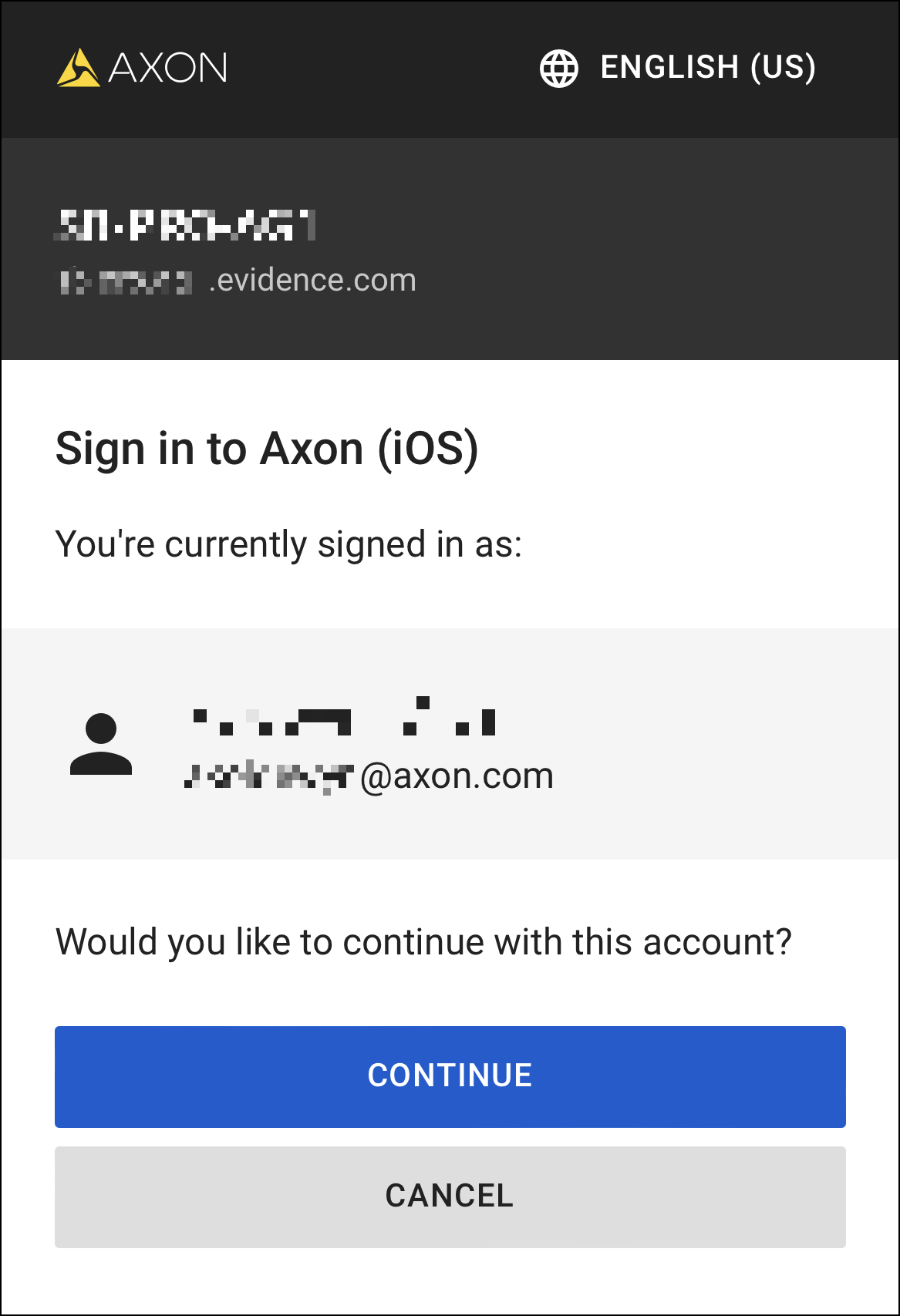
- Select Continue to use the app with your credentials.
The app opens to the Home screen where you can access your tasks and evidence.
Android sign in
Sign in and begin using the Axon app on your Android device:
- Open the Axon app.
- Enter your PIN or continue with fingerprint/face recognition. If you have not yet set a PIN, see Set up the Axon app.
- Enter your organization's URL and then select Continue.
- Enter your organization email/username and password and then select Sign In.
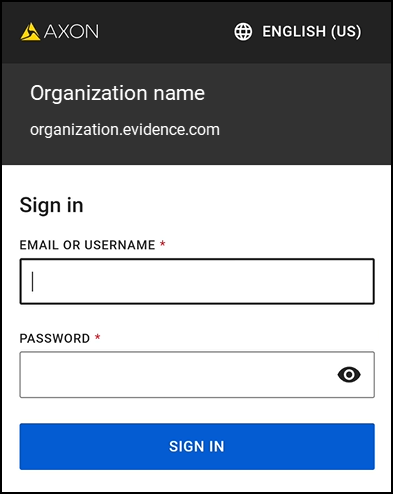
- Select Continue to use the app with your credentials.
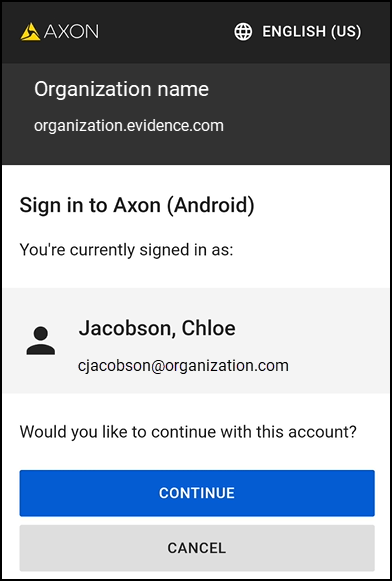
The app opens to the Home screen where you can access your tasks and evidence.
Set up your device's security features
After you have signed in to your organization's URL using your username and password, you will remain signed in for 7 days. To open the Axon app during this time, you must enter your device's passcode.
If you prefer to use biometric security features, you can set up Face ID, Touch ID, Fingerprint, or Face Recognition depending on your device.
iOS security
Set up a passcode or biometric security on your iOS device (third-party site):
- Use a passcode with your iPhone, iPad, or iPod touch
- Use Face ID on your iPhone or iPad
- Use Touch ID on iPhone and iPad
If you didn't initially enable Face ID or Touch ID for the Axon app when prompted, you won't be asked again. To enable biometric sign in for the Axon app after initial setup, follow the steps below. Note that depending on your device and iOS version, the screens might look different.
- Open the Settings app.
- Select Face ID & Passcode or Touch ID & Passcode.
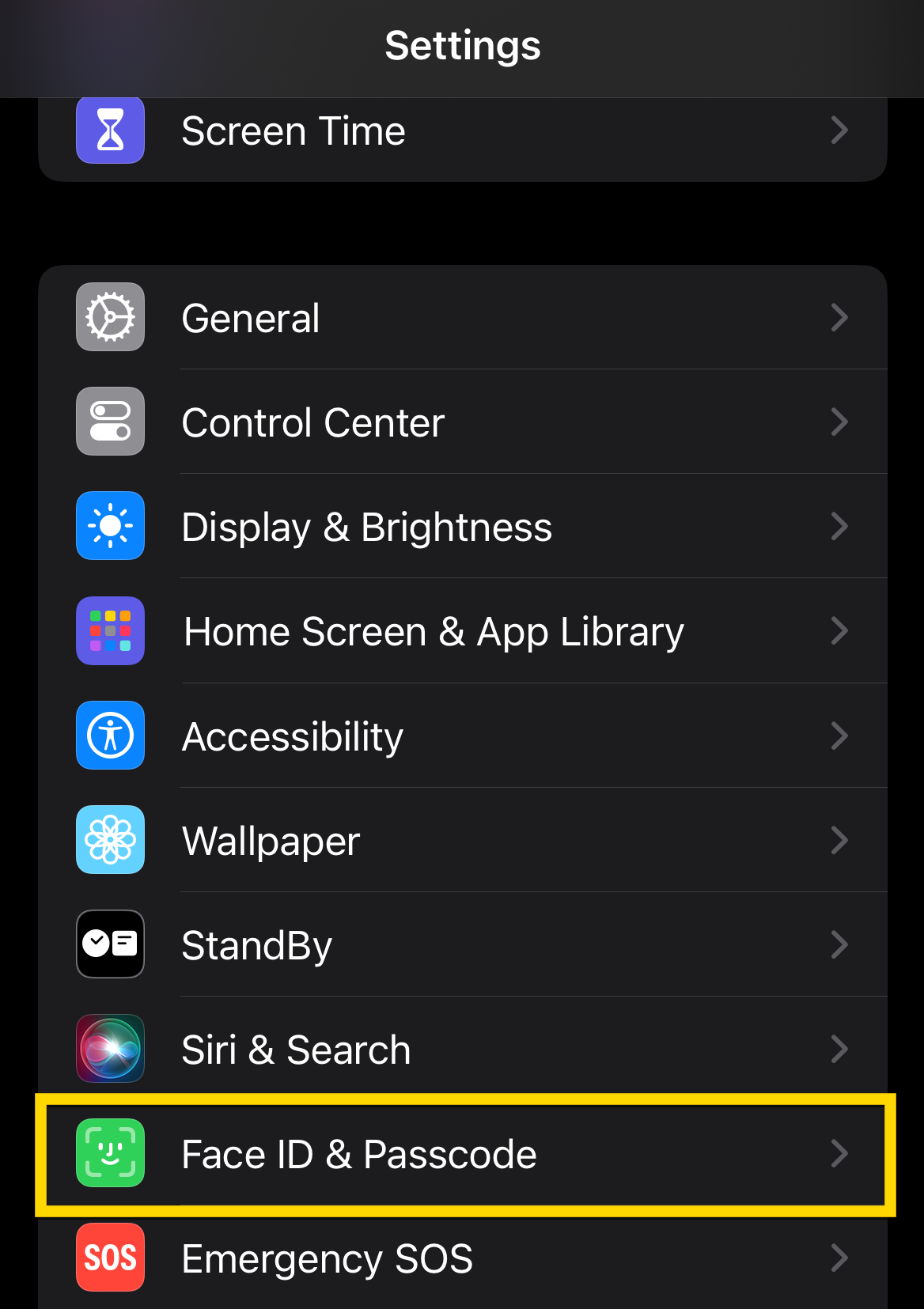
- Enter your passcode.
- Select Other Apps.
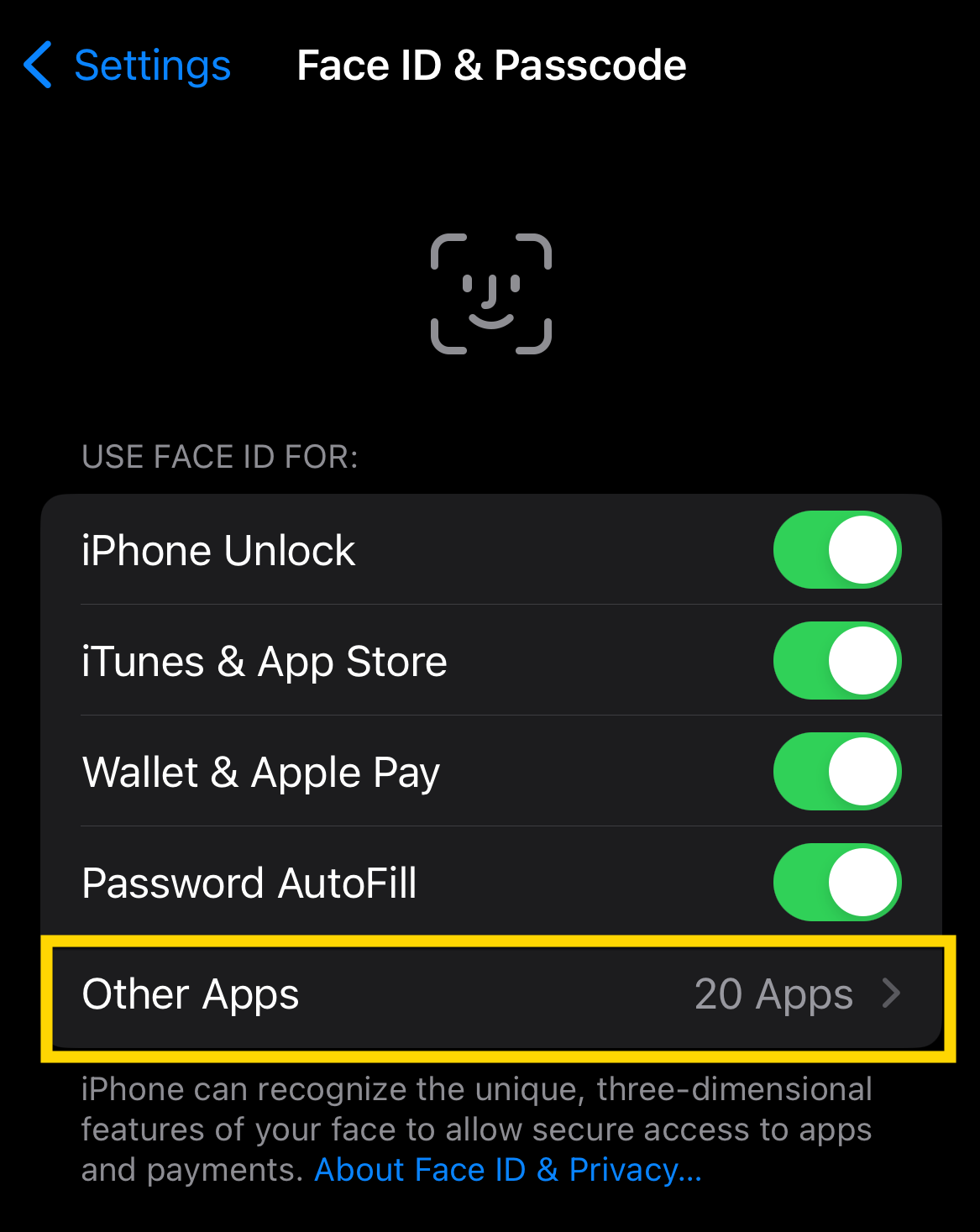
- Ensure Axon is toggled to allow Face or Touch ID.
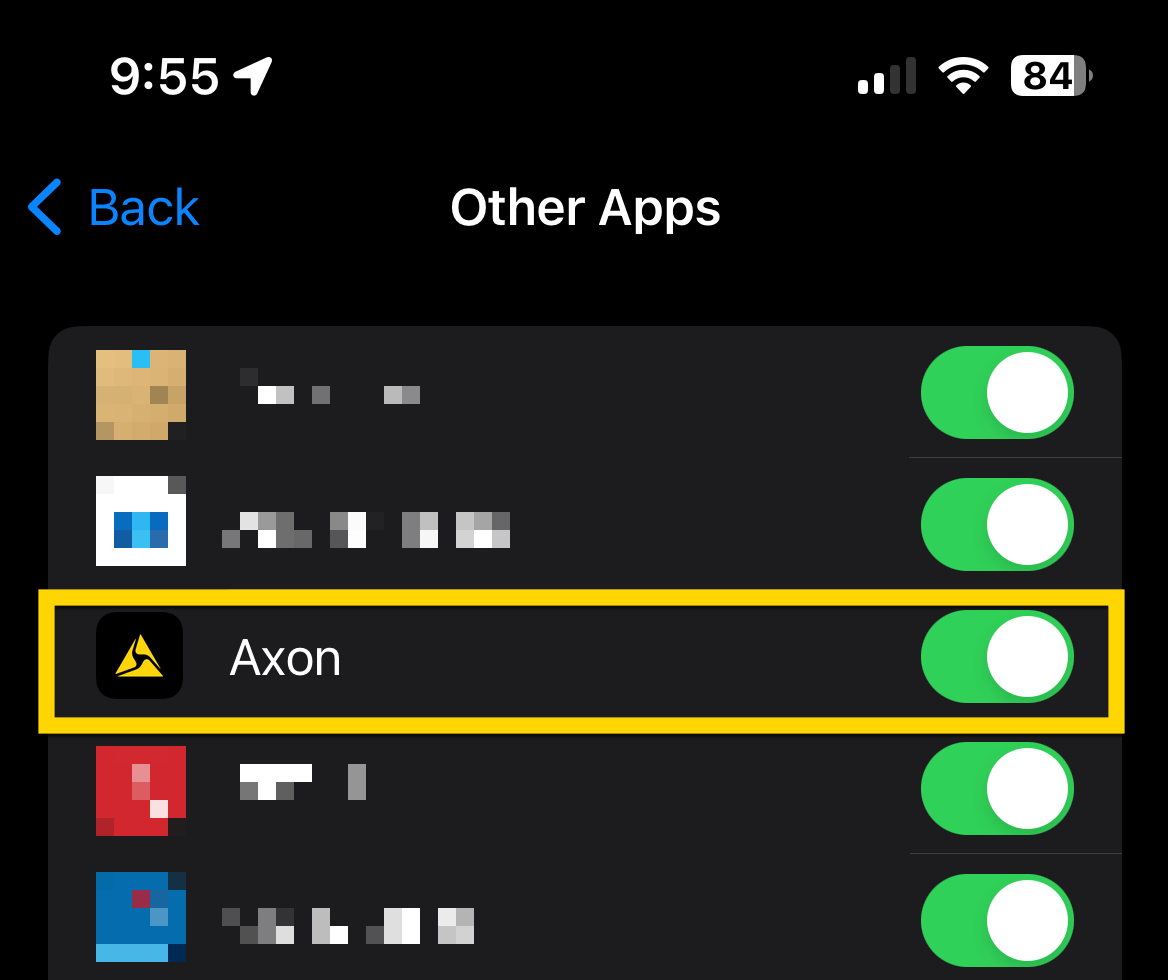
You can now use your biometric data to open and use the Axon app.
Android security
Set up security features on your Android device (third-party site):
Biometric settings on Android devices generally apply system-wide, meaning you don't need to enable fingerprint or face recognition specifically for the Axon app. If you've already configured these security features, you'll be prompted for your fingerprint or face recognition when you access the Axon app. If you're not prompted, follow the steps below to verify that they are set up correctly.
-
On your Android device, go to Settings.
-
Select Security or Biometrics (this may vary by device).
-
Select Fingerprint or Face Recognition to review your biometric settings
-
Confirm that your fingerprint or face recognition is active and properly configured.
Limit interruptions when using Axon apps
If your organization has Mobile Device Management (MDM) software, we recommend using it to enable this feature on all of your users' devices.
If your admin hasn't enabled it through MDM, we strongly recommend using your device's "focus mode" or "do-not-disturb" functions. This helps prevent interruptions from notifications or calls that could disrupt your recording.
Do Not Disturb and Focus in iOS
You can manually turn on Do Not Disturb on your iOS device when using an Axon mobile app, and then turn it off again when you're done.
You can also set your device to automatically enable it when you open an Axon mobile app:
- Set up a Focus on iPhone
- Turn on or schedule a Focus on iPhone - When setting up a focus schedule, select any app you'd like to include, including non-Axon applications.
Do Not Disturb on Android
Depending on the model of your Android device, these settings may differ. Consult your device's manufacturer settings for more information.
Consider setting up Safe mode
Safe Mode can help prevent access to other apps and areas on your device when you must hand your device to someone else.


