Troubleshooting
An Axon Dock provides a wired network connection for various cameras. It functions as an ethernet adapter, unmanaged network switch, and charger. As long as the dock has power and a network connection, it should continue functioning correctly.
Axon Dock FAQs and errors
Time server shows 000 and/or a red X
- In Axon Dock, select Administration, then SSL Configuration.
- Check the boxes for both Require SSL for Initial Time Check and Accept only SSL Requests.
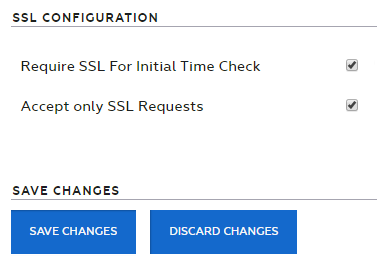
- Select Save Changes.
- Reboot and register (if not done yet) the dock.
The dock UI shows something other than a red X next to Time Server
The IP addresses of Axon Evidence (Evidence.com) need to be white-listed. Contact customer service to obtain a list of these IPs.
HTTPS shows a red "X" or "NA"
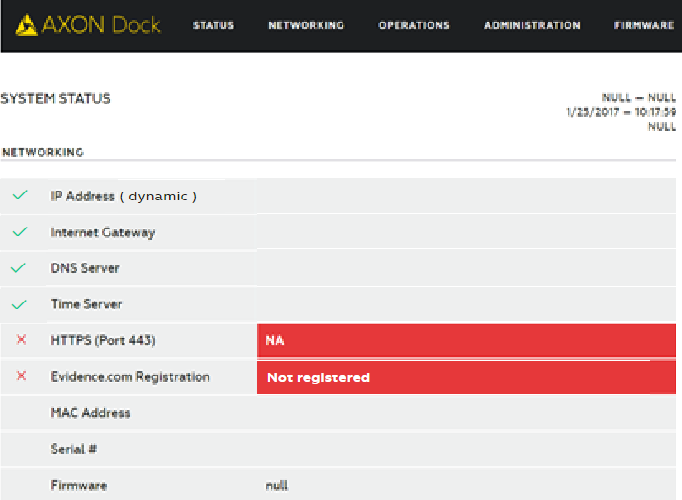
- Outbound traffic on port 443 (SSL) appears to be blocked on the agency firewall. Work with your agency IT department to ensure this port is opened outbound.
- The IP addresses of Axon Evidence (Evidence.com) need to be allowlisted. Contact customer service to obtain a list of these IPs.
No IP address found or all fields red
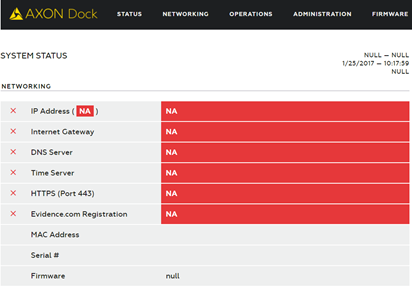
- Ensure the dock status light is a solid green. Red X’s will appear if the dock has not fully booted up (the boot-up process takes roughly one minute).
- Ensure physical connectivity (ethernet cable) to the WAN port on the dock.
- Ensure the dock is plugged into a valid internet source/active port.
- If your agency uses statically-assigned IP addresses:
- Assign a static IP address on the networking tab on the Axon Dock UI. You may need to contact your agency IT department for this information.
- If errors persist, double-check the static entries against another computer on your network and ensure you entered two valid DNS addresses.
What do the dock registration error codes mean?
| Error | Explanation |
|---|---|
| 100010 | Invalid credentials: either a password or username has been entered incorrectly or the domain name for those login credentials is incorrect. |
| 100003 | A network related issue occurred. If a static IP address has been assigned to this dock, ensure all entries are correct and that two DNS entries have been added. |
| 100005 | There have been too many failed registration attempts. Click the Reset Registration button at the bottom left and after the reset has completed, try again. |
| 100008-1 | A network-related issue occurred. Reset the dock by pressing the reset button by the WAN port with a paperclip or similar tool. If that doesn't work, unplug the power for 30 seconds, then reconnect and let the dock reboot (this takes 1–2 minutes). Try registering again. |
| Host Not Found / 100003 | No internet connection or the Evidence.com sub-domain name is misspelled. Other possibilities include bad internet port, bad ethernet cable, or an incorrectly entered static IP entry. |
| 1060 | "****.evidence.com is not a valid hostname". The sub-domain name is misspelled. |
| Error: 1 | The domain name field is empty. |
| 100006 | SSL handshake failed.Ensure your sub-domain name and Evidence.com credentials are correct. |
| 10020 | Access denied. You do not have permission to view this object. The person attempting to register this dock is not in the default Admin role or their role does not have the Device Administration permission enabled. |
Dock LEDs are flashing red and green repeatedly
The dock has been unregistered and is not uploading. If a dock has been offline for more than 90 days, it is automatically unregistered. An admin must complete the registration process to reconnect the dock.
Dock LEDs are flashing red, yellow, and green repeatedly
Several conditions can cause cameras to flash this sequence. It typically indicates the dock is experiencing a network error or has not yet been registered to your agency's Axon Evidence account.
Also, an Axon Dock firmware update will cause the cameras in the docking station to flash like this for 5–10 minutes. If the dock does not resume normal operation after that, check the following possibilities.
Ensure your Axon Dock has been registered. If it's already registered and was working properly, keep reading.
Re-seat the camera
Remove and re-seat the camera/controller and wait two minutes to see if the condition corrects itself.
Reset your dock
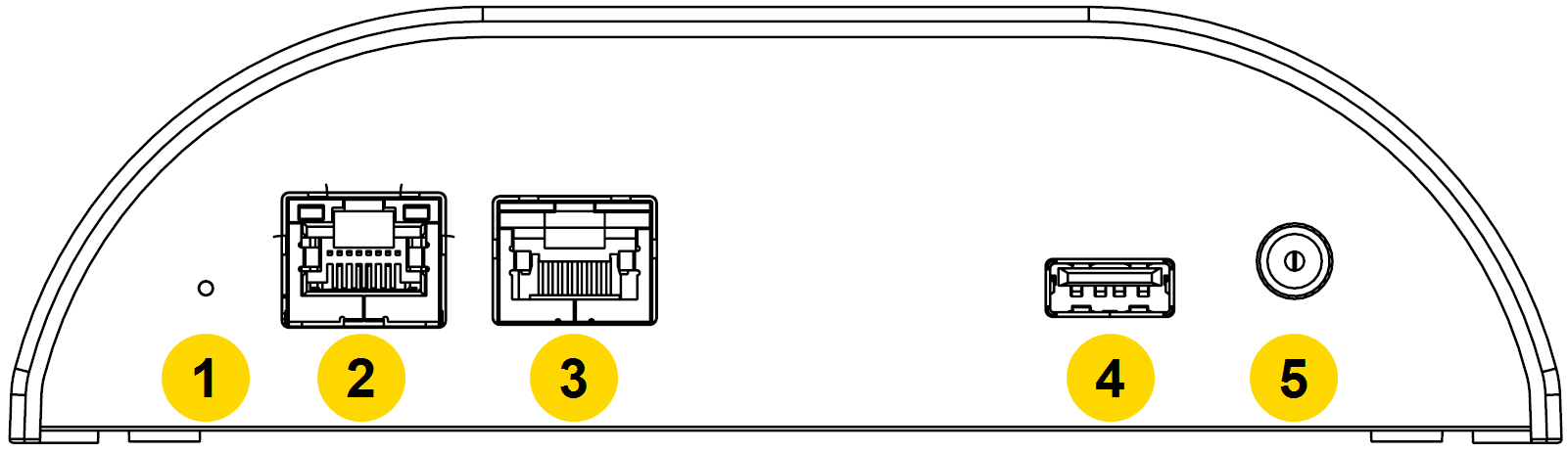
Using a paperclip or similar item, press the reset button on the dock.
|
|
The dock begins a reboot process that takes 1–2 minutes. If this reset doesn't work, continue below.
Repower your dock
Pull the power cable from the dock, wait one minute, and reconnect. The dock begins a reboot process that takes 1–2 minutes. If this reset doesn't work, continue below.
Check network configuration
Check with your IT department to ensure no changes have been made to your firewall or other security devices. Specifically, for the following three ports:
- Port 443 (TCP) is open for traffic to your agency’s domain ([youragency].evidence.com). This port is used by the dock to send video and data files to Axon Evidence using the HTTPS protocol.
- Port 53 (UDP) is open for access to DNS, if your network uses external (internet) DNS servers. When using external DNS servers this port is necessary for the dock to locate the servers for your Axon Evidence account.
- Port 80 (TCP) for time synchronization.
If you are not sure or IT can’t confirm if these ports are opened or closed, connect a laptop to the dock via the MGMT (LAN) port (see image above) and access the dock status page by visiting 10.10.1.1 in a browser. The dock will attempt to clarify which port it believes to be blocked.
Not enabling inbound and outbound traffic on the above ports will disable the dock's ability to upload.
Check allowlisting
Confirm that the Axon Evidence IP addresses are allowlisted. Not allowlisting all Axon Evidence IP addresses may affect your uploads. If you need a list of Axon Evidence IPs, contact us.
Check static IP addresses
If your agency is using static IP addresses on your dock, confirm that no changes have been made to those IP address ranges. If changes have been made, the static IP addresses assigned to the dock may no longer be usable and must be updated by your IT department.
Check IP restrictions
If using IP restrictions, ensure the IP addresses assigned to the dock falls within the range of your accepted IP addresses. If the dock’s IP address is outside the range, evidence will not upload.
Ensure ethernet ports are active
Confirm that the ethernet wall ports or switch (if in use) are still active. Some IT departments will not activate ethernet ports until ready to use. This can cause others to be inadvertently turned off and disable internet access.
Switches, which often look like a typical router, are powered separately from your dock. Ensure the switch is powered on and showing internet traffic (usually blinking lights).
None of the above worked
If your IT department confirmed that no changes were made and all necessary firewall ports and IP addresses are correct, check for potential camera issues:
- If all the cameras/controllers in the Axon Dock are blinking red, yellow, and green, there is likely a network or service issue. Check with your agency IT for any network connectivity issues. If your network is functioning correctly, sign into the dock, go to the Status page, and check the device status. Also, check for any Axon service updates or announcements. If there are no errors, contact us for further assistance.
- If the camera/controller continues to blink red, yellow, and green, place a camera/controller that is operating normally in the dock and wait two minutes.
- If the normal operating device blinks red, yellow, and green, there is a network or service issue. See #1 above.
- If the normal operating device is not blinking red, yellow, and green after two minutes, reconnect the original device, sign into the dock, go to the Status page, and check the device status. If there are no errors, contact us for further assistance.
Unable to reach the Axon Dock status page
If the computer connected to the dock can't connect to the status page after entering in 10.10.1.1 in a browser, ensure:
- The dock has power
- The computer is connected to the MGMT (LAN) port, not the WAN port of the dock (see image above)
- Wi-Fi on the computer is disabled or turned off
- The computer is not set to a static IP; if set to a static IP, the computer must be temporarily set to DHCP to reach the dock status page.


