Priority Upload
Priority Upload lets you wirelessly upload the most recent recording on your body camera to Axon Evidence using LTE(4G).
Watch this video for an overview of this feature.
Start a Priority Upload
-
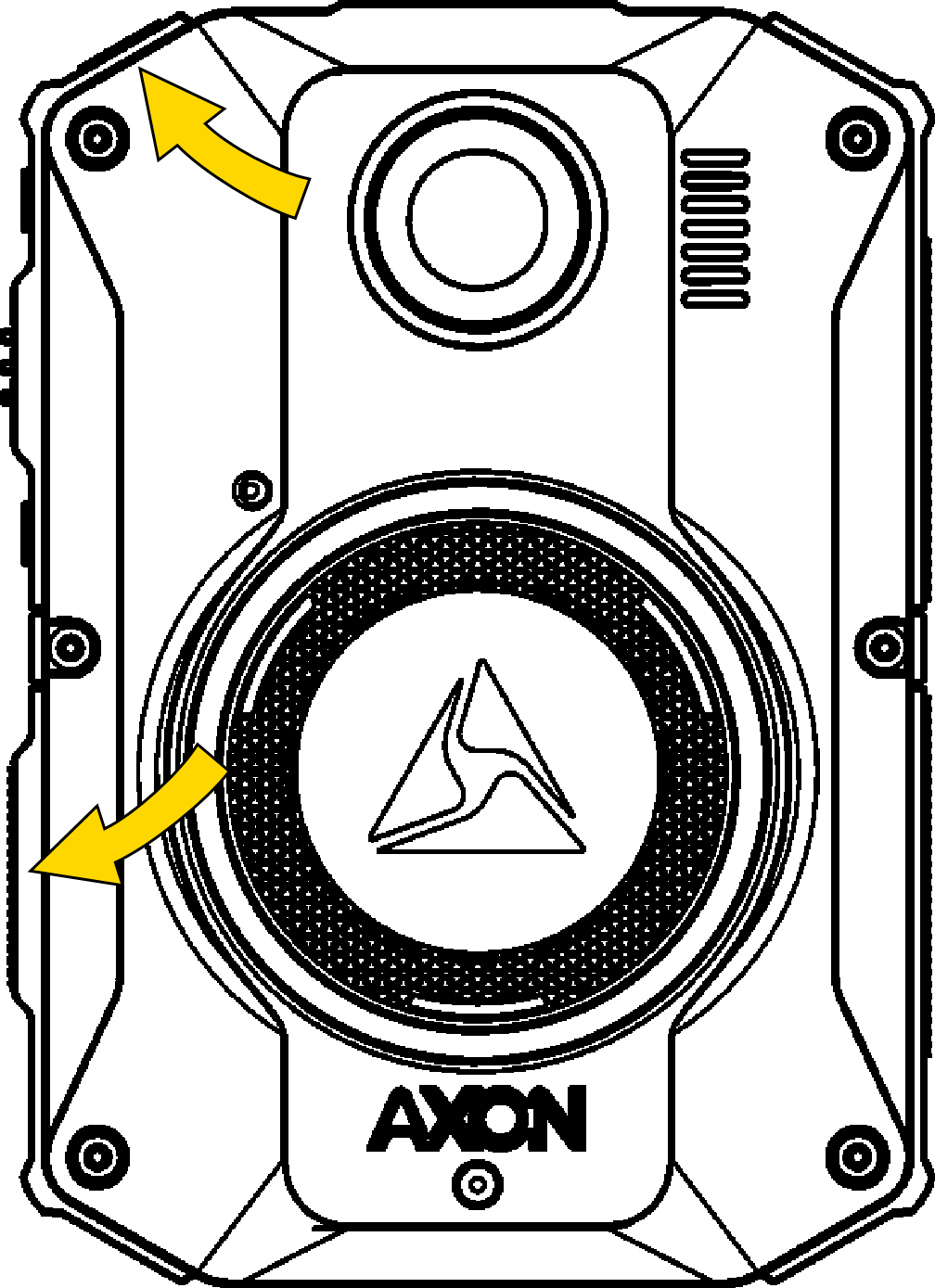
- Press Select

- Select Priority Upload. If there is no recording on the device, the display shows NO EVIDENCE.


- If there is a recording on the device, the top of the screen shows its start time followed by the duration in parenthesis. Use the volume buttons to select either BACK (upload nothing) or START (uploads the last saved recording), then press Select. You can only upload the most recent recording.


Once an upload has started, the display returns to its normal view of showing if the camera is Ready or Recording, along with the upload icon  at the bottom right.

The diagnostic menu option changes from Upload to Uploading when an upload is in progress.
Once the recording has uploaded, the camera vibrates, displays UPLOAD COMPLETE, and deletes it from the camera.
Cancel an upload
- Open the diagnostic menu.
- Select Uploading.
- Select CANCEL.

A message confirms the cancelation and the recording remains on the device.
Error states and edge cases
Upload using mobile data may encounter the following errors.
Evidence exceeds upload limit
Recordings longer than 120 minutes cannot use mobile data due to the size of the file. Dock the camera or use View XL standalone mode.
Upload paused: poor signal
The camera pauses upload if it loses data coverage, displaying  at the bottom right. If coverage returns within 10 minutes, the upload will resume, otherwise it cancels and the recording remains on the camera.
Upload paused: USB-C connected
A wireless upload pauses when you connect a USB-C cable. The upload will resume when you disconnect the cable.
Camera shut-down due to low battery
If the camera shuts down due to a low battery during a wireless upload, the upload pauses and the recording remains on the camera. The upload will resume when the camera is turned back on with sufficient charge.
Docked camera
If you dock your camera during a wireless upload, the upload will continue using the dock's ethernet connection, with the Priority upload occurring first.
Upload timed out
If the upload takes longer than two hours (which may occur if wireless coverage is poor and/or the file size is large), the upload pauses. Select to RESUME or CANCEL the upload.
Upload paused: livestream
A wireless upload pauses to allow a requested livestream. The upload resumes when the livestream ends.
How Priority Upload affects the camera
Several factors can affect the performance, speed, and battery use of a wireless upload. With strong coverage, a 15-minute recording at 720p
The camera continues to buffer or record normally while uploading wirelessly.
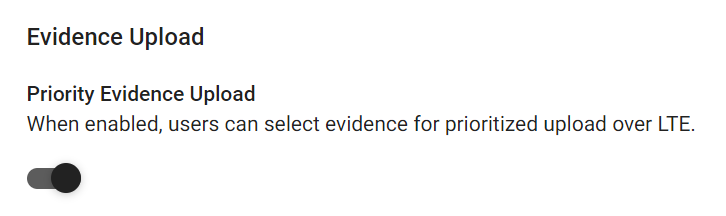
Priority Upload is included as part of Axon Device Connectivity (included for any organization who previously purchased Respond or Respond+). Axon Evidence administrators can enable it by turning on the Priority Upload setting on the camera settings page under Admin: