Search for devices
Use the Axon Evidence search screen with its robust filtering options to find and manage devices.
Use standard search
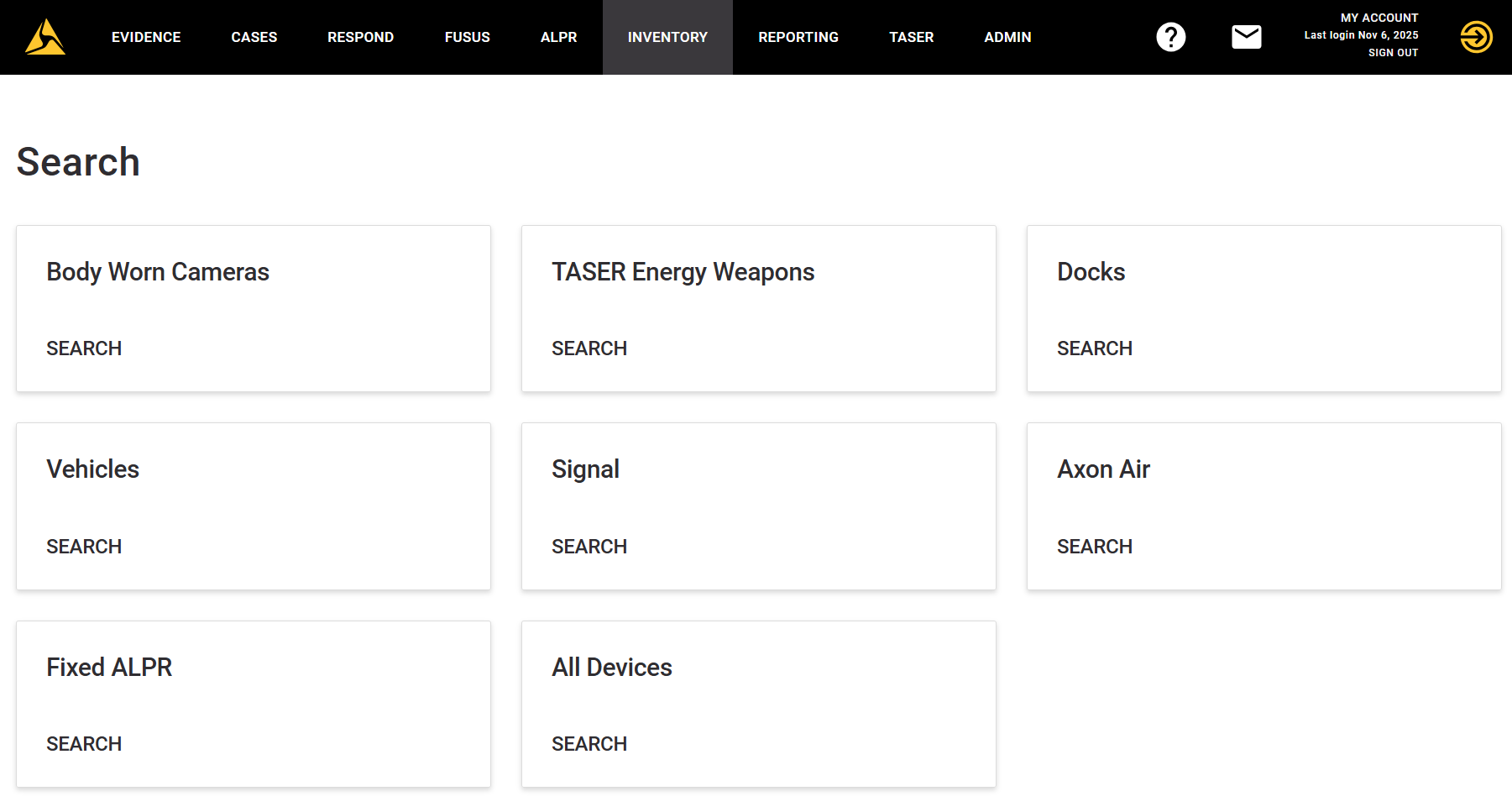
- On the menu bar in Axon Evidence, select Inventory.
- Select the type of device you want to search for or All Devices.
- In the resulting list of devices, select any column heading to sort by that column.
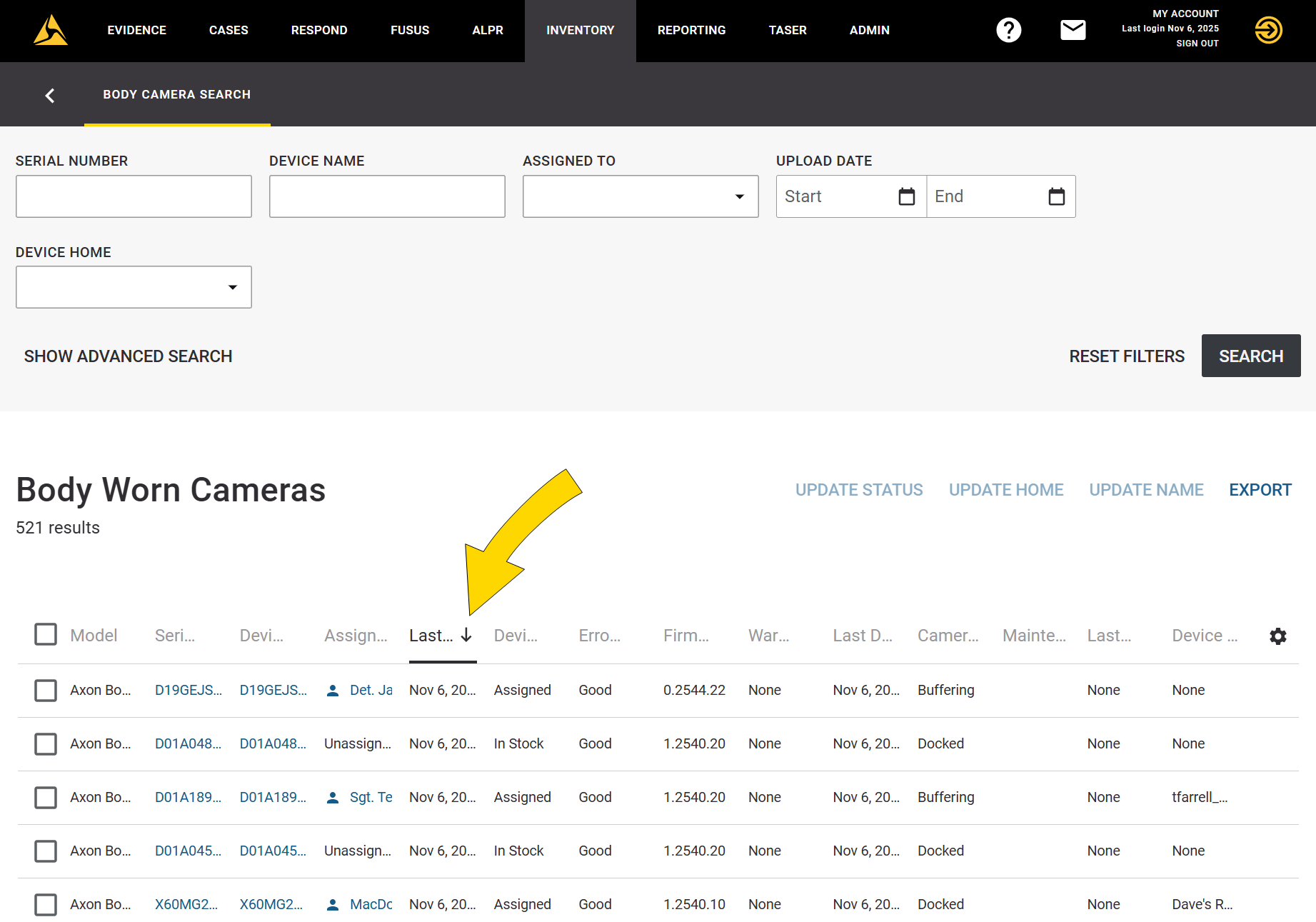
To accomplish different tasks here, follow these guidelines:
| Task | Steps |
|---|---|
| View a device | Select the serial number of the device. |
| Find devices assigned to you or another person | Enter and select the name of the person to search for in the Assigned To field. |
| Find unassigned devices | In the Device Status filter, select In Stock. |
| Change search results | Update the device search filters or select Reset Filters, then select Search. |
| Sort search results | Select a column heading to sort by that column; select it again to reverse the order. |
Learn more about search results at Working with Device Search Results.
Basic search filters
Use case search filters limit search results to specific cases. Most filters support partial matches: for example, searching for serial number X81 would return both X81162367 and X81233704.
| Filter | Description |
|---|---|
| Serial Number | Supports partial matches. |
| Device Name | By default, device names are the same as the device serial number; however, organizations can assign custom device names to some devices, such as body cameras and TASER devices. Supports partial matches. |
| Assigned To | Filer by assigned user. Select your own name to see all devices assigned to you. |
| Upload Date Start | Limits search results to devices to Axon Evidence between the set dates (inclusive). Specify a date and time range using the Start and End fields, otherwise the search is not limited by date range. |
| Start | The start of the date and time range. If empty, the date range begins with the earliest possible date. |
| End | The end of the date and time range. If empty, the date range ends with today. |
| Device Home | Filter by devices assigned to a specified Device Home or None. This filter only appears if your organization has at least one Device Home. |
Advanced search filters
Select Show Advanced Search to use these additional search filters.
| Filter | Description |
|---|---|
| Device Model | Filter by specific device models. |
| Device Status | Filter by device status. To search for unassigned devices, select In Stock. |
| Error Status | Filters by error status. |
| Maintenance due | Filters by devices due for maintenance. |


