Work with evidence in a case
From the case details page, you can take actions on evidence that is associated with the case. This includes reviewing files, organizing them into folders or projects, updating metadata, and managing access. Depending on the evidence type and your permissions, you can also redact, download, export, or add evidence to cases.
Review evidence
You can review evidence in a case from the Evidence tab. While all evidence file types can be added to Review mode, only file types that are currently supported by Axon Evidence display. If the file type is unsupported, you are prompted to download the evidence.
- Select the Evidence tab.
- Select the checkbox next to each file you want to review.
- Select Review.
To review all evidence on the page without selecting individual files, select Review All on Page.
Add evidence to a case
From the Cases page, perform the following:
- Open a case by selecting the Case ID.
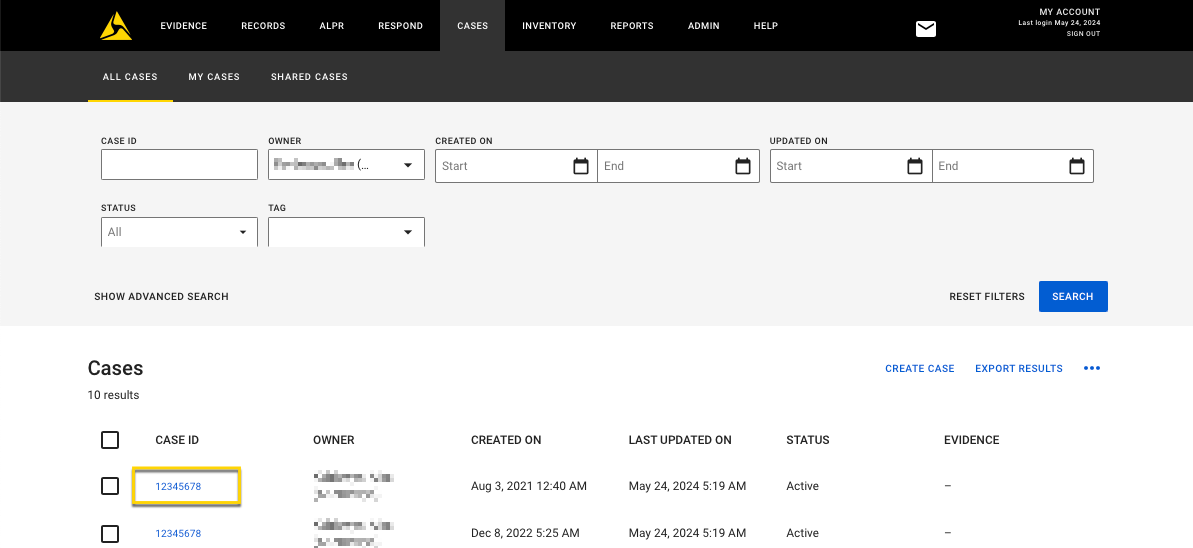
- Select Add Evidence.
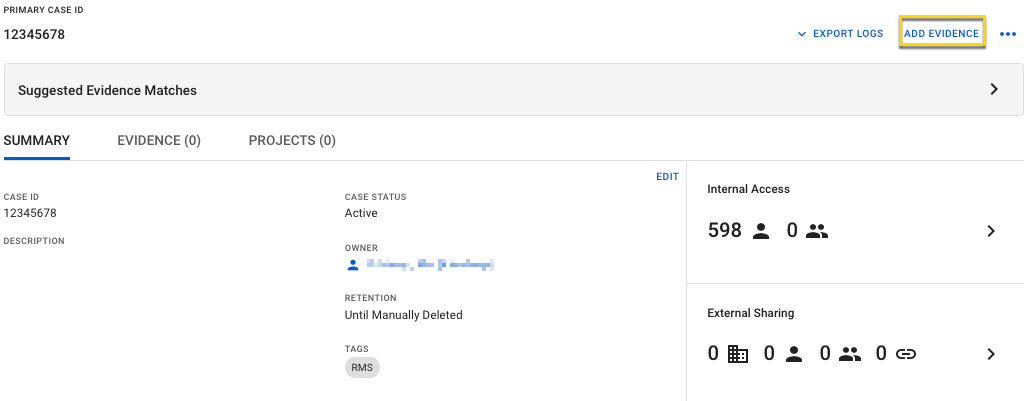
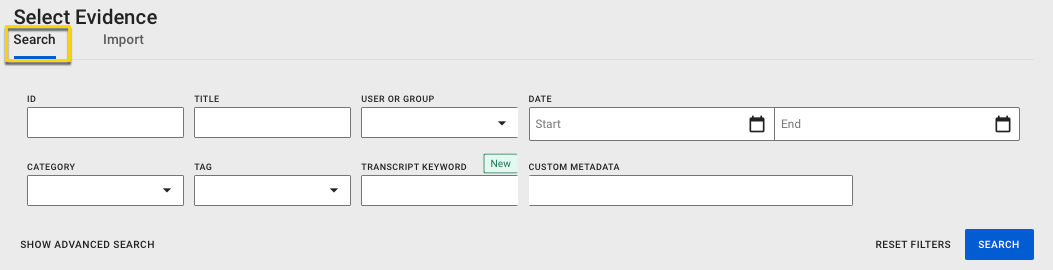
- Ensure you are on the Search tab and use the search filters to find evidence to add to the case.
- Select the checkboxes for each matching evidence file desired.
- Select Add to Case or Review. For information on adding categories, see Adding a Category to Evidence.
- Add to Case lets you add the selected evidence to the case without reviewing it.
- Review lets you review the evidence files you have selected before adding them to the case. In Review Mode you can view the metadata for the evidence, open the evidence details, or add the evidence to the case.
- When you are finished adding files, select Done. If you are adding evidence to a case that has been shared with a partner organization, you will be prompted to update your case share.
Removing evidence from a case will remove access from all case share recipients and the retention is determined by the assigned evidence category.
Import new evidence to a case
Users who have the Upload External Files permission can import new evidence files directly into a case. The maximum file size is 4 Gigabytes.
- Open a case by selecting the case ID.
- Select Add Evidence.
- Select the Import tab.
- Do one of the following to add files. You can add up to 500 files at one time:
- Find the files on your computer and drag and drop them onto the Import Evidence page. If your organization uses evidence folders, you can drag and drop a folder and all its contents into the case. This way, you can easily create a folder hierarchy and add evidence at the same time.
- Select Choose Files and use the dialog box to find and select the files on your computer. To submit more than 500 files or submit files larger than 4.0 GBs, see Upload XT and XTMT.
- Once the files are added, you can edit the title, managed metadata, ID, and category information for each file. You can also edit the managed metadata, IDs, and categories for all the imported evidence or select and edit the managed metadata, IDs, and Categories for specific files using the Edit Managed Metadata, Edit All IDs, and Edit All Categories options. If your agency has evidence ID field validation enabled, it is enforced when files are uploaded.
- Select Upload. If you are adding evidence to a case that has been shared with a partner organization, you will be prompted to update your case share.
Organize evidence with folders
Use folders to group related files, create subfolders, rename folders, or move files. Evidence in folders also appears in the full evidence list.
Add evidence to a folder
- Select one or more evidence files you want to organize.
- Select Folder Actions, and then select Add to Folder.
- In the Add to Folder dialog box, choose an existing folder or enter a new one.
- Select Add.
Remove evidence from a folder
This is informational content meant to provide helpful context without requiring action.
The option to remove evidence from a folder is only available if the evidence file is already in a folder.
- Select the folder you want to remove evidence files from.
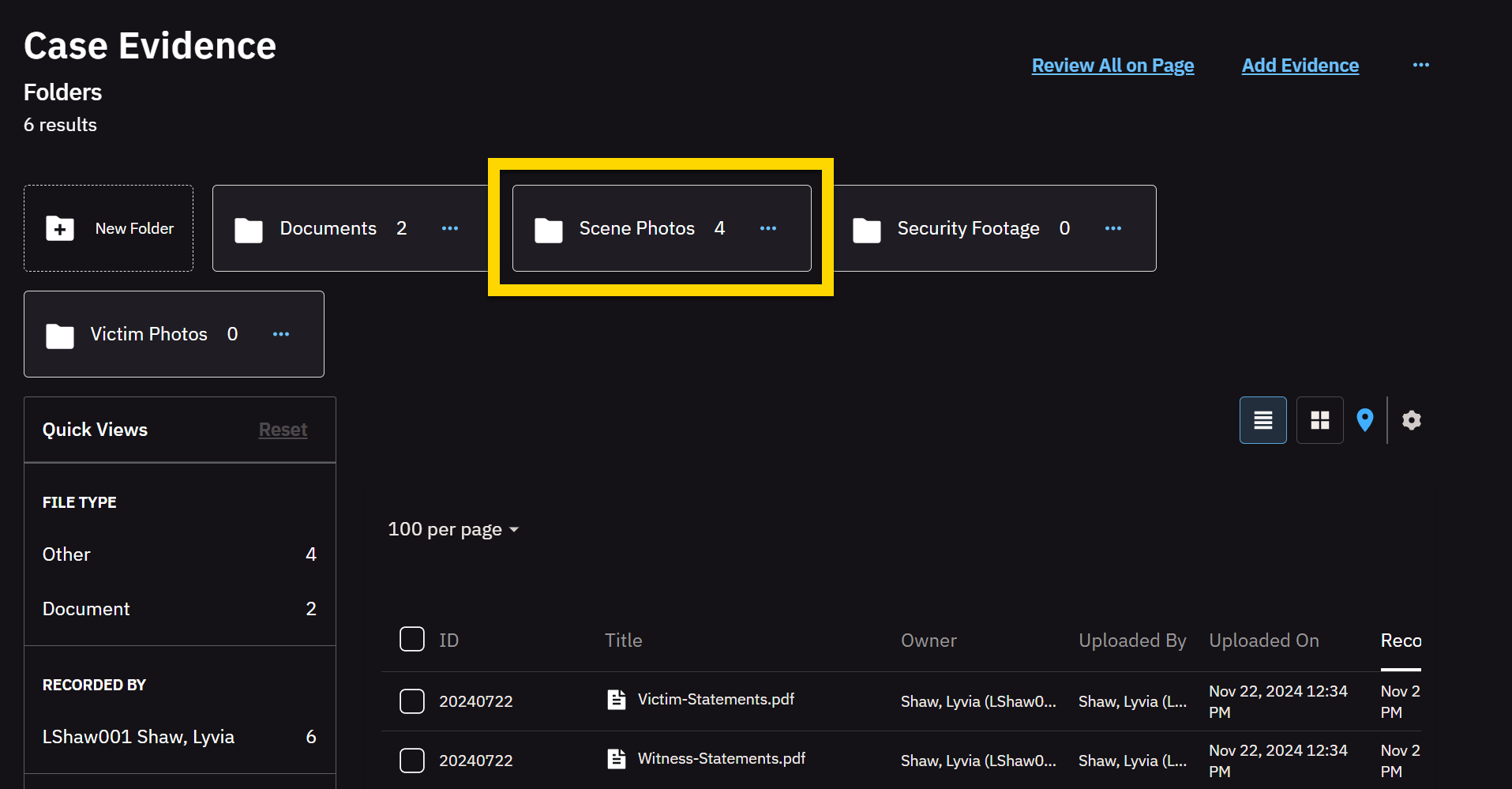
- Select one or more evidence files.
- Select Folder Actions.
- Select Remove from Folder. A dialog box opens asking you to confirm that you want to remove the selected evidence from the folder.
- Select Remove.
Delete a folder to remove its contents and move the evidence out of the folder. Or, delete the folder along with its subfolders and remove the evidence from the case
Edit metadata
You can update the metadata for selected evidence, including:
- Update ID
- Add Category
- Update Evidence Group
- Reassign
Manage access
You can manage access to evidence inside or outside your organization.
- Inside my agency: This action allows you to change the access levels, duration, and users for the selected evidence files.
- Outside my agency: This action has two options:
- Add name to external access list: Send people outside your agency a link to the selected piece of evidence and give them permissions to view, download, view audit trail, and post notes for selected pieces of evidence. You can also set the duration and give permission to reshare the evidence.
- Email a download link: Send people outside your agency a link to the selected piece of evidence and set the permissions for including audit trails, table of contents, and transcripts. You can also set how long the link to the evidence is active. There is an optional message you can include when sending the download link.
For more information on sharing external access, see Sharing Cases Outside Your Agency.
- Edit access class:This action allows you edit access to the evidence to users and groups on the access control list and users in roles with the View Restricted Evidence permission. This includes access level and duration.
More actions
From the Evidence tab of the case details page, you can access additional evidence options from the More Actions (•••) menu.
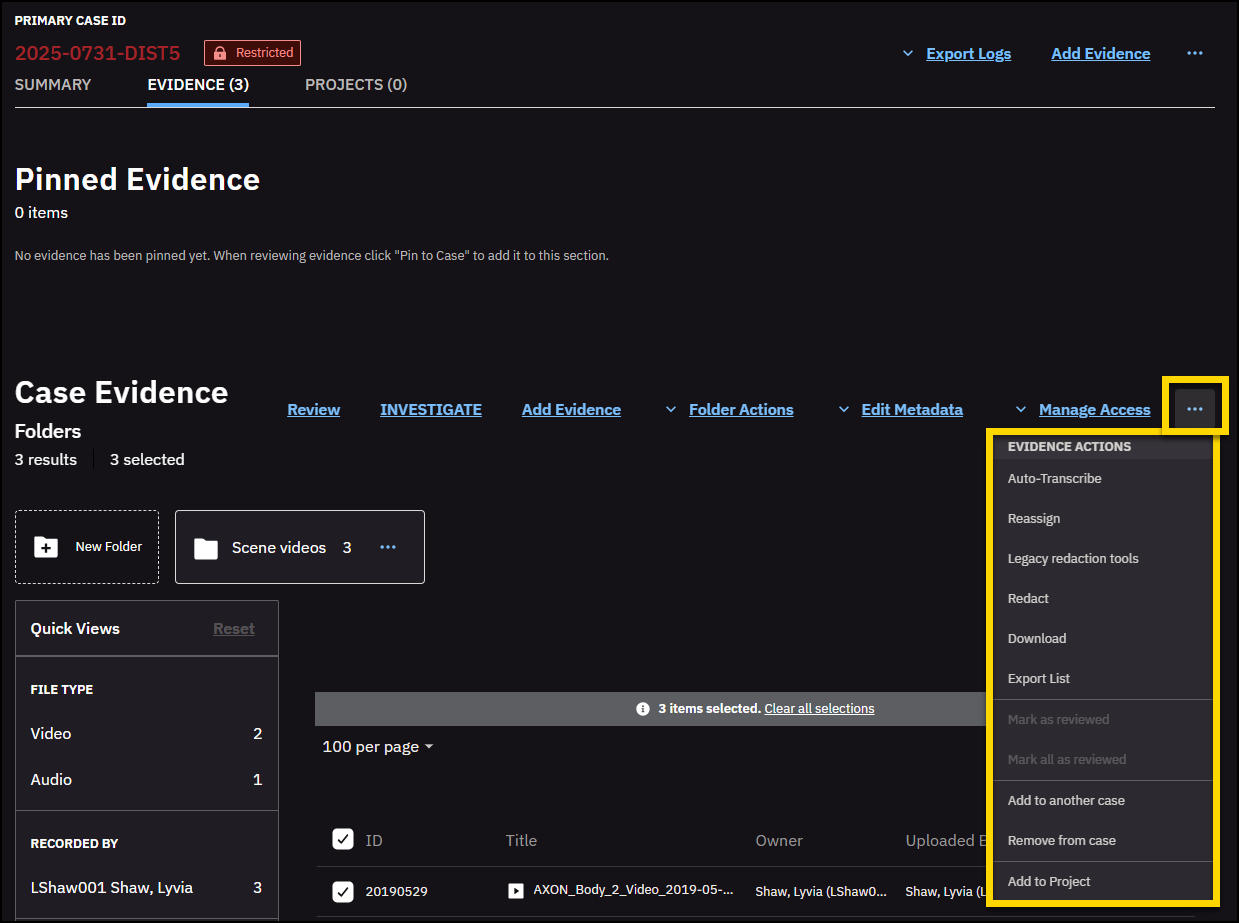
Auto-Transcribe
- Select one or more evidence files.
- Select More Actions (•••), and then select Auto-Transcribe.
- Select the language you want to transcribe the files into.
- Select Start.
For more information, see Auto-Transcribe.
Redact
- Select one or more evidence files.
- Select More Actions (•••), and then select Redact.
- Configure your bulk redaction by selecting the download format, blur level, and whether or not to redact the audio.
- Select Redact.
For more information on redaction, see Redaction Studio.
Download
- Select one or more evidence files.
- Select More Actions (•••), and then select Download.
- Select the download format and whether to include a table of contents, transcripts, and audit trails.
- Select Download.
- Enter your reason for downloading, and then select Submit.
For more information, see Download Evidence.
Marking as reviewed
- Select one or more evidence files.
- Select More Actions (•••).
- Select Mark as reviewed.
- To mark all unreviewed evidence files as reviewed, select Mark all as reviewed.
Add to another case
- Select one or more evidence files.
- Select More Actions (•••), and then select Add to another case.
- Enter the case ID, and then select Add to case.
Remove from case
- Select one or more evidence files.
- Select More Actions (•••), and then select Remove from case.
- Select Remove. Warning
Removing evidence from a case will remove access from all case share recipients and use the assigned evidence category to determine retention.
Add to project
- Select one or more evidence files.
- Select More Actions (•••), and then select Add to project.
- Choose one of the following:
- Add to an existing project – Select a project from the drop-down list.
- Create a new project – Enter a project title and description.
- Select Next. The Photobook opens.
For more information, see the Photobook Quick Start Guide.
View a case map
If evidence in a case has location information, you can view the evidence on a map.
For more information, see Evidence Map.


