Automated case evidence matching
Automated case evidence matching helps streamline your workflow by reducing the need to manually associate evidence with cases. When enabled, the system uses matching IDs to suggest or automatically add relevant evidence to a case, depending on your agency’s configuration.
Admins can choose for their agency to automatically add matched evidence to cases, suggest matched evidence for the case assignee to review, or not use this feature at all.
Case assignees can review evidence that has been automatically added or suggested.
Evidence will only be suggested or added to a case if one of the following is true:
- The owner of the case has a Pro or Pro+ license
OR
- The case was imported to Axon Evidence from Axon Records or Axon Standards without an Axon Evidence case owner.
Configure evidence matching settings
The information in this section is intended for Admin roles.
- Select Admin.
- Under Agency Settings, select Case Settings. There are options for the evidence matching, and for notifications to case assignees when evidence has been matched to a case.
- Under Case Evidence, choose from three evidence matching options:
- Do not match evidence IDs
- The system will not automatically suggest or add evidence to any case. The case evidence matching feature won’t be enabled.
- Automatically add matched evidence IDs to cases
- The system will automatically add evidence with matching IDs to cases.
-
If you enable notifications, when evidence is added to a case:
- An email will be sent once a day to alert case assignees to evidence added to their cases.
- A blue dot will be displayed next to the case in the Case List page.
- The Evidence column in the Case List will show a new tag with the number of evidence items added to the case.
- Suggest matched evidence IDs for review
- The system will suggest matched evidence for the assignee to review, but won’t automatically add evidence to cases.
-
If you enable notifications, when evidence is added to a case:
- An email will be sent once a day to alert case assignees to evidence suggested for their cases.
- A blue dot will be displayed next to the case in the Case List page.
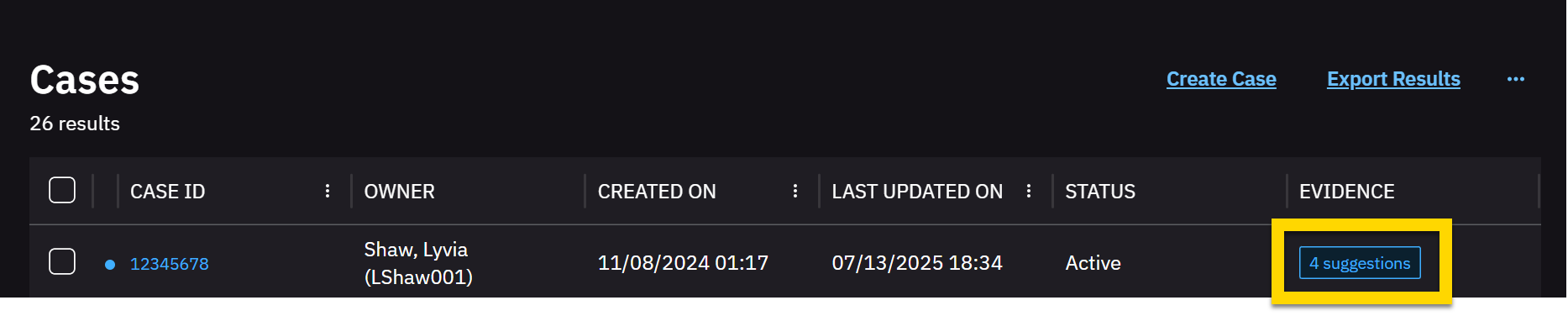
- The Evidence column will show a suggestions tag with the number of evidence items suggested for the case.
- The assignee can review the suggested evidence by going to the case details page, and add or reject the suggested evidence.
- Do not match evidence IDs
- Select Save.
Notification settings
If you do not enable email notifications, the notifications on the case details page will not appear, and the case assignee will not be alerted to new evidence added to or suggested for the case.
- Select Admin.
- Under Agency Settings, select Case Settings.
- Select the Notifications tab.
- Choose from two notification options:
Send an email to the assignee when new evidence is added to a case: This option will send an email to the case assignee at the time of day you select. Emails will only be sent if evidence is added to the case, whether by another user or by Axon Automation.
This option applies to both automatically and manually added evidence. This option will be available even if you don’t have case evidence matching enabled for your agency, because you might still want notifications sent if another user adds evidence.Send an email to the assignee when evidence is matched to a case: This option will send an email to the case assignee if Axon Automation suggests evidence that might match the case. This option is only available if you have selected Suggest matched evidence IDs for review in the case evidence matching settings.
- Select Save.
Review matched evidence
When evidence is matched to a case assigned to you, you will need to review and verify if that evidence belongs in that case. The process you will use depends on whether your agency has automatically added matched evidence or suggested matched evidence.
There are two ways you will be made aware of new evidence added to or suggested for your cases:
- An email will be sent once a day if new evidence has been added to or suggested for your cases.
- In the Cases list, a blue dot and a tag will appear on the line of cases that have new evidence or suggestions. The tag will say new if evidence has been added to the case, or suggestions if you must review the evidence and add it to the case yourself.
Review automatically added evidence
When you view the Case Evidence list, automatically added evidence will have a blue dot next to the row for the evidence item, and the Added By column will show Axon Automation.
To review an evidence item, check the box in the row for that item and then select Review to see the case details page. If the evidence doesn’t belong in that case, return to the Case Evidence list, check the box for the evidence item, select the More menu (…), and then choose Remove from case.
Review suggested matched evidence
From the Case Details page of a case that has suggested matched evidence, you can select Suggested Evidence Matches to check if the evidence belongs in the case.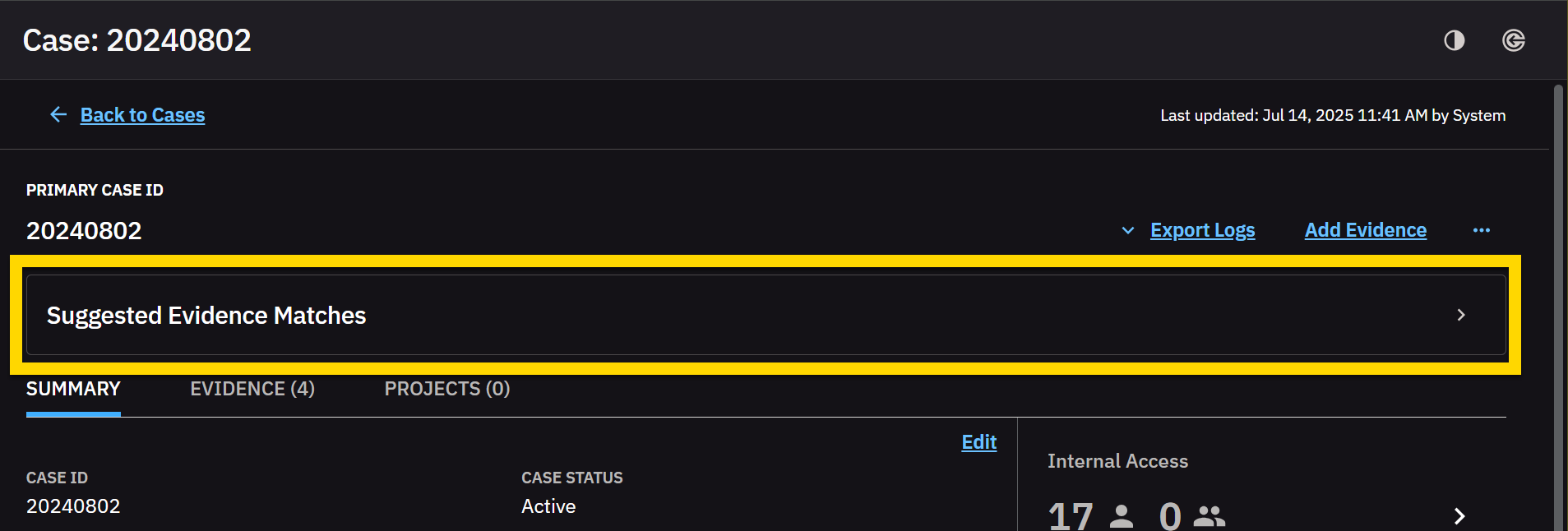
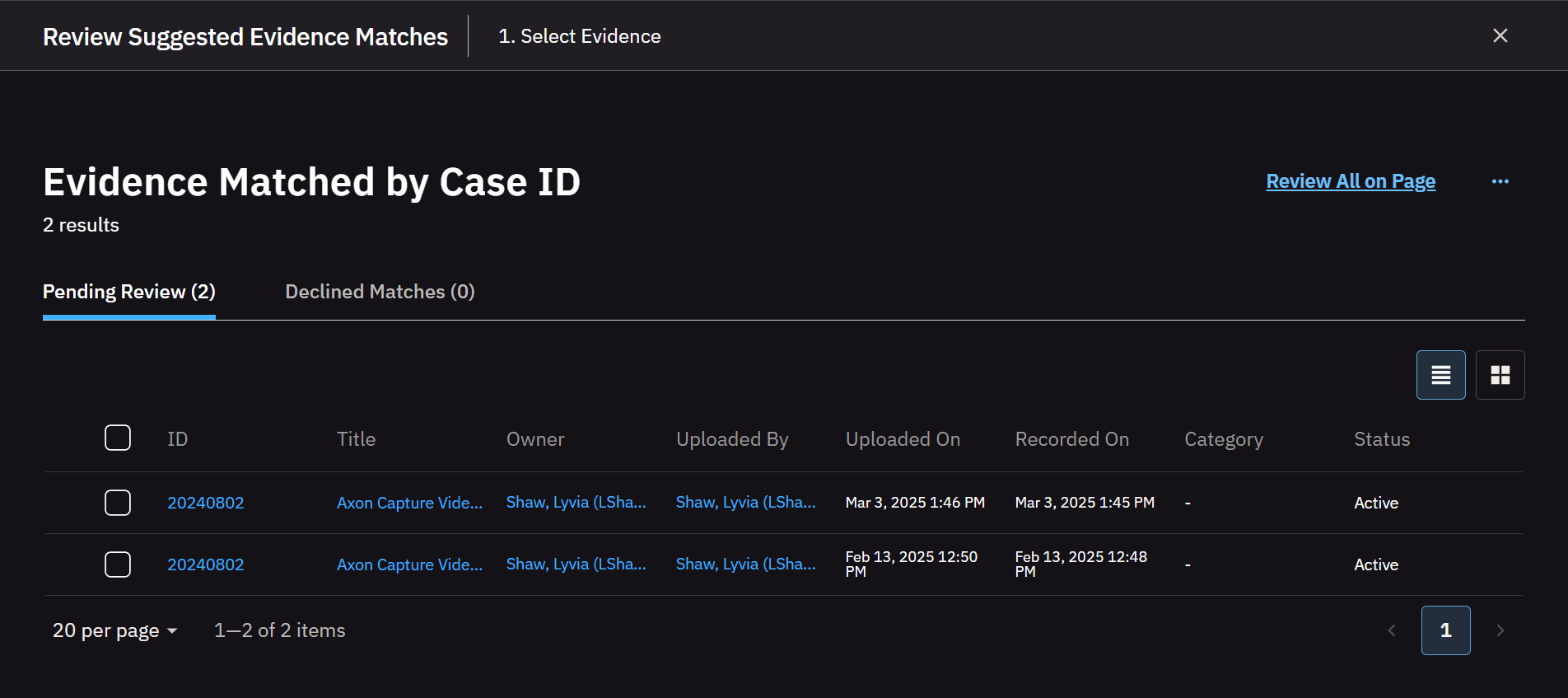
Review the evidence from the Evidence matched by Case ID list. Check the box in the row of evidence items to select them, and then choose whether to Add to case or Decline those items.