View document evidence
View the contents of documents that are in PDF format.
PDF file size and system requirements for viewing
When viewing PDF files within Axon Evidence, be aware of the following size and system requirements:
File size limit
- Maximum file size for viewing: Up to 1.5 GB per PDF file.
System requirements
To successfully view PDF files, your system should meet the following criteria:
- Network speed: A minimum of 7 Mbps is required to ensure timely loading and interaction with documents.
- Request timeout: Requests will time out if not completed within 30 minutes.
Supported browsers
For optimal performance, use the latest version of one of the following browsers:
- Chrome version 60 or newer
- Firefox version 60 or newer
- Microsoft Edge version 79 or newer
- Safari version 11 or newer
Hardware requirements
- CPU: Intel Core i5 (or AMD/ARM equivalent) or higher
- RAM: At least 8 GB
Note: The ability to view PDF files effectively depends on the resources available on your local device at the time of access. Other concurrent tasks may consume system resources and affect download speeds.
PDF viewer controls
The following figure shows the controls that appear when you view a PDF document:
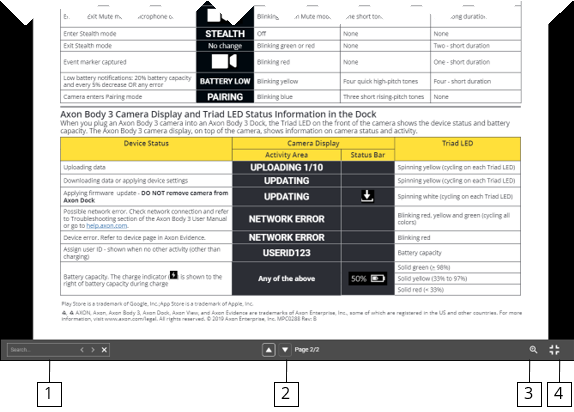
- Search (full screen only)
- Page up and down
- Zoom (full screen only)
- Full screen
PDF viewer actions
The following table describes the actions you can take with the PDF viewer:
| Action | Steps |
|---|---|
| Search (full screen only) |
Type text and numbers to search throughout the PDF file. The search functionality includes partial word searches and is not case-sensitive. Note: The current search functionality does not support Optical Character Recognition (OCR) technology and will not recognize text inside images, such as from scanned documents and photos. |
| Page down | Select the arrow or press the down arrow key. |
| Page up | Select the arrow or press the up arrow key. |
| Zoom (full screen only) | Use the slider bar to change the zoom level. |
| View Full Screen |
To enter full-screen viewing mode, select the Full Screen icon. To exit full-screen viewing mode, press the ESC key. |
| View comments | View comments and notes by placing your cursor over notes and highlighted text. |
| Links |
Open external links and use internal links, such as table of contents links, to navigate through the PDF file. |


