Redaction Studio
Redaction Studio system requirements
Before you begin using Redaction Studio, make sure your system meets these minimum requirements for the best experience
System requirements
- Supported browsers: Microsoft Edge, Firefox, Chrome, and Safari.
- Recommended CPU: Intel Core i7 or above.
- RAM: 8GB or more.
- Display: HD resolution or better.
Note: Axon recommends a dedicated graphics processor card for best visual performance.
Find your way around Redaction Studio
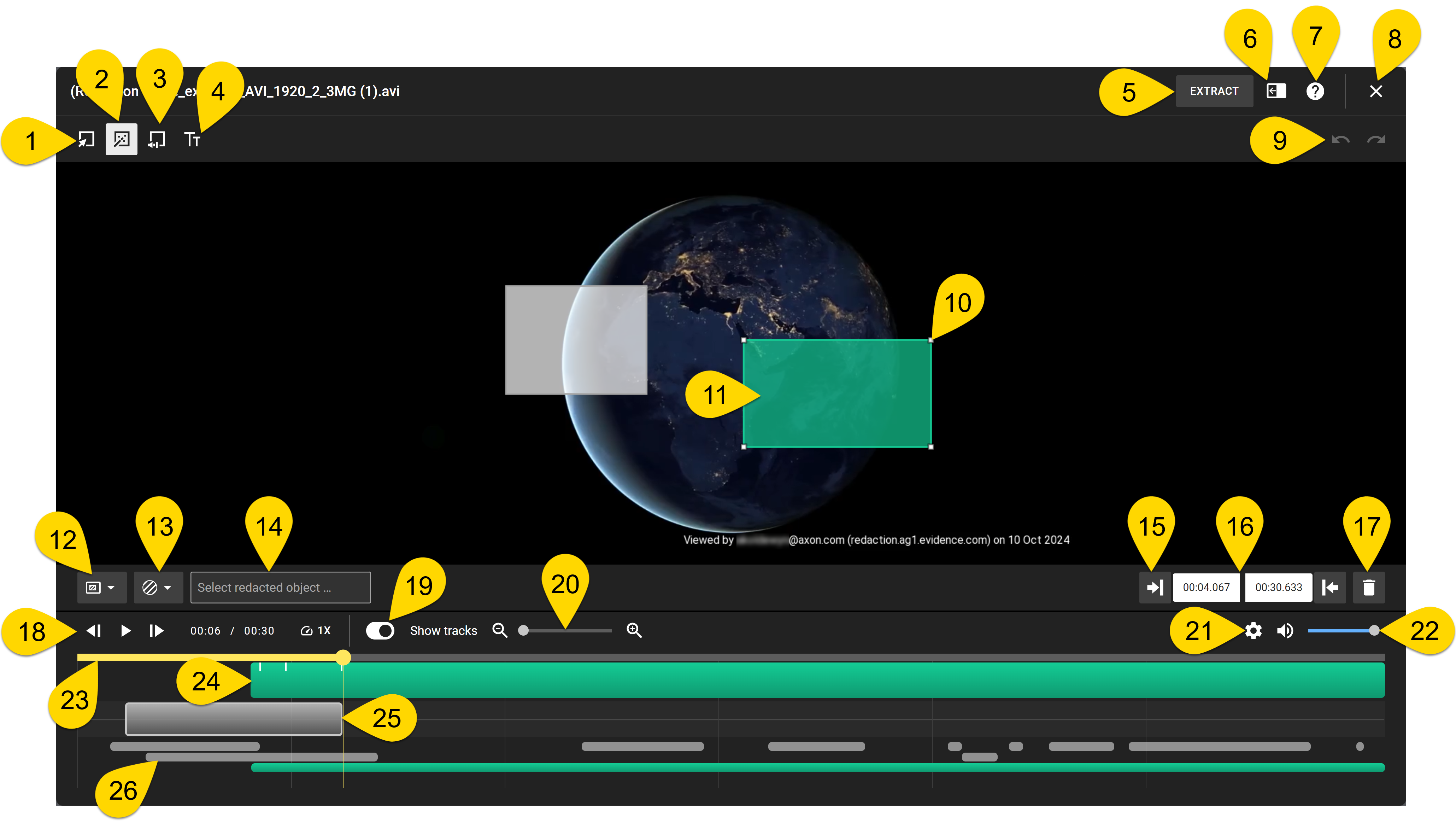
| 1. Manual Mask button |
| 2. Object Tracker button |
| 3. Audio Mask button |
| 4. Text button |
| 5. Extract as a video or audio file |
| 6. Show or hide the Assistants, Transcripts, and Redacted Objects panel. |
| 7. Redaction Studio Help button |
| 8. Save and exit Redaction Studio |
| 9. Undo and Redo buttons |
| 10. Video mask frame handle |
| 11. Video mask |
| 12. Mask type. Choose from Standard, Inverted, and Outline Marker |
| 13. Blur level |
| 14. Redacted Object and Reason field |
| 15. Trim to playhead button |
| 16. Start and end times for the selected mask |
| 17. Delete button |
| 18. Video playback and speed controls |
| 19. Show tracks toggle |
| 20. Segment timeline zoom control |
| 21. More Settings button |
| 22. Playback volume control |
| 23. Video timeline |
| 24. Active mask track |
| 25. Audio track |
| 26. Segment timeline |
Assistants, transcripts, and redacted objects panel
When selecting the Assistants, Transcripts, and Redacted Objects panel, the following options are available:
- Assistants: Categorize and display the notebooks, screens, license plates, heads, and ID cards found within your redactions.
- Transcripts: Create and display a transcript of the audio from the video file.
- Objects: Displays mask details of your redactions.
Terms and concepts
- Video Mask: A rectangular area on the video that defines the objects that are redacted in a continuous segment of video frames. Video masks have their height and width defined by a Mask Frame and their duration defined by a Mask Segment. There are three types of video masks, a Manual Mask, an Object Tracker mask, and a Redaction Assistant mask.
- Audio Mask: A continuous segment on the Audio Track that defines the audio that is redacted. Audio masks have only duration, which is defined by a Mask Segment.
- Mask Segment: Defines the continuous series of frames that the audio or video mask redacts. A mask segment has a start and an end.
- Segment Timeline: The area below the audio track that shows all the video mask segments for the current redaction. This area allows users to easily find and select video masks.
- Video Mask Frame: Defines the rectangular area redacted by a mask in a video. Video mask frames can be manually moved and resized. After placement, Object Tracker video masks will automatically attempt to track the object they are placed over.
- Video Mask Frame Handle: Enables you to change the size and shape of the video mask frame.
- Spray Paint Redaction: A type of manual redaction where the user can click and hold on a manual mask during video playback at normal speed, half speed, or rewind, and then use the mouse to follow the object the user wants to redact.
Redaction Studio mask types
In Redaction Studio, masks are powerful tools designed to conceal and protect sensitive visual and audio information within evidence. Understanding how to apply various mask types is essential for maintaining privacy and confidentiality in your video and audio evidence. This article guides you through each mask type, including more actions and controls that enhance the redaction process.
Get started with masks
To begin using the different mask types, ensure you are familiar with the basic steps to access and navigate Redaction Studio. For more information on basic steps and navigation, see the Redaction Studio Quick Start Guide.
Each mask type appears in a different color on the segment timeline, making them easy to distinguish. Manual masks appear in blue, object tracker masks in green, audio masks in red, and Redaction Assistant masks in orange. You can also speed up your actions using keyboard shortcuts. For more information, refer to the Keyboard Shortcuts in Redaction Studio.
Manual Mask
Manual masks are used to cover specific areas within a video that remain relatively static. You can draw these masks frame by frame to obscure faces, license plates, or any other sensitive information.
To create a manual mask, complete the following:
- Pause video playback at the point in the video where you wish to start redacting.
- Select Manual Mask.
- Use your mouse to select, hold, and drag a mask over the area needing redaction.
- Release the mouse button to set the mask in place.
- With the mask selected, select the Blur Level button to choose a blur level for your mask. Note
The selected blur level is applied to the complete mask segment. If you need to change the blur level for only a portion of a mask segment, add another mask.
-
With the mask still selected, choose either Standard redaction, Inverted redaction, or Outline marker from the Mask Type menu.
If you select Outline Marker, you can also choose a border color and width. -
Continue to create and adjust masks as needed for redaction.
NoteAfter placing a manual mask, you can use Spray Paint redaction to select and hold on the mask and then use the mouse to follow the object you want to redact during video playback
Tips for redacting with manual masks
- It is generally easier to reduce the end time for a mask segment than to keep extending it. The mask segment is based on the amount of visible time on the timeline. After placing a mask, extend the length of the mask segment and then reduce the end time as you view the video.Note
This time can change based on how zoomed into the visible timeline you are. For example, when zoomed in to display only one minute, the mask is for 1/10th of the time, equaling 6 seconds. When zoomed out and you can see 10 minutes of time, the mask is still for 1/10th of the time, equaling one minute.
- Try using Spray Paint redaction for redactions where the object being redacted does not dramatically change position.
- You can split a manual mask segment by pressing the Delete key. This deletes the manual mask from the video frame. This action can be used with Spray Paint redaction to create a larger gap between the new mask segments.
Object Tracker Mask
The object tracker mask automates the process for moving objects within the video. Once set, the tracker follows the object, adjusting the mask size and position accordingly.
To create an object tracker mask, complete the following:
- Pause video playback at the point in the video where you wish to start redacting.
- Select Object Tracker.
- Use your mouse to draw an initial mask around the moving object.
- The object tracker takes over, following the object through the video.
-
With the mask selected, select the Blur Level button to choose a blur level for your mask.
NoteThe selected blur level is applied to the complete mask segment. If you need to change the blur level for only a portion of a mask segment, add another mask.
-
With the mask still selected, choose either Standard redaction, Inverted redaction, or Outline marker from the Mask Type menu.
If you select Outline Marker, you can also choose a border color and width. -
Continue to create and adjust masks as needed for redaction.
NoteIf the object-tracker mask does not follow or cover the intended subject during playback, pause the video and re-position the mask. This reprocesses the redaction from that point forward, enhancing the object-tracker mask accuracy. This allows you to redact while simultaneously playing-back the video.
Tips for redacting with object tracker masks
- It is generally easier to redact objects using larger masks.
- If the mask is not tracking the object very well, go back to the beginning of the mask segment and resize the mask to tighten it around the object.
- If the object being tracked leaves the video and the mask remains on the video, slowly rewind the video to the point just before the object leaves the video, and then resize the mask.
- When an object first enters a video, don't use an object tracker mask until at least half of the object is visible. Use a Manual mask for redaction until then.
Audio Mask
Audio masks allow you to mute or bleep out portions of the audio track in your evidence, which can be essential to obscuring voices or background noise.
To create an audio mask, complete the following:
- Pause video playback at the point in the video where you wish to start redacting.
- Select Audio Mask.
- In the audio waveform, use your mouse to select and drag to highlight the audio segment you wish to redact.
- Select the Audio Mask Type menu, and then choose from Mute or Short Bleep to apply the redaction.
- Continue to create and adjust masks as needed for redaction.
Redaction Assistant
The Redaction Assistant is an advanced AI tool within Redaction Studio that significantly speeds up the redaction process. By scanning through footage, it finds and suggests areas that may need redaction, such as heads, license plates, and screens, saving time and enhancing accuracy. Redaction Assistant is an Axon Redaction studio add-on and might not be available in all organizations.
More ways to work with masks
Beyond applying masks, there are several actions you can take to configure segments and masks, including the following:
You can use different mask types in the same redaction. We recommend that you have no more than 3 masks processing at the same time. Processing is shown by a series of dots in the mask and mask segment.
- Create another mask: Add more masks as needed to cover more objects in the video. You can use different mask types in the same redaction. We recommend that you have no more than 3 masks processing at the same time. Processing is shown by a series of dots in the mask and mask segment.
- Move or resize a mask: Select and drag a mask to move it or adjust the corners to resize.
- Delete a mask: Select the mask you want to remove and then select Delete.
- Change the playback speed: Select Playback Speed and choose from half speed (0.5), normal speed (1X), double speed (2X), or quadruple speed (4X).
- Fine-tune the start and end points of a mask segment: Select a mask and then drag the segment left or right.
- Set the start or end point of a segment to a specific time: Select a mask and then use the start and end time boxes to enter exact start and end time in minutes and seconds, in the mm:ss format.
- Add inverted mask: Create a manual or object tracker mask and then select Inverted redaction.


