Create a new return
When you need to return devices that are managed in Axon Evidence, you can create a new return.
Guidelines for device returns
- Lost or stolen devices: Submit a return for the device, noting the lost/stolen status. Email a copy of any administrative report to [email protected].
- Unsupported devices: Contact your Axon representative to discuss replacement options if you need to replace an unsupported device. If the device requires video recovery, a return can be submitted for that purpose.
Tip: Update the status of the devices you are returning before you create the return to make it easier to find the devices (for example, change the status to RMA). If you change the status, leave devices assigned to their current user. See the Update Device Status article on the Axon Help Center for more information.
Each user can only have one active in-progress return at a time.
When you start the return process, your progress is saved automatically. To exit, select X or Back.
- Sign in to your Axon Evidence account.
- Select Inventory.
- Select Returns to open the Returns page.
- Select Create New Return.
If you start a return without submitting it, the return is listed under "In Progress". Select Continue Return to pick up where you left off.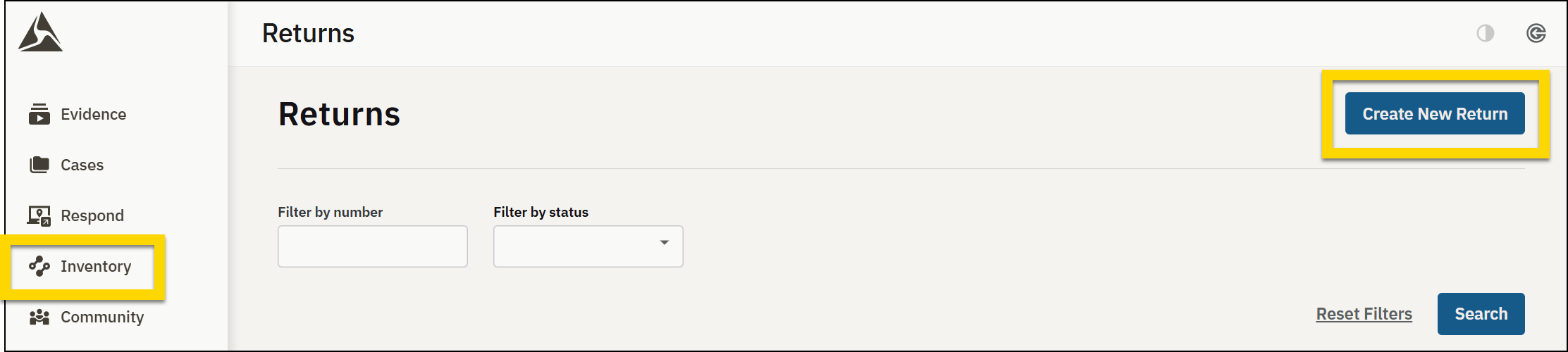
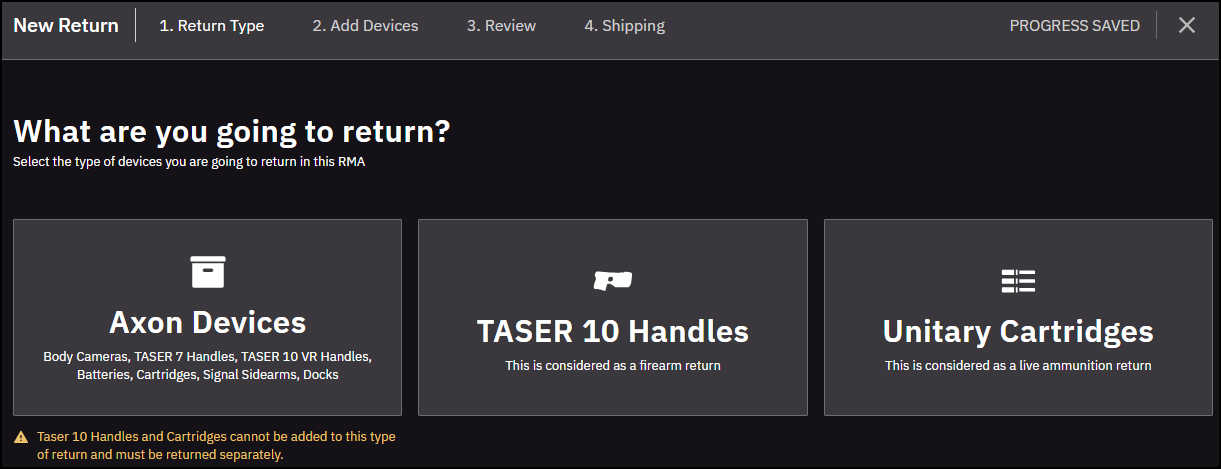
- Choose the type of device you want to return, and then select Next to open the New Return page. A list of all devices of the selected type within your organization is shown.
- Enter search criteria to narrow down the list of devices to return. You can filter by Device Name, Assigned To, Error Status, or Device Status, and then select Search.
- Use the checkboxes next to each device in the list to select the devices to return.
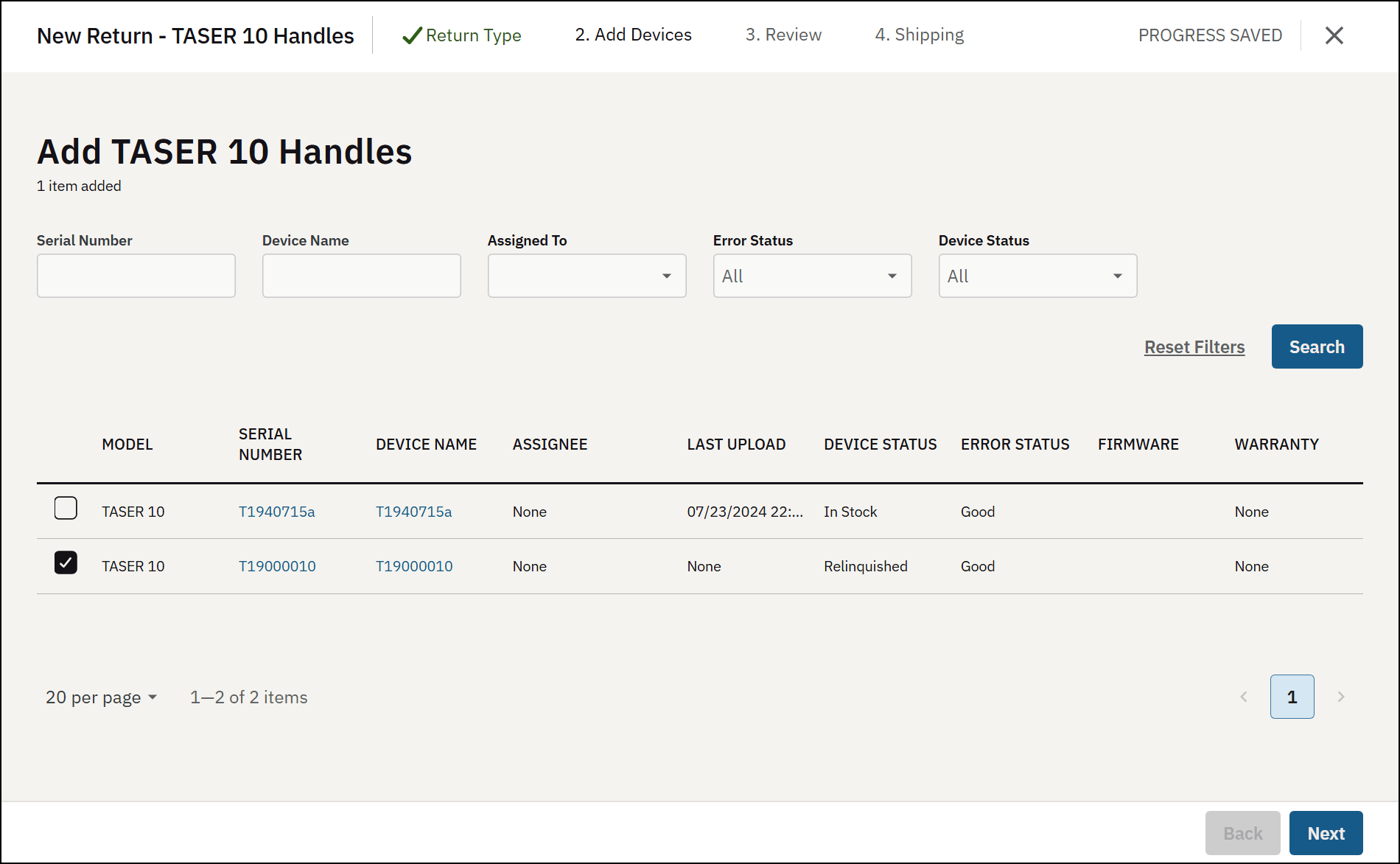
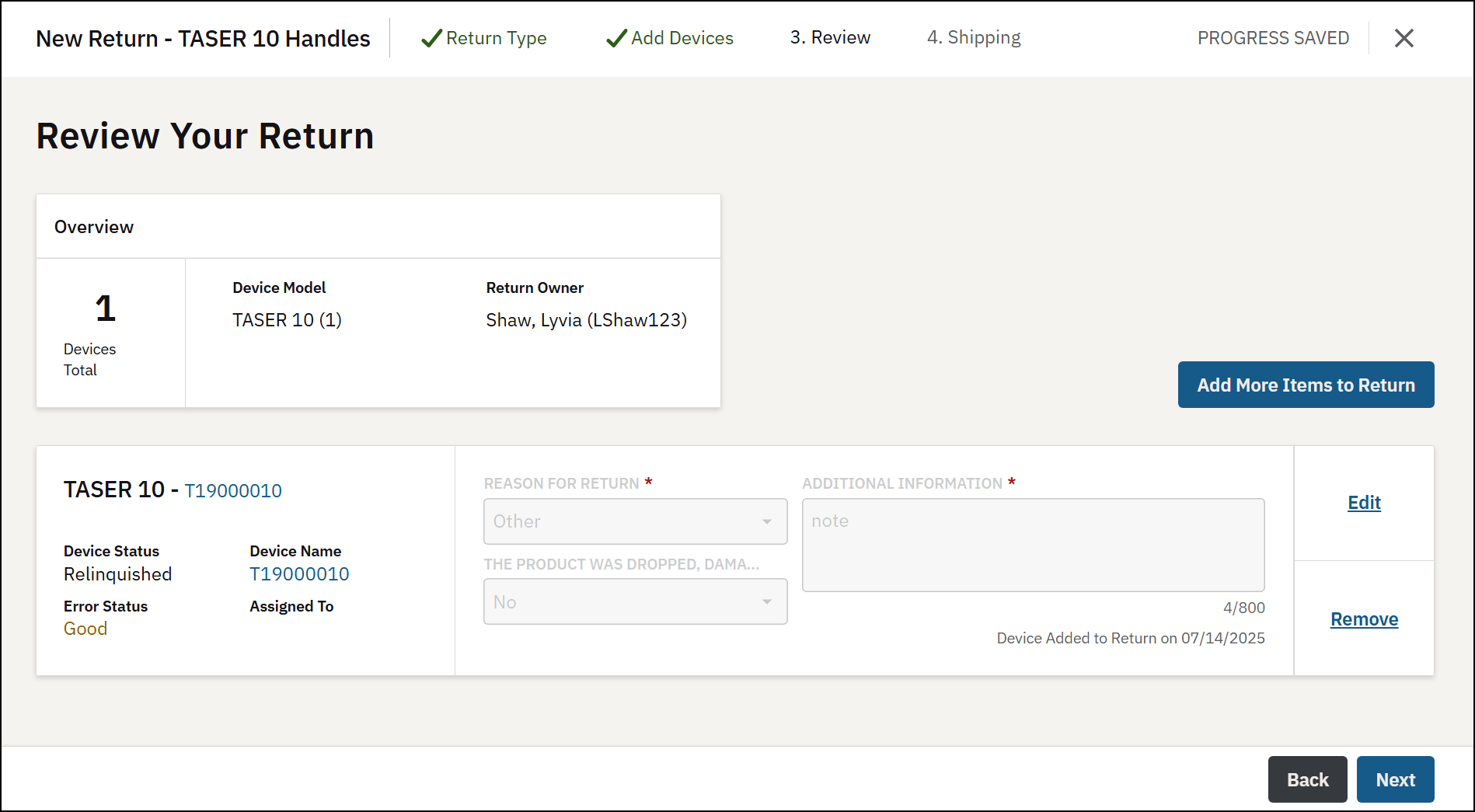
- Select Next to open the Review page.
- Enter a Reason for Return.
- Indicate Yes or if the device was dropped, damaged, or exposed to moisture.
- Optionally, enter any additional information regarding issues with the device.
- To include more devices in the return, select Add More Items to Return. When you finish adding items, select Next to open the Shipping page.
- Review and accept any rules or shipping polices.
- Confirm the return address for your organization. Select Add Address to enter a new address, or Edit to make changes.
- Enter the Content Label details, and dimensions (Length, Width, Height) of the box. Select Add Another Box to enter additional box details.
- Select Submit.
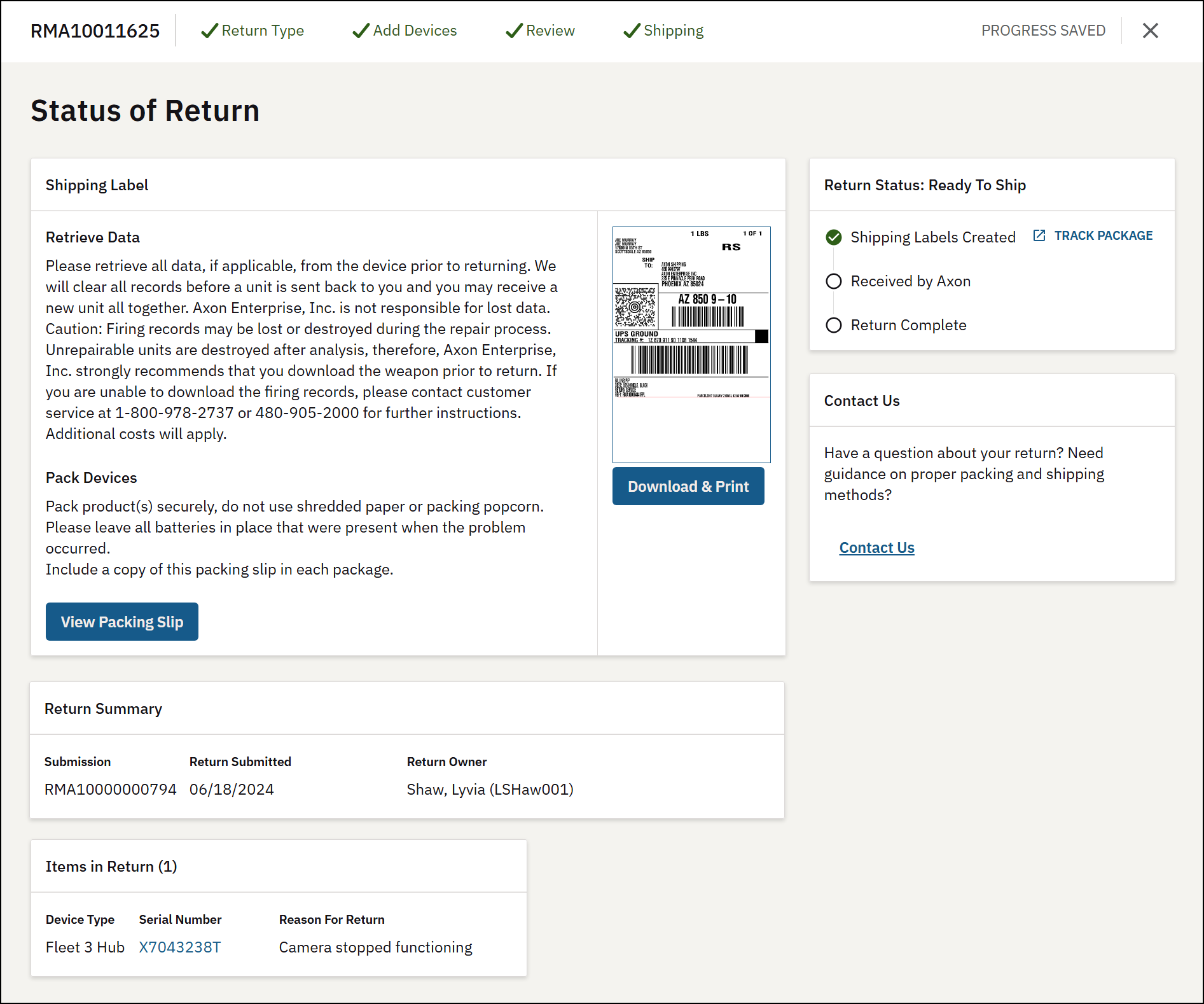
- In the confirmation window, select Submit to finalize the return and open the Status of Return page.
- Follow the steps on the page to complete the return process:
- Retrieve data: Before returning devices, download and back up all device logs.
- Print shipping labels and packing slips: Select Download & Print for all boxes in your return.
- Pack devices: Pack devices securely to avoid movement within the box, and attach the printed labels to each box.
View and manage the status of a return
From the Returns page, locate and select the return you want to view to open the Status of Return page. Under Return Status, you can monitor the status of your return:
- Shipping Labels Created: This status confirms that your labels have been created. Select Track Package to check the shipping status with the carrier.
- Received by Axon: This status will update after Axon receives your package.
- Return complete: This status confirms the return process is complete.
Contact us
If you have questions about your return, select Contact Us to reach Axon support for guidance on packing, shipping, or other return-related questions.
Cancel return
If you need to cancel the return, select Cancel Return to initiate the cancellation process.
Review return summary
The Return Summary section displays the return submission ID, submission date, and return owner. Under Items in Return, you'll find a list of all items included in the return, along with device types, serial numbers, and reasons for return.


