Connect TASER and Axon devices to a computer
Connect TASER X2, X26 and X26P devices
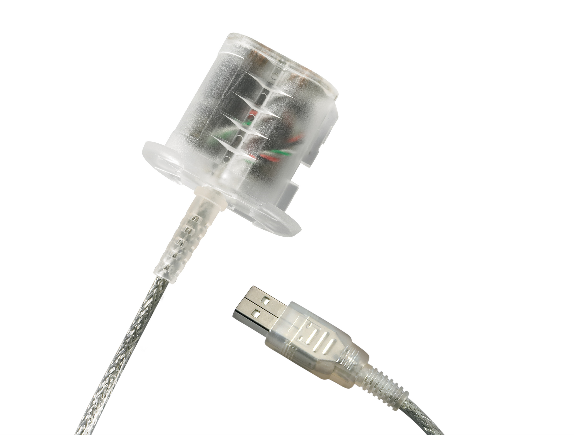
The TASER X2, X26, and X26P TASER devices are connected to a computer with a dataport plug that is inserted into the device in place of the battery pack.
The other end of the dataport cable fits the USB port of the computer.
There is one dataport plug designed for the X26 TASER device and another dataport plug design that works with both the X2 and X26P TASER devices.
Connect TASER CAM HD recorders
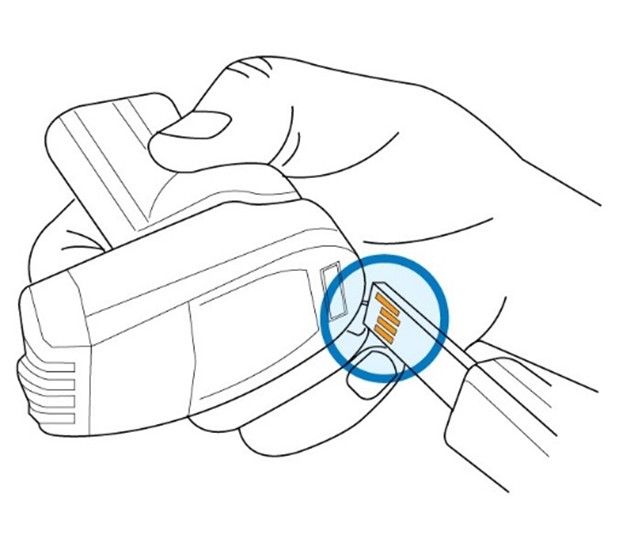
The TASER CAM HD recorders are connected to a computer with a USB cable.
Different cables are used for the two different recorders.
The TASER CAM HD cable has a shorter plug at the end.
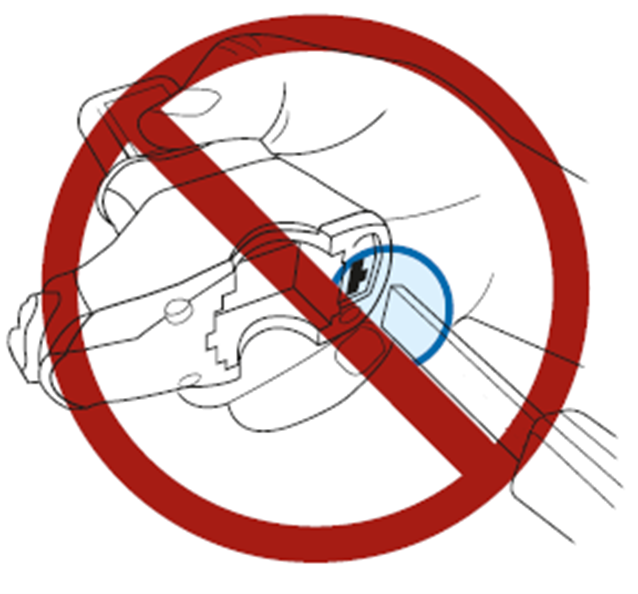
When inserting the power cable, it is important that the gold tabs face forward toward the camera lens.
Connect TASER 7, 7 CQ, or 10 battery
Connect TASER 7, 7 CQ, and 10 batteries to a computer through a TASER dock.
Connect the dock to the USB port of a computer.
TASER device logs can only be viewed in Axon Evidence. Evidence Sync does not support viewing device logs.
Connect the TASER dock to your computer with an Ethernet cable and to a power supply.
Remove the non-rechargeable battery from the TASER device.
Place the non-rechargeable battery in the dock.
Start Evidence Sync and sign into your agency.
Evidence Sync recognizes that a non-rechargeable battery is connected and begins uploading the device logs. It also downloads the latest firmware, if needed, and checks to see if there are any changes to the agency-wide TASER settings in Axon Evidence.
When Evidence Sync has completed uploading the logs, remove the battery from the dock.
Sign out of Evidence Sync.
Connect Axon cameras
Depending on your role in your agency, you might not have permission to work with Axon cameras.
The Axon Flex, Axon Body, and Axon Body 2 cameras use a 2.5 mm to USB cable to connect to a computer.
DO NOT plug an Axon Flex controller into a computer for registration or downloading.
Use the following figures to familiarize yourself with the differences between an Axon Flex controller and Axon Body and Axon Body 2 cameras.


