Photobooks
Photobooks enhance your ability to efficiently manage visual evidence. Integrated into Cases, they enable you to compile related images into one organized PDF, streamlining the process of sharing, or presenting evidence in a legal setting.
Get started with Photobook
Step 1 – Create your Photobook
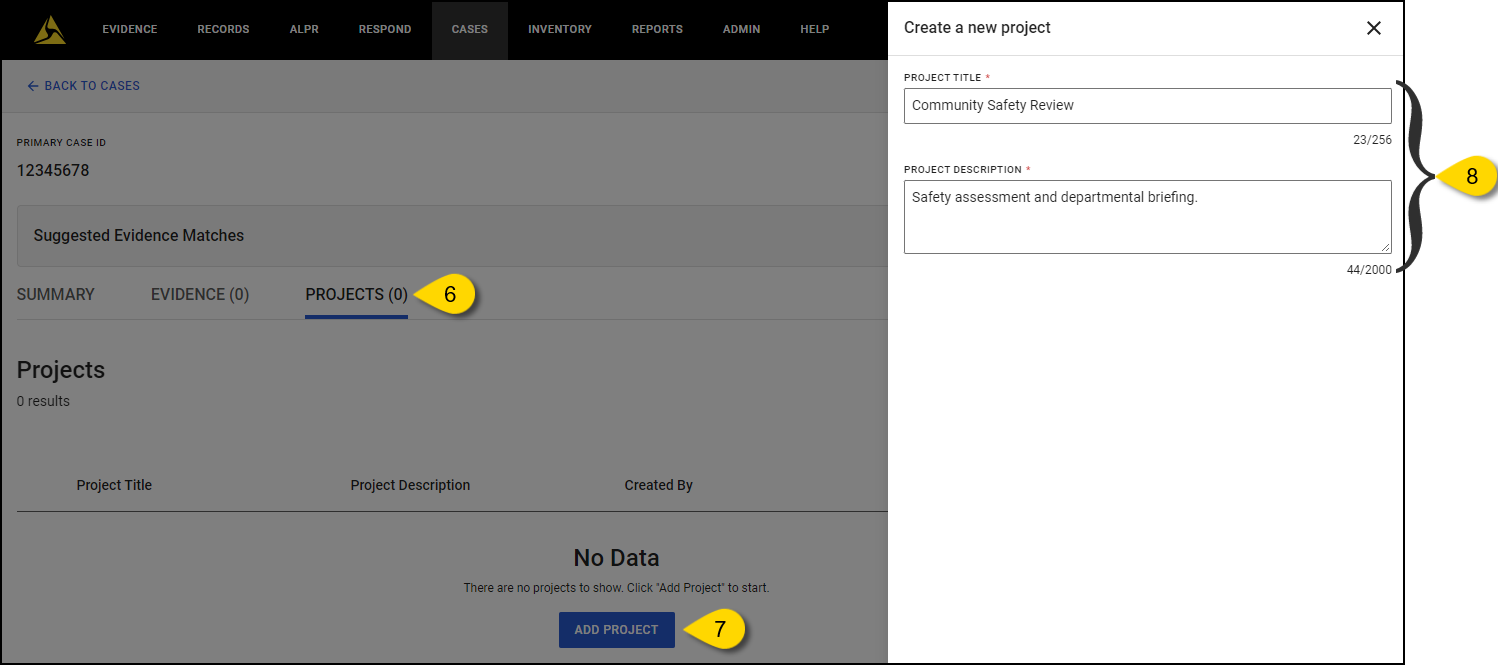
- Select Cases.
- Enter search criteria to locate the case you need.
- Select a Case ID from the list to open the case detail page.
- Select the Projects tab.
- Select Add Project. The 'Create a new project' pane opens.
- Enter a Project Title, Project Description, and then select Next. The Photobook project is created, and the 'Add evidence to project' page opens.
Step 2 – Add evidence to your Photobook
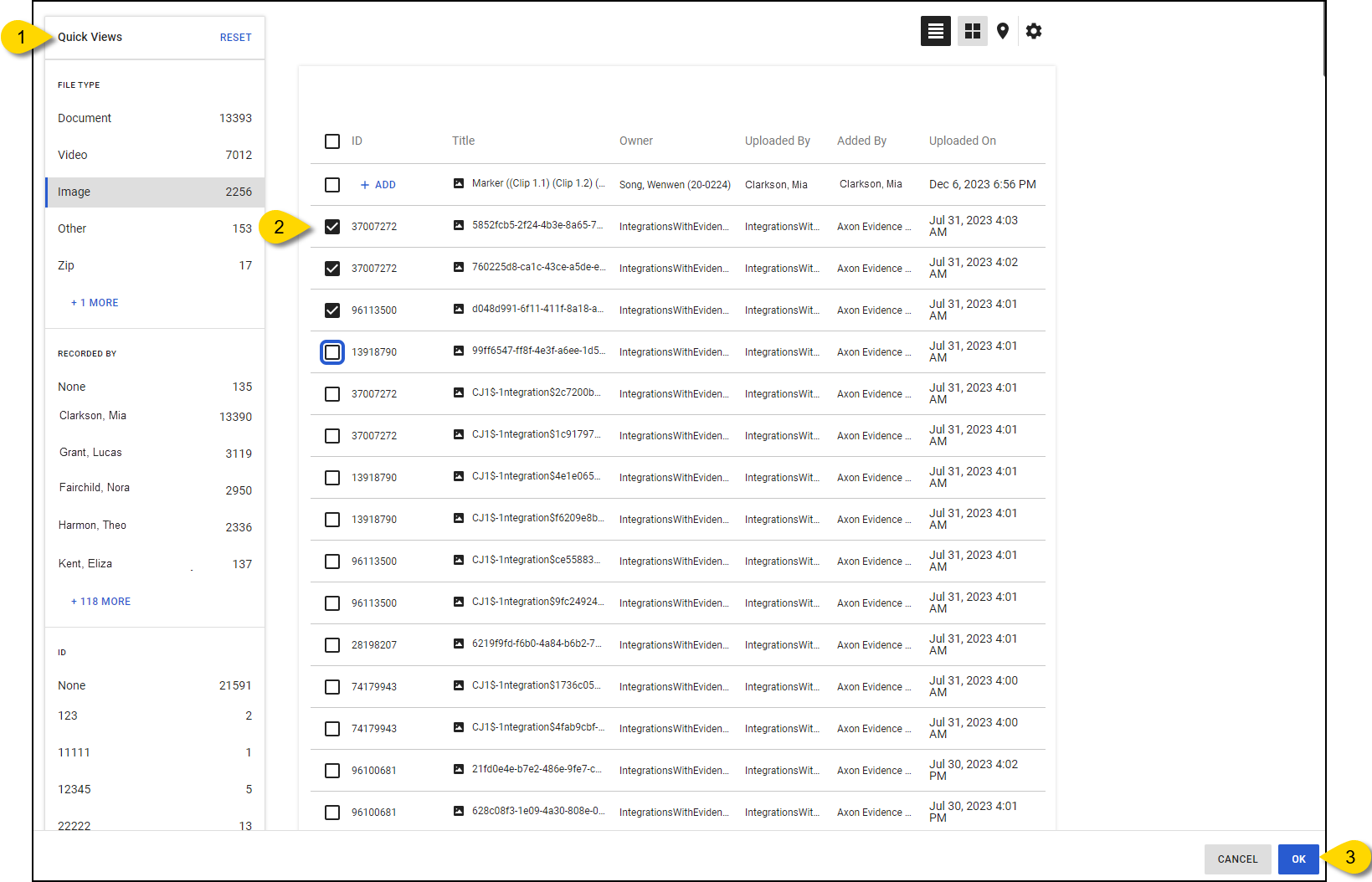
- Under Quick Views, apply a filter by file type, recorded by, or ID to sort the evidence.
- Select the checkboxes next to the evidence items you wish to include in your Photobook.
- Select OK to review the selected evidence in Review Mode.
Step 3 – Arrange evidence and export your Photobook
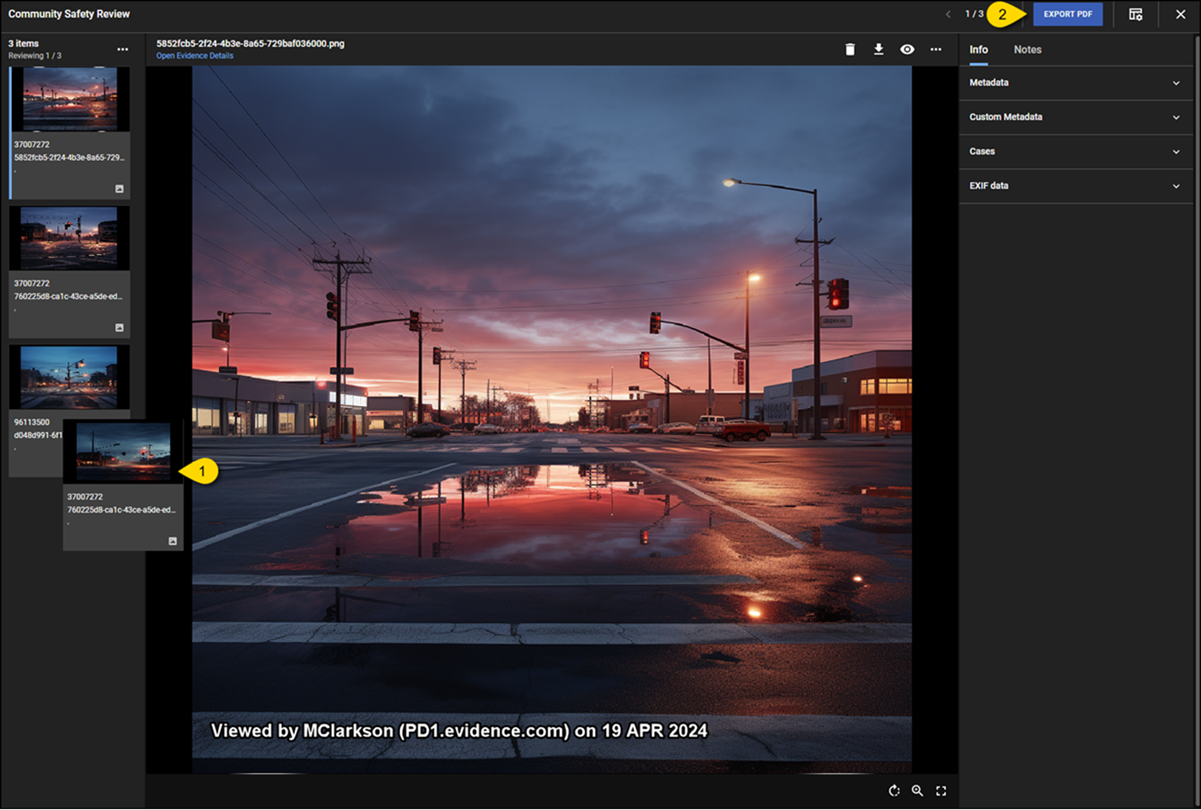
- From the evidence list, drag and drop evidence tiles to change their order.
- Select Export PDF. The 'Export as PDF evidence' pane opens.
- Optionally, add an ID, or Categories, and then select Export. The PDF will open in a new window, and be added to your evidence.
Find your way around Photobooks in the Projects tab
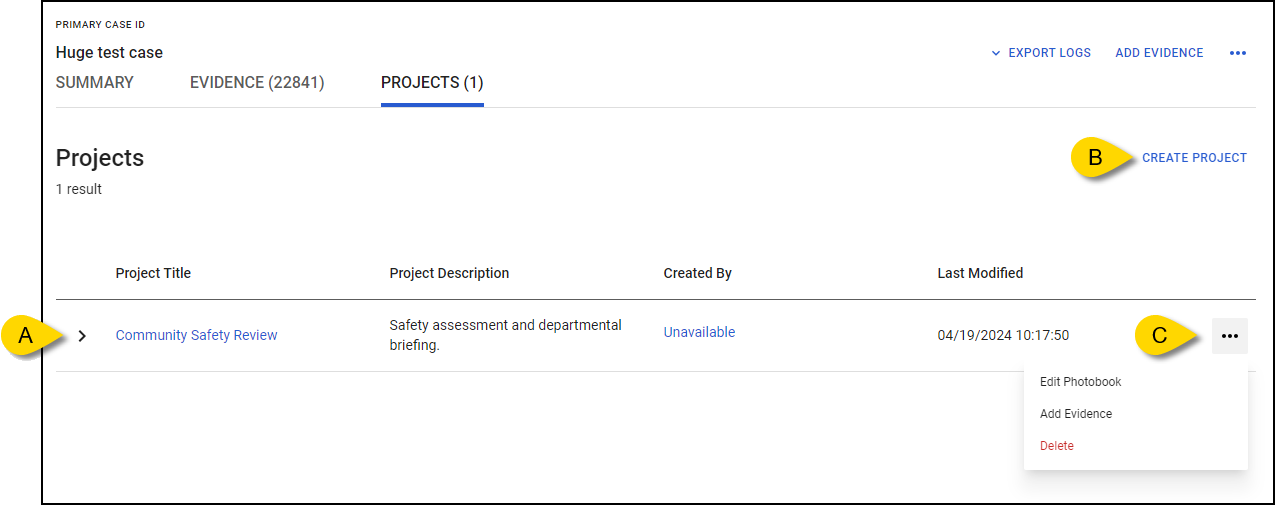
Photobooks you create are displayed in the Projects tab of the case. From here you can:
- View Photobooks – A list of Photobooks is displayed. Select a Project Title to add or remove evidence from the Photobook.
- Create a new Photobook – Select Create Project to start a new Photobook.
- Edit or Delete a Photobook – Select More actions (...) next to the Photobook you wish to work with, and then choose from the following options:
- Edit Photobook
- Add Evidence
- Delete
Frequently asked questions (FAQ)
What image formats can be uploaded to a Photobook?
Photobook currently supports the following formats:
- image/png
- image/jpeg
- image/jpg
- image/tif
- image/tiff
- image/gif
- image/bmp
More formats will be added in the future. If there's a specific format you need, please inform your account manager.
Is there a limit on the number of photos?
Yes, a Photobook can include a maximum of 100 photos.
Is there a limit on the image size?
Yes, each image can be up to 100MB in size.
Is there a limit on the overall Photobook size?
Yes, a Photobook is limited to 1GB for all evidence in it. You can view the total size at the bottom of the review screen while building a Photobook.
Can I arrange more than one photo on a page?
No, each image will be displayed on its own page along with its relevant details.
What happens if I delete a piece of evidence from a case?
If you remove evidence from a case, it will also be removed from your Photobook working file. However, this will not affect any Photobook PDFs that have already been created.
What happens if I delete a case?
Deleting a case will remove your Photobook working file, but will not delete any of the PDFs previously created.


