Use Case Agent in a case
Use Case Agent o ask questions about case evidence and review results.
Before you start
- Your organization must have Case Agent enabled, and have the required license.
- Your role must include permission to use Case Agent.
- You must have access to the case and its evidence.
- Case Agent chat sessions and any case context you add are only used during that chat. If you need a permanent record, capture important findings in case Notes or your own reports.
- Case Agent supports only machine-readable documents and transcripts in the initial release. Image and video visual analysis will be available later.
- The Chat history option is available as an organization setting.
Start Case Agent
- Select Cases.
- Search for and select the case you want to investigate.
- Select Case Agent.
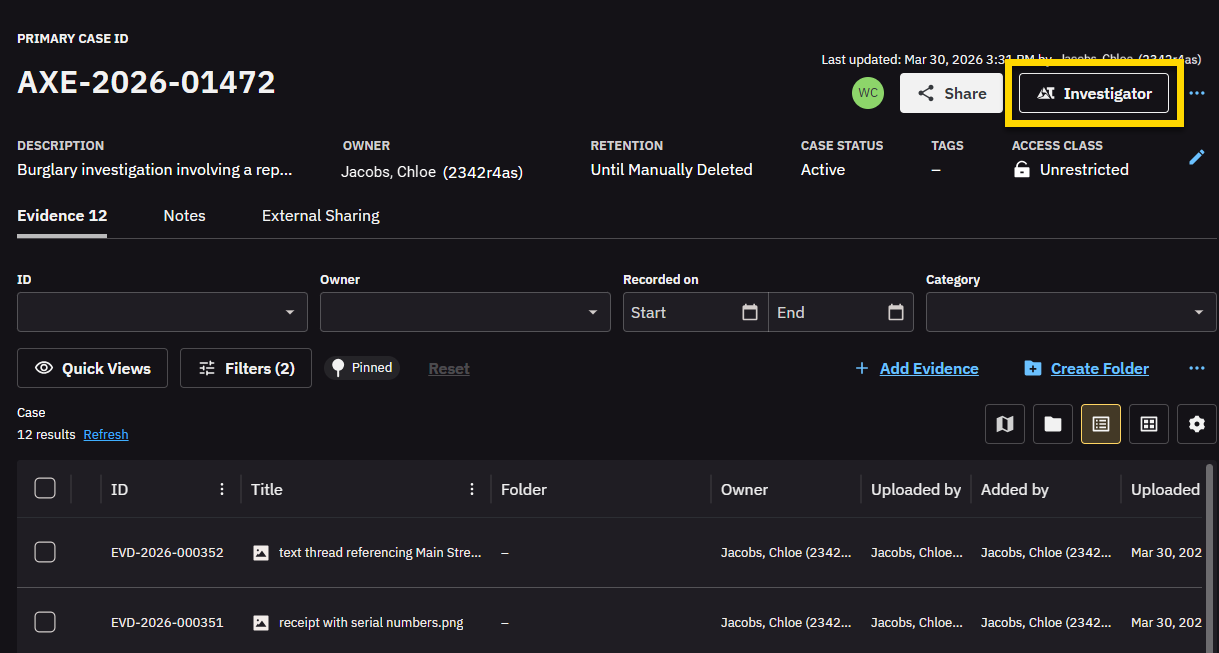
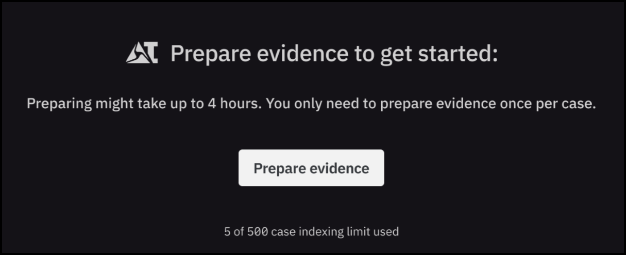
- Select Prepare evidence. This might some take time depending on the amount and size of evidence. Case Agent is unavailable during this time.
- When processing is complete, select Select Evidence.
- In Evidence selection, select the evidence you want to use when answering questions in the chat, or choose Select all to include all available evidence.
- Select Continue.
- Enter your question in the chat box, or select a suggested question from the list.
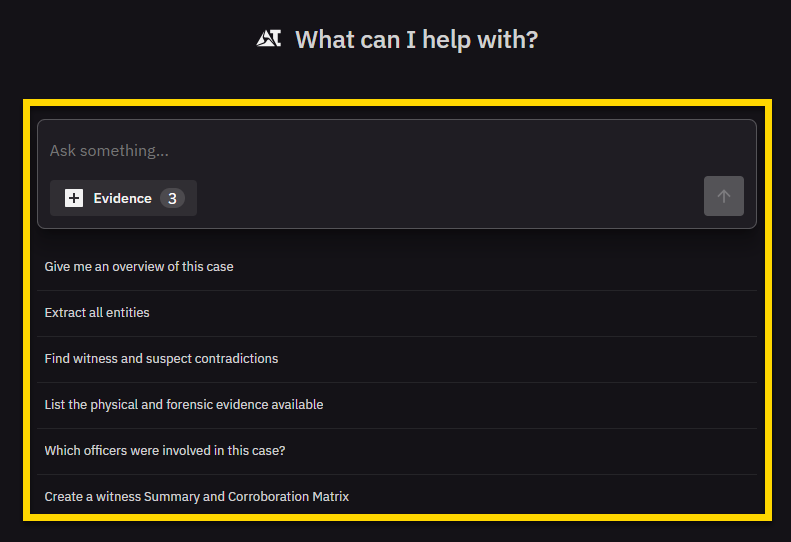
- Select Send message or press Enter.
- Review the answer and sources shown in the response. The number next to each source citation indicates the number of sources used in the response.
- Select Sources to open a source. From here you can:
- Select the left or right chevron to move to the previous or next source.
- Select View to open the source in a new browser tab. The source opens in the Document tab of the evidence details page.
FAQ
Why is the Investigate button missing on the case details page.
Confirm the feature is enabled for your organization and that your role has access.
Are Case Agent chats saved with the case?
No. Case Agent chats and any case context you add are only used for the current chat session. They are not automatically added to case notes or to case or evidence audit trails. If you need to keep important information with the case, add it to case Notes or your own reports.
Why is some evidence unavailable?
Some evidence might not be available for the current chat. Select Select Evidence, then select the Unavailable tab for details.
Are chats saved with the case?
No. Chats and any case context you add are only used for the current chat session. They are not automatically added to case notes or to case or evidence audit trails. If you need to keep important information with the case, add it to case Notes or your own reports.
Axon's AI-powered features use artificial intelligence to provide insights, recommendations, or analysis based on available data and user inputs. These outputs may include inaccuracies, limitations, or outdated information. These tools are designed to support—not replace—professional judgment, legal interpretation, and human oversight. Users are responsible for carefully reviewing and verifying AI-powered content before acting on it. Axon continually works to enhance AI accuracy, mitigate bias, and uphold ethical standards. Learn more at Axon AI.


