Find cases
The case search page gives you a single place to search and filter cases. Use the Filters panel to refine your results as you go, and save searches you want to reuse later. This helps you quickly return to the searches you use most often.
Search for cases
- Select Cases to open the case search page.
If this is your first time using case search or you have not set a default search, the page opens to All cases. To change the default view, select Saved: All cases, then select Set as default next to My cases, Access list, or External cases.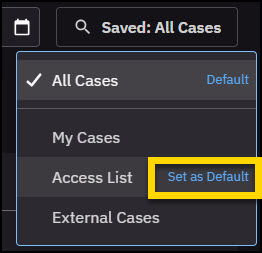
- Start narrowing your results using the Case ID, Owner, Created on, and Updated on filters.
- Select Filters to open the Filters panel and apply additional filters.
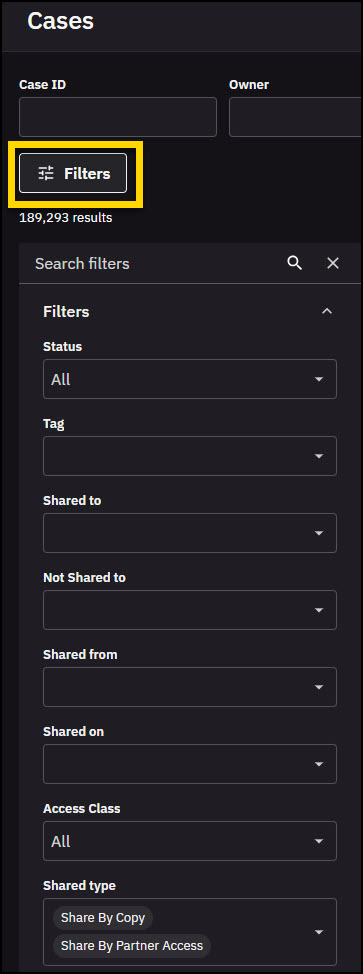
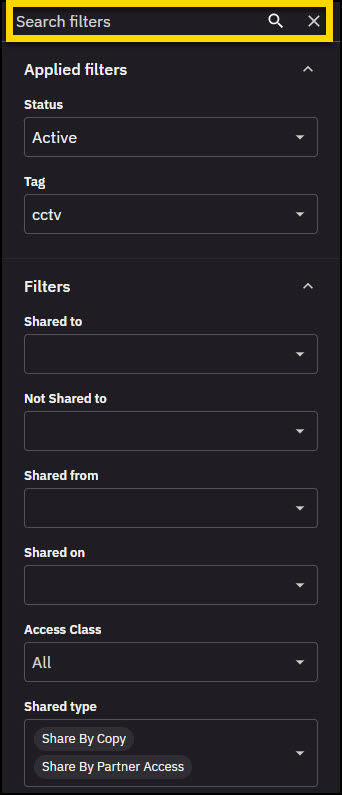
- Scroll to view available filters, or use the search bar to find a filter by name.
- Apply as many filters as needed. Your results will update as you work.
Work with case search results
After you perform a search, several options help you refine and review your results:
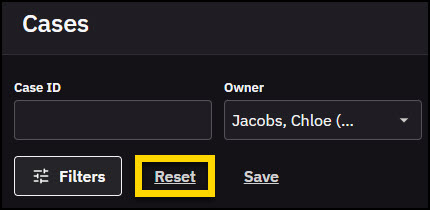
- Reset filters: Select Reset to remove all filters and start over.
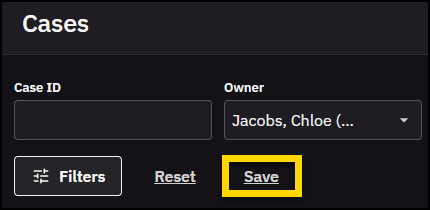
- Save a search: Select Save to store the current filters as a saved search.
- Apply a saved search: Select Saved, then select the name of your saved search. To set a saved search as the default, select Set as default next to the saved search name in the list.

- Navigate your results: More results load as you scroll. When the list stops, you have reached the end.
- Resize columns: Hover your mouse between two column headers until the pointer changes to a double arrow. Select and drag to adjust the width.
Use the Filters panel
Select Filters to open the Filters panel. The number next to Filters shows how many filters are applied. 
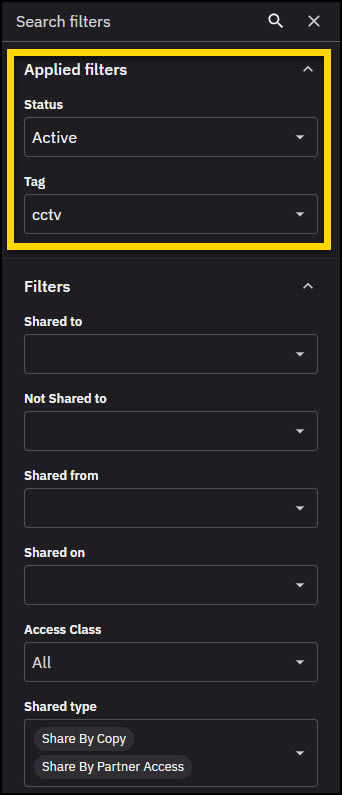
Applied filters appear first, followed by other options grouped by category.
Use the search bar to find filters by name.
Select X to close the Filters panel.


