Case share quick start guide
Watch this video to learn how to share cases with Axon Evidence.
This quick start guide provides information for sharing cases in Axon Evidence using three different methods:
- Share partner access (case share by reference): This creates a link that is accessible to selected recipients within a partner organization. Recipients with the link can view and download the evidence directly from your Axon Evidence system.
- Share a copy of a case: This creates a copy of the entire case or selected evidence within the case in the partner organization’s instance of Axon Evidence
- Share a download link: This creates a link that allows recipients to download case files without providing them direct access to the case in Axon Evidence.
Get started with case share
- Select Cases.
- Locate and select the case you wish to share to open the case details page.
- Select the Classic Sharing tab.
- Select New Share.
- Select a sharing method below, and then proceed with the steps in that section. If you are unsure which sharing method to choose, contact the partner organization to ensure you select the method that works best for them.
Share partner access
Under Select Recipient, choose one of the following options:
-
Add Entire Agency (this option is only enabled for US and UK organizations), and then:
-
Select a Partner Agency.
Note: When you select Add Entire Agency, you cannot enter values for Duration and Includes. The Duration (Days) is set to "undefined" by default, meaning the case share will remain active until it is manually revoked. The Includes field is set to "View & Download" by default. -
Select Next to go to the Select Evidence page and select the evidence you wish to share:
- To include all evidence: Select Add All Evidence To Case Share.
- To include only a subset of evidence: Use the checkboxes to select each item you wish to share.
- When finished adding evidence, select Share Case.
-
-
Add User or Group
-
Select a Partner Agency.
-
Enter a User or Group.
-
Enter an optional Message.
-
Enter a Duration in days that the partner access will remain active for.
-
Under Includes, select optional information you wish to include in the share.
- Select Next to go to the Select Evidence page.
- Select the evidence you wish to share:
- To include all evidence: Select Add All Evidence To Case Share.
- To include only a subset of evidence: Use the checkboxes to select each item you wish to share. Learn more about the options available when sharing evidence.
- When finished adding evidence, select Share Case.
-
You'll receive a confirmation that the case has been successfully initiated for sharing. The recipients will receive an email once the case is available to access.
Share a copy of a case
- Optionally, under Apply Template, Enter or select a template name. Templates allow you to standardize the folder structure and sharing options for cases. To learn more about case templates, refer to Case Settings.
- Under Select Recipient, select a Partner Agency.
- Enter a User or Group.
- Enter an optional Message.
- Under Attachments, use the checkboxes to select the information you wish to include in the case share.
- Under Evidence sharing options, choose one of the following options:
-
Select evidence for sharing, and then:
-
Select Next to go to the Select Evidence page.
-
Select the evidence you wish to share:
- To include all evidence: Select Add All Evidence To Case Share.
- To include only a subset of evidence: Use the checkboxes to select each item you wish to share. Learn more about the options available when sharing evidence.
-
When finished adding evidence, select Share Case.
-
-
Share all evidence, and then select Share Case.
You'll receive a confirmation that the case has been successfully shared. The case is automatically created in the partner organization's Axon Evidence account with the Unrestricted access class. Learn more information about the attachments you can select for sharing.
Update a shared copy of a case with new evidence
Watch this video to learn more about updating a case share after new evidence has been added.
You can update a shared copy of a case at the time new evidence is added, or later from the case details page. Anytime you add evidence to a shared case, the partner organization will receive a notification email.
Update a shared case copy when adding new evidence
Watch this video to learn how to update a case share while adding new evidence.
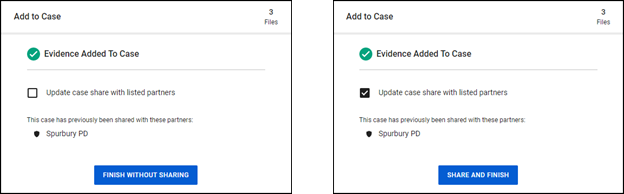
When you add new evidence, on the Add to Case window, choose one of the following options:
- Share the evidence: Select Update case share with listed partners, and then select Share and Finish.
- Do not share the evidence: Select Finish Without Sharing.
Update a shared case copy later from case details
- Go to the case details page for the case.
- Select Manage Shares.
- Select Update next to the partner organization you wish to share the evidence with to open the Select Evidence page.
- Use the checkboxes to select the evidence you wish to share, and then select Update Case Share.
Share a download link
- Under Select Recipient, enter a User or Email Address.
- Enter an optional Message.
- Under Attachments, use the checkboxes to select the information you wish to include in the case share:
- Audit Trails: Adds all audit events for the case to the download.
- Table of Contents: Adds a Microsoft Excel spreadsheet to the download with the following fields – File Name, Evidence ID, Evidence Title, File Type, File Size, Evidence Duration, Date Recorded, Uploader-First Name, Uploader-Last Name, Uploader-Badge ID, Assignee-First Name, Assignee-Last Name, Assignee-Badge ID, and Agency Name.
- Transcripts: Adds all human generated and Axon Auto-Transcribe transcripts associated with the case to the download.
- Retain folder structure: Includes the folder and sub-folder hierarchy in the download.
- Select a package type; choose between ZIP or ISO.
- Enter a Duration, and then select Send Download Link.You'll receive a confirmation that the case has been successfully initiated for sharing. The recipients will receive an email once the case is available to access.
Available options when sharing a case
When you share partner access or share a copy of a case, these are the options available on the Select Evidence page.
- Add Pinned Evidence to Case Share: Add all pinned evidence to the shared case. This option changes to "Add To Case Share" when individual pieces of evidence are selected.
- Add All Evidence to Case Share: Share all evidence in the case. This option changes to "Remove From Case Share" after evidence has been added to the case share.
- Review All On Page: Open all evidence in Review Mode when no evidence in selected. This option changes to "Review" when individual pieces of evidence are selected.
- Add folders to case share: If your case includes folders, hover over a folder and the select the checkbox that appears to add the folder to the case share.
- Quick Views: Presets that allow you to quickly filter evidence.
- Filters: Use filters to sort evidence.
- View Case Share Evidence (grayed out): This option is only available once evidence has been added to the case share.


