Review evidence
You can review videos, audio recordings, images, and documents directly in Axon Evidence using the built-in media player. The player lets you watch, listen, or examine files without downloading them, giving you complete control over how you view and analyze digital evidence.
Use playback tools to play, pause, adjust speed, or jump to key moments. Access to review tools depends on your assigned role and permissions. Some options may not be available to every user.
Use the media player
This article describes the actions available on the evidence details page for video and audio evidence files supported by the Axon Evidence media player.
Watch this video to learn more abut the media player.
Media player controls
The Axon Evidence media player enables you to play audio and video evidence files that are in supported file types.
The following figure shows the media player controls that appear when the player is paused. Additionally, in the figure, the sound is not muted.
Figure 1 - Control bar of Video Player
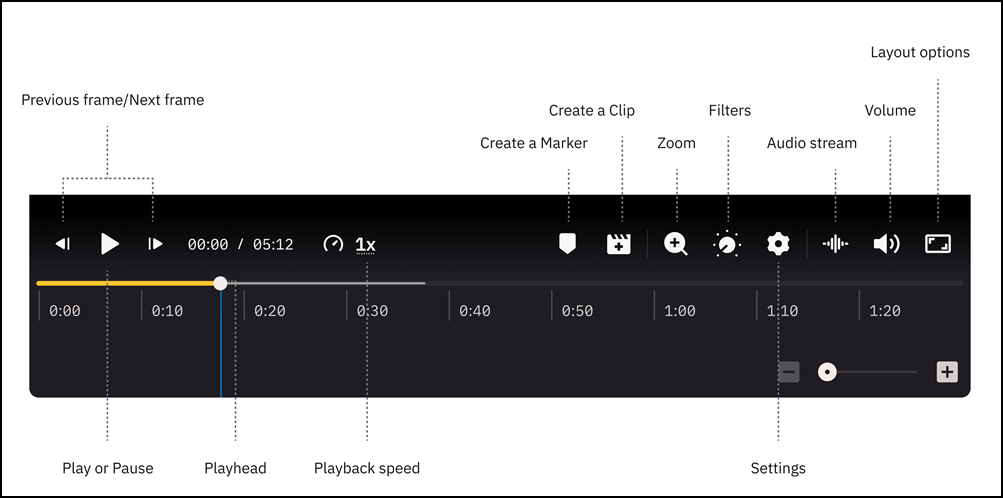
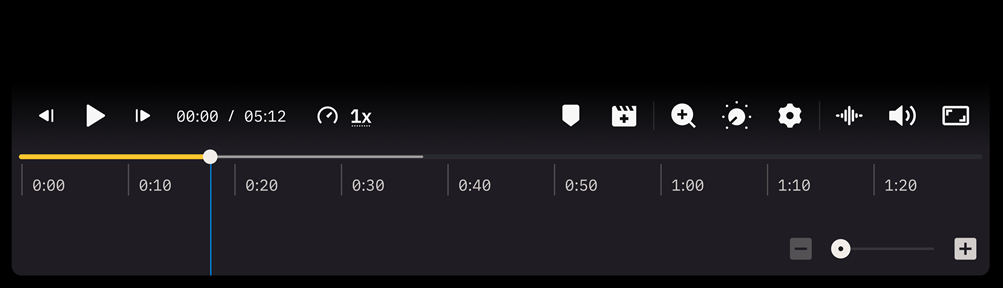
Figure 2 - Control bar of Audio Player
Media player actions
The following table provides steps for the actions you can take with the media player.
| Action | Steps |
|---|---|
| Play | Select the Play button. |
| Play faster or slower | Select the Playback speed button. Speed options range from 0.25x to 4x. 1x is normal speed. |
| View thumbnails | Hover your mouse over the scrub bar, above the time for which you want to see a thumbnail. A thumbnail image for the time appears. |
| Jump ahead or back | On the scrub bar, select and hold the scrub handle and drag it to the time in the media file that you want to go to. |
| Pause | Select the Play button . |
| View frame by frame | Select the Previous frame or Next frame button to move frame by frame. |
| View full screen | To enter full-screen viewing mode, select Switch layout, then select Fullscreen.To exit full-screen mode, select Exit fullscreen. |
| Wide layout | To expand the video area while keeping the timeline visible, select Switch layout, then select Wide. |
| Hide timeline | To maximize the video area on smaller screens, select Switch layout, then select Hide timeline. This option collapses the timeline and side panel so you can focus on the video. |
| Rotate screen |
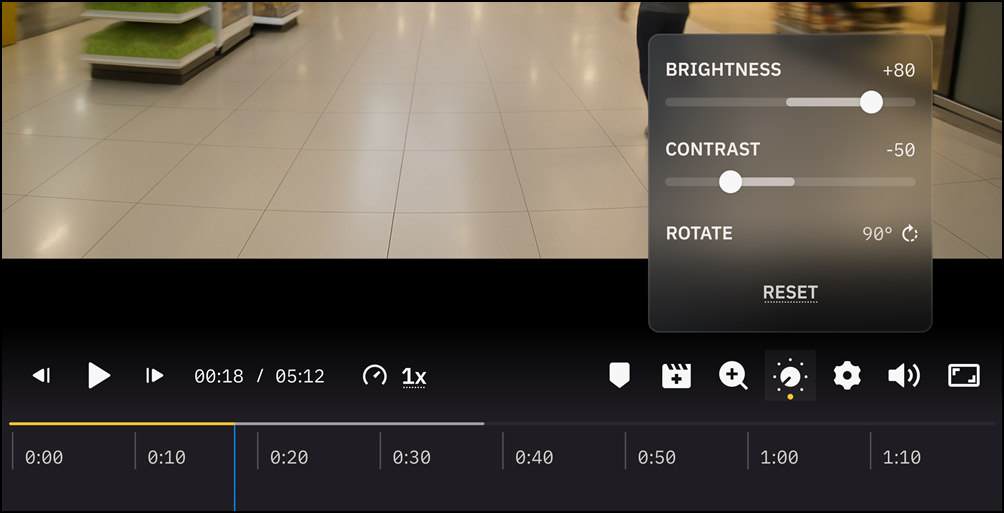
Select the Filters button and then select Rotate to change the screen orientation. |
| Change video quality |
Select the video quality button and choose the desired quality. Select the Settings button, select Quality, and then choose the desired quality. |
| Mute, unmute, or control volume |
Select the Volume button, the select and drag the slider to adjust the volume. Move the slider to the minimum level to mute the audio. |
Keyboard Shortcuts
| Category | Feature | Keyboard Shortcut |
|---|---|---|
| Playback Control | Play/Pause | Space Bar |
| Playback Control | Rewind 5 Seconds | Left Arrow |
| Playback Control | Fast Forward 5 Seconds | Right Arrow |
| Playback Control | Next Frame | D |
| Playback Control | Previous Frame | A |
| Playback Control | 1x Speed | 1 |
| Playback Control | 2x Speed | 2 |
| Playback Control | 4x Speed | 4 |
| Playback Control | Start Video Over | Home (MacOS Cmd+Left Arrow) |
| Playback Control | Exit Full Screen | Esc |
| Marker | Add a Marker | Ctrl+M (MacOS Cmd+M) |
| Clip | Add a Clip | Ctrl+U (MacOS Cmd+U) |
Filters
Use filters to adjust the brightness and contrast, or rotate the video. Select Reset to clear all filters and return to the default view.Select Save to name ad store your current filter settings for reuse. Saved filters are unique to your user account.
Playback settings
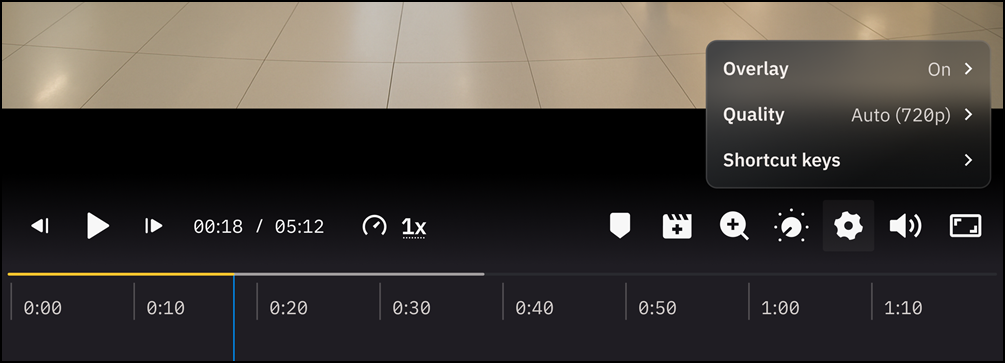
Use Settings to change the video quality, show or hid overlays, or view keyboard shortcuts.
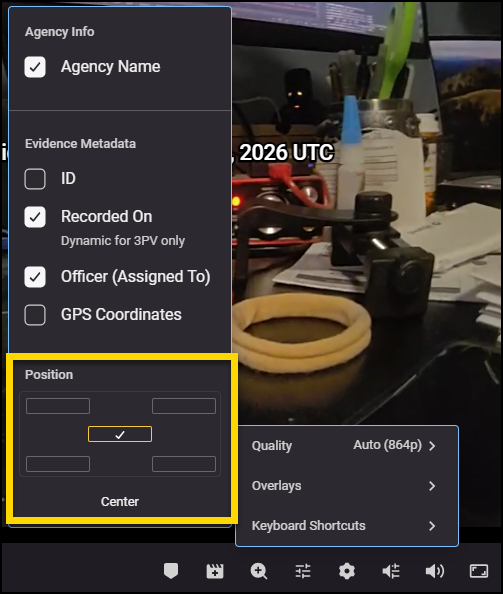
Temporarily move the viewed by watermark
You can temporarily move the viewed by watermark to avoid obstructing key details in videos.
Select Settings, select Overlays, then select a Position.
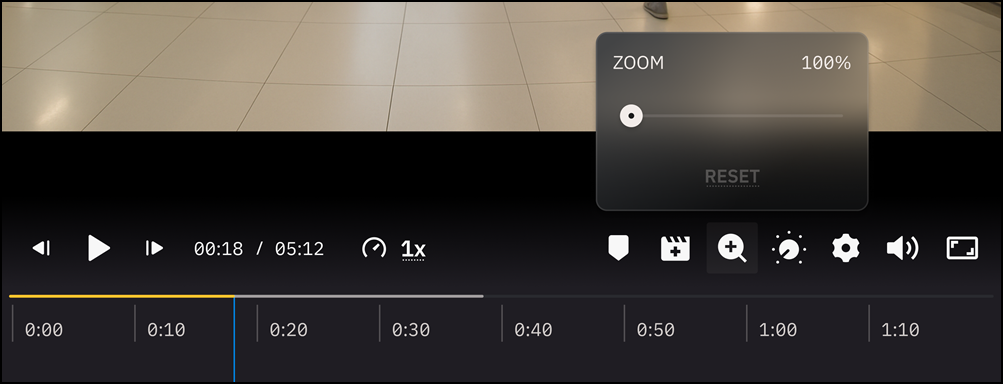
Zoom controls
A useful feature for reviewing evidence is the ability to zoom in and out on a video to focus on specific areas of interest, such as clues, suspect actions, people, or objects. Select the Zoom button to open the Zoom slider and adjust it as needed. Use Reset to clear the zoom and return to the original view.
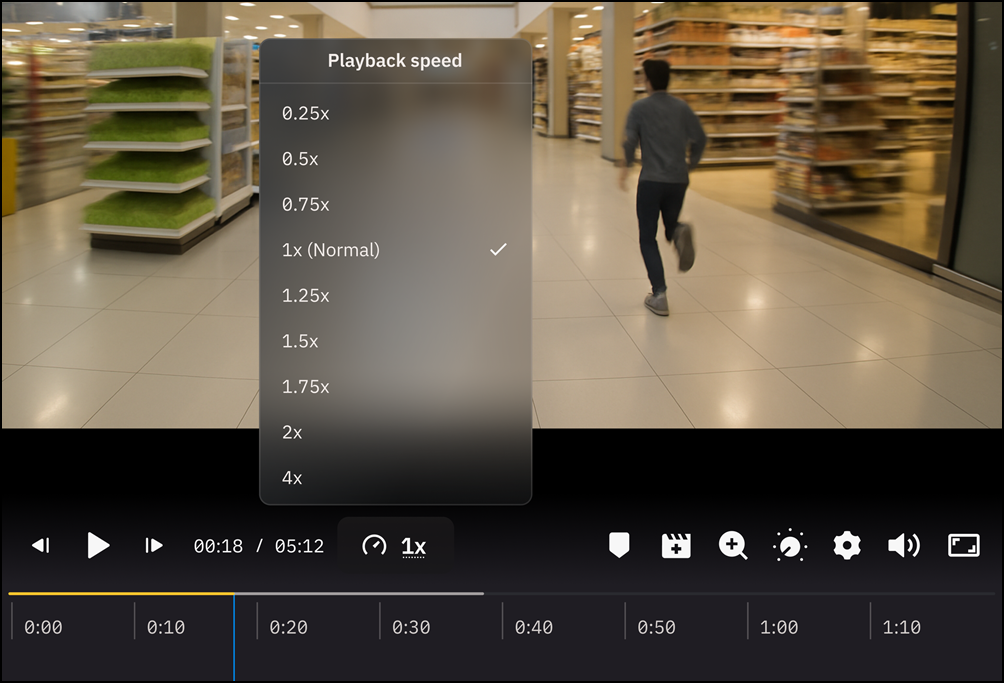
Playback speed
Playback speed supports the review process by allowing you to slow down the video to carefully analyze it or speed it up to view a longer video more quickly. Choose from playback speeds: 0.25x, 0.5x, 0.75x, 1x (Normal), 1.25x, 1.5x, 1.75x. 2x, and 4x.
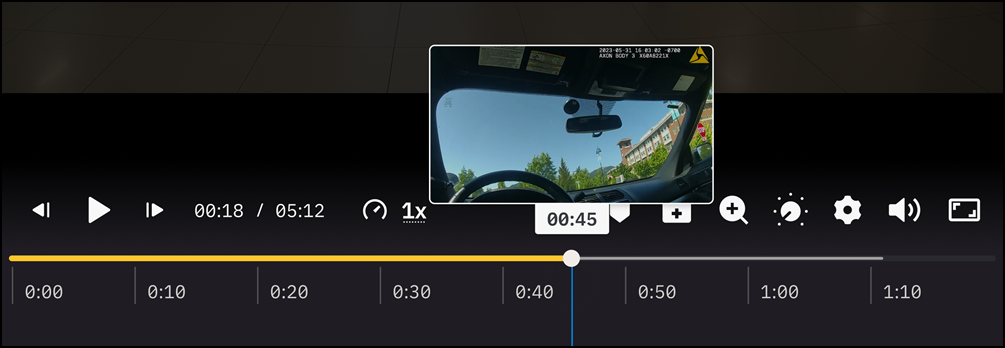
Thumbnail preview
The media player supports loading preview thumbnails for individual shots or scenes in a video. These thumbnails are displayed underneath the scrubbing bar when you hover over it.
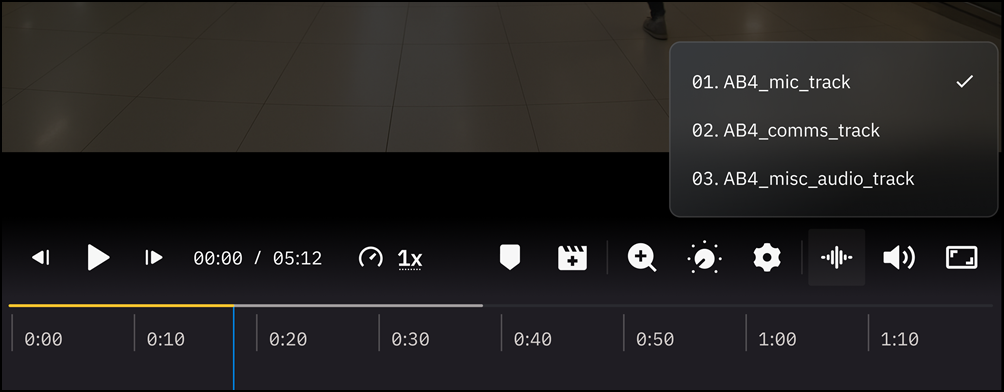
Multiple audio streams
Multiple audio streams help support Fleet 3 and Axon Body 4 in cases where multiple audio streams are associated with a single video. You can select the desired audio stream from the player controls.
System requirements for video playback
Supported browsers:
- Latest version of Chrome or version 60+
- Latest version of Firefox or version 60+
- Latest version of Microsoft Edge or version 79+
- Latest version of Safari or version 11+
Minimum hardware requirements:
- CPU: Intel Core i5 (AMD/ARM equivalent) or above
- RAM: At least 8GB or more
- Display: HD resolution or better
Axon recommends a dedicated graphics processor card for the best visual performance. Suggested specifications include:
- DirectX 12/Vulkan support
- 2GB vRAM or above
- GeForce GT 1030 or above
Recommendation for internet speed
You can view videos in quality ranging from 240p to 2K in Axon Evidence. The following table shows the minimum speeds required for each playback quality.
| Video Quality | Required Minimum Bandwidth |
|---|---|
| 240p | 500 kbps |
| 360p | 1 Mbps |
| 720p | 3 Mbps |
| 1080p | 7 Mbps |
| 2K | 12 Mbps |
Hardware acceleration in your browser
Hardware acceleration increases the performance of the web browser. When enabled, some users may experience issues such as:
- Compatibility issues with hardware or software, especially on sites with streaming or full-screen videos
- Fonts not displaying correctly, causing blurry text
- Random browser crashes
- Videos flickering or becoming practically unwatchable
If these issues affect the video playback experience, check the hardware acceleration configuration in the Browser Settings to ensure better video playback performance.
Example in Google Chrome
- Open Settings.
- Enter hardware acceleration in the search bar at the top of the page.
- Turn on Use hardware acceleration when available.
- Restart your browser to save the new setting.
This setting may change when Chrome is updated.


