Saved searches
Saved searches help you quickly revisit common search setups—like body camera footage from a specific date, evidence tied to a case, or files shared with your team. Create and manage saved searches based on any combination of keywords and filters.
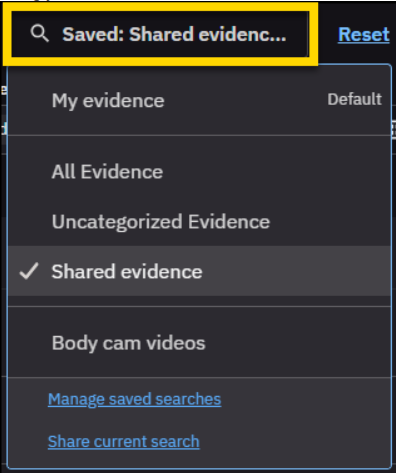
You can also access My Evidence and Shared Evidence from Saved Searches. These saved views help you find files you uploaded or those shared with you.
Watch this video to learn more about saved searches.
Create a saved search
- Select Evidence.
- Enter your search criteria and apply filters.
- Select Save.

- In the dialog box, enter a name for your search, and then select Save.
Run a saved search
- Select Saved.
- Select the saved search you want to run from the list. Search results update instantly using your saved search criteria.
Note
Saved searches are user-specific and only visible to the person who created them.
Set a default saved search
- Select Saved.
- Hover over a saved search and select Set as default. The default search appears at the top of your saved searches list.
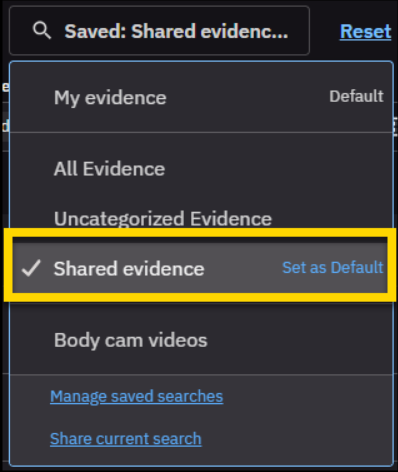
To remove a search as the default, hover over it and select Remove default.
Delete a saved search
- Select Saved.
- Select Manage saved searches.
- In the dialog box, select the search you want to remove, and then select Remove.


