Search text in documents
Document text search lets you search typed text inside PDF and Word files stored in Axon Evidence. Instead of opening each document to look for names, addresses, or keywords, you can search across documents and jump directly to the matching text.
Document text search is available with a Pro license. It only applies to documents uploaded after this feature is enabled for your organization. For most organizations, this will be enabled the last week of March 2026. Customers may request a one-time backfill priced based on document volume by contacting an Axon representative.
If your organization uses Axon Records, you can also initiate a document text search from the Files search experience in Axon Records.
How it works
Axon Evidence extracts readable text from supported documents when they are uploaded. That text becomes searchable across evidence you have permission to access.
You can search text in:
- PDF (.pdf) files
- Word (.docx) files
Document text search works on:
- Digitally created documents
- Scanned documents with readable typed text
For best results, documents should contain:
- Clear, legible typed text
- Text that is at least 8-point font size
- Pages that are not blurry, distorted, or affected by heavy bleed-through
Handwritten text might appear in results, but accuracy can vary.
Search document text using the Filters panel
- Select Evidence.
- Select Filters.
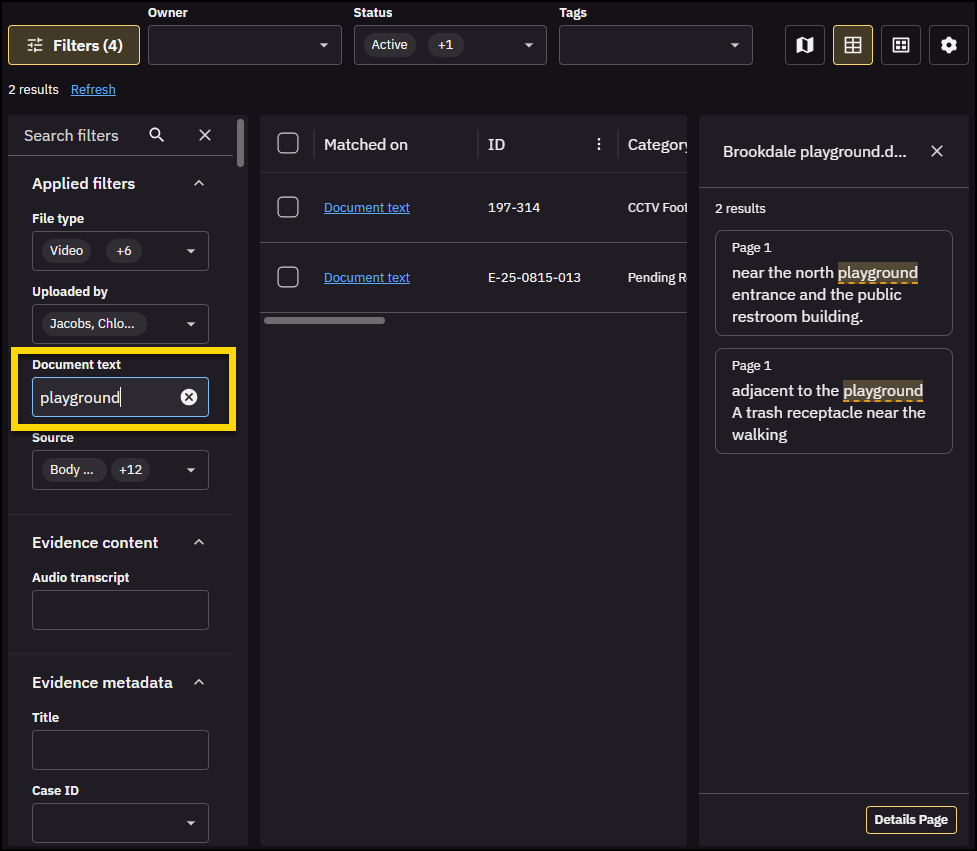
- Enter the Document text you want to search for and press Enter.
Matching document evidence appears in the results table. When a document contains your search term:- Document text displays in the Matched on column.
- The search preview panel opens to the first result in the list and shows highlighted snippets where the text appears in the document.
- Locate the evidence you want to review, then select Document text in the Matched on column. Every instance of matching text in the document displays on the search preview panel.
- Select any highlighted snippet on the search preview panel to open the document to the matching page. or select Details page to open the full document.
Review document matches in the evidence details page
When you open document evidence from search results, Axon Evidence opens the evidence details page. What you see first depends on how you open the document.
Open a document from the results list
When you select a document from the results list, the document opens to the Overview tab in the evidence details page.
On the Overview tab in the evidence details page, you can:
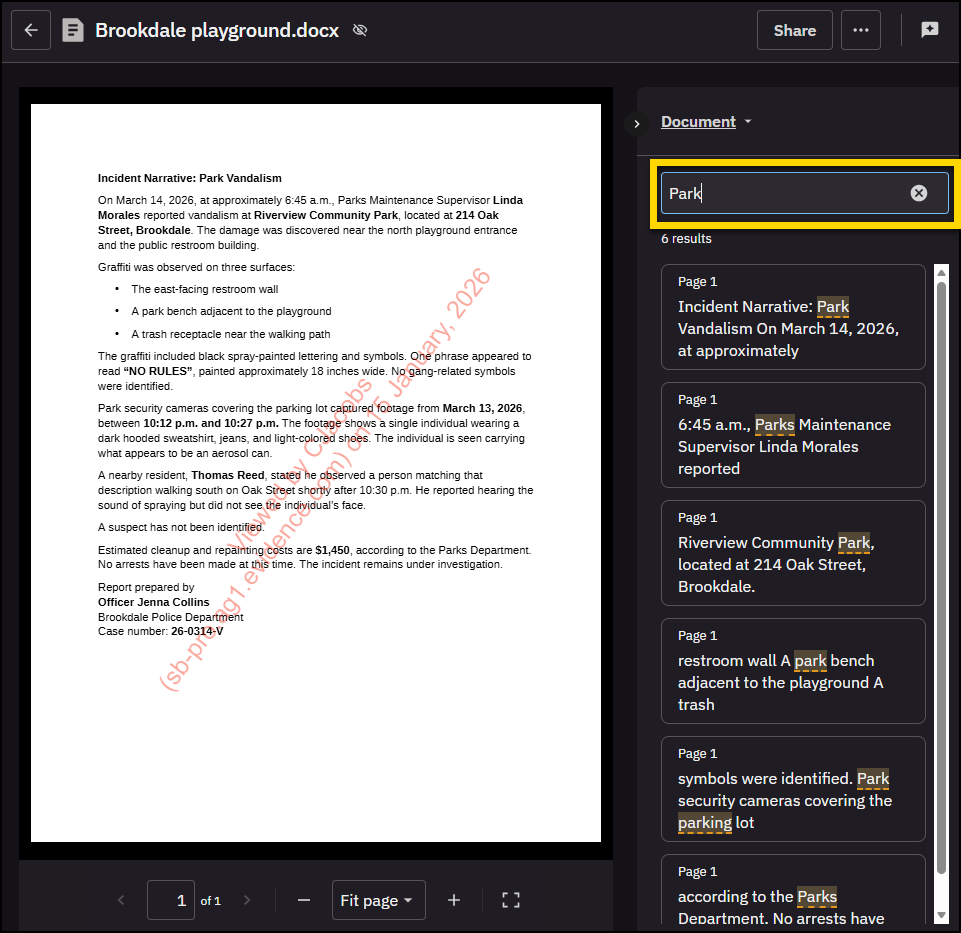
Enter the document text you want to search for in the Search bar, then press Enter to search within the document.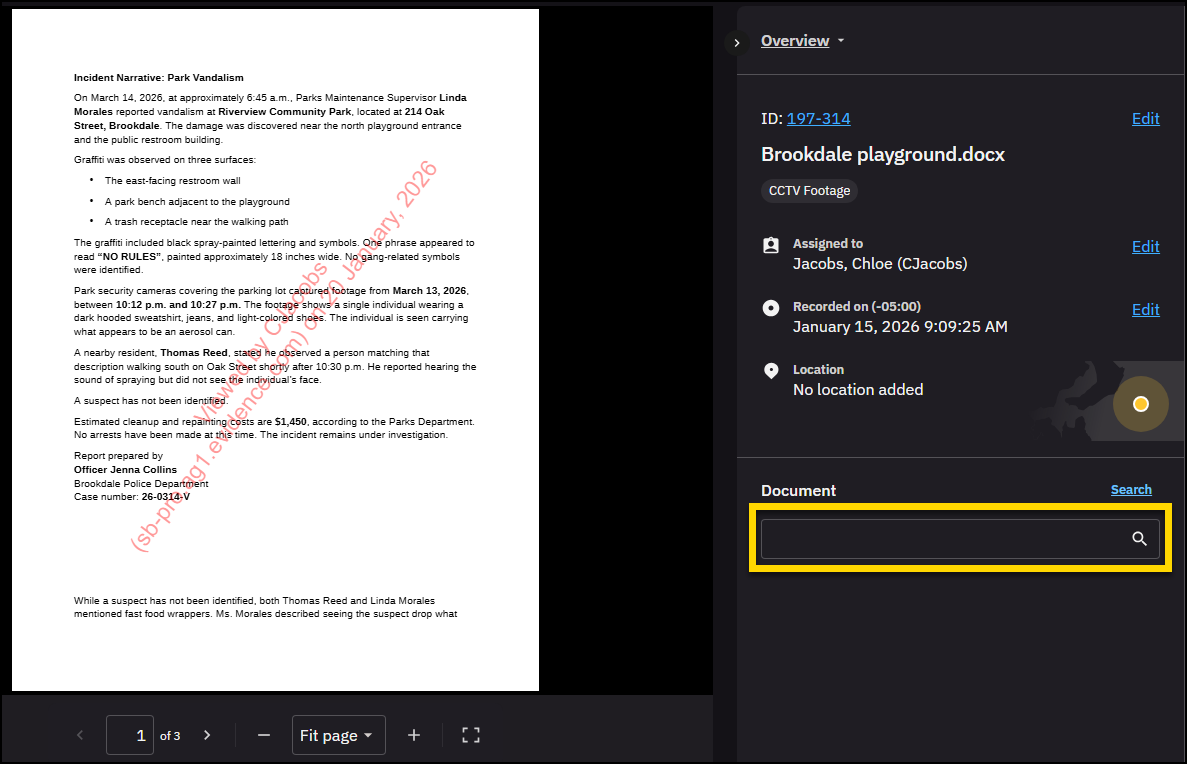
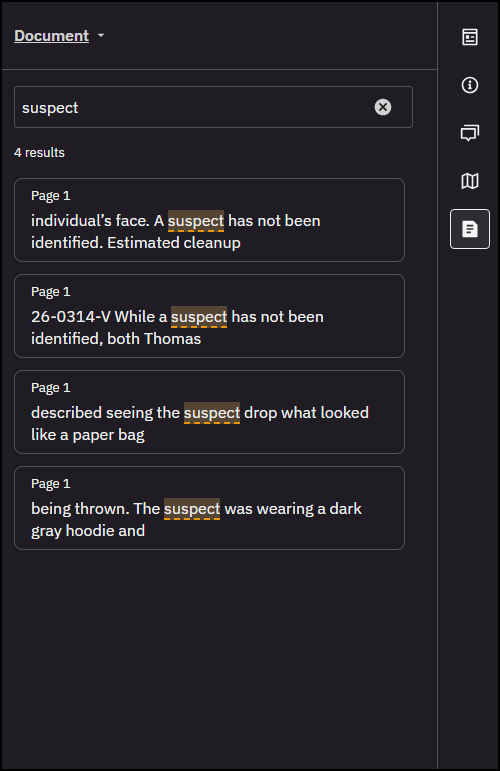
The document opens in the Document tab with matching results highlighted. Select any listed match to jump directly to that page in the document.
Open a document from a search preview snippet
When you select a highlighted snippet on the search preview panel, the document opens to the Document tab in the evidence details page. The text you searched for and all matching results within the document are shown.
On the Document tab in the evidence details page, you can:
- See the search term you entered
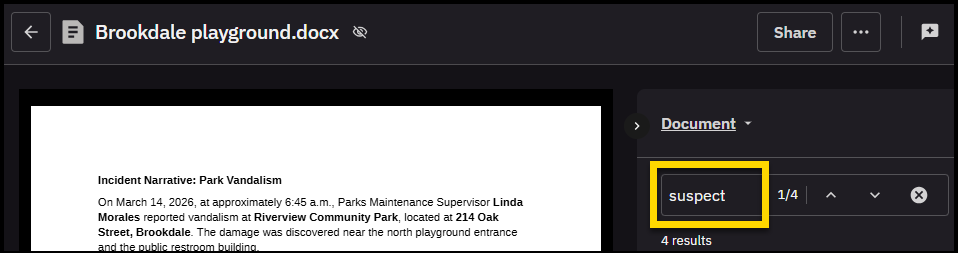
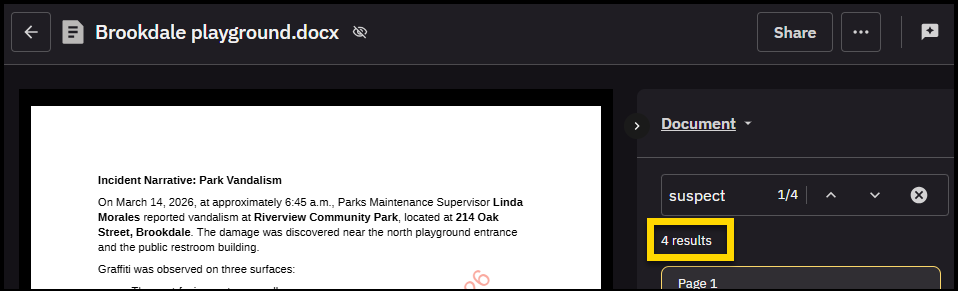
- View the total number of matching results
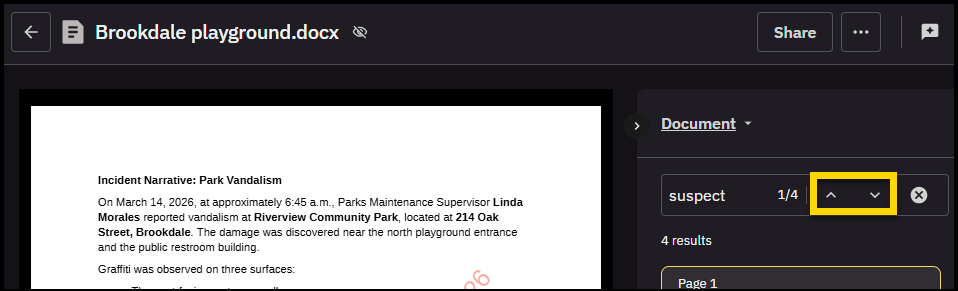
- Select Previous match or Next match to move through results in order
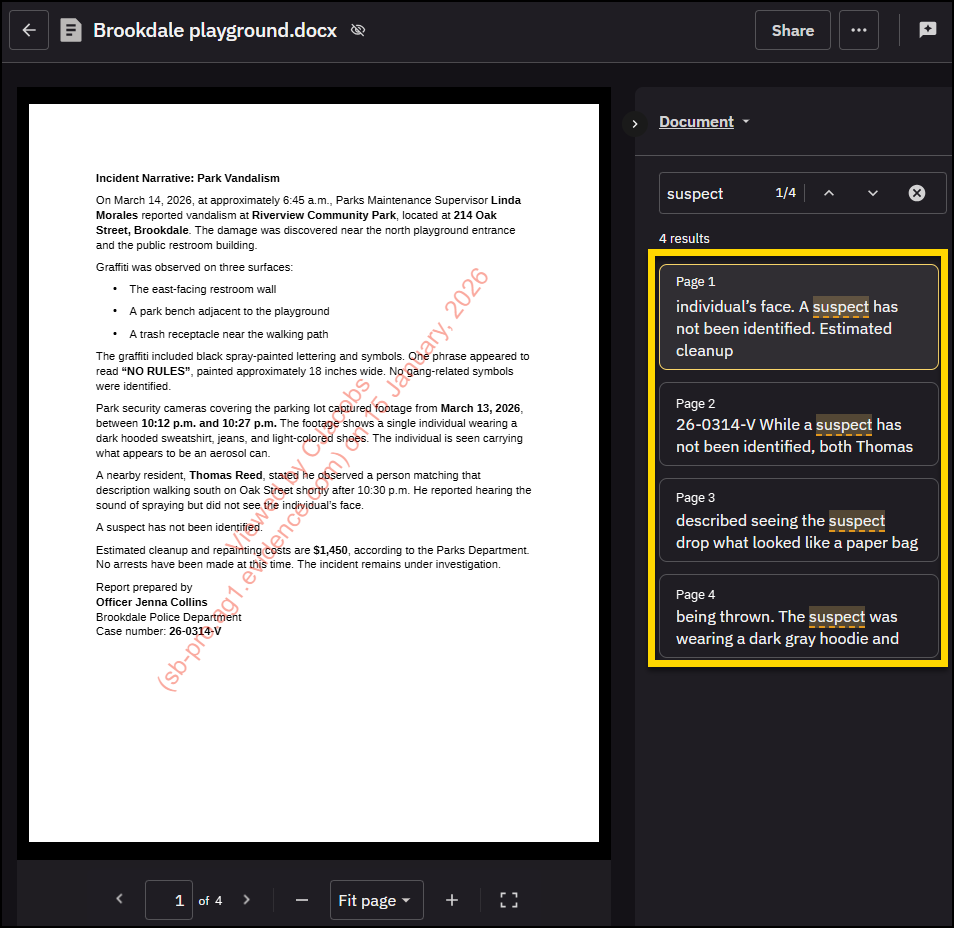
- Select any listed match to jump directly to that page in the document
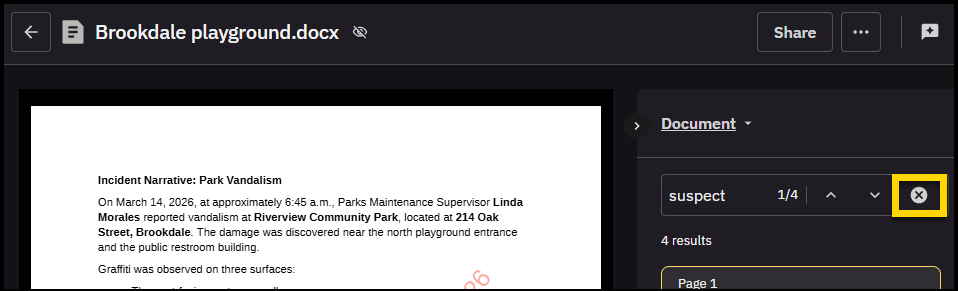
- Select Clear input to remove the current search
- Enter a new search term to find different text in the same document
FAQ
What file types are supported?
Document text search supports PDF (.pdf) and Word (.docx) files.
What text can be searched?
Document text search works best with typed text. Text from scanned documents may also be searchable if it is clear and readable. Handwritten text may appear in results, but accuracy can vary.
When is document text available to search after upload?
Document text is available to search within five minutes after the document is uploaded.
Are there limits on document size?
PDF or Word documents larger than 2,000 pages or 500 MB are not supported with Document Text Search.
Can I search password protected documents?
Password-protected documents can be uploaded to Axon Evidence, but only unlocked documents are indexed for Document Text Search.
How accurate are the results?
- Search accuracy depends on document quality. Results may be limited if text is: Smaller than 8-point font
- Blurry or low contrast
- Affected by bleed-through or poor scan quality
Do permissions apply to document text search?
Document text search respects your existing evidence access. You only see document matches for evidence you are allowed to access.
For example, if you can only search your own unrestricted evidence, document text search only returns matches from that evidence.
All document text searches are logged and included in the audit trail.
Are document text searches logged in the audit trail?
All document text searches are logged in the user audit trail. You can view these events from your user profile page and in Reports.


