Using Redaction Studio to redact evidence
The Audio Extraction functionality lets you extract a redaction as audio evidence in M4A format with no associated video.
- On the evidence details page for the evidence you want to redact, select the Redactions tab.
- Select + Create redaction. This launches Redaction Studio within the browser window.
- Select Extract.
- Select Extract Audio, and then select Extract.|
- The redaction processing dialog box is displayed. Select Okay to continue. The redaction begins processing. When processing is complete, you receive a notification email with a link to the audio file.
- Select X to exit Redaction Studio and return to the evidence details page.
All work done to a video in Redaction Studio is saved.
Redact via the transcript
If your organization uses redaction reasons, you will be required to select a redacted object and reason before redacting.
When you use Redaction Studio, you might want to redact certain portions of the audio for privacy or security purposes. With Audio Redact via transcript, you can use the transcript of the audio track to redact certain sections of the recording.
Watch this video to learn how to redact audio via the transcript.
Find a word to redact
- Navigate within video/audio using the transcript.
- Select a word to navigate to the timestamp where this word located.
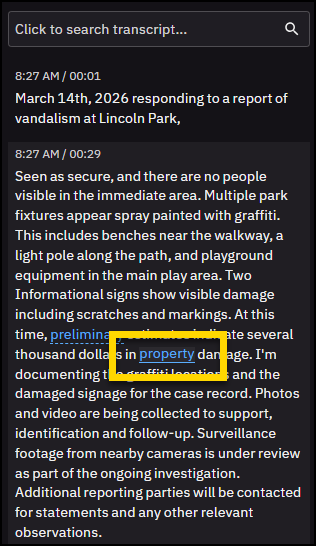
- Double-click or right-click a single word. If your organization uses redaction reasons, select a reason before you redact. Then choose one of these options:
- Redact: The redacted word appears with a red strikethrough.
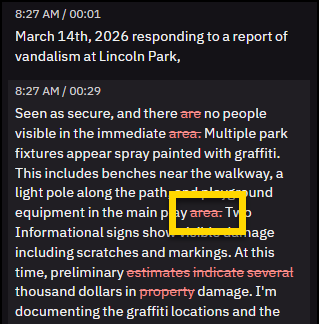
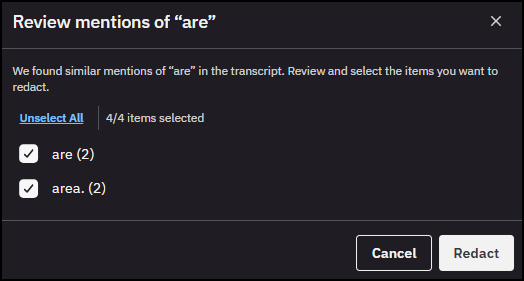
- Redact all: In the dialog box, the exact word and similar mentions are listed. Review and select the words you want to redact, then select Redact.
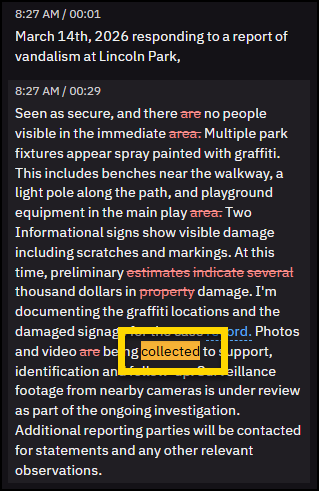
- Highlight: The word appears with a highlight.
Redact via transcript when multiple audio streams are available is not yet supported.
Suggested list of keywords to find and redact
The following items usually contain personally identifiable information (PII), which you will likely need to redact:
- Name
- Address
- Phone number
- Social security number
- Birthday, Date of birth
- Birthplace, Place of birth
- Credit card number
Currently, image redaction only supports .jpeg and .png file types. Support for other file types will be added in future releases.
Redact an Image
After you create a mask, you can change the mask shape to an oval. The oval shape is available for manual masks, object masks, tracker masks, and AI-generated masks using Redaction Assistant.
- On the evidence details page for the evidence you want to redact, select the Redactions tab.
- Select Create redaction . This launches Redaction Studio within the browser window.
- Rotate the image as needed before and while adding masks.
- Place the cursor on the image, then select and drag to add a mask.
- Once a mask is added, adjust the size of the mask using one of the following methods:
- Use the mask frame handles to resize the mask.
- Press the W key to increase the mask size or the S key to decrease the mask size.
- To move a mask, do one of the following:
- Select and hold the mask, then drag it to the correct location.
- Use the arrow keys to move the mask.
- With the mask selected, select Blur level, then choose one of the following options:
- Extra Light
- Light
- Medium
- Heavy
- Extra Heavy
- Blackout
- When you have finished adding and configuring all the masks, select Extract.
- The redaction processing dialog box is displayed. Select Okay to continue. When processing is complete, you will receive a notification email with a link to the redacted image.
- Select X to exit Redaction Studio and return to the evidence details page.
All work done to a video in Redaction Studio is saved.
Redact a video
You can redact what can be seen and heard in video evidence files. Using redaction tools, you can create redacted versions of video files without affecting the original file. A redaction is a set of information that tells Axon Evidence what to redact in a video. You can create a redaction using these redaction tools:
When you have completed creating or editing a redaction manually or with assisted redaction, you can extract a redacted video. The original video evidence file is never altered.
The clips and redactions features complement each other. If you have a long video and need to share a redacted segment, it is recommended that you first create a clip, extract a video from the clip, and then redact the extracted video.
Manual redaction
Manual redaction allows you to create and control the size, shape, and placement of redaction masks precisely, frame by frame. You can also create and configure audio masks to mute specific video segments.
Recommendation: For videos longer than five minutes, use assisted redaction.
Manual redaction workflow
- Follow the steps in Create a Redaction Manually.
- Use the redaction to make a new, redacted video evidence file. Follow the steps in Extract a Redacted Video from a Redaction.
- Wait for Axon Evidence to notify you by email that the extracted video is available.
- Review the extracted video carefully to ensure it is redacted correctly. Access the video using the link in the notification email.
- If redaction issues are found, edit the redaction and return to step 2. To edit the redaction, follow the steps in Edit a Redaction.
- If the redacted video is correct, use it as needed (e.g., share, download).
Manual redaction concepts
Creating a redaction manually involves working with the following concepts:
- Object: Organizes mask segments that redact the same actual object. There are two types of objects:
- Video object: Organizes visual mask segments.
- Mute object: Organizes audio mask segments.
- Mask: Defines an area (height, width, and duration) for video redactions. Mute masks only have duration.
- Mask Timeline: Represents all frames and enables precise placement of mask segments.
- Blur Level Selector: Defines how blurry a redacted area appears.
Manual redaction controls
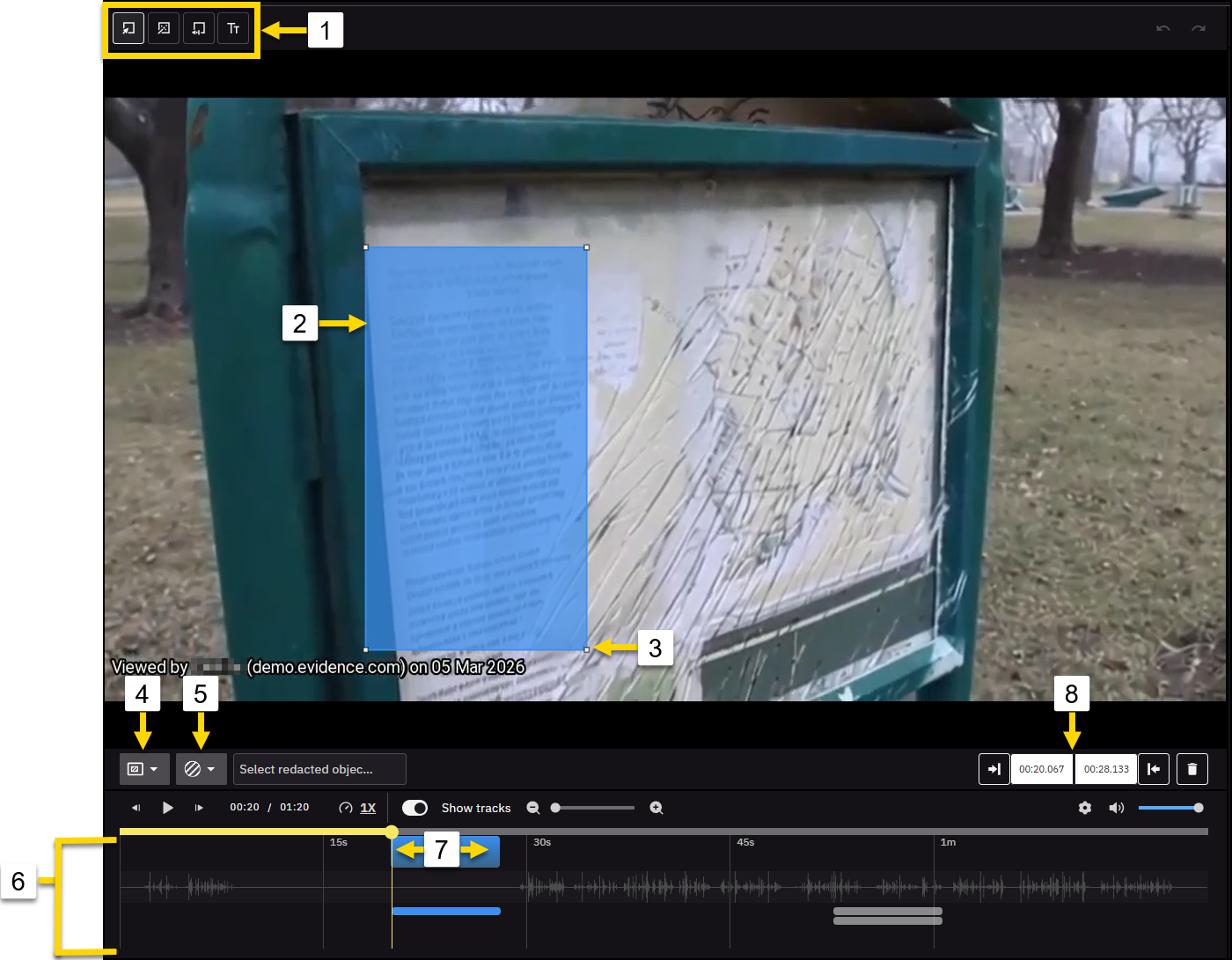
The following controls are used for manual redactions:
- Mask frame
- Mask frame handle
- Mask type
- Blur level selector
- Video object
- Mask timeline
- Mask segment
- Start and end times for the selected mask segment
- Mute object
Create a redaction manually
If you are allowed the Redact permission can use the manual redaction tool to create a redaction for a video evidence file that is in a file format supported by the media player.
- On the evidence details page, select Redactions. If any redactions already exist, they are listed.
- Select Create New Redactions.
- Select Manual mask. The controls for editing a manual redaction appear below the media player. The first object is created, and within the object is one mask.
- For each additional object that you want to redact, select New Redaction. For example, if you need to redact three faces, you can add two more objects.
Each new object appears at the bottom of the list of objects. Each new object contains one mask segment.
If you need to delete an object, at the right end of the object, select Delete.
- If you want to redact any portion of the audio track, select Audio mask. The Mute object appears below the video objects. The Mute object contains one mask segment.
- For each video object or the Mute object, create and configure mask segments, and for video objects, place the mask within each segment.
- If your organization uses redaction reasons, select a redacted object and a reason.
- The manual redactions appear in the Redacted Objects tab. The redaction you created is available in the list of redactions until you delete the redactions.
Use as many mask segments as needed in order to redact the object. The following table lists the actions for configuring mask segments and masks.
| Action | Method |
|---|---|
| Add a mask segment to an object | At the right end of the object, select Add Mask. |
| Delete a mask segment from an object |
a. If the mask segment is not blue, click the mask segment. Blue indicates that the mask segment is selected. b. Select Delete Selection. |
| Move a start or end mask segment handle |
To place a mask handle approximately at the frame you need:
To move a mask handle one frame at a time:
|
| Move both mask segment handles together |
|
| Move mask segment handles to specific times |
|
| Move a mask frame in a mask segment |
|
| Shape a mask frame |
|
| Change the blur level of a mask |
|
Edit a redaction
You can edit the objects, mask segments, and mask frames of a redaction. Regardless of the origin of a redaction—created manually or created with assisted redaction—editing a redaction is the same process.
- On the evidence details page, select Redactions. Existing redactions are listed.
- In the list, find the redaction that you want to edit and then select. The controls for editing a manual redaction appear below the media player, including any objects and mask segments that the redaction contains.
- If you need to add or remove objects, use one of these methods:
- Add a video object: Select New Redaction. A new object appears in the list of objects. Each new object contains one mask segment.
- Add a mute object: Select Audio Mute. The Mute object appears below the video objects.
- Delete an object: At the right end of the object that you want to delete, select Delete. The object and any mask segments it contained are removed from the redaction.
- If you need to edit mask segments or masks, use one of these methods:
- Add a mask segment to an object: At the right end of the object, select Add Mask.
- Delete a mask segment from an object: If the mask segment is not blue, select the mask segment (blue indicates that the mask segment is selected), then choose Delete Selection.
- Move the start or end mask segment handle:
- To place a mask handle approximately at the frame you need:
- On the mask timeline, hover the mouse pointer over the mask segment handle that you want to move, then press and hold the mouse button.
- Drag the handle left or right, as needed, then release the mouse button.
- To place a mask handle precisely at the frame you need:
- If the mask segment is not blue, select the mask segment (blue indicates that the mask segment is selected), then use the keyboard controls:
- a: Move the start handle to the left, one frame at a time.
- s: Move the start handle to the right, one frame at a time.
- Left arrow: Move the end handle to the left, one frame at a time.
- Right arrow: Move the end handle to the right, one frame at a time.
- If the mask segment is not blue, select the mask segment (blue indicates that the mask segment is selected), then use the keyboard controls:
- To place a mask handle approximately at the frame you need:
- Move both mask segment handles together:
- If the area between the mask segment is not blue, select between the mask handles, then hover the mouse pointer over the blue area between the start and end handles.
- Press and hold the mouse button, drag the handle left or right, as needed, then release the mouse button.
- Move mask segment handles to specific times:
- If the mask segment is not blue, select the mask segment (blue indicates that the mask segment is selected).
- Enter the exact Start time in minutes and seconds (mm:ss) where you want the handle.
- Enter the exact End time in minutes and seconds (mm:ss) where you want the handle.
- Move a mask frame in a mask segment:
- If the mask segment is not blue, select the mask segment (blue indicates that the mask segment is selected).
- In the media player, select and hold the mask frame, avoiding the handle at the lower-right corner.
- Drag the corner as needed, then release the mouse button.
- Shape a mask frame:
- If the mask segment is not blue, select the mask segment (blue indicates that the mask segment is selected).
- Select and hold the handle at the lower-right corner of the frame.
- Drag the corner as needed, then release the mouse button.
- Change the blur level of a mask:
- If the mask segment is not blue, select the mask segment (blue indicates that the mask segment is selected).
- Use the blur selector until the blur level you want is selected.
- When you have finished editing the redaction objects, mask segments, and mask frames, do one of the following actions:
- If you want to save all your edits to the redaction, select Done. Changes to the redaction are saved.
- If you do not want to save any edits to the redaction, select Cancel. Any changes made to the redaction are discarded. The Redactions tab reappears.
Extract a redacted video from a redaction
Watch this video to learn how to extract redacted videos.
Extracting a video from a redaction is how you create a redacted video, which you can share or download as needed. After you create a redaction, you can extract a new video evidence file at any time. Extracting a redacted video from a redaction creates a new video evidence file that is redacted exactly how you specified when you created and edited the redaction. Video evidence created by extracting a redacted video appears in evidence searches. The video from which a redacted video was extracted is known as the parent video.
You can extract a redacted video from a redaction more than once. Each time you extract a redacted video, a new video file is created. If the title of the redaction is the same each time you extract a video from the redaction, the video files created have identical titles.
A video extracted from a redaction inherits the case IDs, categories, tags, and evidence location of the parent video. Inheriting this information helps ensure that extracted videos are associated with the correct cases and that the applicable evidence retention policy is enforced, including any restricted categories. In addition, the tag “AXONRedaction” is applied to the video.
On the evidence details page for a redacted video file, the title of the parent video file displays and provides a link to the parent video file.
- On the evidence details page, select the Redactions tab. The list of redactions appears.
- In the list, find the redaction from which you want to extract a redacted video, select More actions (elipses), and then select Download.
- On the notification message box, enter a reason for downloading the evidence, and then select Download . Axon Evidence begins creating the new redacted video evidence file.
When the extraction is complete, you receive a notification email.
Delete a redaction
You can delete redactions at any time; however, you cannot recover a deleted redaction. In order to prevent the work required to recreate a rashly deleted redaction, it is recommended that you ensure that a redaction is never needed again prior to deleting it.
Redacted videos extracted from a redaction are not affected when you delete the redaction from the parent video.
- On the evidence details page, select Redactions. The list of redactions appears.
- In the list, find the redaction that you want to delete, select More actions (elipses), and then select Delete.
- In the confirmation window, select Delete. The redaction is deleted, and it no longer appears in the list of redactions.
View videos extracted from clips and redactions
Axon Evidence keeps track of evidence files extracted from a parent file. This helps ensure that you are viewing the correct evidence file. It may also be more convenient if you aren’t sure of the name given to an extracted file but do remember the name of the parent file.
- Open the evidence details page of the parent file.
- Select the Related tab. A list of related files appears.
- Select the extracted file that you want to view. The evidence details page of the extracted file opens.
Redact a PDF
Document Redaction lets you redact text, highlight text, and add text annotation to PDFs in Axon Evidence. This article includes information on Document Redaction Best Practices and Redacting a PDF document.
Watch this video to learn more about how to redact document evidence in Redaction Studio.
Document Redaction Best Practices
- Password protected documents: Redaction Studio currently does not support password-protected PDF documents. Password protection must be removed before opening the document in Redaction Studio.
- File size: Document Redaction does not have a file size limit. However, it works with PDF documents of up to 800 pages. Documents that contain images or other memory-intensive data might load slowly. PDF documents with more than 800 pages are not limited but can cause a lagging experience.
- Hyperlinks: While a document is open in Redaction Studio, external hyperlinks in the document are disabled. This prevents accidental access to external content while redacting. Those hyperlinks are preserved after extraction and can access external content while being viewed on the Evidence Detail page. Hyperlinks that go to a point within the document are not disabled while in Redaction Studio.
- Multi-user collaboration: Document Redaction currently allows multiple users to access and work on the same document at the same time. However, it is recommended that users do not work in the same areas to reduce overlapping edits.
If in doubt, or if Redaction Studio informs you of conflicting changes, refresh the browser page to see the latest changes.
Additionally, you can select different mask border colors to distinguish between users' work and avoid overlapping. Mask color settings do not affect the mask appearance after extraction.
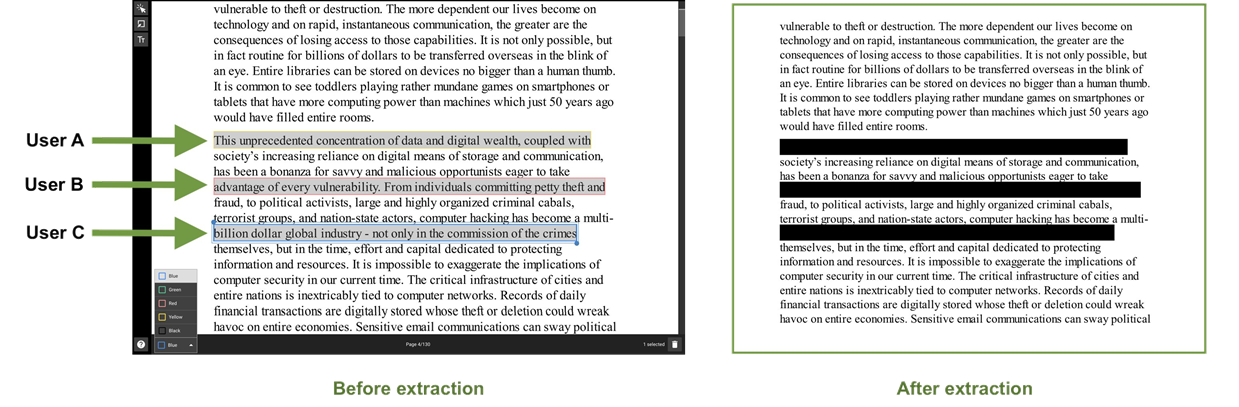
- Mask and annotation usage: Only use the redaction mask tool for redacting and the annotation tool for marking or leaving notes. Annotation text with a solid background appears to mask text but is not as secure as redaction masks created with the Text Selection tool mask or Mask tool.
- Page navigation: The scrollbar on the right side of the page provides yellow marks to show where masks or annotations are placed in the document. Click on the scrollbar or move the cursor to jump to a mask or annotation in the document.
- Keyboard controls: The following keyboard controls can be used with document redaction. You can download a PDF file of the keyboard controls from the Axon Evidence product guide page on My Axon.
| Key | Action |
|---|---|
| V | Selection tool |
| M | Mask tool |
| T | Annotation tool |
| W | Increase selected mask size |
| S | Decrease selected mask size |
| Arrow keys (up, down, left, right) | Move selected mask |
| Ctrl/Cmd+F | Open search (Redaction Assistant users only) |
| Del | Delete selected mask |
Redacting a PDF
- On the evidence details page for the PDF evidence you want to redact, select the Redactions tab.
- Select Create redaction. This launches Redaction Studio.
- Select the tool you want to use and add masks and annotations as needed to the document.
- Selection tool: This tool lets you use your mouse to select text in the document and then create a mask over the text or highlight the text.
- Select the text you want to redact and select Create Mask.
- Text is hidden by masks, and the mask will be black after extraction.
- The Selection tool can also be used to select multiple masks and annotation text boxes by selecting the first box and then holding the Ctrl or Cmd key and selecting other text boxes.
- Mask tool: This tool lets you use your mouse to select an area in the document and create a mask over the area. Select and hold a location in the document, then drag your cursor to create the mask. While a mask is selected, you can change its size and location. Text and images are hidden by masks, and the mask will be black after extraction. The mask color (black, yellow, green, blue, or red) can be used during redaction to indicate work by different users.
- Annotation tool: This tool lets you add text annotations to the document. Select a location in the document and type the annotation text. You can select a background color and text color for the annotation, along with using the slide bar to set the text size.
Note: Annotation is not redaction. While annotation text with a solid background appears to mask text, it is not as secure as redaction done with the Text Selection tool mask or Mask tool. Annotation text can be reversed to reveal the content. - Redaction Assistant search: Redaction Assistant users can use the search and redact functionality to search for keywords in the document and create masks in bulk. The search feature also supports jumping to search results to preview.
- Selection tool: This tool lets you use your mouse to select text in the document and then create a mask over the text or highlight the text.
-
When you have finished adding and configuring all the masks, select Extract.
-
The media processing dialog box is displayed. Select OK to continue. Redaction Studio begins processing the redaction. When processing is complete, Axon Evidence sends an email notification with a link to the redacted document.
After processing is complete, review the document to verify it is correctly redacted.


