Automatic failover (AF)
Automatic failover (AF) boosts the reliability of the recording process and ensures smooth evidence uploading in the rare event of a server failure. Where early instances of Interview did use a backup server, it was not directly associated with the primary server.
With AF, a primary and redundant server are associated with each other by IP address so the redundant can seamlessly take over in the event of a primary failure.
This feature requires Interview v4.17 or later. AF is not yet compatible with Evidence Local.
Read this topic completely before turning on AF (see Set up automatic failover). If you'd like assistance, contact Axon technical support.
This video explains automatic failover.
Features of automatic failover
-
Dual-server functionality – The Interview client now treats both configured room servers as primary.
-
The client will automatically transition to and continue with the next available server in the event of a server failure so livestreaming and the interview continues uninterrupted.
-
Some organizations make requests from a single (primary) server (such as getting a livestream) but if it's unavailable, switch to the redundant server.
-
All data saves to both servers for redundancy.
-
Users can log in and authenticate using either server.
-
Full recordings can start on either or both servers.
-
The redundant server can upload recordings with metadata and audits if the preferred server encounters issues, such as a failure to upload or a difference in recording size.
-
Each server can be configured individually within the client, though the settings between two servers in any one room must be identical.
Uninterrupted recording in case of server failure
-
The Interview client can create or continue a recording even if one server fails or becomes unavailable.
-
When connecting to a room, the client attempts to connect to both servers. If only one server connects successfully, the client will continue trying to connect to the other server for up to two minutes, after which it will proceed with the available server.
-
If a server reconnects or reboots during an interview, the client will automatically restart the recording on that server once the user logs in.
Adaptability to server disruptions
-
Power outage
-
Graceful or non-graceful server shutdown
-
Network disconnection
Automatic failover of livestreaming
-
Once livestreaming has been configured to have the server pair, and once a livestream has started, if the preferred server becomes unavailable, livestreaming continues with the redundant server, though with a slight gap during the switch.
-
If the primary server is unavailable prior to starting a livestream, the user must manually select the redundant server to begin livestreaming.
Match settings between servers
Settings that can vary
-
The paired server settings on the Room Configuration tab can vary.
-
The Source settings on the General tab can vary.
-
Maintenance times can be different.
Blocking mismatch settings
There are four Interview server settings that must match. If they don't, you'll receive a blocking message and be unable to conduct interviews.
The four blocking settings are:
- Room ID
- Device ID
- Device URL
- FIPS
Details of which setting(s) are mismatched are logged in the Server App Logs.
Non-blocking mismatch settings
Some settings may not match either by design or by mistake but are non-blocking. The error message lists the number of mismatches, and the details are logged in the Client App Logs.
The effects of these mismatches can cause different behaviors depending on which server is unavailable. To avoid interruptions, correct setting mismatches promptly.
Set up automatic failover
Configure each server with the correct settings before linking them to the same room. For initial setup, install an admin-enabled Interview client app on the same machine as the server specifically for the purpose of configuring it and its paired server.
Configure server login
Sign into the server configuration by selecting it from the dropdown menu, which is populated based on the server data from the client configuration.
Set up preferred and redundant servers
Axon Interview v4.17 prepopulates Use this server as information for the two servers (primary and redundant) in the client config application as long as both are available. Select Preferred Server and Redundant Server to see the assigned IP information.
If a room only has one server, this setting can be ignored.
To enable the standard ports hard-coded into the system, set the port values to 0.
Set server failure fallback
This feature provides more control over how the system behaves during server failures when starting and continuing interviews. Located on the Client App tab, it allows the following options:
-
If ANY server is available – The interview will start if either the preferred or redundant server is available and can initiate at least one recording.
-
If PREFERRED server is available – The interview will start only if the preferred server is available and can start at least one recording.
-
If ALL servers are available – The interview will start only if all configured servers are available and able to initiate at least one recording.
For all three options, the interview will continue as long as at least one server is available. If the selected conditions aren't met, or if you cancel the recording, the interview stops and any buffered recordings captured before the cancellation are deleted.
Set Axon Evidence upload preference
Evidence Upload Settings on the External tab let you enhance evidence management when using redundant servers.
Advanced Settings
-
Upload Order – select from:
-
Default – Let Interview decide the upload order
-
Standard – Upload files in the order they were read
-
Random – Upload files in random order
-
Newest first – Upload newest files first
-
Oldest first – Upload oldest files first
-
-
Retry attempts – Enter how many times Interview should attempt to connect to Axon Evidence to upload before stopping.
Additional Upload Preferences
-
Upload from the other server if existing upload is not completed in – Set Interview to upload evidence from the redundant server if the preferred server has not uploaded a recording with the same ID within this specified number of hours.
-
Check if second upload is needed from the other server after – If a server starts uploading a recording but doesn't finish within the specified time, the paired server with the same recording will upload the evidence.
-
Enable second upload if the other server stores MORE evidence than the current server by – Interview compares file sizes and uploads from the redundant server if there's a significant difference.
Confirm automatic failover is installed
When automatic failover is properly configured, two green server icons appear at the top right corner of the client view.
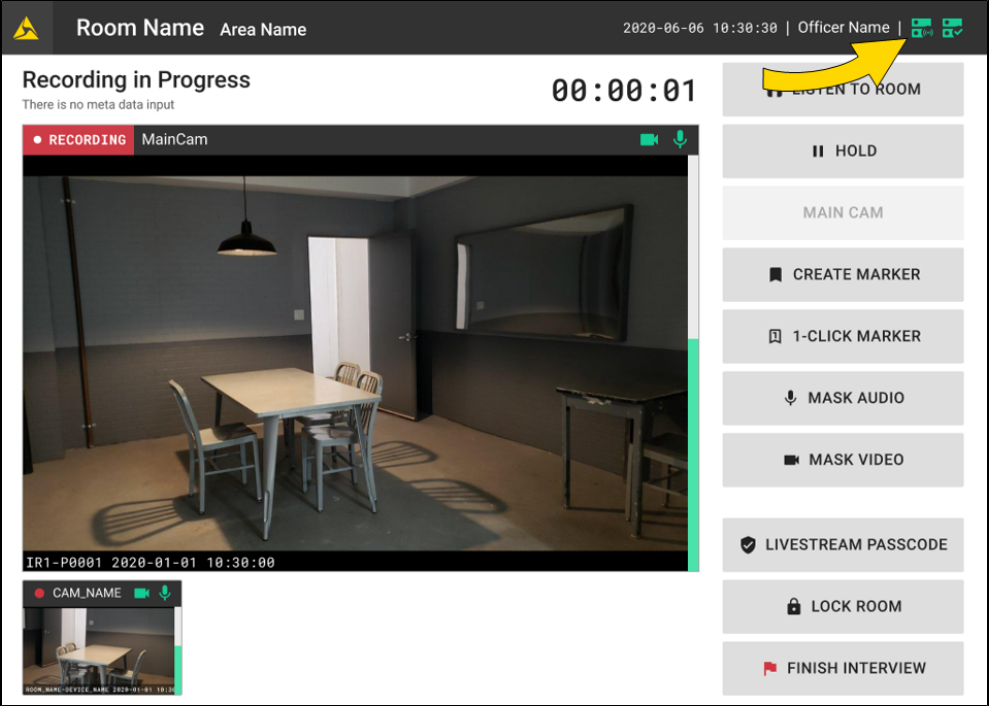
Icon reference tables
| Buffered (most common) | Description |
|---|---|
| Server online | Server is connected and available |
| Server recording, viewing from this server | Recording and viewing in progress |
| Server offline | Server is not connected |
| Unbuffered | Description |
|---|---|
| Server online | Server is connected |
| Server online, viewing from this server | Connected and used for viewing |
| Server online and recording | Recording in progress |
| Server recording, viewing from this server | Both recording and viewing |
| Server offline | Disconnected server |


