Offline notes
The Axon Notes Module contains a set of features that enable digital in-field note writing. Contact your Axon representative or Axon Support to discuss if this product is a good fit for your organization's use case.
The Axon Notes module lets you continue working even when Wi-Fi or cell service is unavailable. While offline, you can take the following actions:
- Continue working on existing notes
- Notes opened within the last seven days are automatically downloaded to your device, allowing you to access them and make changes when you do not have service.
- Create new notes
- View and edit shift details
Once you're back online, you can sync your updates and new notes to the cloud to make sure your notes include the most recent information.
Limitations
Offline mode is intended for continuing note work until connectivity returns. Once you are back online, sync your changes before continuing with other workflows such as printing or sharing.
The following actions are not available while offline:
- Finalizing notes
- Dictation
- Searching for people or notes
- Adding people to notes
Offline ready notes
When you open a note while connected to Wi-Fi or cell service, it automatically downloads and becomes available for offline use. You can identify notes that are ready for offline use by the green checkmark next to the note name.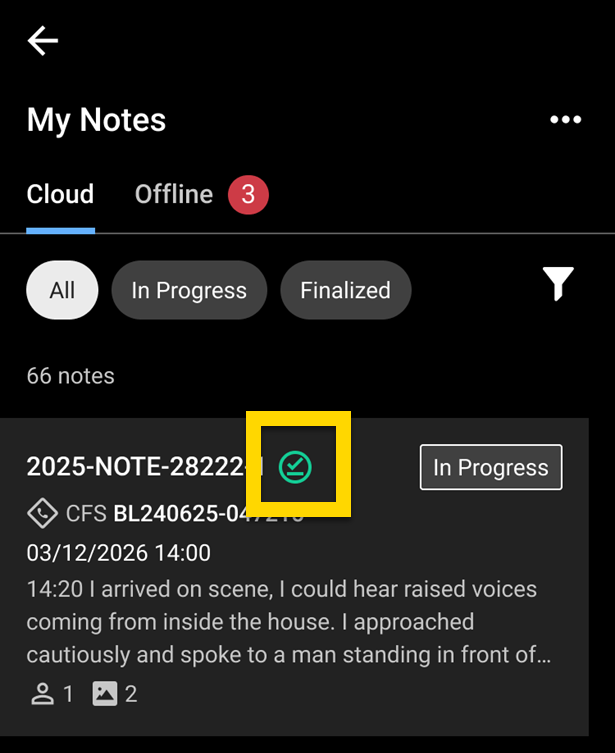
Working offline
When you lose your network connection, you can continue to create and edit notes. Some features that require a network connection will be unavailable, but the main editing functions will continue to work.
When you are in offline mode, all notes you've opened in the last 7 days appear in the Cloud tab. If you make a change to any of these notes, the note moves to the Offline tab and displays a message that the note contains unsynced changes. Similarly, any new notes created offline appear on the Offline tab.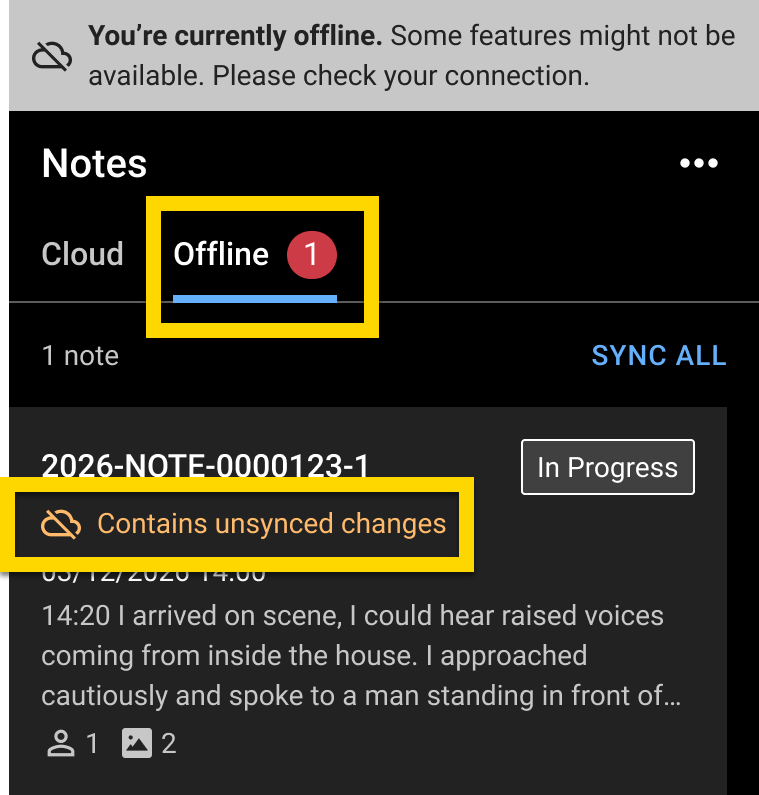
Sync changes
Once your network connection is restored, you can sync your notes to the cloud. Sync your notes frequently to reduce the risk of merge errors and ensure all changes are saved. You can sync all notes at the same time, or each note individually.
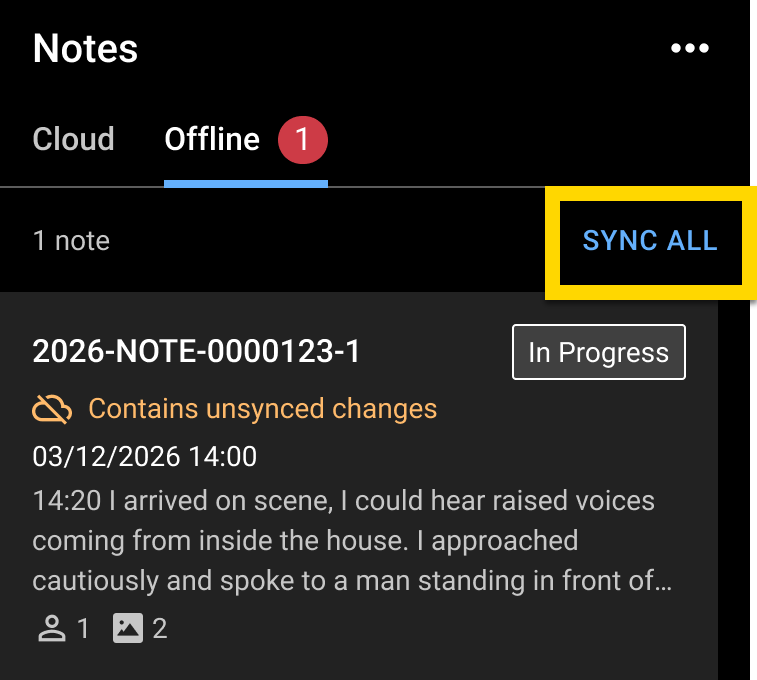
- Sync multiple notes: From the Offline tab, select Sync All to sync all offline notes at one time.
- Sync one note: Open the note and select More actions [...] > Sync to cloud.
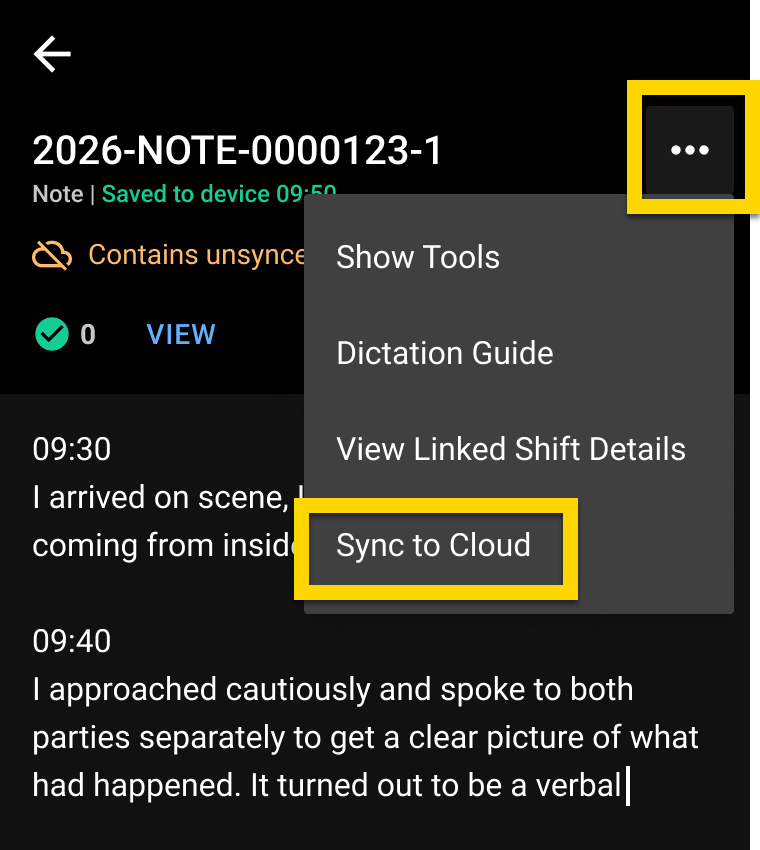
A success message will appear when syncing is complete.
When notes are successfully synced, they will move from the Offline tab to the Cloud tab. Only notes with unsynced edits appear in the Offline tab.
Offline shift details
You can view and edit shift details while offline. When your device regains connectivity, you must sync to upload offline shift edits. Offline-created notes can still auto-link to an existing shift.
Resolve sync conflicts
Edit notes on one device at a time to avoid sync conflicts and losing your work.
Sync conflicts occur when you create or edit a note on a device while offline, then edit the note on another device while online. If this has happened for a given note, a message appears when you try to sync, indicating that there is a conflict.
If you continue to sync, the version on your device that was offline will replace the cloud version that you had edited on the other device. Before continuing to sync, check the cloud version of the note and copy any information you don't want to lose into the offline version before completing the sync.


