Shift details
Using Notes, you can begin your day by documenting details about your shift (date/time, weather, etc.). Notes created during this shift will be automatically linked with the corresponding shift details. The start and end times entered in the shift details are required; they indicate that the notes created during that time period should be linked with those shift details.
When the current shift's end time arrives, new shift details must be created for a new shift. If the current shift hasn't ended yet, the end time can be updated instead.
You can take the following actions in relation to shift details:
- Add and edit shift details for the current shift
- Add shift details for a past shift
- Update which shift details are associated with a note
This video explains how to view shift details in Axon Notes.
This video explains how to link shift details in Axon Notes.
Add and edit current shift details
To add current shift details:
- Open the Notes module, either on mobile or computer, and select Add shift details.
- On mobile, select Shift details to reveal all shift details fields.
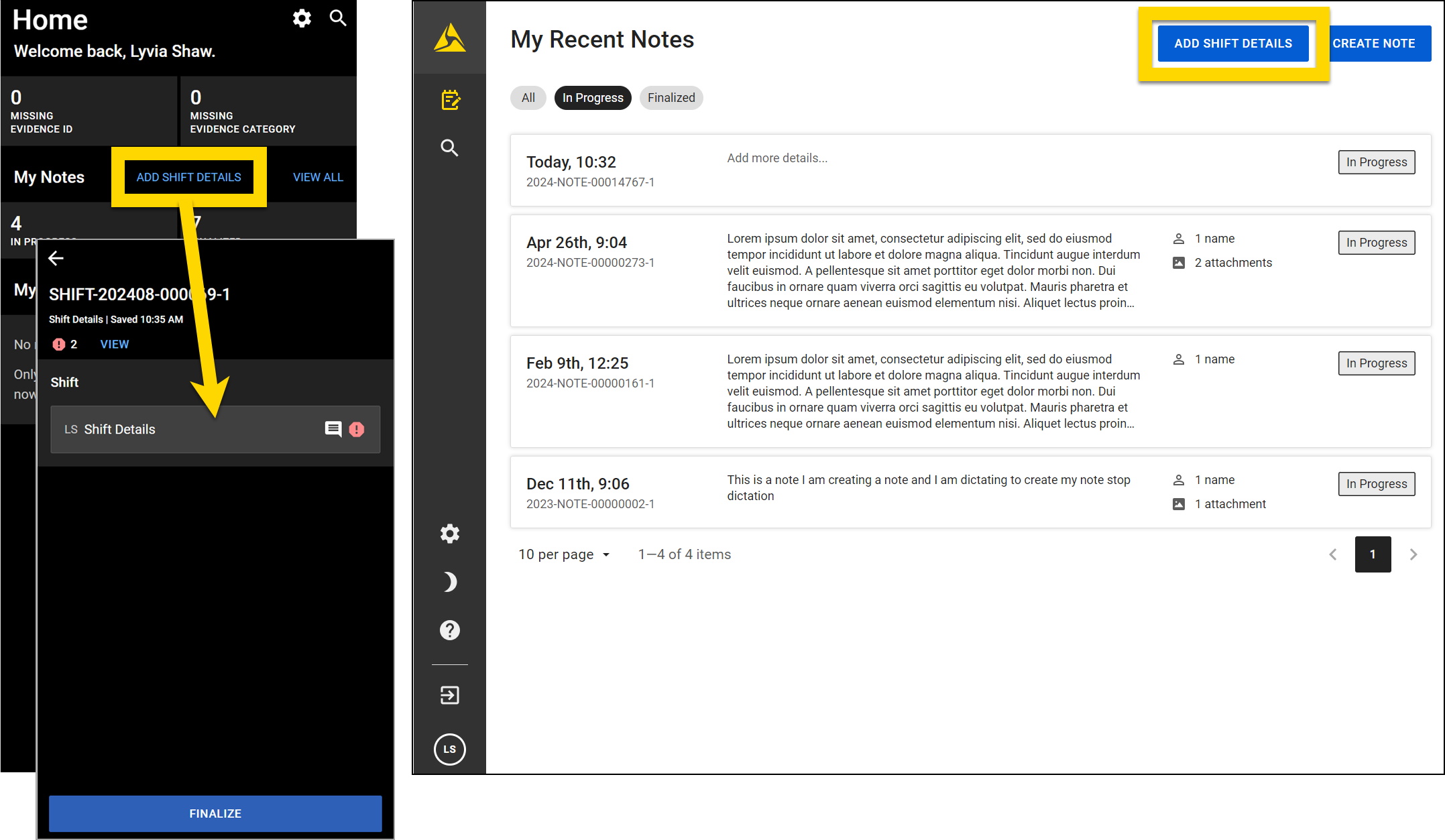
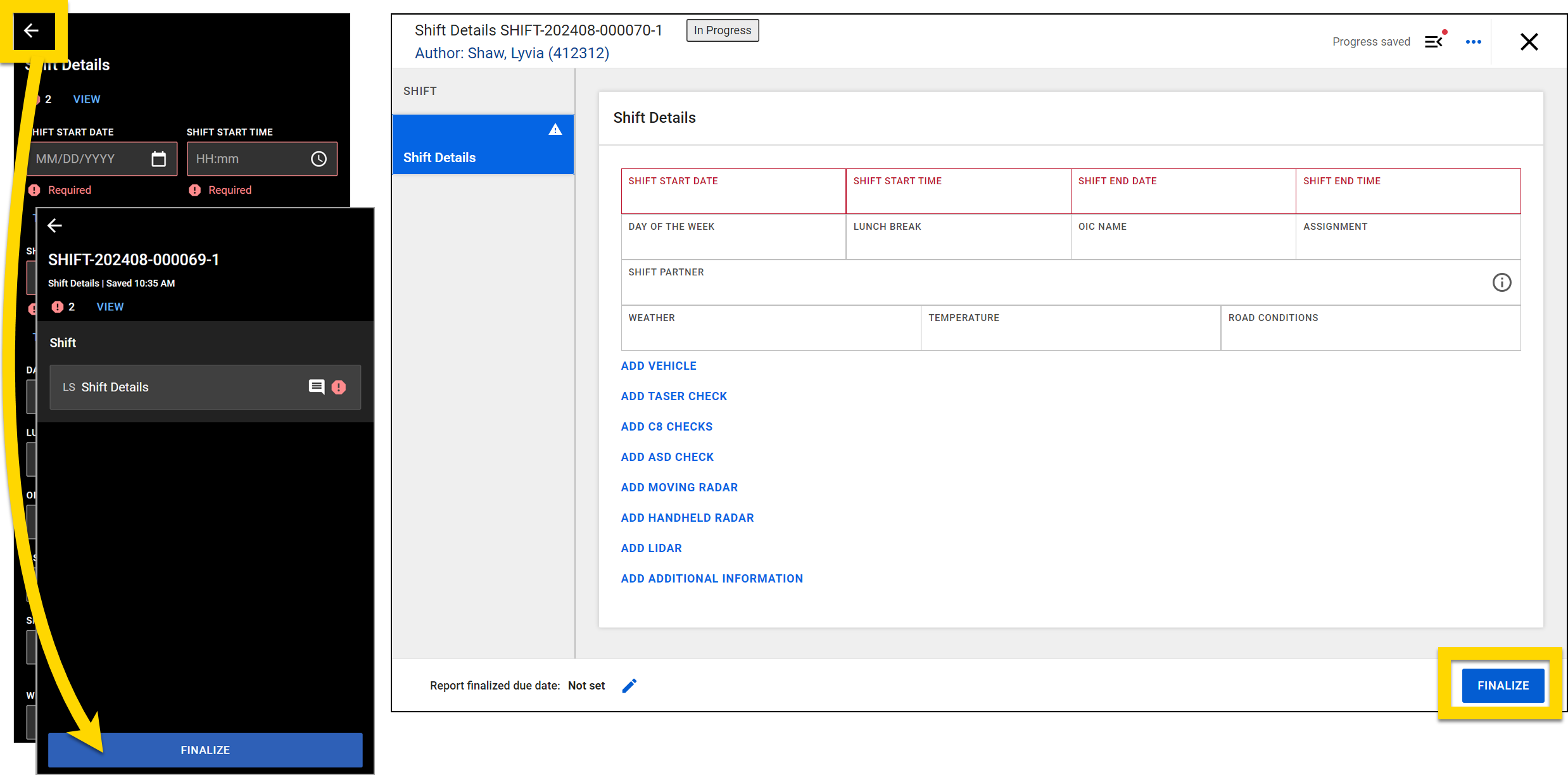
- Complete all necessary fields and select Finalize.
- On mobile, after completing the shift details fields, select the back arrow to return to the Shift Details screen where you can select Finalize.
Once completed, shift details can be viewed at any time:
- Mobile: Select View shift details on the Home screen or open an in-progress note and select More actions [...] > View shift details.
- Computer: Select View shift details.
Shift details can be edited by selecting Edit (mobile) or Edit document (computer).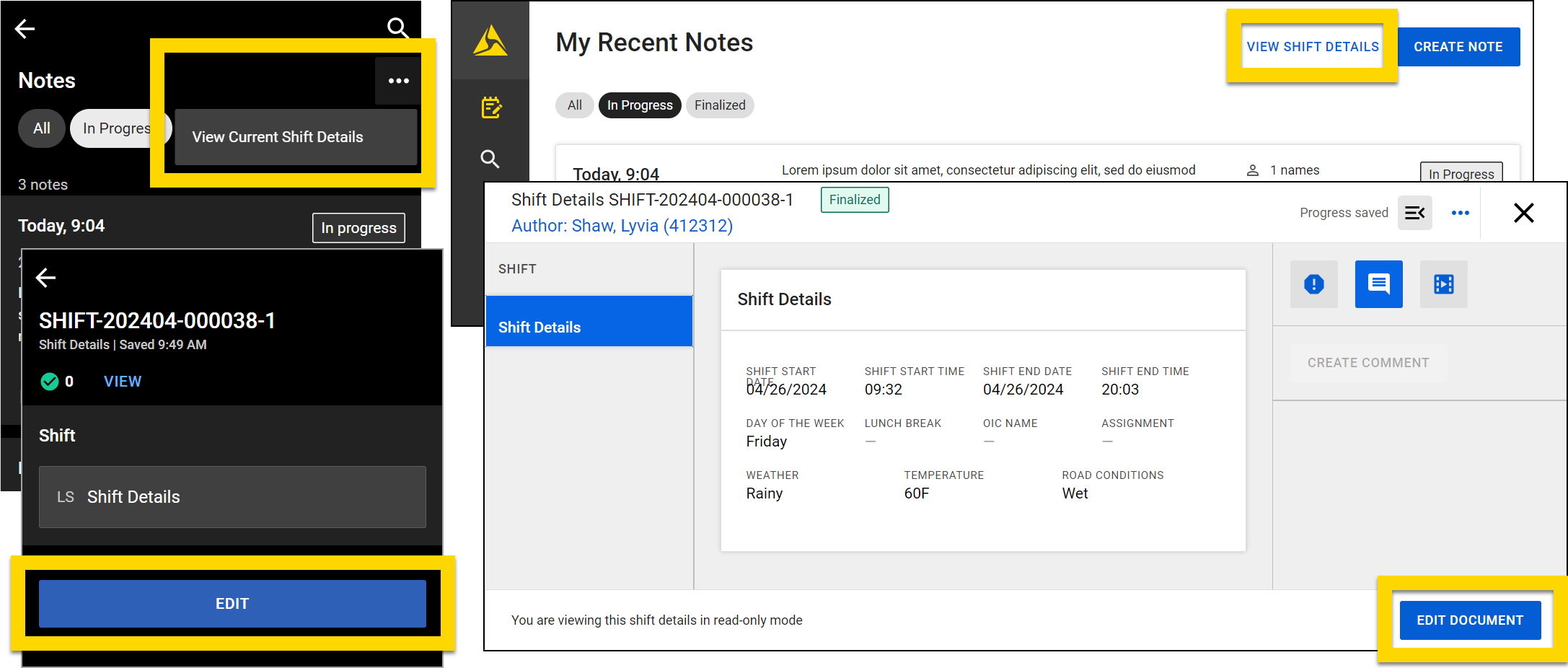
Add past shift details
You can add shift details for a past note from the mobile app. To do this:
- Open the Notes module, either on mobile or computer, and open the note that needs shift details.
- Select Actions > Add shift details.
- Select the appropriate shift details to add to the note.
- Select Save.
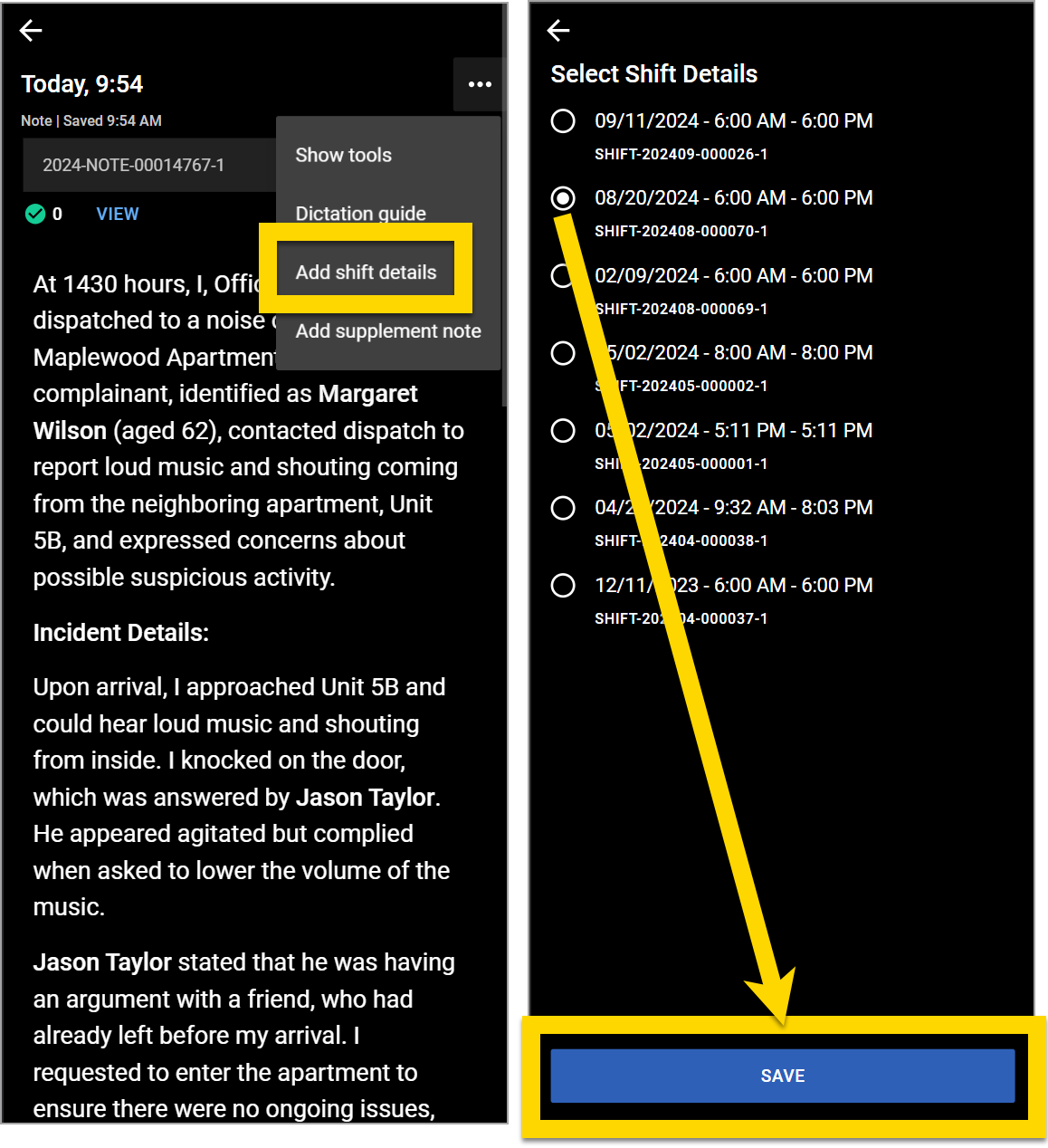
Unlike with current shift details, the past shift details can't be edited. You can only associate a past note with past shift details.
Update shift detail associations
Update Shift Detail Associations
You can update shift details for a note from the mobile app. To do this:
- Open the note that needs shift details updated.
- Select Actions > Update shift details.
- Select the appropriate shift details to add to the note.
- Select Save.
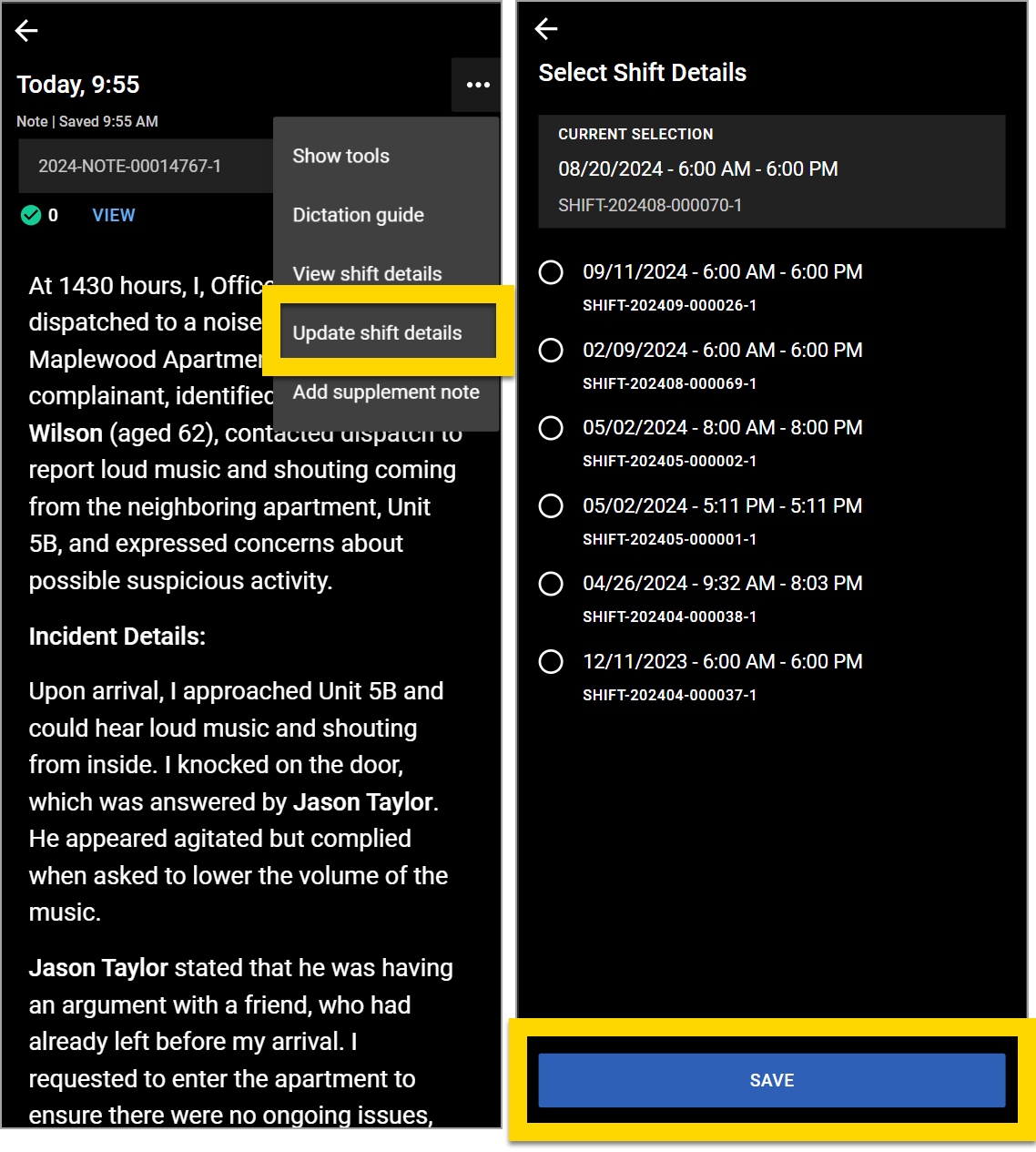
Bulk shift detail updates
You can update the shift details for multiple notes at once from the mobile app:
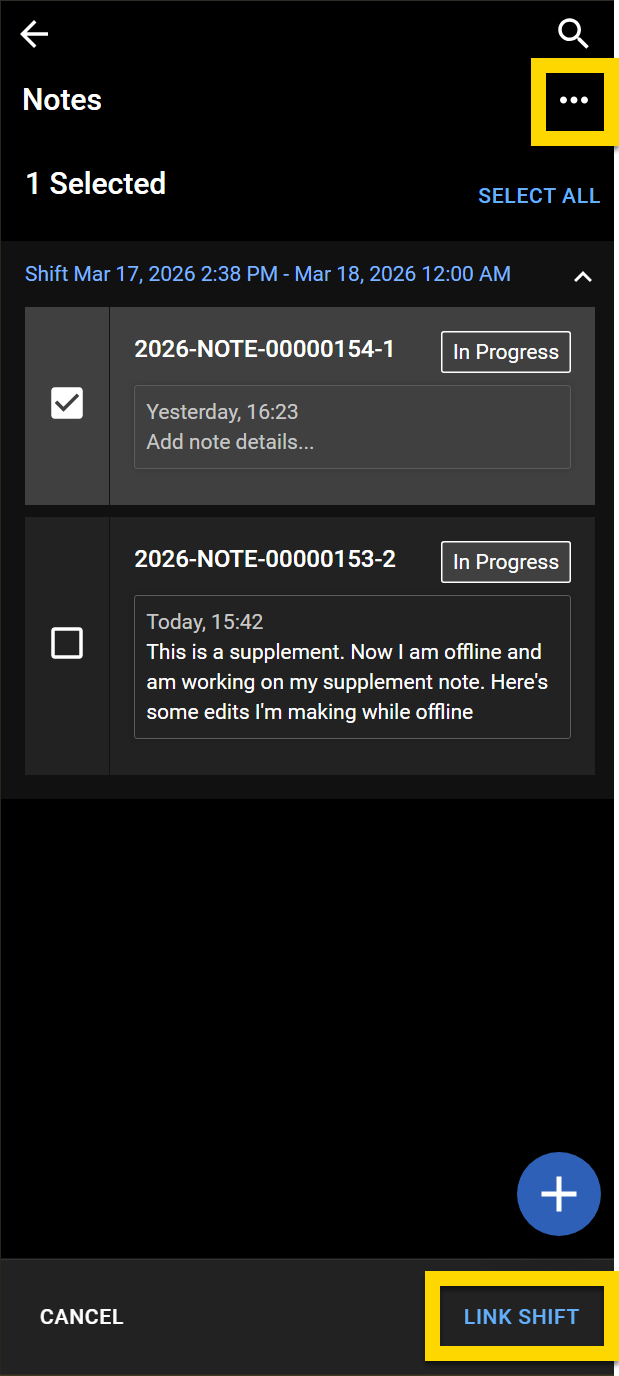
- From the note list, select More actions [...] > Select.
- Checkboxes appear beside each note. Select the box beside each note you want to update or tap Select all to select all notes.
- Select Link shift.
- Choose a shift from the list.
- Select Save to apply your changes.