Re-pairing to a camera
After a camera has completed setup and is deployed, you can re-pair to it using the Axon Outpost Manager (AOM) app. Re-pairing lets you reconnect to the camera to view device status and update supported settings
Connect to a camera
- Ensure the camera is powered on (it has no power button; it's on if it has power). Place the camera in Bluetooth pairing mode by holding the button on the back near the charging port for three seconds, or until the lower-right corner of the LED ring blinks blue.
- At the Scan serial number screen, scan the bar code on the back of the Axon Outpost camera. If the barcode doesn't work, you can manually enter serial number and select submit.
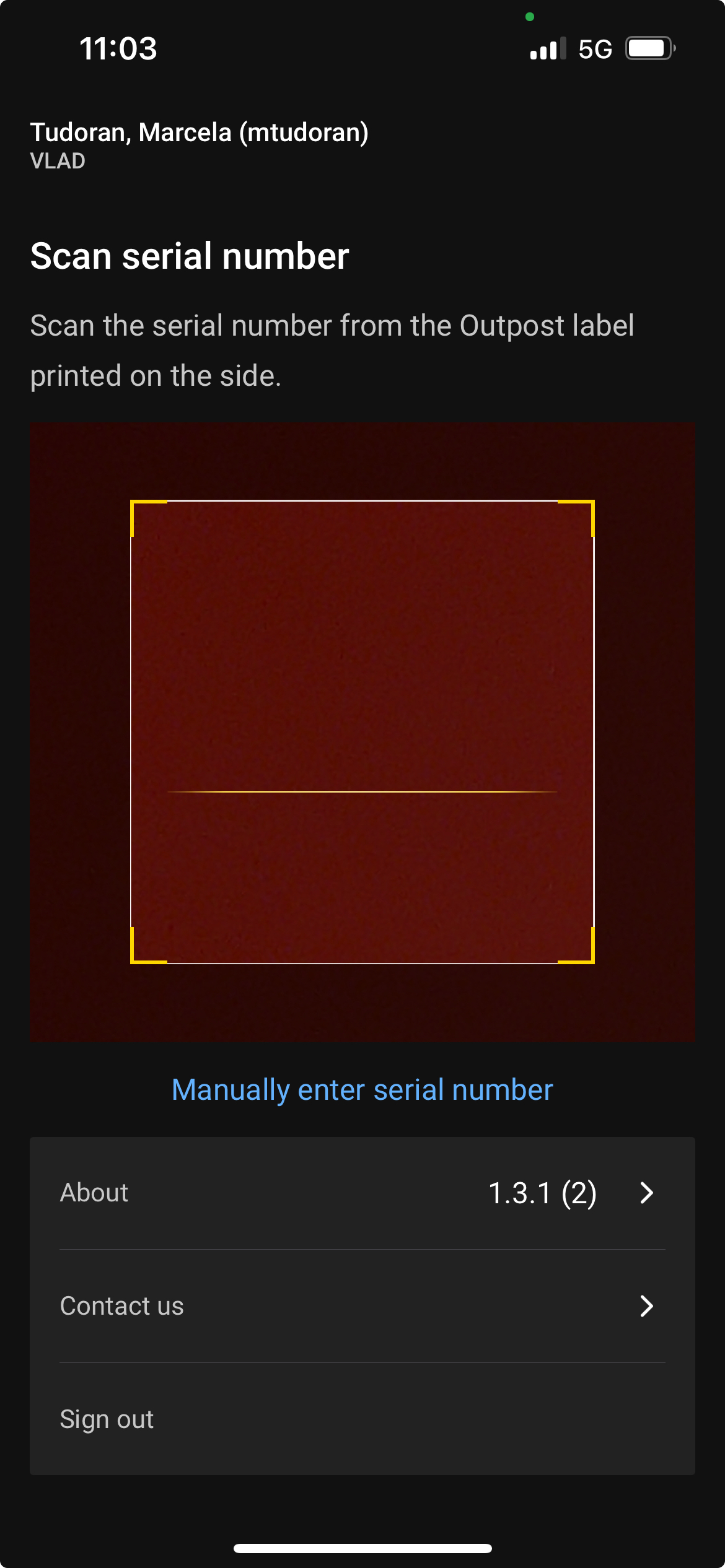
- The app notes its progress as it connects to the camera. When you are prompted to join the Axon Outpost camera’s wi-fi network, select Join.
- If the device’s internal battery is not sufficiently charged, you’ll receive a low battery warning and be unable to continue until it charges sufficiently. Connect to power, wait 15 minutes, then restart at step 2.
- Once connected to a camera, the app shows several available actions:
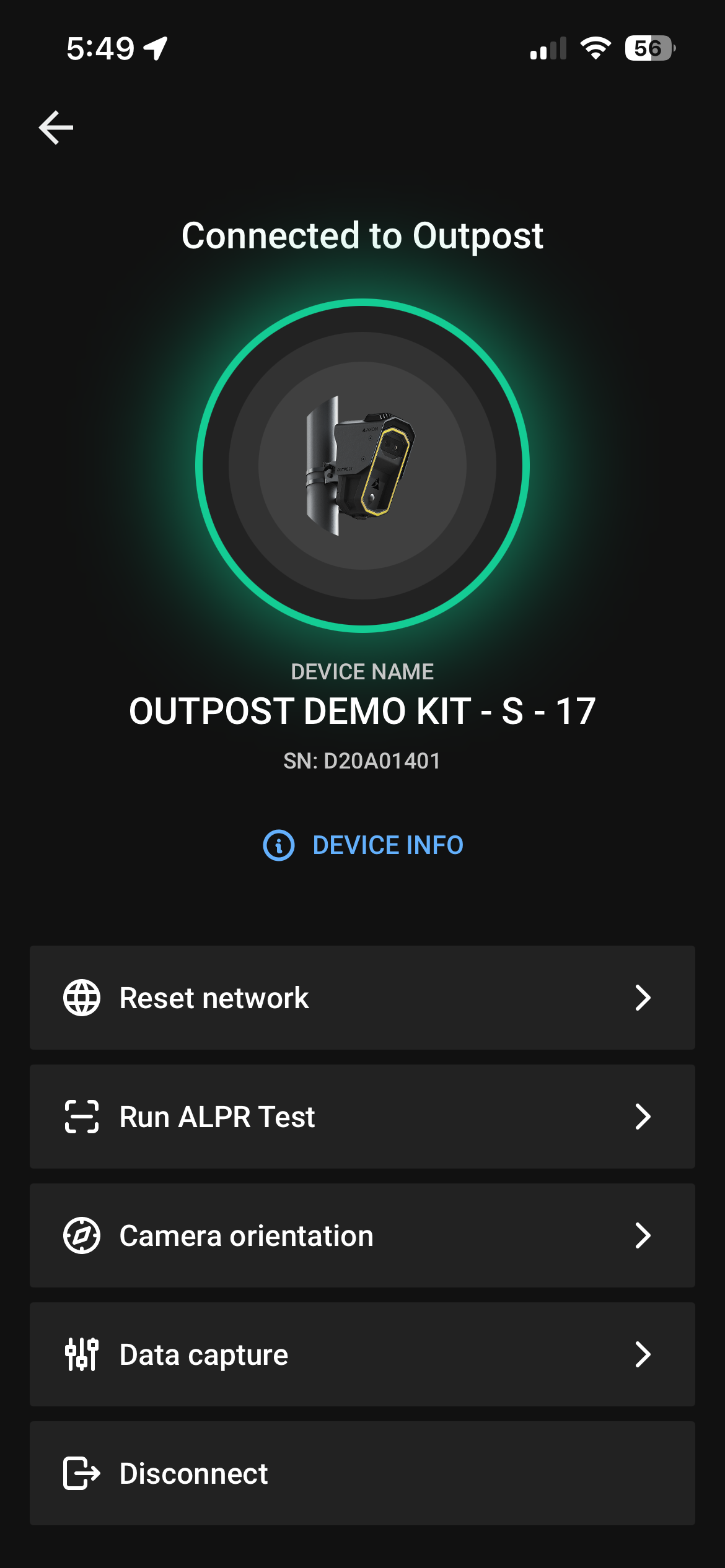
- Device Info - View detailed camera status information for diagnostics.
- Reset Network - Switch the camera’s internet connection between LTE and USB-C to Ethernet.
- Run ALPR Test - Starts a local live view of the ALPR sensor to confirm the camera is aimed correctly and reading plates in day and night conditions. When this option is selected, ALPR capture services are temporarily paused and the device will not upload reads during this time.
- Camera Orientation - Update the device orientation for proper display in Fusus.
- Data Capture - Update device deployment details for inventory/tracking.
- Disconnect - Disconnect from the currently paired device.
- Data Capture - Update device deployment details for inventory or tracking.
- Disconnect - Disconnect from the currently paired device.


