Closed Loop Reporting
Closed Loop Reporting Settings in Axon Performance are designed to facilitate a two-way communication flow between officers and their supervisors, reinforcing the habit of regular performance reviews and feedback sharing. These settings allow organizations to define the feedback loops between supervisors and their officers, setting parameters for email notifications, and methods for officers to maintain their activation streaks or provide clarifications for instances when they didn’t activate their Body-Worn Camera (BWC) according to policy. This feature empowers officers to manage their own performance and ensures that policy compliance communications are effective and efficient.
Access and Configure Closed Loop Reporting Settings
- Sign in to your Axon Evidence account.
- Select My Dashboard.
- Under Performance, select Configure.
- Choose Closed Loop Reporting from the Settings menu.
- Use the toggles to turn the Closed Loop Reporting settings on or off. There are two Closed Loop Reporting settings:
- Activation Streaks
- Officer Clarification
- Select Save to apply all changes.
Activation Streaks
The Activation Streaks setting provides an email to officers that helps close the loop by providing tangible feedback and recognizing good performance when they meet agency goals. When enabled, the Activation Streak feature tracks BWC Activation Rates for officers and sends them an email when they meet activation milestones. A streak consists of one or more consecutive weeks where the officer meets or exceeds the agency-configured Activation Rate goal. Milestones occur at weeks 1, 4, 10, 20, 35, and 52.
Add Additional Comments to Officer Emails
Use the Additional Comments box to enter comments, which will be included in the activation streak email to officers.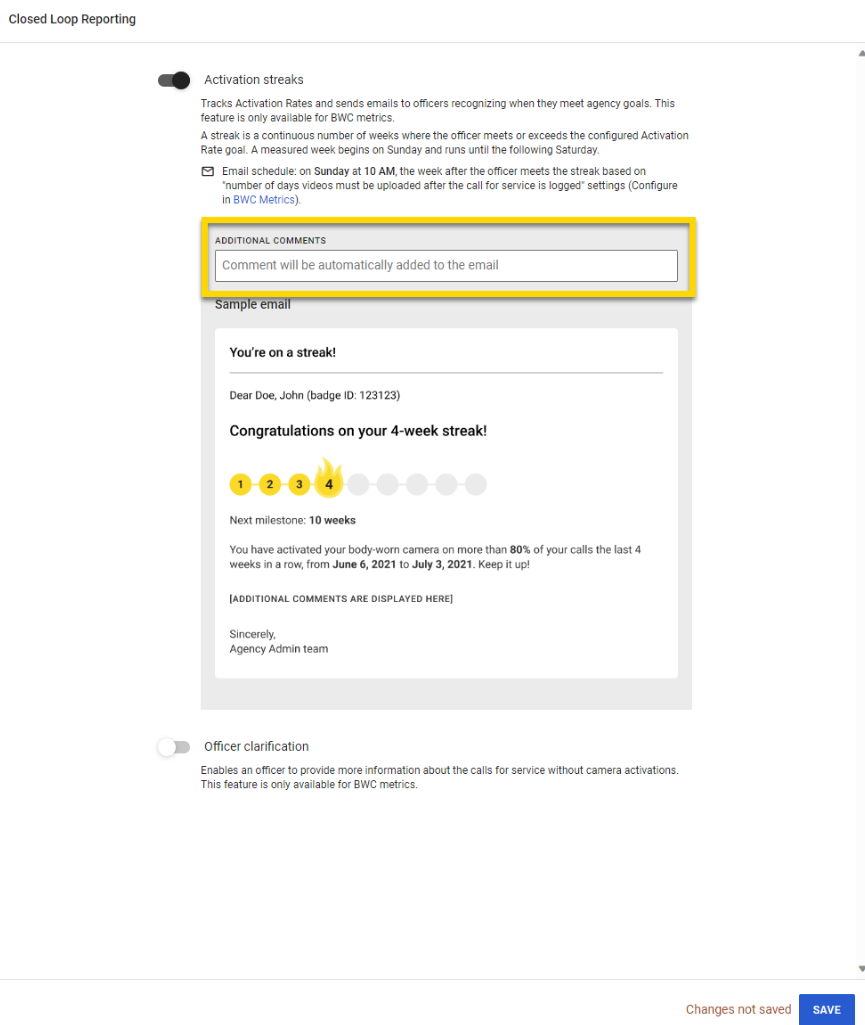
Officer Clarification
The Officer Clarification setting provides an email to officers when they fall below the agency-configured Activation Rate goal, giving them the opportunity to provide a reason for calls for service that do not have a BWC video.
The Officer Clarification option is only available if the Activation Streaks option is also enabled.
Watch this video to learn more about 'Calls for Service' with the Axon App as the officer being reviewed.
Reasons for No Camera Activation
As part of the setup, add both valid and invalid reasons for failure to activate a BWC. These reasons are combined into one list that officers can select from when reviewing their calls for service on the clarification page linked in their email or the My Dashboard page. You can enter a total of five valid and five invalid reasons.
Add a Reason
- Under either Valid Reasons or Invalid Reasons, select Add Another.
- Enter a reason in the text field.
- Press Enter on your keyboard or select an area outside the text field to save your new reason.
- Select Save to apply all changes.
Edit a Reason
- Under either Valid Reasons or Invalid Reasons, select the field you wish to edit, and make your changes.
- Press Enter on your keyboard or select an area outside the text field to save your edits.
- Select Save to apply all changes.
Delete a Reason
- Select Delete next to the reason you wish to remove.
- Select Save to apply all changes.
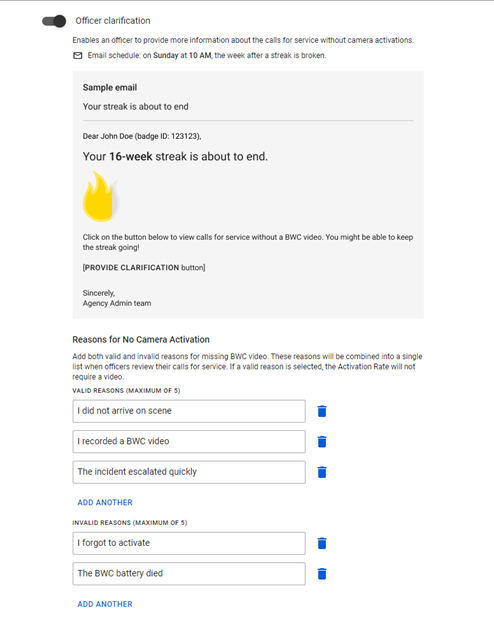
Besides email, you can enable officers to provide clarifications via the My Dashboard or Axon App by checking the checkboxes on the Closed Loop Reporting page below. Learn more about how to enable My Dashboard or Performance tasks on the Axon App. 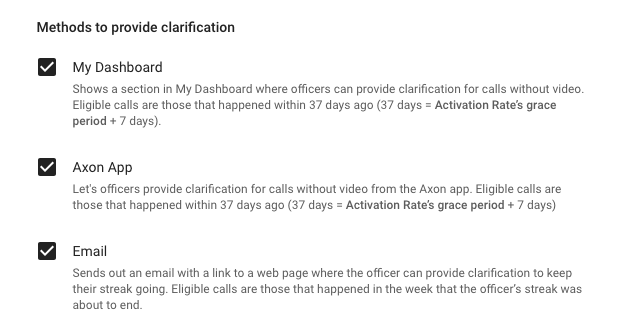
Methods to Provide Clarification
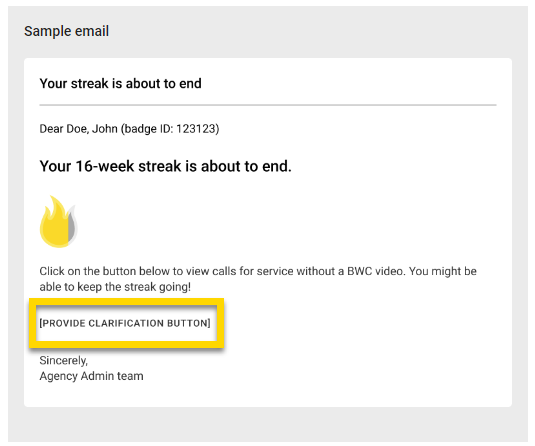
When the Officer Clarification setting is enabled, the email includes a link to Provide Clarification. This link takes the officer to a clarification page, where they can select a reason and provide additional notes for each call for service that is missing a video. When an officer selects a valid reason, the Activation Rate metric updates and does not require a video for that call.
It’s important to add both valid and invalid reasons for failure to activate a BWC to ensure an accurate Activation Rate metric, and to help officers keep a streak going.
Frequently Asked Questions (FAQs)
What if an officer’s activation rate is affected by circumstances outside their control?
The Officer Clarification setting allows officers to provide context and reasons for instances when they couldn’t activate their body-worn camera, ensuring fair assessment of compliance. Valid reasons could include “I was in a hospital or private property” or “The witness asked me to turn off my camera.”
How frequently will officers receive emails?
Activation Streaks emails are sent at weeks 1, 4, 10, 20, 35, and 52 if the officer continues to meet or exceed the Activation Rate goal. Officer Clarification emails are only sent if an officer is about to break their activation streak. Besides waiting for the Officer Clarifications emails, officers can also proactively provide clarifications on the My Dashboard page.
Are there best practices for creating valid and invalid reasons for body-worn camera non-activation?
It’s recommended to create reasons that are clear, concise, and reflective of common scenarios officers encounter. Avoid broad or ambiguous reasons that may lead to confusion.


