Configuring Axon Performance
Access Performance Settings
- Sign into your Axon Evidence account.
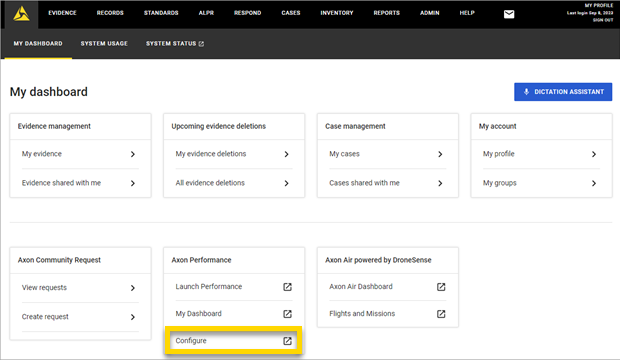
- Select My Dashboard.
- Under Axon Performance, select Configure to open and configure Performance Settings.
Performance Settings Overview
The Performance Settings menu includes a range of options that can be configured to your agency’s specific needs. Below, you’ll find descriptions of each setting, along with links to in-depth articles that will guide you through optimizing these configurations for your agency’s unique goals.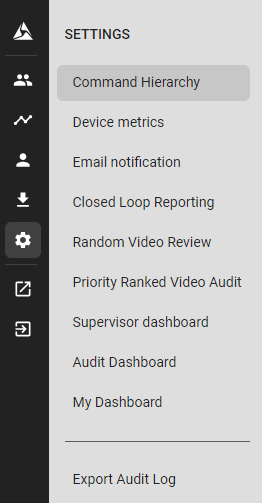
- Command Hierarchy: Select the target groups within Command Hierarchy that you want to measure within Performance. These settings determine how data and reports cascade within your agency. Go to Command Hierarchy Settings to learn more.
- Device Metrics: Monitor and analyze metrics from Axon devices, such as body-worn cameras (BWC), Fleet, and TASER. Set up metric goals and other metric parameters to track officer usage patterns. Go to Device Metrics Settings to learn more.
- Email Notifications: Customize and manage automated email notifications related to performance metrics, reviews, or anomalies detected by the system. Ensure the right individuals receive timely updates. Go to Email Notification Settings to learn more.
- Closed Loop Reporting: Define the feedback loops between supervisors and their officers. Set parameters for email notifications and methods for officers to keep their activation streaks or clarify why they didn’t activate their BWC as per policy. Go to Closed Loop Reporting Settings to learn more.
- Random Video Review: Establish rules and frequencies for randomly selected video reviews. This ensures unbiased assessments and aids in maintaining consistent operational standards. Go to Random Video Review Settings to learn more.
- Priority Ranked Video Audit (PRVA): Prioritize video reviews based on certain parameters or events, ensuring that high-importance or high-risk incidents are reviewed promptly and appropriately.Go to Priority Ranked Video Audit Settings to learn more.
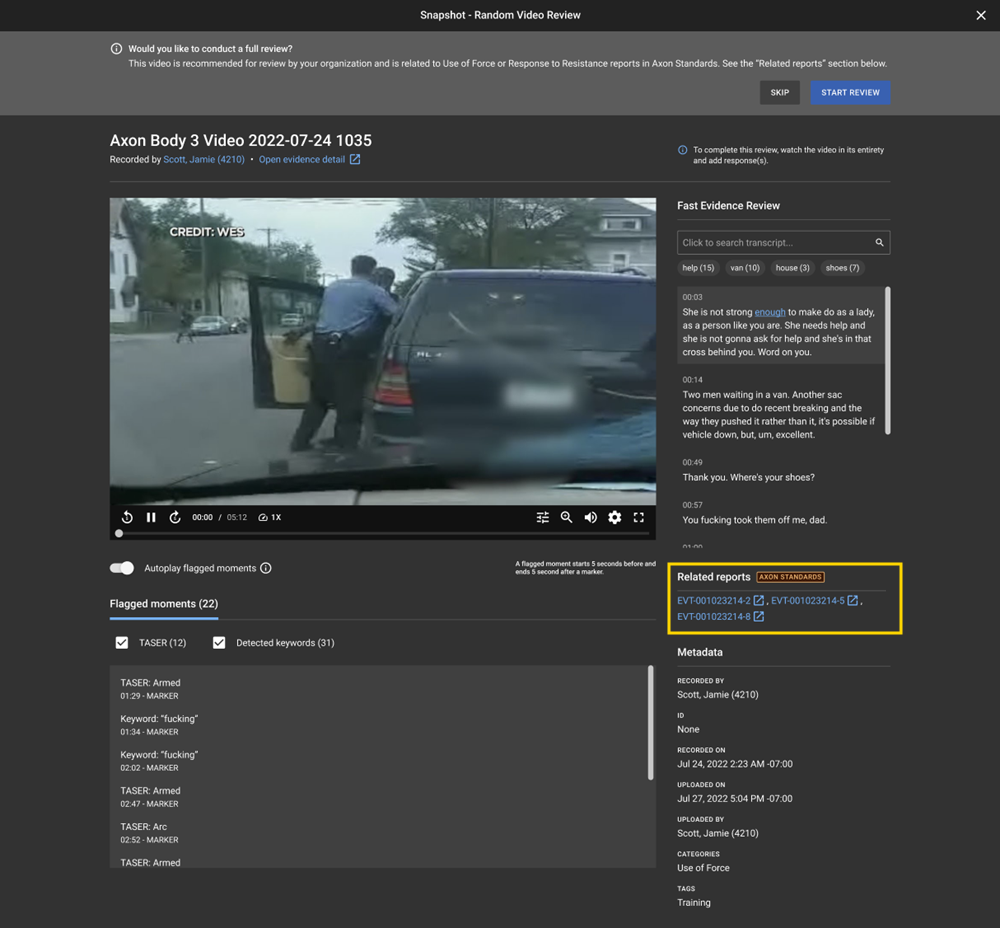
- Axon Standards: Surface associated Use of Force or Response to Resistance reports from Axon Standards. This setting is only available for the agencies that have Axon Standards. User can launch into Axon Standards by clicking the associated report ID under Related Reports section of the screen. Viewing the report contents are dictated by Axon Standards permissions. By enabling this setting, users have the option to skip these videos if already reviewed via another workflow. Justification needs to be provided for skipping. The justification is documented in Video Review exports.
- Supervisor and Audit Dashboard: Customize the dashboard tailored for supervisors, determining which performance metrics, reviews, and reports are visible upon login. Configure the audit dashboard layout to prioritize key metrics, review results, and operational reports. Go to Supervisor and Audit Dashboard Settings to learn more.
- My Dashboard: Customize the personal dashboard for individual officers, determining which metrics and data your frontline officers see upon login. Go to My Dashboard Settings to learn more.
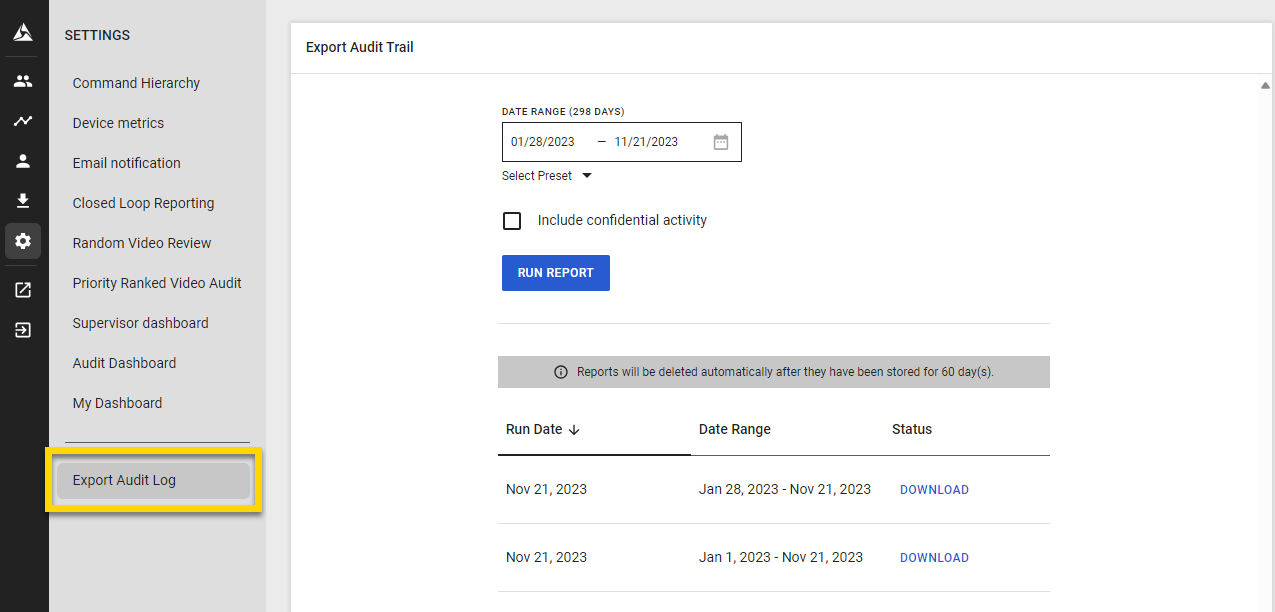
- Export Audit Log: Enable Performance users to export an audit log of all Performance settings changes:
- From the Admin tab in your Axon Evidence account, select Roles & Permissions.
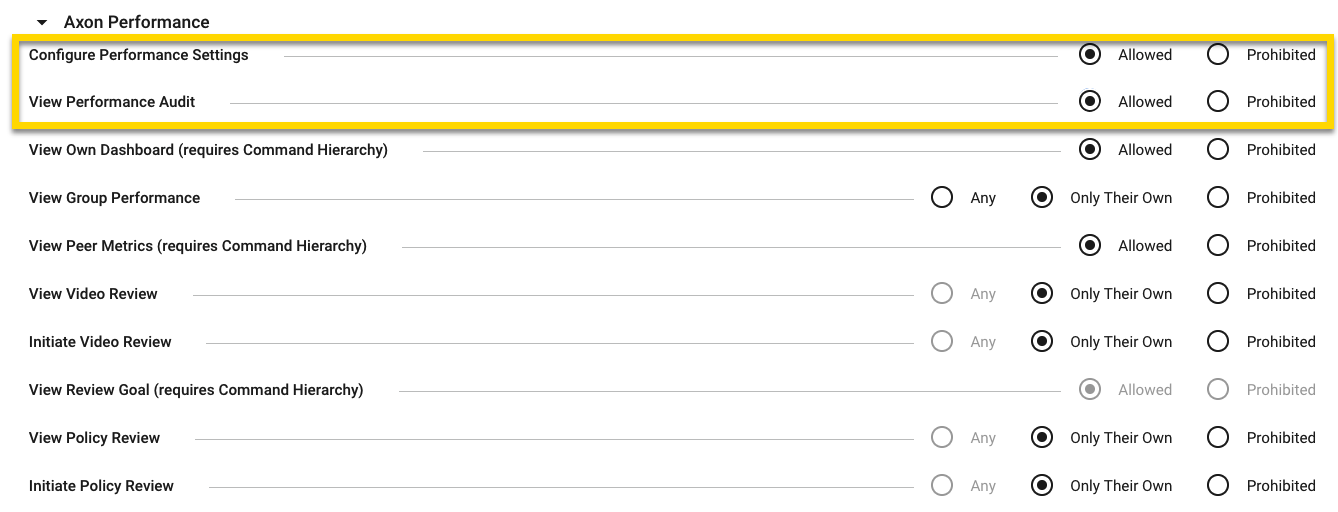
- Locate a specific role for which you want to enable the Export Audit Log option, and then select Edit Role.
- Under the Axon Performance section, set Configure Performance Settings and View Performance Audit to Allowed.
- Select Save.
Once enabled, users can select Export Audit Log from the Settings menu, select a date range, and then select Run Report. When the report is ready, users receive a confirmation email with a download link. Reports are stored for 60 days and can also be downloaded directly from the Export Audit Log page.
- Export Reports: Learn how to export reports from any Group Dashboard, Squad Dashboard, Officer Dashboard, or Metric Details page.


