Email Notification Settings in Axon Performance
Access and Configure Email Notification Settings
- Sign into your Axon Evidence account.
- Select My Dashboard.
- Under Performance, select Configure.
- Select Email Notification.
- Use the toggles to turn the email notification settings on or off. There are three email notification settings. Select each setting to learn more:
- Supervisor feedback to officer
- Untagged Evidence Notifications
- Weekly Compliance Report: Send compliance reports to supervisors with body-worn camera (BWC) metrics for officers under their command. Provides the option to configure the day of the week and send time.
- Select Save to apply all changes.
Supervisor feedback to officer
The Supervisor feedback to officer setting allows supervisors to send an email with feedback directly to an officer from a video review. This is beneficial for officer follow-ups or as a call to action.
The email is sent to the specified user’s email address in their Axon Evidence profile and comes from Performance ([email protected]).
Example officer feedback emails:
- You currently have 12 videos uncategorized; please categorize in Axon Evidence.
- Keep up the good work.
Untagged evidence notifications
The Untagged Evidence Notifications setting allows supervisors to send email reminders when an officer has evidence without a category or ID. This setting provides the option to configure the frequency, day of the week, and send time.
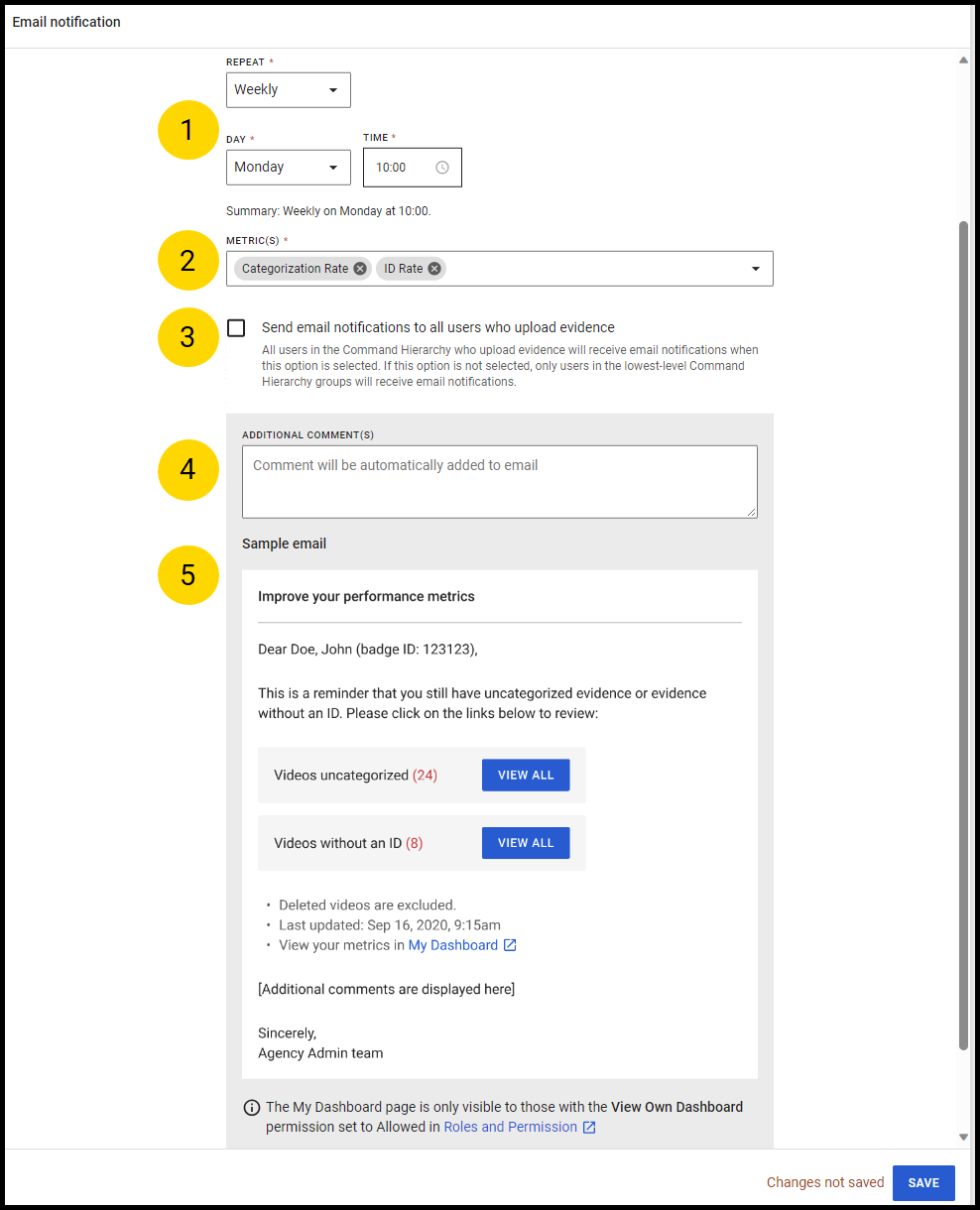
- Repeat: The repeat setting determines how often notifications are sent. The email timing options vary depending on the selected repeat value. Choose from:
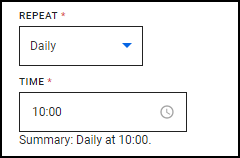
- Daily: Enter a time of day for notifications to be sent.
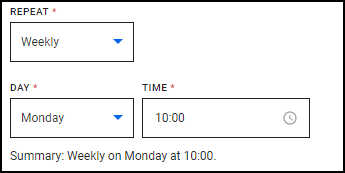
- Weekly: Select a day and time of day for notifications to be sent.
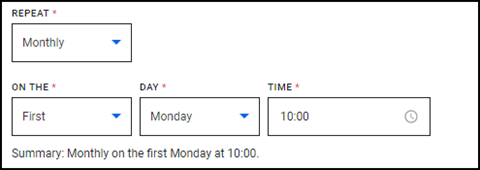
- Monthly: Select a week of the month, a day, and a time of day for notifications to be sent.
- Daily: Enter a time of day for notifications to be sent.
-
Metric: Choose to include Categorization Rate, ID Rate, or both in your email notifications.
-
Send email notifications to all users who upload evidence: Select this option to send email notifications to all users in the Command Hierarchy who upload evidence, including supervisors.
-
Additional Comments: Customize your email by entering a comment here.
-
Sample email: The email includes actionable links to the evidence search page in Axon Evidence and only shows the evidence that requires the officers' attention, making it easy for officers to quickly respond. The email sender name is Performance, and the email sender address is [email protected].
Weekly compliance report
The Weekly Compliance Report setting provides supervisors an insightful snapshot of their officer performance, specifically detailing which direct reports did not meet the agency-configured metric goals for the past week. This proactive compliance report keeps supervisors informed about their direct report and squad performance, enabling them to have timely coaching conversations.
Note: To ensure accurate distribution of the Weekly Compliance Report, make sure the Command Hierarchy feature is on and users are assigned to the correct groups.
Watch this video to learn how to enable and configure the weekly compliance report.
-
Day and Time: Select a day and time of day for notifications to be sent.
-
CC Recipients: Enter recipients to receive a copy of the email notification.
-
Sample email: The email includes BWC metrics of officers who did not meet the preset agency goals, highlighted in red. The report also captures all uploaded videos, which can be accessed from the Officer Dashboard, Group Dashboard, or directly using the links in the email.
Frequently asked questions (FAQ)
Why don’t I see all officers under my command in the Weekly Compliance Report emails?
This email only contains officers who were out of compliance last week. It doesn’t include officers who already met all metric goals. Including all officers would be too much for supervisors who manage many officers.
Why don’t I receive any Weekly Compliance Report emails?
You need to be assigned to a group in Command Hierarchy. If your direct reports are not meeting the metric goals, you’ll receive an email. If all officers under your command are meeting the metric goals, you’ll also receive an email.
When I schedule the WCR to weekly on Wednesday at 8:00 AM, how much time does an officer have to ‘clean up their acts’?
Performance will only take into account BWC videos uploaded from Sunday to Saturday the prior week. The emails won’t include videos that have not been tagged from Sunday to Wednesday the current week. So, officers have a ‘grace period’ of roughly 3 days from Sunday to Wednesday this week to tag their last week’s videos.


