Performance Metrics Settings in Axon Performance
The Performance metrics settings in Axon Performance allow you to customize policy compliance metrics. By customizing these settings, you can get a comprehensive view of officer behaviors, allowing you to provide feedback when necessary. For a more detailed understanding of how these settings integrate with broader agency protocols, refer to the Performance User Guide.
Access and configure Performance metrics settings
- Sign into your Axon Evidence account.
- Select My Dashboard.
- Under Performance, select Configure.
- Choose Performance metrics from the Settings menu.
- Navigate between the following tabs to access device-specific settings:
- Configure your device metrics settings, and then select Save to apply all changes.
BWC (body-worn cameras) metrics
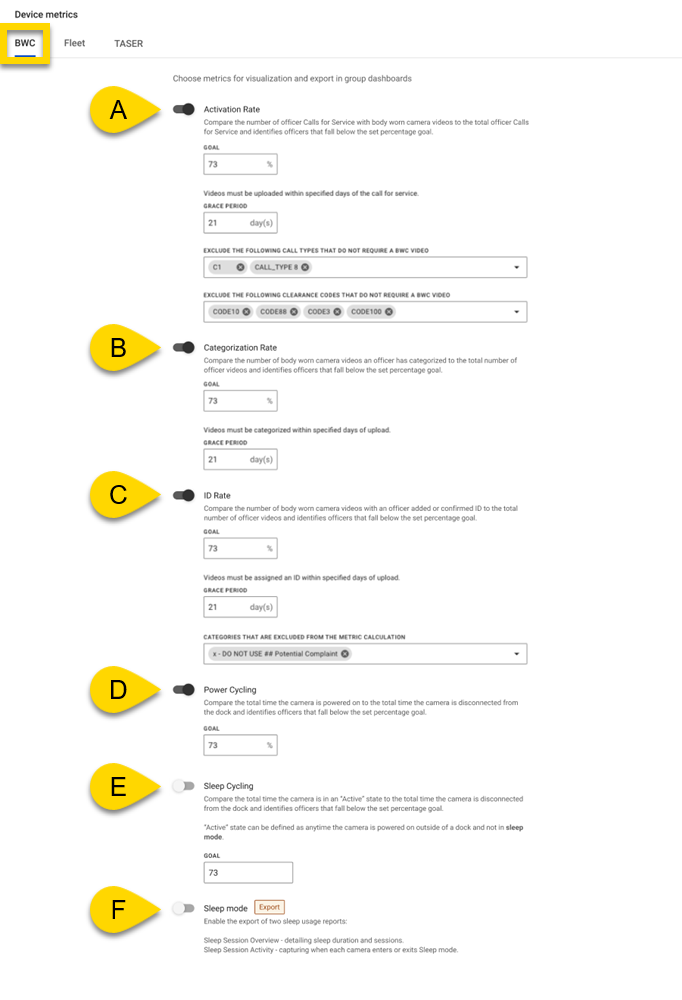
In the BWC metrics settings, you can turn on and configure the activation rate, categorization rate, ID rate, power cycling, and sleep cycling. These settings are within the BWC tab. Remember to select Save after making any changes.
-
Activation rate: This metric compares the number of officer calls for service with BWC videos to the total officer calls for service. When enabled, you can:
- Set a goal: Specify a percentage goal to identify officers who don’t reach the desired level of compliance.
- Set a grace period: Specify the number of days in which BWC videos should be uploaded.
- Set exclusions: Exclude call types and/or clearance codes that don’t require a BWC video. These exclusions are left out of the activation rate calculations. If your agency doesn’t share clearance codes with Axon, only the call type exclusions will apply.
-
Categorization rate: This metric compares the number of BWC videos an officer categorizes to the total number of videos recorded. When enabled, you can:
- Set a goal: Specify a percentage goal to identify officers who don’t reach the desired level of compliance.
- Set a grace period: Specify the number of days in which BWC videos should be categorized.
-
ID rate: This metric compares the number of BWC videos with an officer-added or confirmed ID to the total number of videos. When enabled, you can:
- Set a goal: Specify a percentage goal to identify officers who don’t meet the desired ID rate.
- Set a grace period: Specify the number of days in which IDs must be added or confirmed on the videos.
- Set exclusions: Exclude categories from metric calculations to leave them out of the ID rate calculations. If your agency doesn’t share clearance codes with Axon, only the call type exclusions apply.
-
Power cycling: This metric compares the total time an officer’s BWC is powered on to the time it’s disconnected from the dock. When enabled, you can:
- Set a goal: Specify a percentage goal to identify officers who don’t meet the desired powered-on time. This metric does not include the recording time of the officer's BWC.
-
Sleep cycling: This metric compares the total time an officer’s BWC is not in sleep mode (Active state) over the total time the officer’s BWC is powered on and undocked. When enabled, you can:
- Set a goal: Specify a percentage goal to identify officers who don’t meet the desired sleep mode usage. This metric does not include the recording time of the officer's BWC in the numerator or denominator.
- Sleep mode exports: Enable the export of two sleep mode usage reports. Supervisors can select Export from any Group Dashboard, Squad Dashboard, Officer Dashboard, or Metric Details page within Performance to export either of the following reports:
- Sleep Metric Summary: This export contains aggregate data to help identify which officers or squads used BWC sleep mode the most within a certain date range.
- Sleep Metric Details: This metric export contains the sleep durations and sleep sessions of each officer or squad to help supervisors identify specific instances of BWCs being placed in sleep mode. For more information, see Supervisor metrics and how to export reports.
Fleet metrics
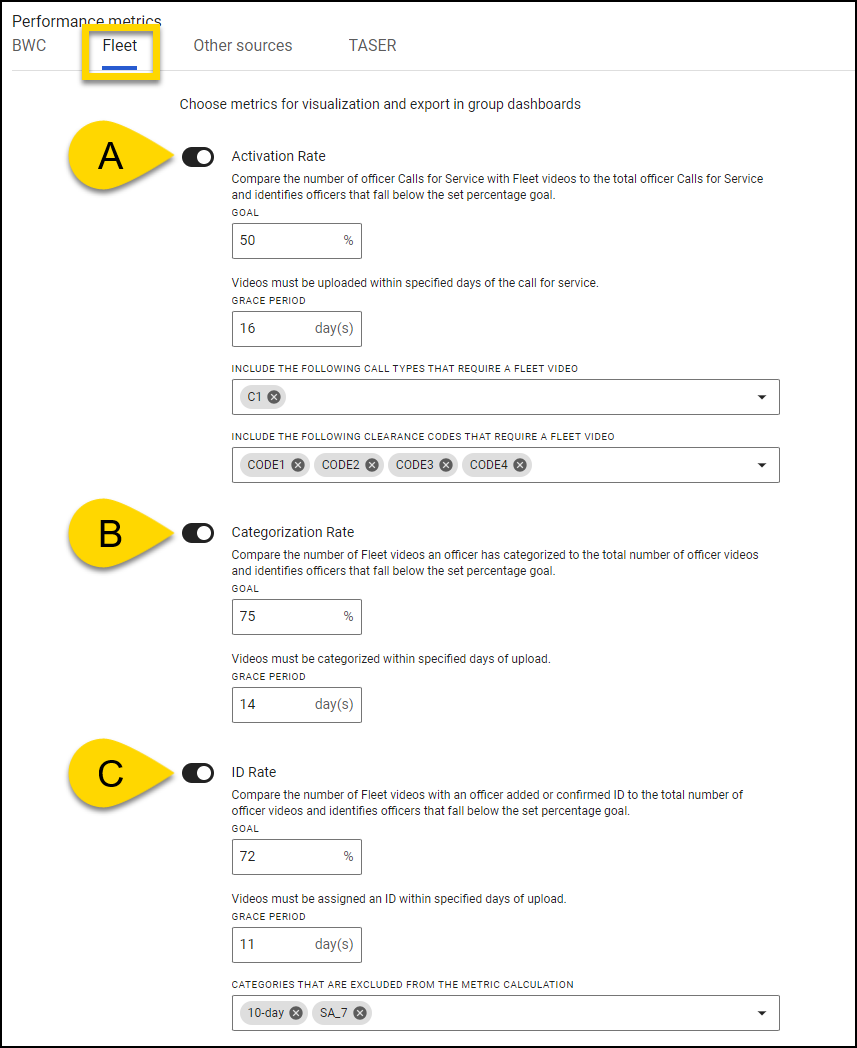
In the Fleet metrics settings, you can turn on an activation rate, categorization rate, and ID rate. These settings are within the Fleet tab. Remember to select Save after making any changes.
- Activation Rate: This metric compares the number of officer calls for service with Fleet videos to the total officer calls for service. When enabled, you can:
- Set a goal: Specify a percentage goal to identify officers who don’t reach the desired level of compliance.
- Set a grace period: Specify the number of days in which Fleet videos should be uploaded.
- Set inclusions: Include the call types and/or clearance codes that require a Fleet video. This is an inclusion filter, meaning only the selected call types and/or clearance codes will trigger Fleet video recording. This setting differs from BWC, which uses an exclusion filter.
- Categorization Rate: This metric compares the number of Fleet videos an officer categorizes to the total number of videos recorded. When enabled, you can:
- Set a goal: Specify a percentage goal to identify officers who don’t reach the desired level of compliance.
- Set a grace period: Specify the number of days in which Fleet videos should be categorized.
- ID Rate: This metric compares the number of Fleet videos with an officer-added or confirmed ID to the total number of videos. When enabled, you can:
- Set a goal: Specify a percentage goal to identify officers who don’t meet the desired ID rate.
- Set a grace period: Specify the number of days in which IDs must be added or confirmed on the Fleet videos.
- Set exclusions: Exclude categories from metric calculations to leave them out of the ID Rate calculations.
Other sources
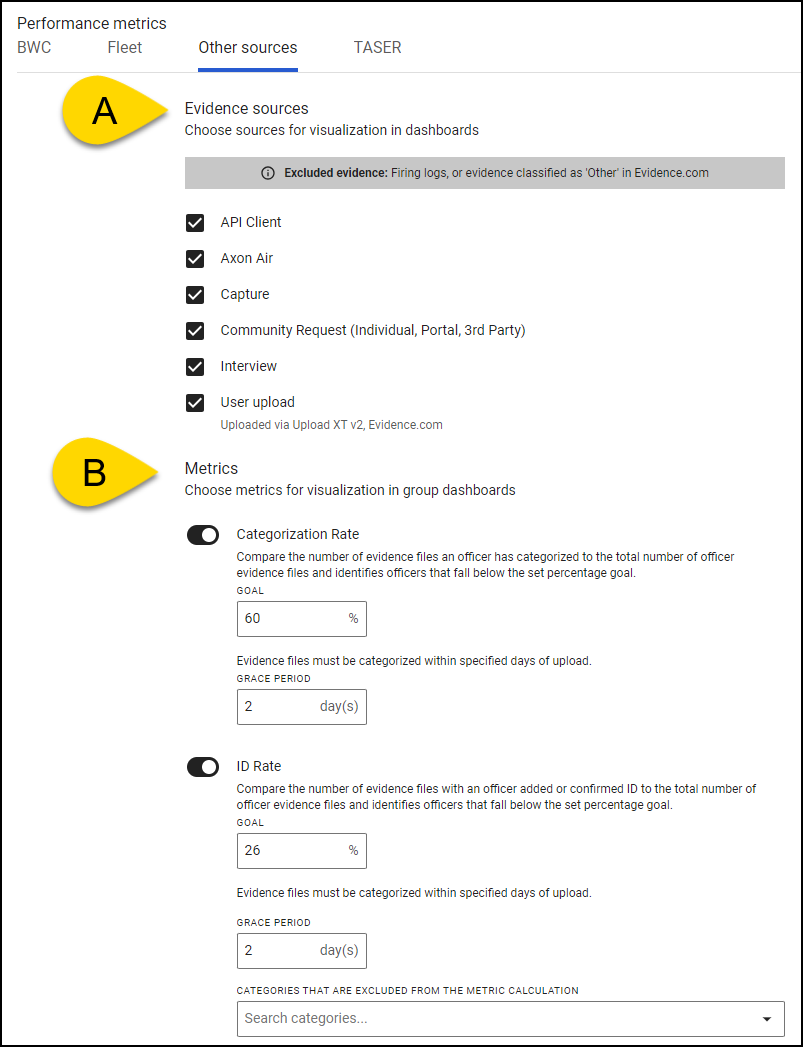
In the Other sources metrics settings, you can set compliance metrics for additional evidence sources such as API integrations, Axon Air, community-submitted requests, user uploads, and more. You can enable categorization rate and ID rate after at least one other evidence source is selected. For each source, Performance only supports the following file types: video, audio, documents, images, and ZIP files.
- Evidence Sources: Select sources for visualization in dashboards, choose from:
- API Client
- Axon Air
- Capture
- Community Request
- Interview
- User Upload: This source includes evidence uploaded manually to Axon Evidence and through Upload XT v2, Axon’s tool for bulk uploading files. For more details on setting up and using Evidence Upload XT, see Get started with Evidence Upload XT.
- Metrics: Select which metrics to display in group dashboards, choose from:
- Categorization Rate: This metric compares the number of evidence files an officer categorizes to the total number of officer evidence files and identifies officers that fall below the set percentage goal. When enabled, you can:
- Set a goal: Specify a percentage goal to identify officers who don’t reach the desired level of compliance.
- Set a grace period: Specify the number of days in which evidence should be categorized after it is uploaded
- Categorization Rate: This metric compares the number of evidence files an officer categorizes to the total number of officer evidence files and identifies officers that fall below the set percentage goal. When enabled, you can:
- ID Rate: This metric compares the number of evidence files with an officer-added or confirmed ID to the total number of evidence files that fall below the set percentage goal. When enabled, you can:
- Set a goal: Specify a percentage goal to identify officers who don’t meet the desired ID rate.
- Set a grace period: Specify the number of days in which IDs must be added or confirmed on the evidence files.
- Set exclusions: Exclude categories from metric calculations to leave them out of the ID Rate calculations.
TASER metrics
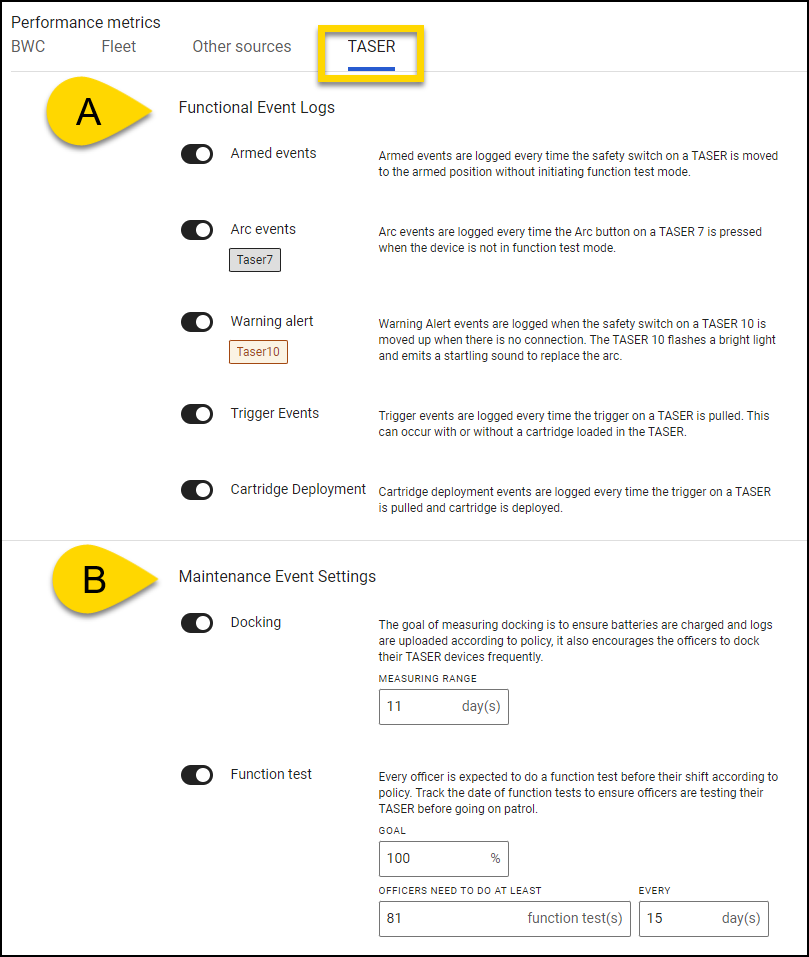
In the TASER metrics settings, you can turn on and configure several options for both functional event logs and maintenance events. These settings are within the TASER tab. Remember to select Save after making any changes.
Watch this video to learn how to configure the TASER dashboard.
Frequently asked questions (FAQ)
Why is it essential to customize Performance metrics settings?
Customizing Performance metrics settings allows your agency to align metrics with specific operational goals, generating more actionable insights for improved device management and accountability.
How often should I review and update the Performance metrics settings?
Review frequency depends on your agency’s operational needs, but regular reviews are recommended to ensure timely issue identification and consistent compliance.
What body camera models does Performance support?
Axon Body 2, Axon Body 3, Axon Body 4, and Axon Body Workforce.
What TASER models does Performance support?
TASER 7, TASER 7 CQ, and TASER 10. Performance does not support older models like TASER X2, X26P, etc.
What Fleet models does Performance support?
Only Fleet 3. Performance does not support older models like Fleet 2.


