Axon Performance Permissions
An agency Evidence administrator must enable the appropriate permissions described below for the roles that will use Axon Performance before users can access their dashboards.
See Example Axon Performance Management Permissions for example permission use cases.
Watch this video to learn how to configure Performance permissions.
Login Access Permission Description
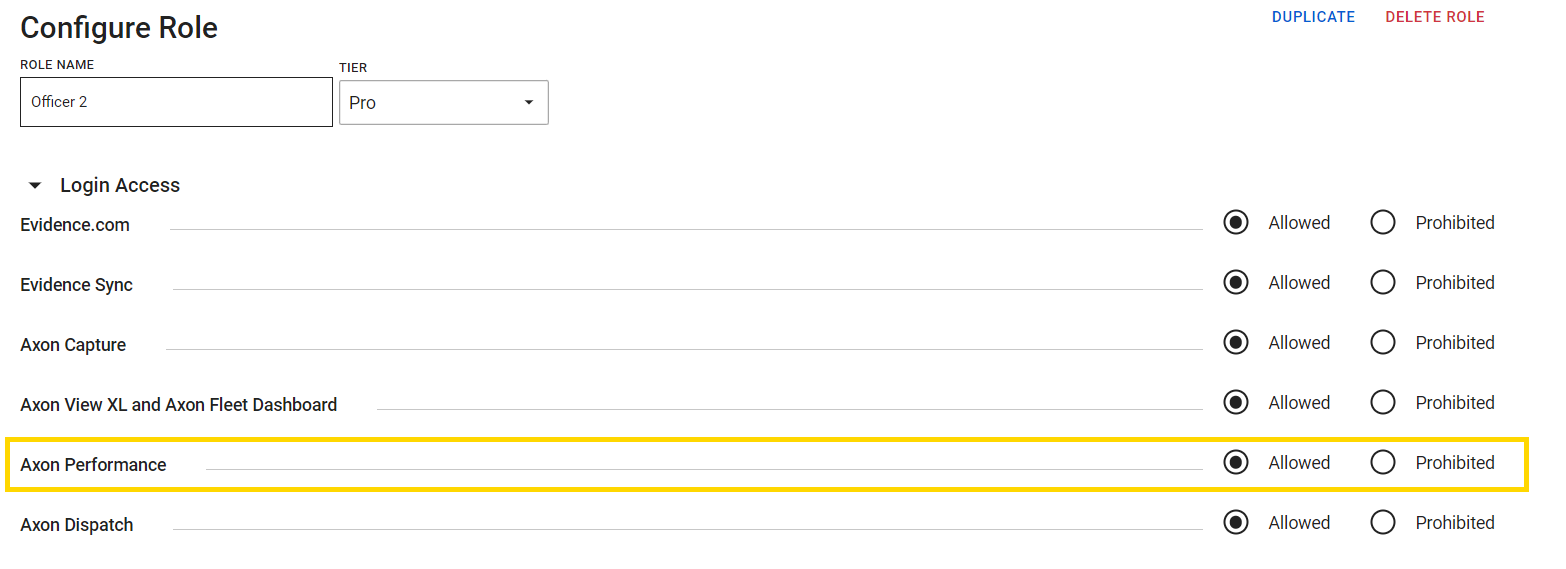
- Axon Performance: Lets users access Axon Performance.
Axon Performance Permission Descriptions
- Configure performance settings: Allows users to configure Axon Performance in accordance with agency policies.
- View own dashboard: Allows users to view their own performance information. This can be set to allow users (either a supervisor or an officer) to self-review metrics such as Activation Rate, ID Rate, and Categorization Rate. This permission doesn't allow users to view performance information of other users.
- View group performance: Allows users to view group performance information.
- Any: Allows users to view the performance information of any group to which they have access.
- Only Their Own: Allows users to view the performance information of their own groups.
- View peer performance: Allows users to view performance metrics of their peers. Peers are officers or supervisors in the same group on the Command Hierarchy.
- View video review: Allows users to view the results of random video reviews.
- Any: Allows users to view the random video reviews of any group to which they have access.
- Only Their Own: Allows users to view their own group's random video reviews.
- Initiate video review: Allows users to conduct random video reviews.
- Any: Allows users to review the videos of any group to which they have access.
- Only Their Own: Allows users to review their own group's videos.
- View Review Goal (requires Command Hierarchy): Allows users to view the review goals of their groups.
- View policy review: Allows users to view officer policy reviews.
- Any: Allows users to view the policy reviews of any officer in their accessible groups.
- Only Their Own: Allows users to view the policy reviews of their own officers.
- Initiate policy review: Allows users to conduct officer policy reviews.
- Any: Allows users to review the policy of any officer in their accessible groups.
- Only Their Own: Allows users to review the policy of their own officers.
Enable Axon Performance Settings
Administrators can modify existing roles, create new roles, or copy and modify an existing role to enable Performance permissions.
- On the menu bar, select Admin.

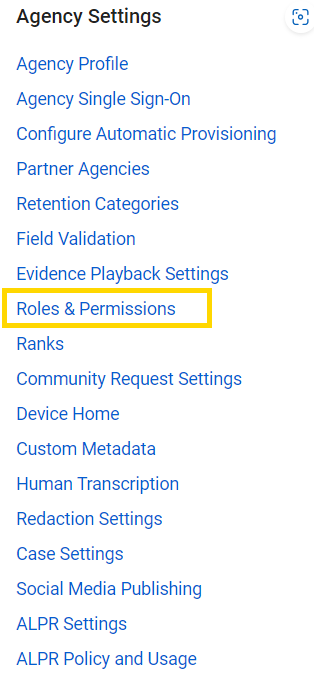
- Under Agency Settings, select Roles & Permissions to see available roles in alphabetical order.
- To create a role:
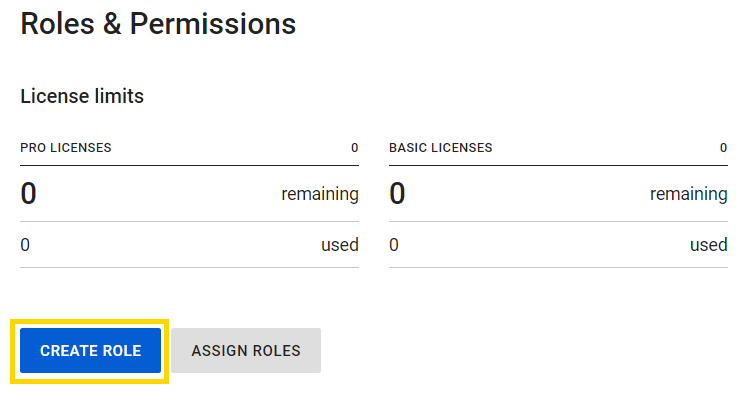
- Select Create Role.
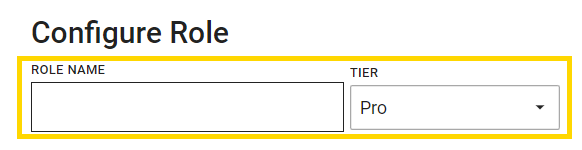
- Enter the role name and select the license tier.
- Select Create Role.
- To edit a role:
- Select the Edit icon on the same line as the role you want to edit.

- In the Logic Access section, set Axon Performance to Allowed.
- Select the Edit icon on the same line as the role you want to edit.
- Scroll down to the Axon Performance section and set the permissions for the role as Allowed, Any, Only Their Own, or Prohibited.
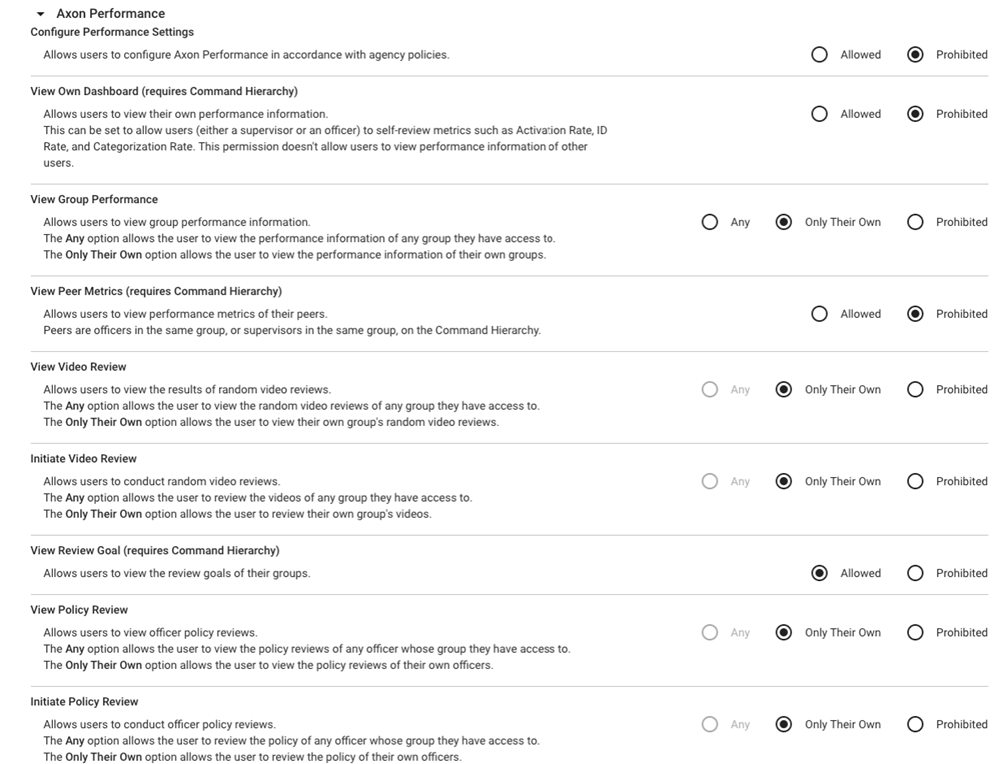
- Set the permissions for View Video Review and Initiate Video Review to Any to enable users to access random video reviews, including those surfaced by Axon Standards Integration. These permissions ensure supervisors can review flagged videos or provide justification for skipping them when applicable.
- Turn workflows, such as Video Reviews, on or off in Performance on the Settings page. The Settings page overrides role permissions in Evidence as it relates to Performance workflows. Evidence role permissions, as they relate to evidence, are enforced in Performance.
- Settings Examples: A supervisor has permission to initiate a video review, but the video review feature is disabled on the Settings page. When the supervisor signs-in to Performance, the Random Video Reviews section does not appear, and the video review permissions are ignored. Additionally, restricted evidence will not appear if the supervisor does not have permission to view restricted evidence.
- For example, if a supervisor has permission to initiate a video review but the video review feature is disabled on the Settings page, the Random Video Reviews section will not appear, and video review permissions will be ignored.
- For each permission you need to update, select the appropriate option to the right of its name.
- When you're finished, select Save.
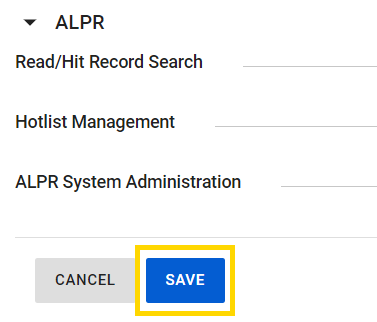
Axon Evidence immediately begins enforcing the permissions you set. Once you've created or edited all roles, ensure users are assigned to the appropriate ones.
Axon Performance Permissions Examples
This table provides sample role permission settings in Performance based on different use cases.
| User Profile | Axon Performance | View Performance Audit | View Own Dashboard | View Group Performance | View Peer Metrics | View Video Review | Initiate Video Review | View Review Goal | View Policy Review | Initiate Policy Review |
|---|---|---|---|---|---|---|---|---|---|---|
| Admin | Allowed | Allowed | Allowed | Any | Allowed | Any | Any | Allowed | Any | Any |
| Upper Level Supervisor | Allowed | Prohibited | Allowed | Only Their Own | Allowed | Only Their Own | Only Their Own | Allowed | Only Their Own | Only Their Own |
| Supervisor | Allowed | Prohibited | Allowed | Only Their Own | Allowed | Only Their Own | Only Their Own | Allowed | Only Their Own | Only Their Own |
| Officer | Allowed | Prohibited | Allowed | Prohibited | Prohibited | Prohibited | Prohibited | Prohibited | Prohibited | Prohibited |
| Professional Standards | Allowed | Prohibited | Allowed | Any | Allowed | Any | Any | Allowed | Any | Any |


