Priority Ranked Video Audit Settings in Axon Performance
Priority Ranked Video Audit (PRVA) settings in Axon Performance serve as a critical tool to enhance and streamline the review of body worn camera (BWC) footage. By detecting critical keywords, phrases, and events such as TASER deployments, and firearm unholstering (Signal Sidearm), PRVA enables supervisors to quickly pinpoint and review critical “flagged” moments within videos. Supervisors can promptly review videos that reach an agency-defined predetermined threshold, while supporting them in their ongoing efforts to learn, grow, and improve officer performance.
Customize PRVA scoring
- Oganizations define specific keywords and events, and assign customized point values to each.
- Videos accumulate points based on occurrences of these critical elements.
- Higher-scoring videos are prioritized once an officer is selected for review, streamlining the process for supervisors to quickly address the most impactful incidents.
Officer distribution and PRVA impact
Axon Performance selects videos in a manner that ensures equitable officer distribution. Even if an officer has numerous high-scoring videos, Axon Performance will not disproportionately select that officer for reviews. Instead, the system evenly distributes review opportunities across all eligible officers. Once an officer is selected, the highest-ranked video for that officer, based on PRVA scoring, is prioritized for supervisor review.
By combining fair officer distribution with prioritized video scoring, Axon Performance ensures balanced and focused supervisory reviews.
Watch this video to learn how to configure PRVA settings.
Access and Configure PRVA Settings
- Sign-in to your Axon Evidence account.
- Select My Dashboard.
- Under Performance, select Configure.
- Select Priority Ranked Video Audit from the Settings menu.
- Turn the Priority Ranked Video Audit on or off.
- Configure each of the following settings to fit your organization’s needs. Select each setting to learn more:
- Configure your PRVA settings, and then select Save to apply all changes.
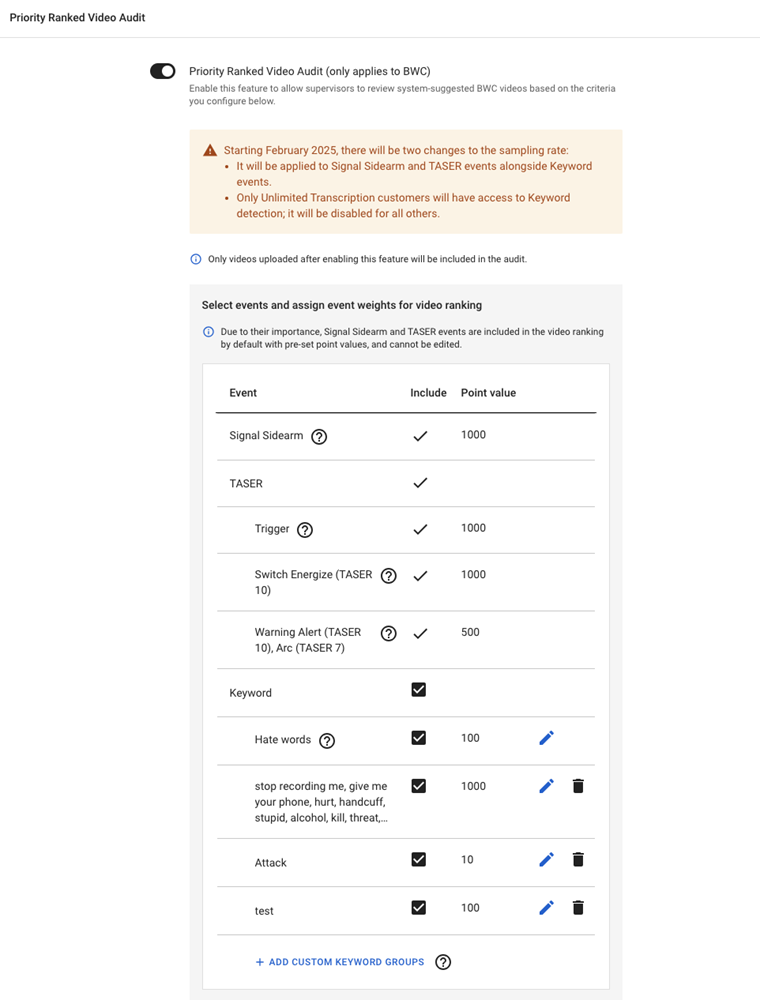
Keyword detection
Keyword detection consumes Auto-Transcribe minutes. Only Unlimited Transcription customers are allowed to enable keywords for Priority Ranked Video Audit. It is disabled for all others.
This feature identifies keywords based on their occurrence in eligible videos. In addition to detecting keywords, they can also be weighted, enabling PRVA to prioritize critical keywords and phrases such as local gang names. When “Keyword detection” is disabled, its sub-settings are also disabled, and new custom keywords will not be saved. If your department used a custom keyword list before, these settings will be available upon re-enabling keywords. For departments that switch from Unlimited to Limited Transcription, keywords will be disabled.
Hate Words
Enable hate words to detect and identify the most offensive words in the video's auto-transcript. Hate speech events occur when hate speech provided by Hatebase.org is detected in a video. In the event of a duplicate keyword, PRVA gives priority to the custom keyword weighting and disregards the word provided by Hatebase.org.
Custom Keywords
You can add a maximum of 100 comma-separated custom keywords in the text field below the Custom keyword setting. A weight can be assigned to each group of keywords, allowing for fine-tuned priority rankings. If your agency has used a custom keyword list before, this setting is automatically activated.
Keyword weighting
To utilize keyword weighting, take any of the following actions:
- Turn on Keyword Detection and select an appropriate sampling rate.
- Enable or disable the keyword groups that should be scored and proactively notified.
- Add, edit, or delete keyword groups.
- Edit the weight of each keyword group.
- Select Save to apply your changes.
Only videos uploaded after the configuration changes are saved are scored and ranked with any newly added groups of keywords and weights.
Sampling Rate
The sampling rate is applied to Signal Sidearm and TASER events alongside keywords.
Sampling rate determines the total number of eligible videos to be sampled for Signal Sidearm, TASER, and selected keywords. The default is set to 100% and keywords will only be enabled for Unlimited Transcription customers.
Alerts
Enable alerts to configure a threshold and send proactive email notifications to supervisors if their officers have a video whose PRVA score is greater than the threshold.
Turn on alerts:
- Select the Email the officer’s supervisor when videos exceed the set threshold points checkbox.
- In the CC Recipient(s) box, enter the email addresses of any recipients you wish to be notified via email.
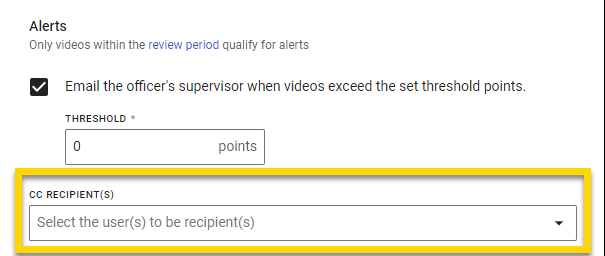
- Select Save to apply your changes.
Upon activation, direct supervisors receive notifications for videos uploaded by their officers that meet or exceed the PRVA score. Designated CC recipients also receive these notifications. Email notifications have the following format: [X videos exceeding Y points], and they are sent from Axon Performance <[email protected]>.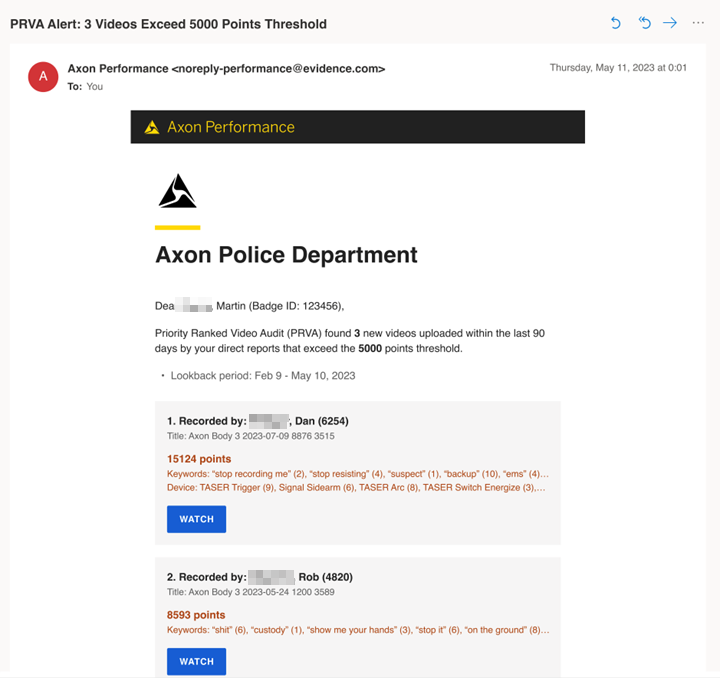
Filters
The filters in PRVA allow you to apply the same category filters from your Random Video Review settings to PRVA. The category filters allow you to exclude or focus on specific video categories, and video duration filters establish the length range for videos eligible for review. For more information, see Random Video Review Settings in Axon Performance.
Skip reviews
When skip reviews is selected, supervisors can skip a video suggested by PRVA if they find that video is not important, or they have already reviewed the video. Supervisors must provide a reason for skipping.
Export
This option gives supervisors the ability to export lists of PRVA videos from groups they have access to.


