Random Video Review Settings in Axon Performance
Random Video Review settings in Axon Performance provide a framework for supervisors to oversee and maintain quality control. By configuring these settings, you can streamline the review process, ensuring that all video footage is subject to oversight and aligns with your operational goals and standards.
Watch this video to learn how to configure video review settings.
Access and Configure Random Video Review Settings
- Sign into your Axon Evidence account.
- Select My Dashboard.
- Under Performance, select Configure.
- Choose Random Video Review from the Settings menu.
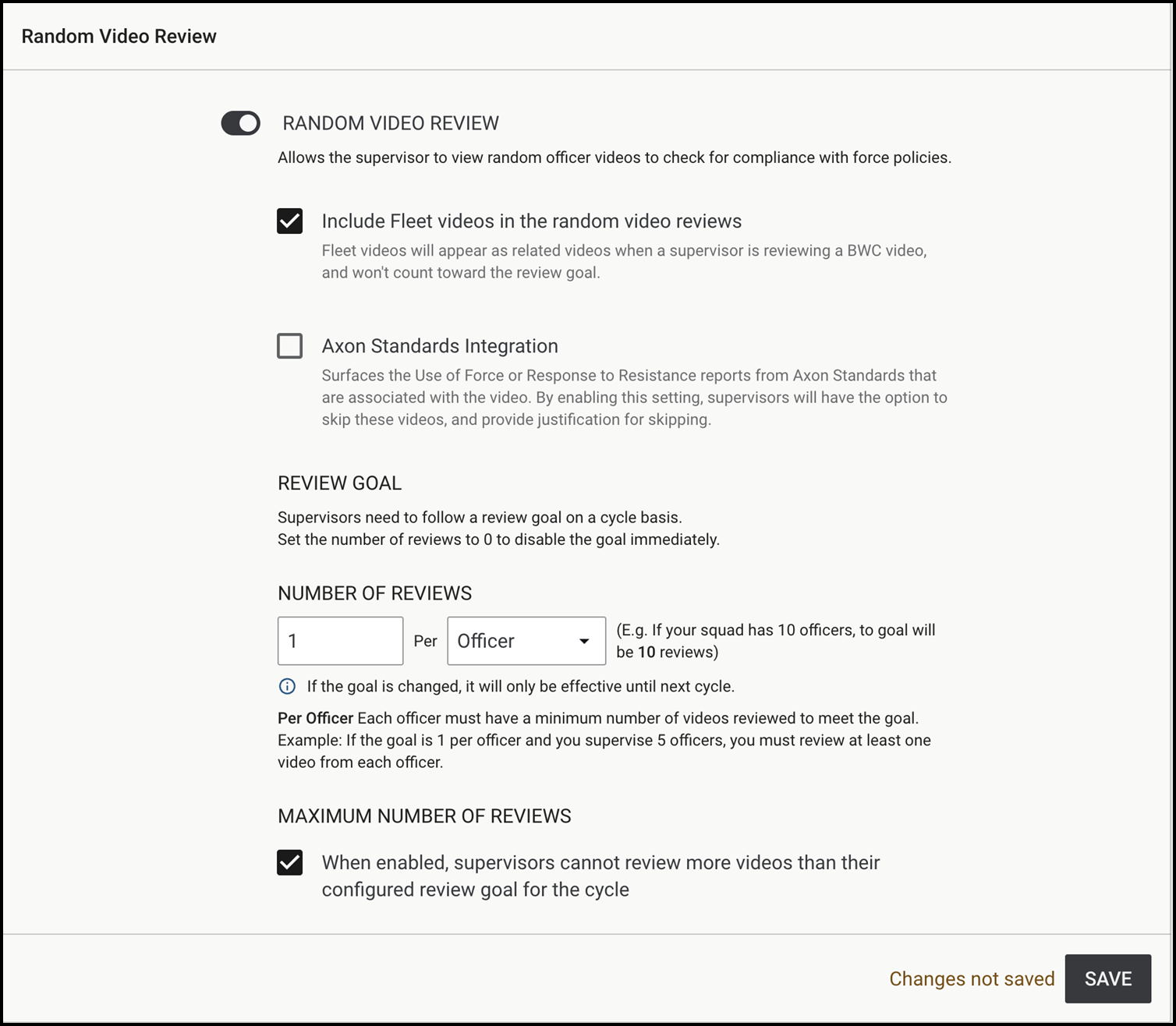
- Use the toggle to turn Random Video Review on or off.
- Select Include Fleet videos in the random video reviews if you wish to have Fleet videos appear as related videos when a supervisor is reviewing a BWC video. Fleet videos won't count toward the review goal.
- Select Axon Standards Integration if you wish to surface Use of Force or Response to Resistance reports from Axon Standards that are associated with the video being reviewed. This settings is only available for organizations that have Axon Standards. By enabling this setting, users have the option to skip these videos if already reviewed via another workflow. Justification is required for skipping. The justification is documented in Video Review exports.
- Configure each of the following settings to fit your organization’s needs:
- Select Save to apply all changes.
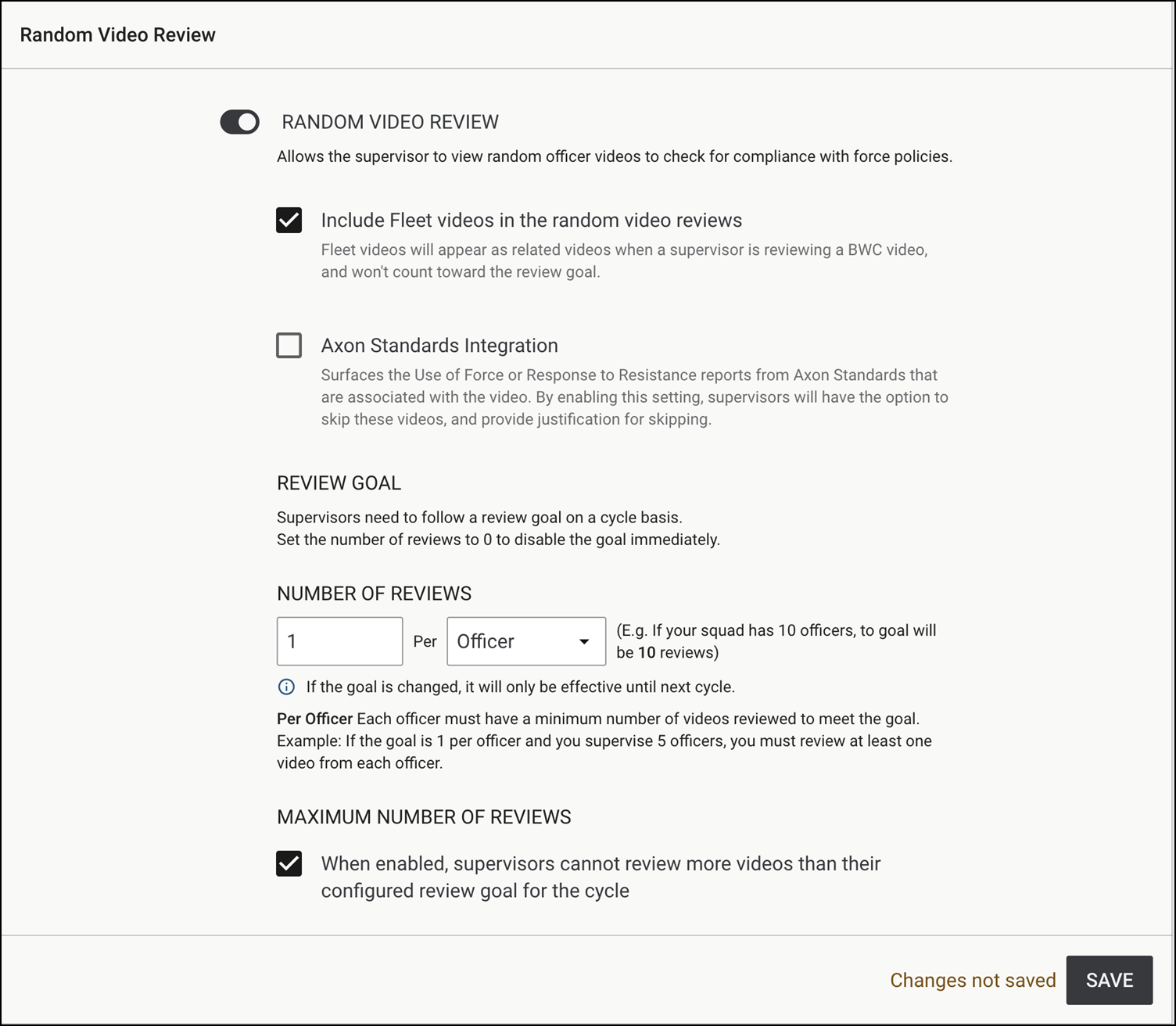
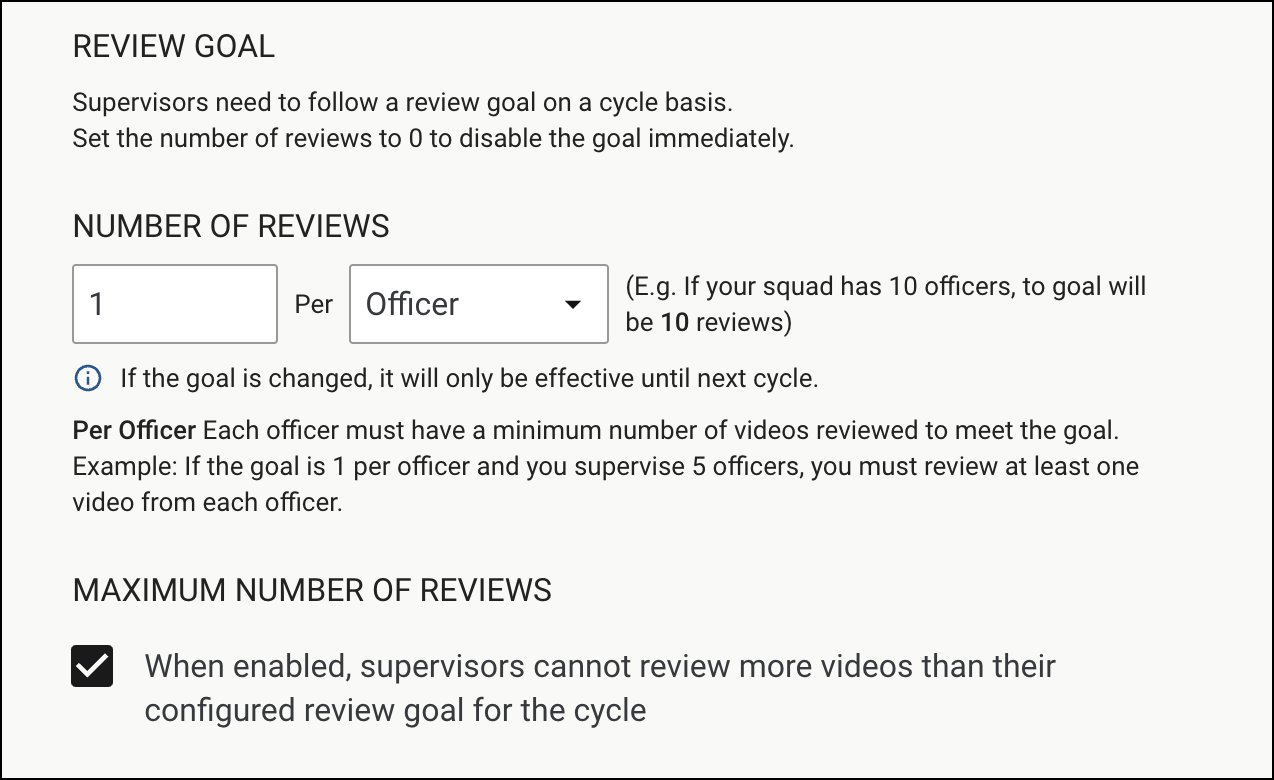
Review Goal
Set the target for the number of video reviews to be conducted within a cycle. The goal can be configured in two ways:
- Per officer: Each officer must have a minimum number of videos reviewed to meet the goal. For example, if the goal is 1 per officer and a squad has 5 officers, the supervisor must review at least one video from each officer.
- Per squad: The goal is based on total reviews across all officers in the squad. Any officer's videos can count toward completion. For example, if the goal is 5 per squad, any 5 videos across all officers will meet the goal.
Maximum Number of Reviews
When enabled, supervisors cannot review more videos than the configured review goal for the cycle. This prevents over-reviewing and helps ensure reviews are distributed evenly.
- With a per officer goal, the limit applies to each officer individually. Once an officer reaches their maximum, their videos no longer appear in the review queue.
- With a per squad goal, the limit applies to the entire squad. Once the total number of reviews reaches the goal, no additional videos are queued.
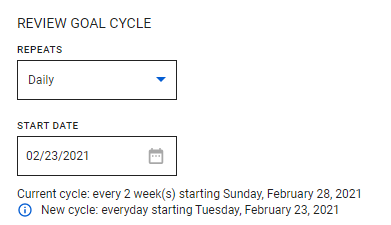
Review Goal Cycle
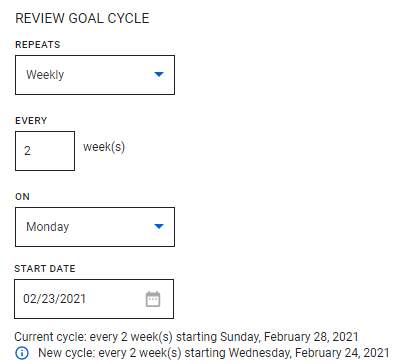
Define the video review cycle length and the start date for a new review cycle. The current cycle information is shown below the Start Date field. When changing settings, the new cycle information is shown below the current cycle information. Changes to the Review Goal Cycle settings take effect immediately after saving.
- The Daily option sets the video review cycle to occur every day.
- The Weekly option allows you to set the review cycle length in weeks and the day of the week the cycle starts.
- The Monthly option allows you to set the review cycle length in months and then set the day of the month or the week and weekday of the month the cycle starts.
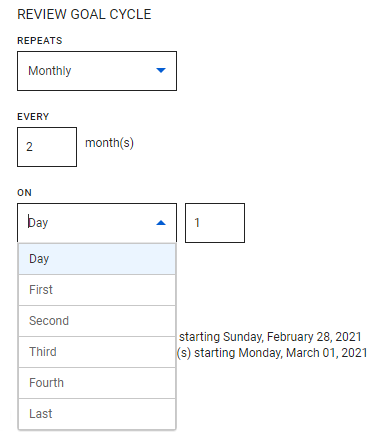
The Review Goal Cycle settings affect how often Review Goal Notifications and Weekly Review Summary Notifications are sent. If Daily is selected, these notifications are disabled. If Weekly or Monthly is selected, notifications are sent two business days before and after the cycle ends.
Review Notifications
Two notifications help ensure the efficiency of random video reviews:
- Review Goal Notifications: Sent two business days prior to the end of the review cycle, reminding squad supervisors to complete their video reviews.
- Review Summary Notifications: Sent two business days after the end of the review cycle to selected recipients, providing a list of squads that did not meet their review goals.
Review summary filtering
Control which groups appear in the review summary notification:
- Include all groups with review goals: sends the full list regardless of completion status.
- Only include groups that did not meet review goal: limits the summary to groups that still need attention.
Review goal notification scheduling
Configure when review goal notifications are sent:
- Daily: Set the time of day.
- Weekly: Set the day of the week and time.
- Monthly: Set the week (First, Second, Third, Fourth, or Last), day, and time.
Review Period
Set the window of time from which videos can be pulled for review, ranging from 1 to 180 days old. For example, setting the period to 30 days ensures all videos reviewed are within one month of recording. The list of eligible videos refreshes daily, maintaining a rolling period based on the selected range.
Category Filter
This setting allows you to exclude or focus on specific video categories. For example, you can exclude videos marked as "Equipment Test" or prioritize "Traffic Stops" to ensure those videos are queued for review.
Video Duration
Establish the length range for videos eligible for review. Set the minimum and maximum length (in minutes) to focus on substantive interactions. For example, you might set a range of 2 to 10 minutes to exclude very brief or overly long recordings.
Video Review Criteria
Customize the criteria for assessing videos. Choose from up to 20 customizable options, including 8 default options, or create your own.
Add Video Review Criteria
- Under Video Review Criteria, select Add Another.
- Enter the criteria in the text field.
- Press Enter or click outside the text field to save the criteria.
- Select Save to apply changes.
Edit Video Review Criteria
- Under Video Review Criteria, select the edit button next to the criteria you want to edit.
- Make the necessary changes.
- Press Enter or click outside the text field to save your edits.
- Select Save to apply changes.
Delete Video Review Criteria
- Select the delete button next to the criteria you want to remove.
- Select Save to apply changes.
Frequently Asked Questions (FAQ)
What kind of video will Performance pick for review?
Performance focuses on BWC video. If the Include Fleet Videos option is enabled, Fleet videos will appear as related videos but won’t count toward the review goal.
Can the frequency of review goal notifications be adjusted?
Yes, the notification frequency is tied to the review goal cycle. Adjusting the cycle changes the notification schedule.
How can we exclude specific types of videos?
Use the Category Filter setting to exclude irrelevant video types from the review pool.
Are there limitations on video length for review?
There are no fixed limitations. However, you can define a range for video duration, such as 1 to 60 minutes.
What happens if my review goal set to "per officer" and an officer never uploads an eligible video to review for the review period?
Since the goal is per officer, the review goal cannot be completed. Axon Performance states the valid reason why the goal could not be completed. "No video available to review for ______" displayes on the review summary notification email for this group.
Why does Performance state “there’s no eligible video to review”?
This message appears when videos don’t meet your agency’s criteria. Check that your settings aren’t too restrictive, such as very short review periods or narrow duration ranges. Ensure videos are properly uploaded and not queued for deletion within 10 days.
To learn more about configuring other Performance settings, go to Configuring Performance.
This message can also appear when the Maximum Number of Reviews setting is enabled and the remaining officers who need reviews have no eligible videos. In this case, the review cycle cannot be completed until new videos are uploaded for those officers, or the cycle is closed.


