Privileges
Privileges let you control access to features and information in Axon Records and Axon Standards. Users are added to Command Hierarchy groups and/or teams, and are granted access as specified by the group or team privileges.
If a user is a member of multiple Command Hierarchy groups and teams, their privileges are determined by the group or team with the widest collection of privileges.
- For example: Jane Smith is a member of the Investigators team, which doesn't have the View Domestic Violence Restriction She is also a member of the Clerks team, which does have the View Domestic Violence Restriction privilege. As a result, Jane can view any report that has the Domestic Violence restriction (because she belongs to the Clerks team).
Similarly, privileges assigned to teams and groups work together, so users who are assigned to both teams and groups will have both sets of privileges.
- For example, Jane Smith is a member of the Investigators team, which doesn't have the Access the Administrator Console privilege is also a member of the Administration group in her agency's Command Hierarchy, which does have the Access the Administrator Console privilege. As a result, Jane can access the Administrator Console.
For explanations of specific privileges, use the links in the Related topics list on the left side of this page.
Only privileges that apply to Axon Records appear in this list. If your organization uses both Axon Records and Axon Standards, you may see additional privileges in the Administrator Console. See the Axon Standards product guide for more information about these privileges.

|
To manage privileges, open the Administrator Console by selecting the gear icon in the main navigation menu. Select the Command Hierarchy & Teams tool, select a Command Hierarchy group or team, and switch to the Privilege set view tab. |
Open the Actions menu to take actions on that group or team. Options include:
- Export users to CSV
- Export/import privileges to/from JSON
- Delete team
Use the search box to find a specific privilege or select a product filter to show only privileges related to that product (Axon Records or Axon Standards).
Privileges are organized into categories. Within each category are one or more subcategories. Finally, within each subcategory are one or more privileges. Categories, subcategories, and privileges are listed alphabetically.
Select the arrow to view all privileges in a subcategory. Select the Allow or Prohibit circles to adjust each individual privilege. Select Allow all or Prohibit all to enable or disable all privileges within that category. Some privileges have an information icon. Hover over this icon to view additional information about the privilege.
Manage Command Hierarchy Groups with privilege sets
A privilege set is a set of multiple privileges that can be applied to a Command Hierarchy Group. All users who belong to that Group are given the privileges in the privilege set. Each privilege set is associated with a team and can be viewed on the Privilege set view tab on the team's page.
Configuring privileges in this way enables the following administration benefits:
- Batch configuration: Avoid manual updates to each Command Hierarchy Group by applying and updating privilege sets in bulk.
- Granular privilege assignments: Combine privileges from multiple sets to create customized configurations for each Group.
For example, an organization has five Patrol Division Groups in their Command Hierarchy. Each member in these Groups needs the same privileges. Rather than opening each Group and individually applying privileges, the administrator creates a Patrol privilege set and applies it to all five Groups. As a result, all members of each of the five Groups are all granted the privileges contained in the privilege set.
Additionally, multiple privilege sets can be applied to a single Command Hierarchy Group, allowing for granular access control. Continuing with the Patrol example, the Central Division needs several more privileges than the other four Groups. The administrator creates an additional Central Patrol privilege set that contains only those additional privileges. When this privilege set is applied to the Central District Group, those users have both the Patrol and Central Patrol privileges.
The image below illustrates this example, showing each of the five Patrol Division Groups. The gray "Patrol" label beside each Group name is the privilege set that has been applied to the Group. Note that an additional "Central_Patrol" label beside the Central District Group.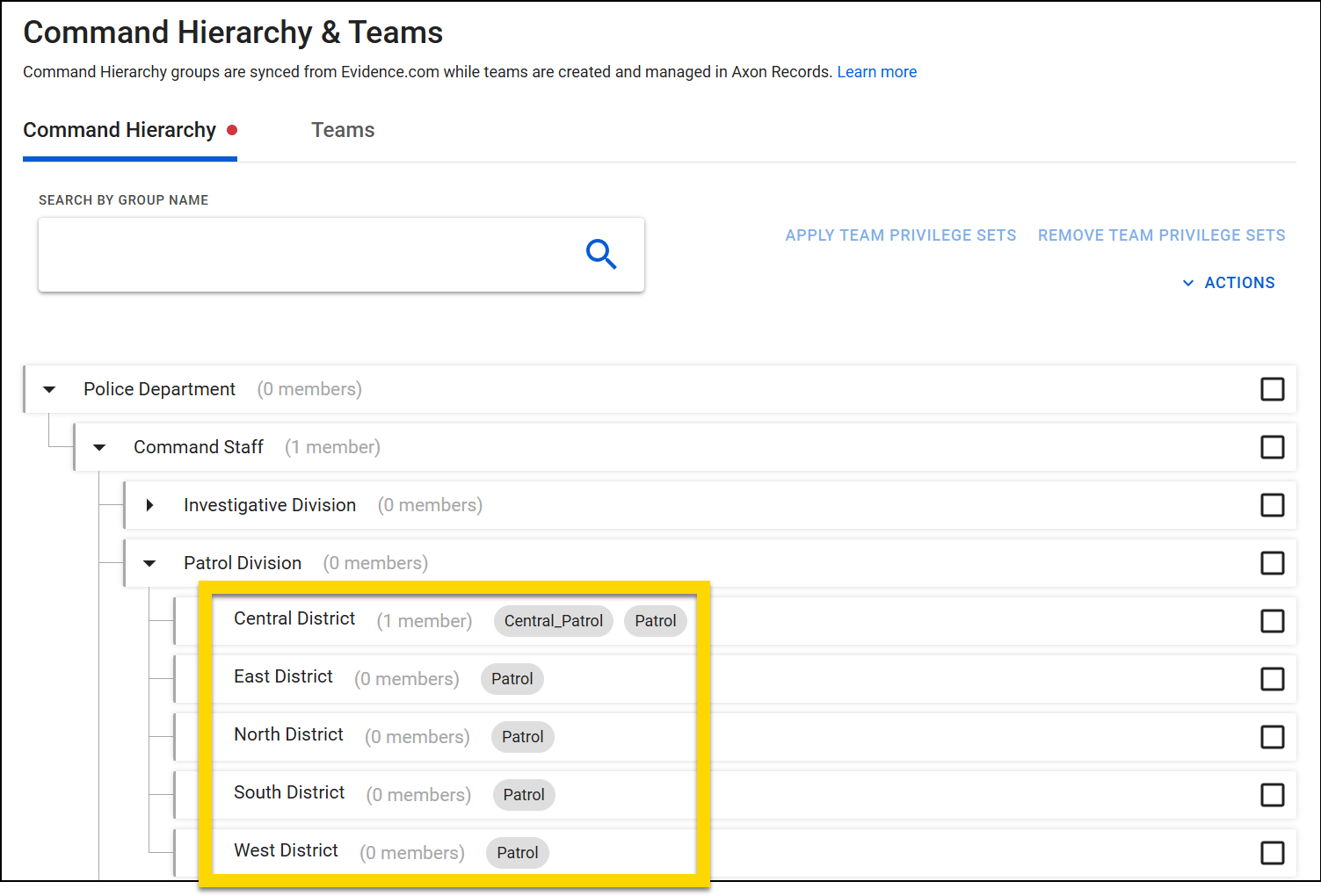
This configuration process involves the following steps:
- Create Command Hierarchy Groups and add users to those Groups in Axon Evidence.
- Create privilege sets.
- Apply privilege sets to Command Hierarchy Groups.
- Update privilege sets later as necessary.
Create privilege sets
To create a privilege set:
- Open the Command Hierarchy & Teams tool in the Administrator Console.
- Switch to the Teams tab.
- Either open an existing team or create a new team.
- Switch to the Privilege set view tab on the team's page.
- Allow privileges as appropriate.
Apply privilege sets
After you have created the necessary privilege sets, you can apply them to your organization's Command Hierarchy Groups:
- Open the Command Hierarchy & Teams tool in the Administrator Console.
- While viewing the Command Hierarchy tab, select Actions > Show team privilege sets.
- Select the checkboxes beside one or more Command Hierarchy Groups.
- Select Apply team privilege sets.
- Enter one or more privilege set names in the Team Privilege Sets menu.
- If the Command Hierarchy Group already has applied privileges sets, you can choose to keep those existing sets and add the additional ones, or remove the existing sets in favor of the ones you have selected.
- Select Update to apply your changes to the Command Hierarchy.
You can add users to a team, thereby granting them all privileges in the privilege set associated with the team. However, it is recommended to manage user privileges either through Command Hierarchy Groups or with teams, not both.
Update privilege sets
After setting up your privilege sets and Command Hierarchy Groups, you can adjust them at any time. You can apply additional privilege sets, remove privilege sets from Groups, or update the privileges included in a Privilege Set.
To remove privilege sets from a Group:
- Open the Command Hierarchy tab.
- Select Actions > Show team privilege sets.
- Select the checkboxes beside one or more Command Hierarchy Groups.
- Select Remove team privilege sets.
- Note that this options removes ALL privilege sets from the group.
- Select Remove in the confirmation dialog box that appears.
- The privilege sets are removed from the indicated Command Hierarchy Groups, but the Set itself is NOT deleted. It can still be managed from the Teams > Privilege set view tab and added to Command Hierarchy Groups.
To adjust the privileges contained within a privilege set:
- Open the team
- Switch to the Privilege set view tab.
- Update as necessary.
- Any changes made to the privilege set are automatically reflected in all Command Hierarchy Groups where that set has been applied.
Export and import privileges
To grant the same privileges as an existing team or group to another team or group, you can export and import privileges. To do this:
- Open the team or group and select Actions > Export privileges to JSON.
- Open an existing team or group or create a new one from the Command Hierarchy & Teams tool.
- Command Hierarchy groups must be created from the Axon Evidence Admin Panel.
- On the team or group page, select Actions > Import privileges.
- Select the JSON file you exported from the existing team or group and select Import.
You can also export and import privileges for all teams or groups from the Actions menu on the main Command Hierarchy & Teams page. This function allows you to copy all existing teams and privileges to a new account. Contact your Axon representative for more information about this functionality.


