IBR submissions
The IBR submission service explained in this section has been updated. If your organization has worked with Axon to upgrade to the new experience, see IBR submissions: Manual. If your organization submits flat files and is interested in using the new experience, contact Axon Support or your Axon representative.
The Incident Based Reporting (IBR) submission service is an Axon Records feature that lets organizations download batch submissions for FBI National Incident Based Reporting Systems (NIBRS). Contact your Axon representative to have this feature activated for your organization.
The submission service has three main functions:
- Lets users prepare batch incident reports
- Lists incident reports that require validation fixes before preparing the submission
- Lists incident reports that are excluded from submission
The IBR submission service can only be enabled for organization who submit flat files.
IBR Submissions inbox
To access the IBR submission service, log into Axon Records and select the IBR Submissions inbox. This inbox contains four tabs:
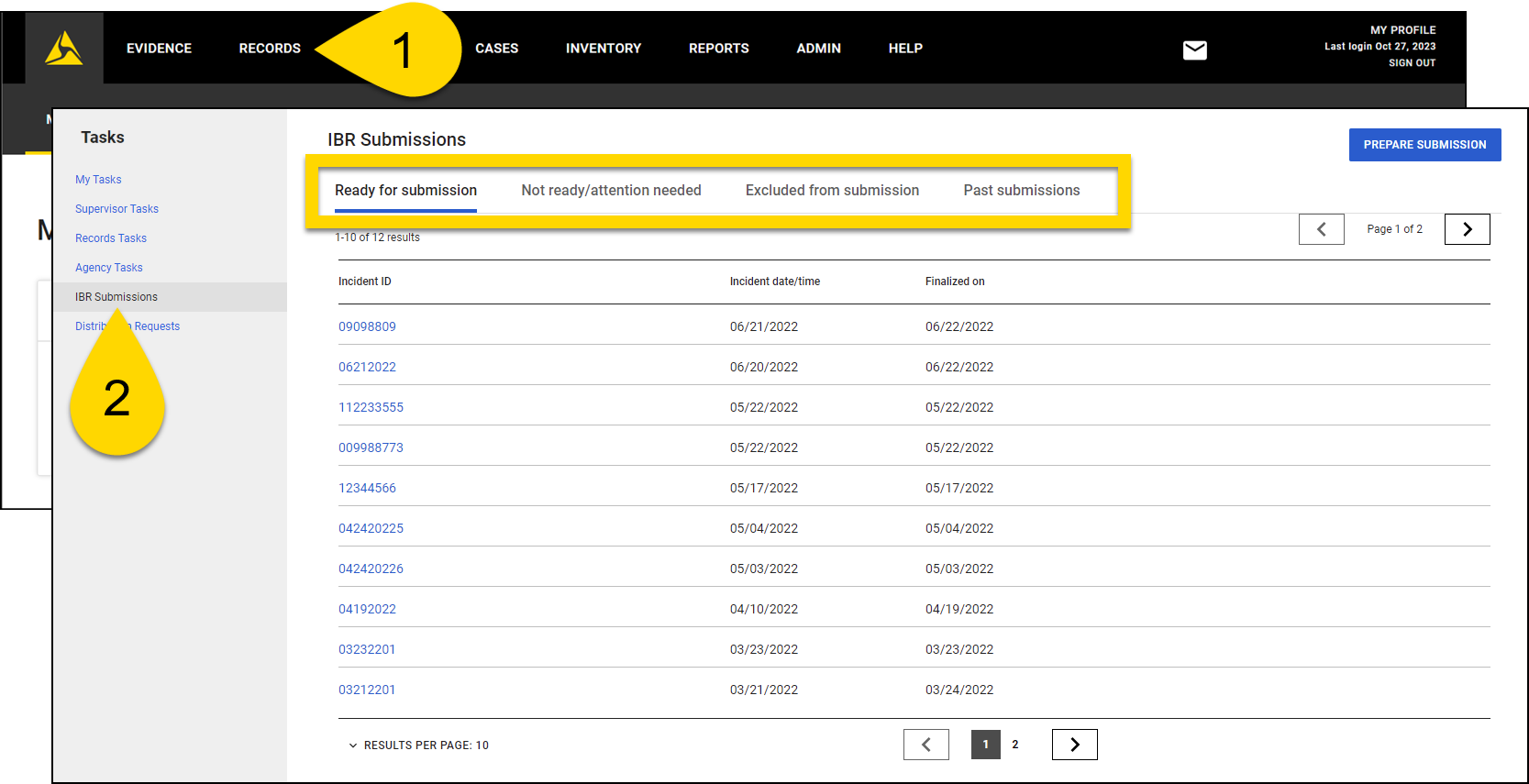
Ready for submission tab
This tab contains the list of incidents ready for submission.
The Incident Date/Time column indicates the date and time of the incident as indicated on the overview screen of that specific incident.
The Finalized On column indicates the date the incident was finalized.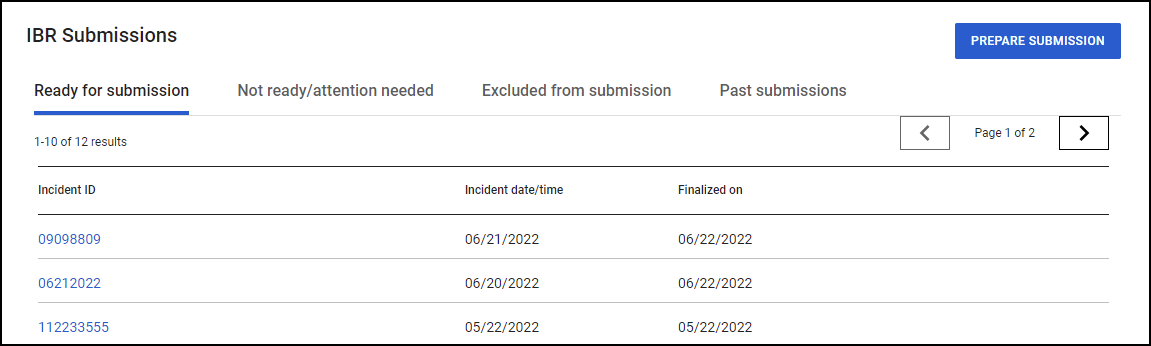
Not ready/attention needed tab
The incidents on this tab contain a validation error and are not ready to be submitted. The columns on this page include Incident ID and Incident Date/Time.
Selecting the Incident ID opens the incident report where you can make the necessary validation fixes. Once the report is re-finalized without errors, the incident will move to the Ready for Submission tab.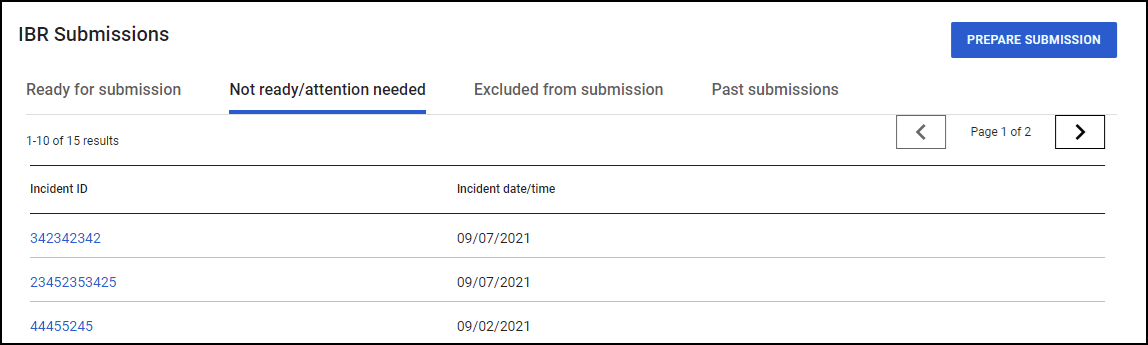
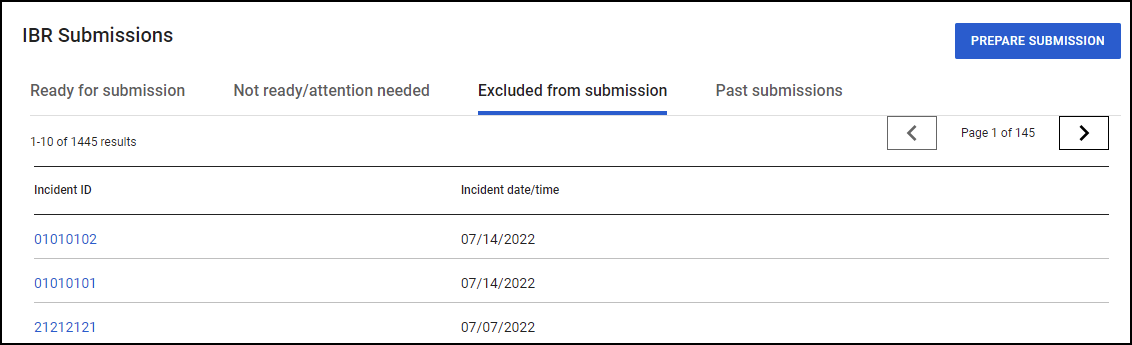
Excluded from submission tab
This tab contains incidents that will not be submitted to NIBRS. Submissions excluded from NIBRS include incidents that:
- Were manually overridden via the Exclude from NIBRS dropdown on an incident's overview page
- Do not have a NIBRS reportable offense
Past submissions tab
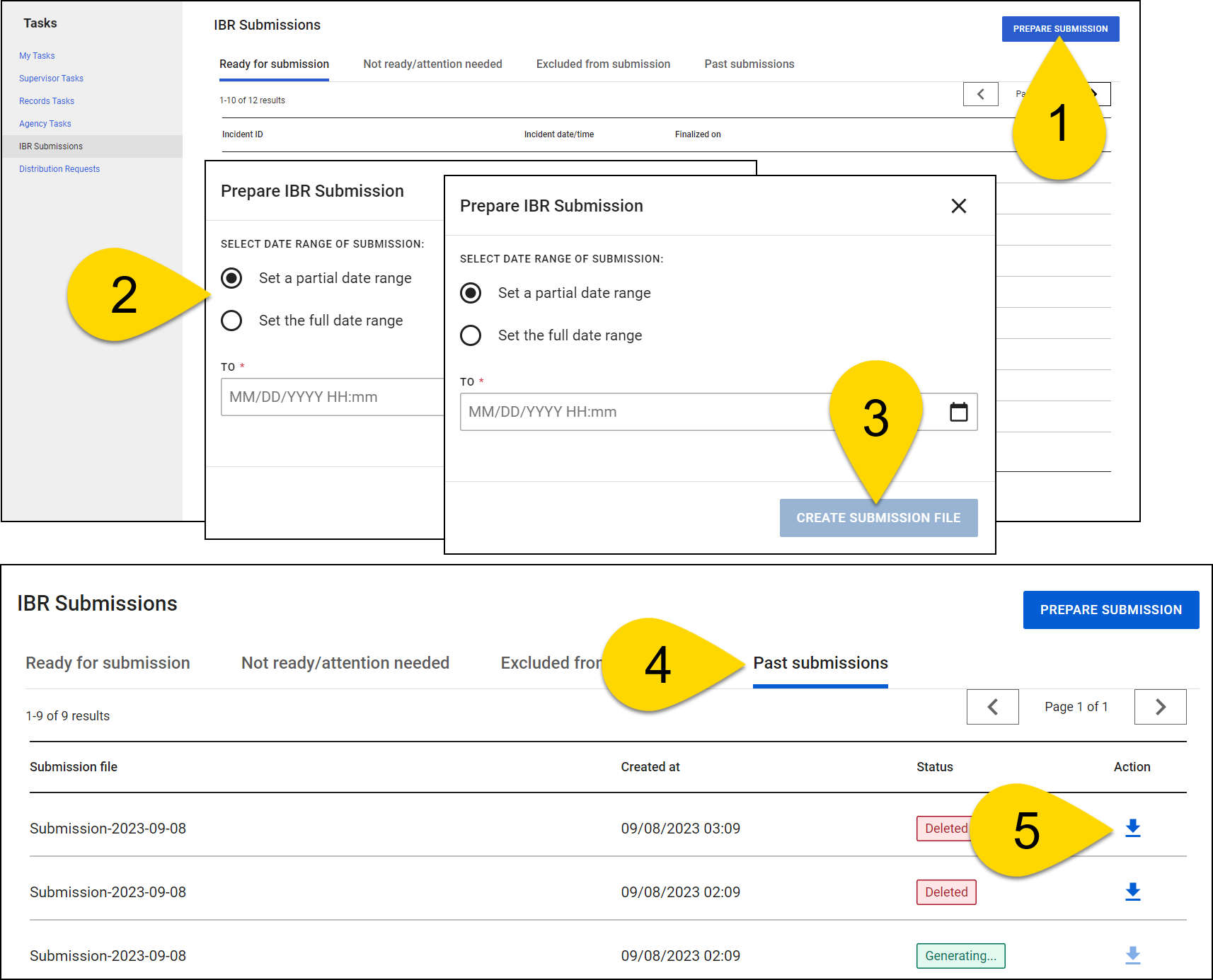
After a submission file has been prepared in the IBR Submission Service, you can open the Past Submissions tab to find the submissions file that can be sent to the state repository.
Select the blue download icon in the Actions column to download that file to your computer's Downloads folder.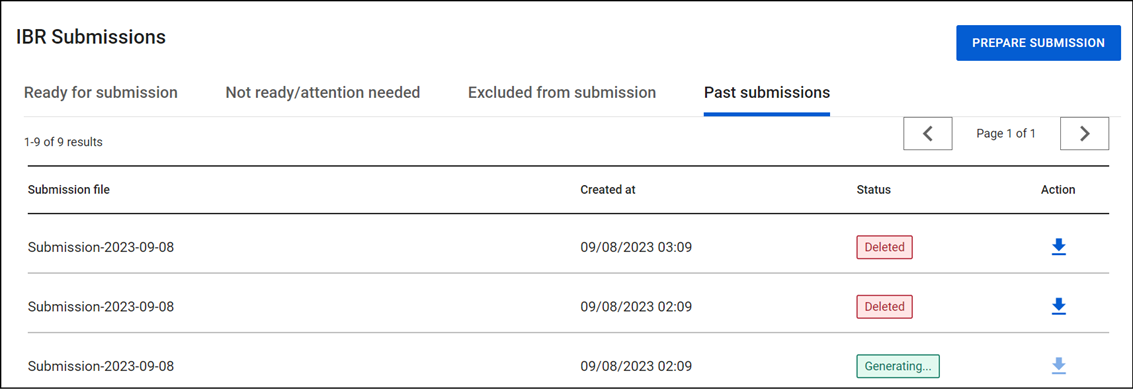
Prepare submission
To prepare a submission, take these steps:
- Select Prepare Submission from any tab in the IBR Submissions inbox.
- Select one of the available options and enter a date and time in the associated fields:
- Set a partial date range: Enter a single date and time, which indicates the end date of the submission file.
- Agencies who are certified with their state and send monthly batch submission files should select this option to prepare a submission file that includes all new and updated incident data.
- Set the full date range: Enter a start date/time and end date/time for the submission file.
- Agencies in the process of completing certification with their state should select this option, as this will only prepare a submission file between the specified dates.
- Select Create Submission File.
- Open the Past Submissions tab.
- Select the blue download icon in the Actions column.
- The submission file will download to your computer's Downloads folder.