Pair VR Controller with headset
Watch this video to learn how to pair VR Controllers with a headset.
VR Controllers
Axon offers VR Controllers to use with the headset.
Do not use a real TASER 7, TASER 10, or handgun in the Axon VR training. Only use the VR Controllers.
Use your hands as controllers
Use your hand as the controller in some areas in Axon VR, like the headset library.
- To make a selection, pinch
- To scroll up or down, pinch and move up or down
If you are wearing long sleeves and don't see your hand as a controller, roll up your sleeve. If you still can't use your hand as a controller, use a HTC wand to go to Settings > Inputs, and select Hand tracking.
Pairing LED states
When you turn on your VR Controller, a pairing LED appears on top of the device. For details on the location of the pairing LED, see the
The pairing LED color indicates the current pairing mode:
| State/Message | Pairing LED Color |
|---|---|
| Pairing |  Blue, flashing Blue, flashing |
| Paired |  Green Green |
| Connecting or pairing lost |  Blue Blue |
| Updating firmware (do not turn off) |  Blue and red, flashing Blue and red, flashing |
Approaches to pairing VR Controllers
There are different approaches to pairing VR Controllers:
- Pair a VR Controller for the first time (see Pair new VR Controllers)
- Remove and replace an existing VR Controller (see Pair a different VR Controller)
When using the latest headset firmware, only one Handgun VR Controller and one TASER can be paired to the headset at a time. This means that both the TASER 7 and TASER 10 VR Controllers cannot be paired to the headset. If you have a TASER 7 paired then pair a TASER 10, the TASER 7 will automatically unpair.
Pair new VR Controllers
To pair a VR Controller for the first time:
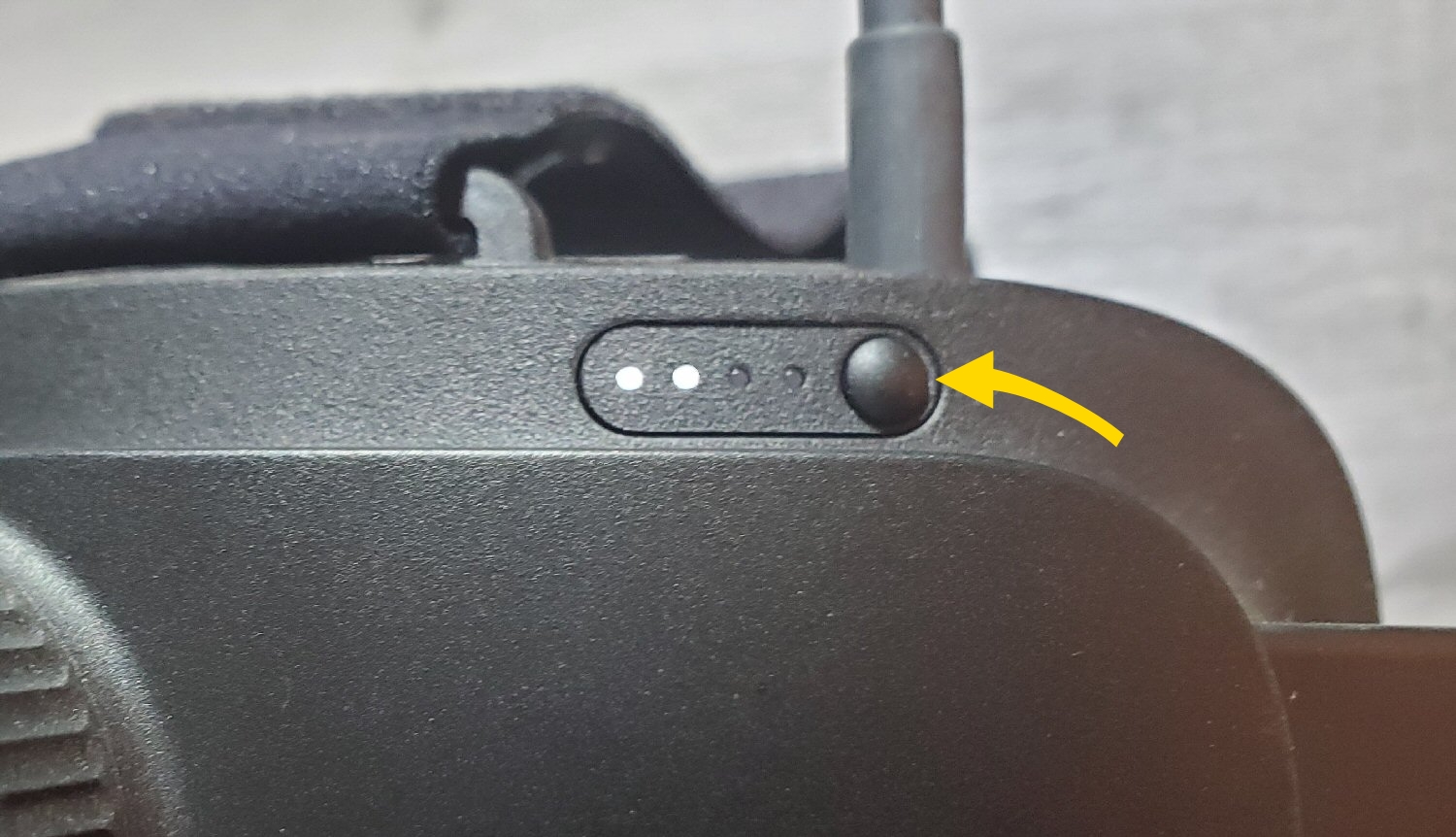
- Turn on your headset by pressing the Power button for five to seven seconds.
- Put on the headset.
- Accept the boundary messages.
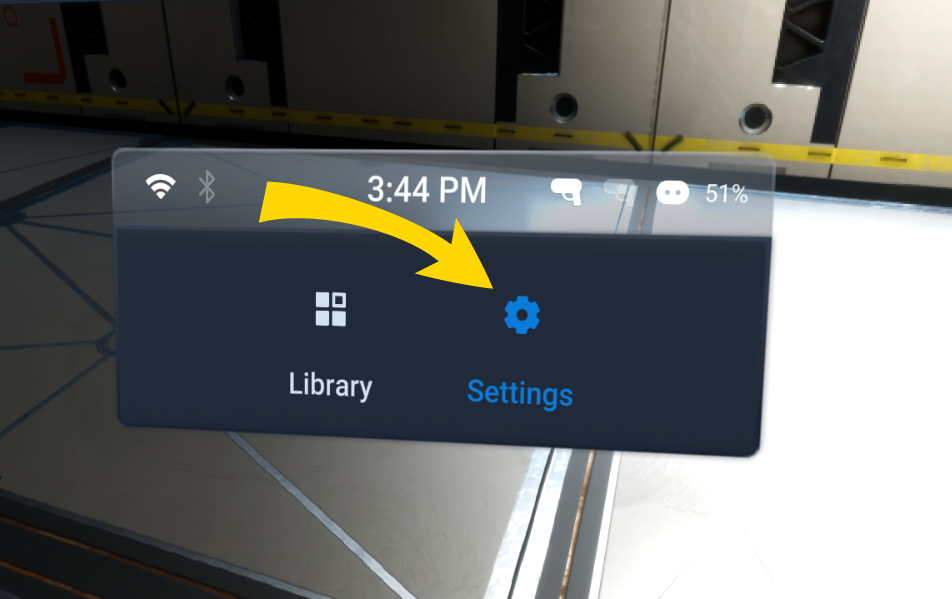
- In the headset library, use your hand to pinch to select Settings.
- Select Inputs.
- Select Controllers.
- Select the Axon icon if it's not already selected. If the third icon is already selected, see step 8.
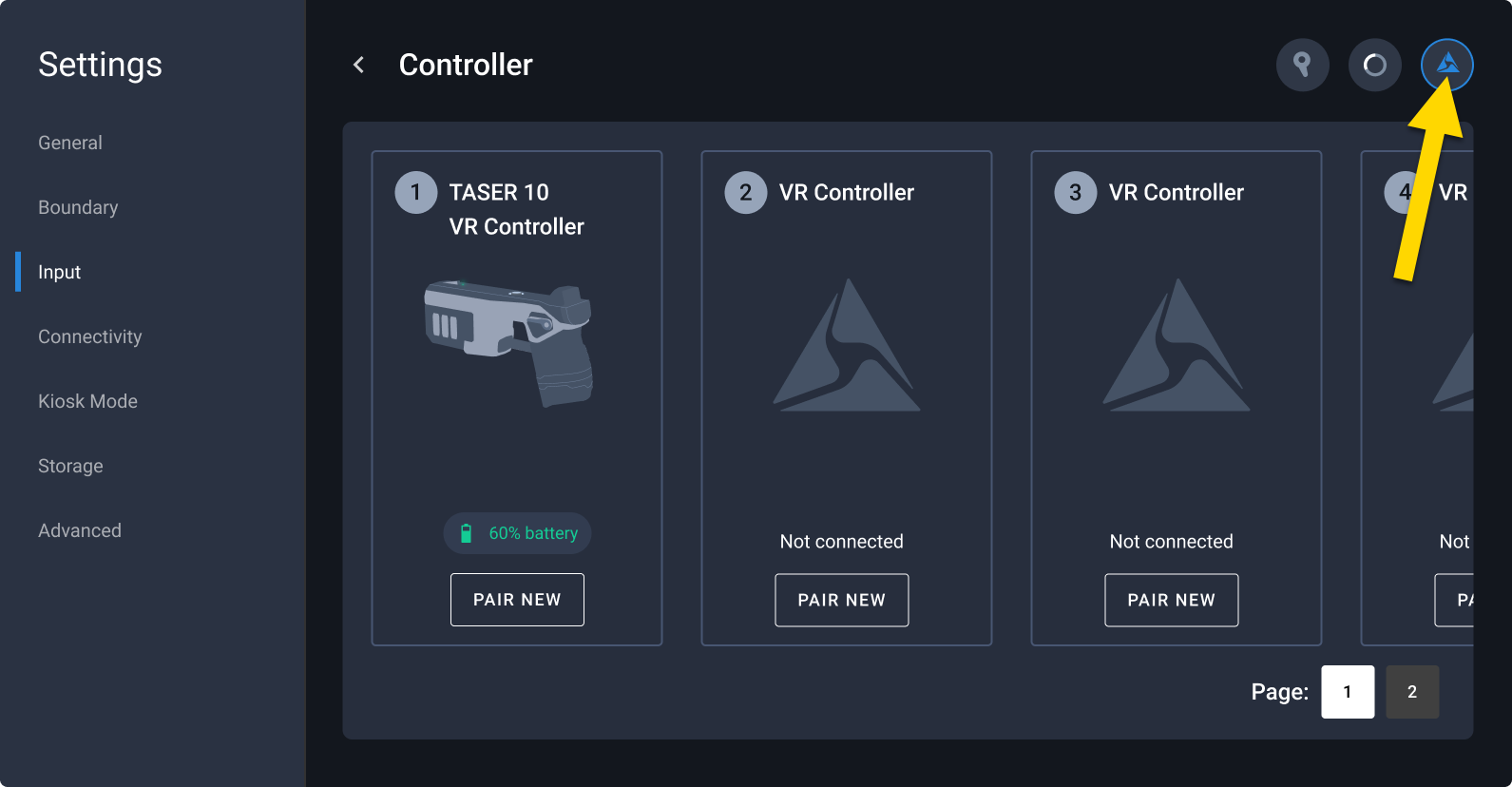
- Before you can pair a Handgun VR Controller or TASER VR Controller, you need to unpair any paired controllers. Select Continue.
- The headset will automatically activate passthrough mode, allowing you to see your real surroundings. Resume the process from step 9.
- If the VR Controller icon is already selected, select Pair.
- The headset will automatically activate passthrough mode, allowing you to see your real surroundings. Resume the process from step 9.
- The headset will automatically activate passthrough mode, allowing you to see your real surroundings. Resume the process from step 9.
- Turn on your VR Controller.
- Press the button on the top until the pairing LED blinks blue .
- After pairing completes, the pairing LED will turn solid green and a message confirms the pairing was successful.
- After the message closes, the inputs screen now shows the paired VR Controller.
- Select Library to exit the pairing screen.
Pair a different VR Controller
Replacing VR Controllers is useful in these scenarios:
- You want to replace one VR Controller with another.
- You want to replace a VR Controller that is low on batteries with a fully charged VR Controller.
To replace a VR Controller:
- Turn on your headset by pressing the power button for five to seven seconds.
- Put on the headset.
- Accept the boundary messages.
- In the headset library, use your hand to pinch to select Settings.
- Select Inputs.
- Select Controllers.
- Select the Axon icon if it's not already selected.
- Select Pair New under the VR Controller you want to replace.
- The headset will activate passthrough mode, allowing you to see your real surroundings.
- Turn on your VR Controller.
- Press the button on the top until the pairing LED blinks blue .
- After pairing completes, the pairing LED will turn solid green and a message confirms the pairing was successful.
- After the message closes, the inputs screen now shows the paired VR Controller.
- Select Library to exit the pairing screen.
Pair multiple VR Controllers
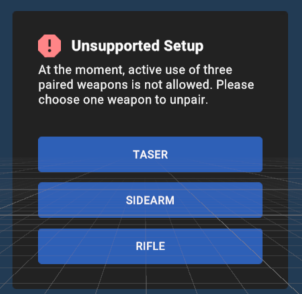
You can pair up to three VR Controllers to a headset at one time: a TASER VR Controller, a Handgun VR Controller, and a Rifle VR Controller.
If more than two controllers are paired when you launch Simulator Training, the app prompts you unpair a controller before continuing.
FAQ
Why is my Handgun VR Controller appearing in the wrong hand?
If multiple VR Controllers are paired and powered on, the system may assign one controller to each hand.
For example, if a TASER VR Controller is powered on and not placed in a holster, the system may interpret it as being held in one hand. This can cause the Handgun VR Controller to appear in the opposite hand.
To resolve this issue, place the unused VR Controller in a holster.
Troubleshooting
Controller is paired and turned off or out of range
Headsets remember paired VR Controllers for quicker access to your virtual reality experiences. If you have already paired a controller but don't see it, turn on the controller. The VR Controller will automatically pair.
VR Controller previously paired but now unable to connect to headset
If your VR Controller was previously paired to the headset and is now unable to connect to the headset, try turning off and turning back on the headset. This may resolve an issue with the Bluetooth®.
If that doesn't work, try the following:
- Go to Settings > Inputs > Controllers.
- Select the HTC wand VR controller icon.
- Select Continue in the dialog box to unpair your current VR Controllers.
- Select the TASER VR Controller icon.
- Select Continue in the dialog box to unpair your current VR Controllers.
- Try re-pairing the TASER VR Controllers again.
Paired controller has a firmware update available
If you see a firmware update available after pairing your controller, see Update controller firmware.


