Overview
|
|
Picatinny rail
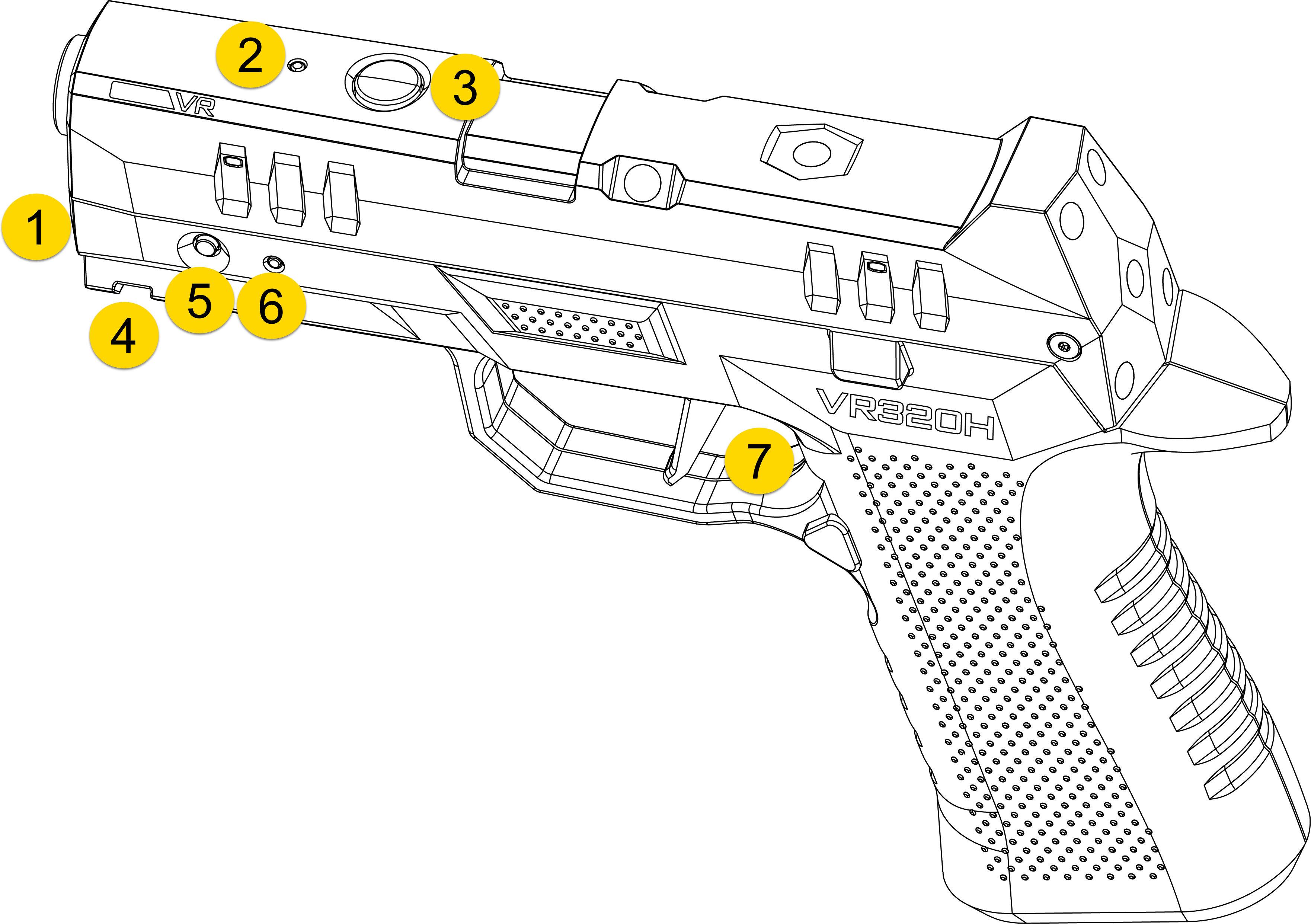
The controller contains a Picatinny rail beneath the barrel for modular VR accessories such as a tactical flashlight or laser.
Charging information
The controller's charging port is located at the front beside the barrel opening. Charge with any powered USB port. The Status LED blinks white  while charging and turns solid white
  at full charge. The controller cannot be used during charging.
Whenever powered on, the Status LED flashes to indicate battery level.
| State/Message | Sidelight LED Color |
|---|---|
| Battery >50% |
 Green Green |
| Battery 15–50% |
 Yellow Yellow |
| Battery 5–14% |
 Orange Orange |
| Battery 0–5% |  Red Red |
| Critical error (return VR Controller to Axon) |
 Red (rapid pulse) Red (rapid pulse) |
Do not add stickers or markings to the top of the Handgun VR Controller (VR320H) as these will affect internal sensors.
Magazine
This Handgun VR Controller (VR320H) does not have a removable magazine. The magazine reloads automatically in VR.
Timeout/sleep mode
If the controller enters sleep mode to conserve battery, all LEDs turn off. If this occurs, press Power to reactivate it.
Holster tracking
The Handgun VR Controller (VR320H) can track when it is holstered and unholstered and should work in the majority of duty holsters*.
*Compatible with most SIG P320 duty holsters.
App button
Use the round App button on top of the Handgun VR Controller (VR320H) for pairing and accessing the headset menu.
Pairing
Press firmly (so it clicks) for about three seconds and release to enter pairing mode. The Pairing LED behind the front sight will illuminate to indicate status:
-
 Blue – not paired
 -
 Blinking blue – trying to pair
 -
Green – paired
For details on pairing, see Pair controller to headset.
When pairing, don't hold the App button after the Pairing LED starts blinking; at ten seconds this will put the Handgun VR Controller (VR320H) into Sleep mode (
Headset menu
Use the App button to open the headset VR menu while using the HTC VIVE headset, allowing access to features such as pairing, Wi-Fi settings, starting a screen recording, exiting the application, or putting the controller in Sleep mode.
- Press the App button once to open the headset VR menu.
- Press the App button twice to enter or exit passthrough mode, which lets you see your surroundings in low-resolution black-and-white.
Sleep mode
There are multiple ways to put the Handgun VR Controller (VR320H) in Sleep mode:
- Press the App button for ten seconds.
- Move the Handgun VR Controller (VR320H) out of range of the headset for more than 30 seconds.
- The controller loses connection and goes to sleep 30 seconds after the headset:
- goes to sleep
- powers off
- is out of range of the Handgun VR Controller (VR320H)
Long-press the headset power button to turn the headset off, which will put the Handgun VR Controller (VR320H) into sleep mode.


