Get started with VR headset
The VR headset powers on at the main library displaying the apps and modules loaded on that headset.
To select from the library, hold your hand in front of the headset and make a pinch motion on the icon with your thumb and index finger. To scroll the list, pinch and drag. To access the library later, exit whatever application you are in or select Library.
Axon apps appear in the library and may be installed or modified by a firmware update. If you don't see Axon icons, or if the background is something other than the Axon training room, see the next section.
Initial setup
During initial setup you may see multiple prompts to update the firmware. Select OK to install each update.
To allow apps to automatically download to your headset, connect it to Wi-Fi. If you want to download a Community Engagement Training module, you'll need to manually download each one. For more information, see Manage Community Engagement Training modules.
If no Axon apps appear after all updates have been installed, see the FAQ Why are the Axon VR apps not in my library?
Settings
To adjust headset settings, select Settings at the bottom. Each category may have several subcategories; select a sub-menu using the arrow >. Return to the prior screen by selecting Return <.
General
Volume: Virtual method of adjusting the volume. Slide the indicator to increase or decrease volume.
Brightness: Adjust the display brightness by sliding the indicator.
Audio: Adjust microphone and auxiliary headphone settings.
Language: Select the language for menus and screen text.
Date & Time: Select the local time zone.
Double-Click Passthrough: Lets you double-click the button on the left side of the headset to turn on the passthrough cameras. Leave this enabled for best user experience.
System Update: Displays the current firmware version. Select Check Now to check for updates.
About: Select to view several informational screens.
Device Name: Lets you to rename the headset.
Headset Status: Displays the current battery status, Charge Level, IP Address, MAC Address, Bluetooth Address, and Serial Number.
Legal Information: Displays various guides and policies.
Regulatory Information: Displays FCC and assorted country compliance requirements.
Report Issue: Do not use this menu for troubleshooting or reporting issues. Contact Axon technical support.
Boundary
The headset will remember up to three defined training spaces. Use this menu to add, remove, or access them.
Inputs
Controller: Displays the pairing status and charge of each hand device like controllers and wrist trackers. You can also pair or switch hand devices from here.
Hand Tracking: Enable hand tracking to navigate menus and sub-menus without a paired controller.
Make sure hand tracking remains enabled during the initial setup process. If disabled, the headset may become locked when toggling between hand devices like controllers and wrist trackers, which requires the headset to be returned to Axon.
When using the virtual keyboard, the capitalization toggle does not automatically revert to lower case characters after selecting an upper case character.
Connectivity
If the headset can't connect to a Wi-Fi network, see the FAQ Why can't I connect to my secure Wi-Fi network?
Wi-Fi: Select > and follow the prompts. Once a Wi-Fi network has been added, it will be stored under the Saved Networks tab for future access.
VPN: Select > and follow the prompts. Once a VPN has been successfully added, it will be stored under the Saved Networks tab for future access.
Bluetooth: Select > to toggle Bluetooth on/off. Use to pair additional Bluetooth devices like a tablet. Select Pair New Device and select from listed available devices to initiate pairing.
VIVE Manager: This menu/submenu is not used at this time.
Kiosk Mode
This mode is not used. Do not make any changes here.
Storage
This mode is not used. Do not make any changes here.
Advanced
The only setting that may be adjusted within this menu is Sleep Mode. Select the amount of time without any interaction before the headset enters Sleep mode.
To temporarily keep the headset from entering Sleep mode between users during training, apply a piece of opaque tape over the top hole between the eye lenses.
Library icons
System time and battery charge of the headset appear in the title bar above the Library and Setting icons.
Hover over the Wi-Fi symbol  to display the currently connected Wi-Fi network, the Bluetooth symbol
  to display connected Bluetooth devices, or a controller icon to view the status of the connected device.
If the headset isn't connected to a Wi-Fi network, Bluetooth device, or controller, the respective icon will be grayed out.
Screenshots and recordings
Take a screenshot
- Tap the button on the left side of the headset.
- Select the Screenshot icon.
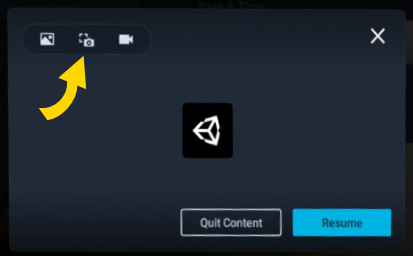
- Orient your view as needed before the headset finishes its countdown and takes the picture.
Take a recording
- Tap the button on the left side of the headset.
- Select the Recording icon.
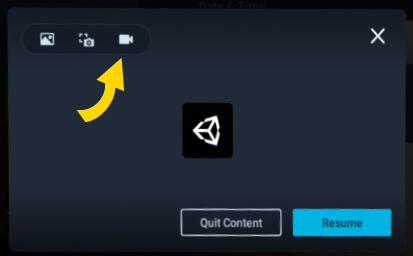
- After the brief countdown, navigate through the content you'd like to record.
- To end the recording, tap the left button again and hover over the red recording icon.
Access recorded content
To access recordings:
- Connect the headset (powered on) to a computer with a USB-C cable.
- In the headset, select File Transfer to make the headset visible to your computer.
- In Windows File Manager, select [name of headset] > Internal shared storage, then:
- For screenshots, select Pictures > Screenshots.
- For recordings, select Movies > Screenrecorder.


