Sticker types
Your agency should have received sets of stickers for your VR headsets. If not, please reach out to your Customer Success Manager (CSM). Each set includes two stickers: Device # (left) and a QR code (right). These stickers serve as a direct line of communication between Axon VR users and Axon's research and development team.
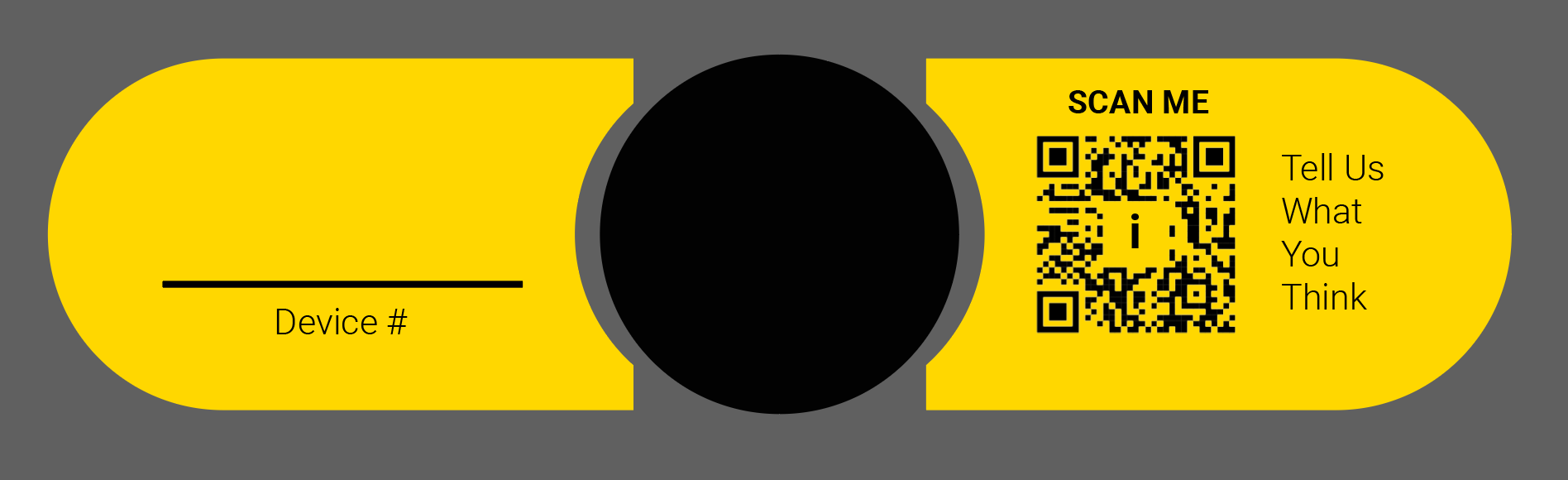
Device # sticker
The left sticker has a Device # line, which allows your agency to assign a shorthand ID to each individual headset for planning and organization purposes. This identifier is intended solely for internal use within your agency. Ensure you use a permanent marker when writing identifiers on these stickers.
QR code sticker
The right sticker has a QR code that connect users to a product feedback form, enabling access to support, reporting bugs, sharing general feedback, or requesting new product features. By using these stickers, we empower users to actively participate in the refinement and evolution of Axon VR, fostering a collaborative environment where ideas are not only welcomed but integral to our development process.
Apply stickers to the headset
To apply stickers to the headset:
- Hold the headset with the back facing you.
- Place the QR sticker to the right of the adjustment knob.
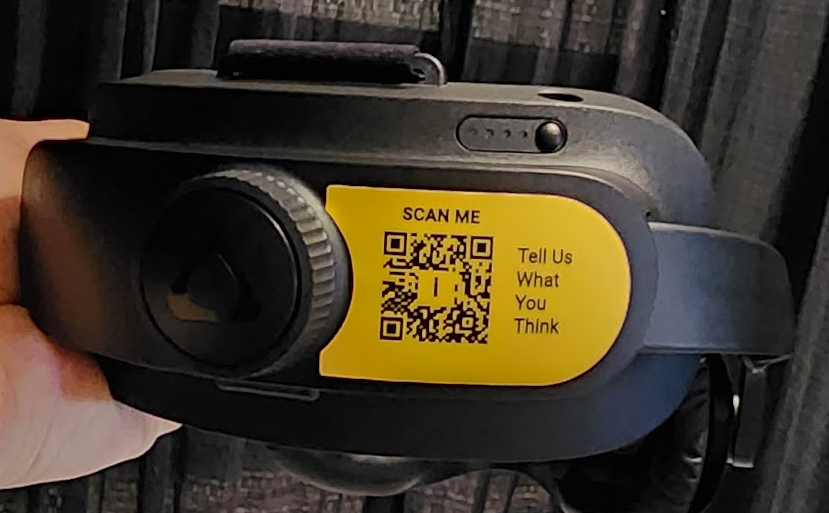
- Write the identifier on the Device # line using a permanent marker.
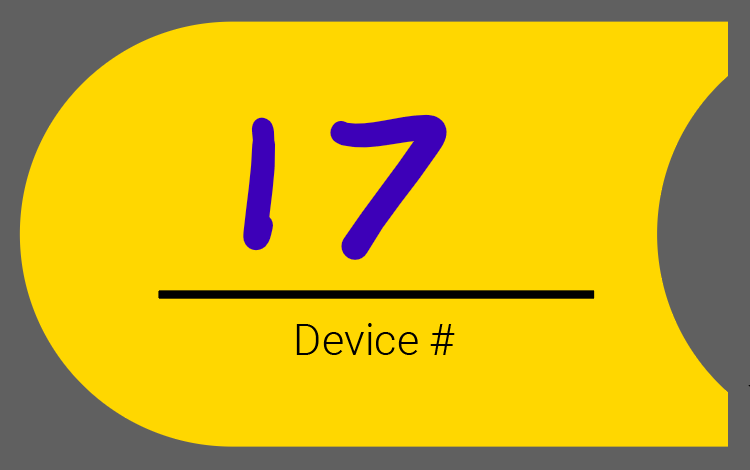
- Place the Device # sticker to the left of the adjustment knob.
Submit feedback
To submit feedback:
- Scan the QR code with a smartphone or tablet.
- Tap the link that appears.
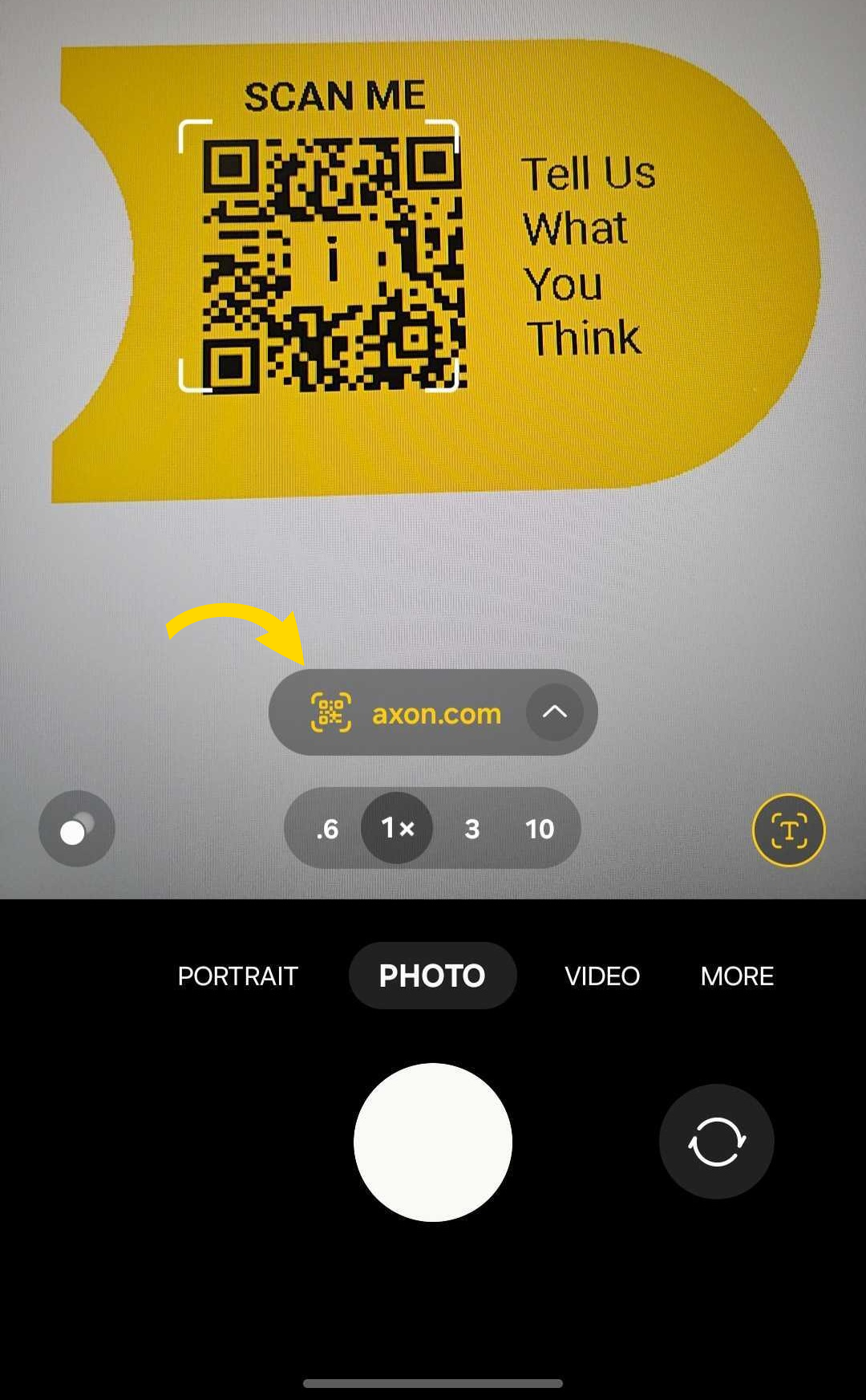
- Your device's web browser will open to the feedback page. Fill out the form.
- If you want to receive a response, select Yes from the Would you like to be contacted back? drop-down menu.
- Review Axon's Global Privacy Policy and select the checkbox to consent to this policy.
- Click Submit. Your feedback is submitted to Axon.


